
1. Introduction
This manual provides essential information for the proper setup, operation, and maintenance of your MSI MAG 272QPW QD-OLED X28 27-inch QHD Gaming Monitor. Please read this manual thoroughly before using the product to ensure optimal performance and safety.
The MSI MAG 272QPW QD-OLED X28 is a high-performance gaming monitor featuring a 27-inch QD-OLED panel with a 2560x1440 (QHD) resolution, a 280Hz refresh rate, and an ultra-fast 0.03ms (GtG) response time. It is designed to deliver an immersive visual experience with vibrant colors, deep blacks, and smooth motion, suitable for demanding gaming and professional applications.
2. Safety Information
Observe the following safety precautions to prevent damage to the monitor and ensure user safety:
- Power Source: Use only the power adapter supplied with the monitor. Ensure the power outlet is properly grounded.
- Ventilation: Do not block ventilation openings. Maintain adequate space around the monitor for proper airflow.
- Liquid Exposure: Keep the monitor away from water or other liquids. Do not operate in high humidity environments.
- Cleaning: Disconnect the power cord before cleaning. Use a soft, dry cloth. Avoid abrasive cleaners or solvents.
- Placement: Place the monitor on a stable, level surface. Avoid direct sunlight or heat sources.
- Servicing: Do not attempt to service the monitor yourself. Refer all servicing to qualified personnel.
3. Package Contents
Verify that all items are present in the package. If any item is missing or damaged, contact your retailer.
- MSI MAG 272QPW QD-OLED X28 Monitor
- Monitor Stand (Base and Neck)
- Power Adapter and Power Cord
- HDMI Cable
- DisplayPort Cable
- USB Type-C Cable
- Documentation (Quick Start Guide, Warranty Card)
4. Setup
4.1 Assembling the Monitor Stand
- Carefully remove the monitor from its packaging, keeping it protected on a soft surface.
- Attach the stand neck to the monitor panel. Ensure it clicks securely into place or is fastened with screws as indicated in the quick start guide.
- Attach the stand base to the stand neck and secure it with the provided screw.
- Place the assembled monitor on a stable desk.
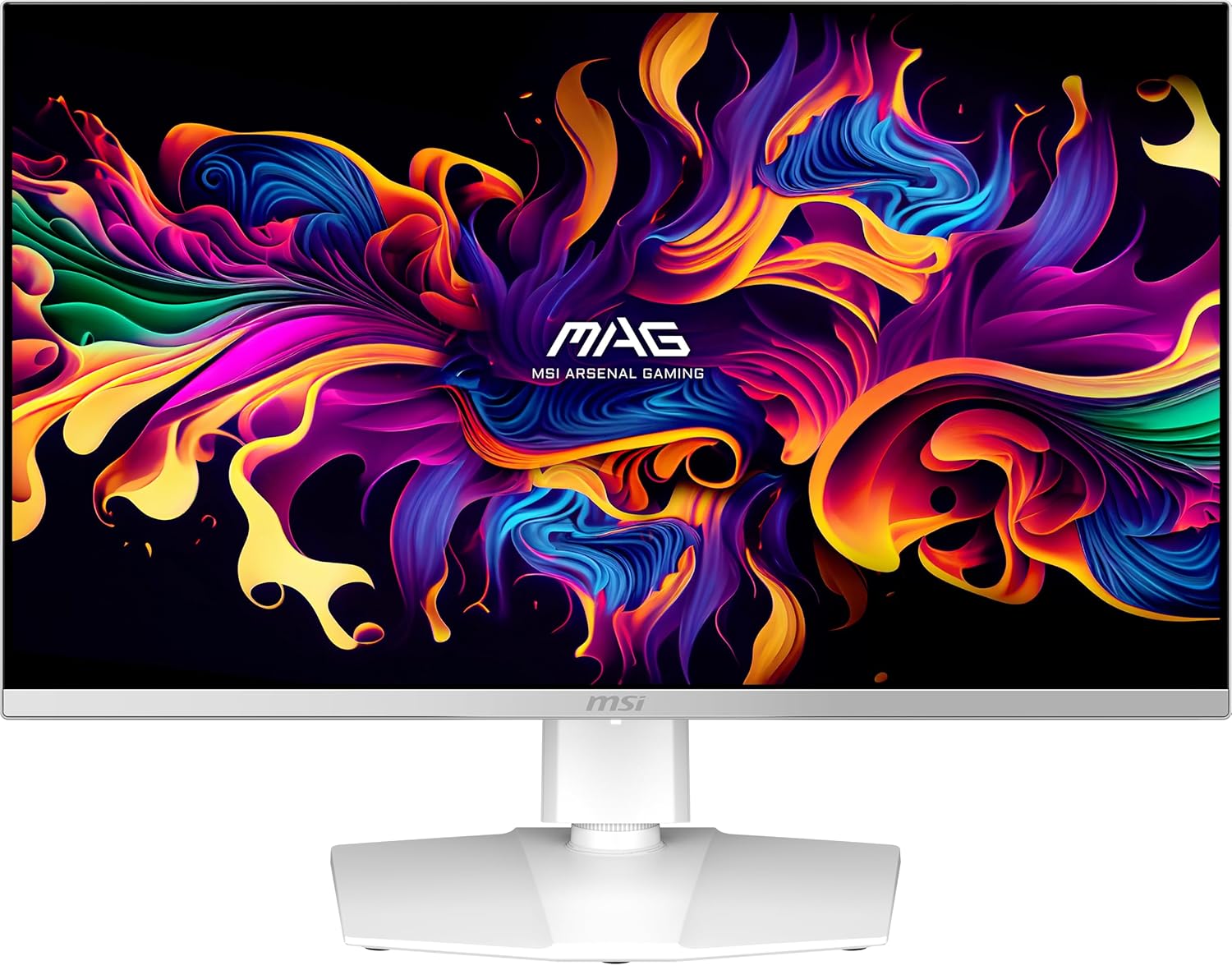
Image: Front view of the MSI MAG 272QPW QD-OLED X28 monitor with its stand. This illustrates the monitor's appearance after assembly.
4.2 Connecting to a Computer
The monitor supports multiple input options. Choose the appropriate cable for your system.
- DisplayPort: Connect one end of the DisplayPort cable to the monitor's DisplayPort input and the other end to your computer's DisplayPort output.
- HDMI: Connect one end of the HDMI cable to the monitor's HDMI input and the other end to your computer's HDMI output. The monitor features HDMI 2.1 ports for high bandwidth.
- USB Type-C: Connect the USB Type-C cable to the monitor's USB Type-C input and your computer's compatible USB Type-C port for video, data, and power delivery (if supported by your computer).

Image: Diagram showing the rear input/output ports of the MSI MAG 272QPW QD-OLED X28 monitor, including DisplayPort 1.4a, HDMI 2.1, USB Type-C, and Headphone Out.
4.3 Power Connection
- Connect the power adapter to the monitor's power input.
- Plug the power cord into the power adapter and then into a grounded electrical outlet.
- Press the power button on the monitor to turn it on.
5. Operating Instructions
5.1 On-Screen Display (OSD) Navigation
The monitor features an intuitive OSD menu for adjusting various settings. Use the joystick or buttons located on the monitor (typically on the rear or bottom right) to navigate.
- Joystick Up/Down: Navigate through menu options.
- Joystick Left/Right: Adjust values or move between sub-menus.
- Joystick Press (Center): Select an option or confirm a setting.
- Back Button: Return to the previous menu or exit the OSD.
5.2 Key OSD Settings
- Gaming: Adjust refresh rate, response time, Adaptive-Sync, and other gaming-specific features.
- Image: Control brightness, contrast, sharpness, and color temperature.
- Input Source: Manually select the video input (DisplayPort, HDMI, USB Type-C).
- PIP/PBP: Configure Picture-in-Picture or Picture-by-Picture modes (if available).
- System: General settings like OSD language, transparency, and power-saving options.
6. Key Features
6.1 QD-OLED Panel Technology
The MSI MAG 272QPW QD-OLED X28 utilizes a Quantum Dot OLED panel, offering superior image quality with true blacks, infinite contrast, and vibrant colors. This technology provides a wider color gamut and higher peak brightness compared to traditional OLEDs.

Image: A visual comparison demonstrating the difference between WQHD (2560x1440) and FHD (1920x1080) resolutions on the monitor, highlighting the superior detail of WQHD.
6.2 High Refresh Rate and Response Time
Experience ultra-smooth, blur-free gameplay with a 280Hz refresh rate and a lightning-fast 0.03ms (GtG) response time. These specifications are crucial for competitive gaming, minimizing input lag and ghosting.

Image: A graphic illustrating the monitor's 280Hz refresh rate and 0.03ms GtG response time, depicted over a fast-moving car scene to emphasize motion clarity.
6.3 VESA Certified DisplayHDR True Black 400
The monitor is VESA DisplayHDR True Black 400 certified, ensuring exceptional HDR performance with deep blacks and bright highlights, providing a more immersive visual experience.

Image: A split-screen comparison showing the enhanced contrast and detail provided by VESA Certified DisplayHDR True Black 400, with a vibrant landscape scene.
6.4 VESA ClearMR 15000 Certification
With VESA ClearMR 15000 certification, the monitor guarantees a superb motion clarity score, significantly reducing motion blur in fast-paced scenes.

Image: A split-screen comparison demonstrating the clarity of motion with VESA ClearMR 15000 certification, showing a clear image on one side and a blurred image on the other.
6.5 OLED Care 2.0
MSI OLED Care 2.0 is an advanced suite of features designed to protect the QD-OLED panel and significantly reduce the risk of image retention (burn-in) over time, ensuring the longevity of your monitor.

Image: The MSI MAG 272QPW QD-OLED X28 monitor displaying a vibrant image, with an "OLED Care 2.0" logo, indicating the burn-in prevention features.
6.6 Less Blue Light Pro
The monitor incorporates Less Blue Light Pro technology, which reduces harmful blue light emissions without compromising color accuracy, providing a more comfortable viewing experience during extended use.

Image: A visual representation of the Less Blue Light Pro feature, showing a city skyline with reduced blue light on one side for eye comfort.
7. Maintenance
7.1 Cleaning the Monitor
- Always disconnect the power cord before cleaning.
- Use a soft, lint-free cloth slightly dampened with water or a mild, non-abrasive screen cleaner.
- Do not spray cleaner directly onto the screen. Apply it to the cloth first.
- Avoid using alcohol, benzene, thinners, or other harsh chemicals, as they can damage the screen surface.
7.2 OLED Panel Care
To maximize the lifespan of your QD-OLED panel and prevent image retention:
- Enable and utilize the OLED Care 2.0 features in the OSD menu. These features automatically perform pixel refresh and shift functions.
- Avoid displaying static images for extended periods.
- Use screen savers when the monitor is idle.
- Turn off the monitor when not in use.
8. Troubleshooting
| Problem | Possible Cause | Solution |
|---|---|---|
| No image on screen |
|
|
| Image is blurry or distorted |
|
|
| No sound from headphones |
|
|
| Image retention (burn-in) |
|
|
9. Specifications
| Feature | Description |
|---|---|
| Model Name | MAG 272QPW QD-OLED X28 |
| Panel Size | 27 Inches |
| Panel Type | QD-OLED |
| Resolution | 2560 x 1440 (QHD) |
| Aspect Ratio | 16:9 |
| Refresh Rate | 280Hz |
| Response Time | 0.03ms (GtG) |
| HDR Support | VESA DisplayHDR True Black 400 |
| Motion Clarity | VESA ClearMR 15000 Certified |
| Video Inputs | DisplayPort 1.4a, HDMI 2.1 (x2), USB Type-C (DP Alt.) |
| Audio Output | Headphone Out |
| Dimensions (with stand) | 24.06 x 9.52 x 20.98 inches |
| Weight (with stand) | 22.65 Pounds |
| Manufacturer | MSI |
10. Warranty and Support
MSI provides a limited warranty for this product. For detailed warranty terms and conditions, please refer to the warranty card included in your package or visit the official MSI website.
For technical support, driver downloads, or further assistance, please visit the MSI support website or contact MSI customer service. Have your monitor's model name (MAG 272QPW QD-OLED X28) and serial number ready when contacting support.
MSI Official Website: www.msi.com


