
1. Introduction
This manual provides essential information for the safe and efficient operation of your JIKEFUN CZ26 RC Drone. Please read this manual thoroughly before operating the drone to ensure proper usage and to prevent damage or injury. The CZ26 is a compact quadcopter equipped with an HD camera, optical flow positioning, and various flight modes designed for both indoor and outdoor use.

Figure 1.1: JIKEFUN CZ26 RC Drone with its remote control and packaging.
2. Safety Guidelines
- Operate the drone in open areas, away from people, animals, and obstacles.
- Maintain a safe distance from power lines, buildings, and water bodies.
- Do not operate in strong winds or adverse weather conditions.
- Ensure all propellers are securely attached and undamaged before flight.
- Keep fingers and hair away from rotating propellers.
- Adult supervision is recommended for users under 14 years of age.
- Do not attempt to modify the drone or its components.
3. Package Contents
Verify that all items are present in the package:
- CZ26 RC Drone (x1)
- Remote Control (x1)
- Spare Blades (x4)
- Battery (x1)
- USB Cable (x1)
- Screwdriver (x1)
- Instructions (x2)
4. Component Identification
4.1 Drone Components

Figure 4.1: Top view of the CZ26 drone highlighting its LED lights and central body.
- HD Camera: Located at the front of the drone, capable of capturing photos and videos.
- Propellers: Four propellers with protective guards for safe flight.
- LED Lights: Integrated lights for visibility and aesthetic appeal.
- Battery Compartment: Located on the underside of the drone for battery insertion.
- Power Button: Located on the top surface of the drone for powering on/off.
4.2 Remote Control Components

Figure 4.2: Detailed layout of the remote control functions.
- Left Joystick (Throttle/Yaw): Controls altitude and rotation.
- Right Joystick (Pitch/Roll): Controls forward/backward and left/right movement.
- One-Click Takeoff/Landing Button: Initiates automatic takeoff or landing.
- Speed Switch: Adjusts flight speed (low, medium, high).
- Photo/Video Buttons: Captures images or starts/stops video recording.
- 360° Roll Button: Executes a stunt roll.
- Headless Mode/Return Button: Activates headless mode or initiates return-to-home.
- Adjustable Camera Control: Lever to adjust the camera angle.
- Phone Holder: Mount for a smartphone to view real-time footage.
5. Setup
5.1 Battery Charging and Installation
- Charge the drone battery using the provided USB cable. The battery features a USB-C charging port.
- Insert the fully charged battery into the drone's battery compartment until it clicks into place.
- Install 3 AAA batteries (not included) into the remote control's battery compartment.
5.2 Remote Control and App Setup
- Attach the phone holder to the remote control.
- Download the dedicated control app to your smartphone.
- Place your smartphone securely in the phone holder.
- Power on the drone by pressing and holding its power button.
- Power on the remote control by sliding the power switch.
- Connect your smartphone to the drone's Wi-Fi network.
- Open the app to establish a connection with the drone for real-time image transmission.

Figure 5.1: Drone and remote control setup for app-controlled flight and real-time image viewing.
6. Operation
6.1 Basic Flight Controls
- Power On: Press and hold the power button on the drone until LED lights illuminate. Turn on the remote control.
- Pairing: Ensure the drone and remote control are paired. If not, follow the instructions in the manual to pair them.
- One-Click Takeoff: Press the one-click takeoff button on the remote control. The drone will automatically ascend and hover.
- Altitude Control: Use the left joystick to increase or decrease altitude.
- Directional Control: Use the right joystick to move the drone forward, backward, left, or right.
- One-Click Landing: Press the one-click landing button. The drone will automatically descend and land.
Video 6.1: Demonstration of the CZ26 RC Quadcopter's basic flight functions, including one-click takeoff and landing.
6.2 Camera Operation
- Adjustable Camera: Use the dedicated lever on the remote control to adjust the camera's angle (up to 90°).
- Photo Capture: Press the photo button on the remote control to take a still image.
- Video Recording: Press the video button to start recording. Press again to stop.
- Real-Time Transmission: View live camera feed on your smartphone via the app.
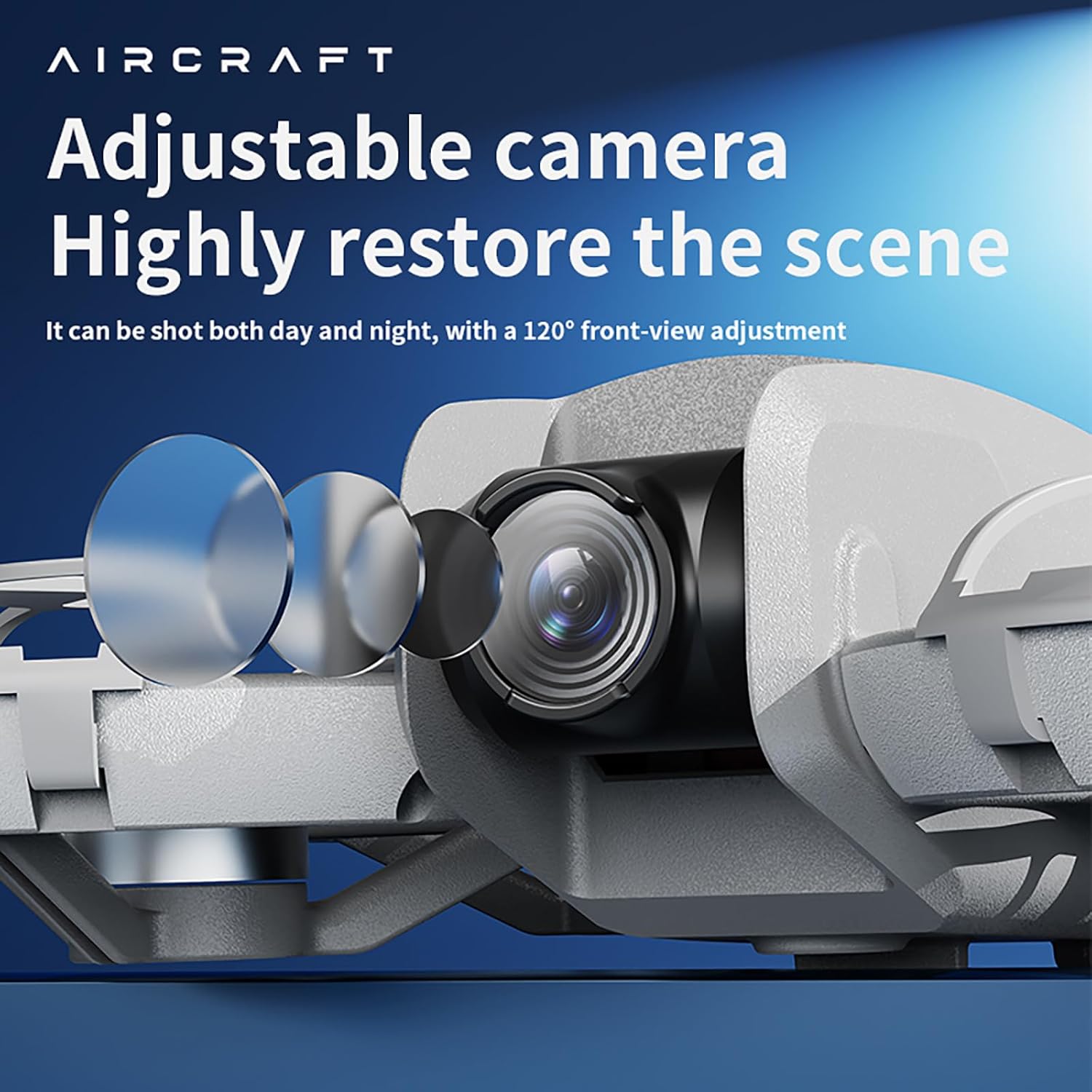
Figure 6.2: The drone features an adjustable camera for varied perspectives.
6.3 Advanced Features
- Optical Flow Positioning: Provides stable hovering and precise positioning, suitable for both indoor and outdoor environments.
- 360° Roll: Execute impressive aerial stunts with a single button press.
- Obstacle Avoidance: The drone is equipped with sensors to detect and avoid obstacles, enhancing flight safety.
- Trajectory Flight: Draw a flight path on your smartphone screen, and the drone will follow it automatically.
- Multi-Gear Speed Switching: Select between different speed modes (low, medium, high) for varied flight experiences.
Video 6.3: Overview of the drone's advanced features including optical flow positioning, 360° roll, and high-speed flight capabilities.
7. Maintenance
- Cleaning: Use a soft, dry cloth to clean the drone and remote control. Avoid water or harsh chemicals.
- Propeller Replacement: If a propeller is damaged, use the provided screwdriver to replace it with a spare blade. Ensure the new blade is securely fastened.
- Battery Care: Store batteries in a cool, dry place. Do not overcharge or over-discharge.
- Storage: When not in use, store the drone and its accessories in the provided carrying case to protect them from dust and damage.
8. Troubleshooting
- Drone not powering on: Ensure the battery is fully charged and correctly installed.
- Remote control not connecting: Check if the remote control batteries are installed correctly and have sufficient charge. Ensure the drone and remote are powered on and within range.
- Unstable flight: Calibrate the drone before flight. Check for damaged propellers and replace if necessary. Ensure optical flow sensors are clean.
- No image on app: Verify that your smartphone is connected to the drone's Wi-Fi network and the app is open.
- Short flight time: Ensure batteries are fully charged. Flight time can vary based on usage and environmental conditions.
9. Specifications

Figure 9.1: Dimensions of the CZ26 RC Drone.
| Feature | Specification |
|---|---|
| Model Name | CZ26 |
| Video Capture Resolution | 4K UHD |
| Control Channels | 2 CHANNELS |
| Flight Time | 5~10 minutes |
| Remote Distance | 80-100 meters |
| Charging Time | About 60 minutes |
| Drone Weight | About 123g (4.3 ounces) |
| Product Dimensions | 6.69"L x 5.91"W x 1.57"H |
| Material | Plastic |
| Connectivity Technology | Wi-Fi |
| Battery Cell Composition | Lithium Polymer |
| Controller Battery | 3*AAA (Not Included) |
| Operator Skill Level | Beginner, Intermediate |
10. Warranty and Support
For warranty information, technical support, or service inquiries, please refer to the contact details provided with your purchase or visit the official JIKEFUN website. Keep your proof of purchase for any warranty claims.