
1. Introduction
This manual provides comprehensive instructions for the FOSSIBOT F109S Rugged Smartphone. It covers device setup, operation, maintenance, and troubleshooting to ensure optimal performance and longevity of your device. The F109S is designed for durability, featuring IP68/IP69K water and dust resistance and MIL-STD-810H shockproof standards, making it suitable for challenging environments.
2. Package Contents
Verify that all items are present in the package:
- FOSSIBOT F109S Smartphone
- Type-C USB Cable
- 18W Charger
- User Manual / Warranty Card
- SIM Card Pin

Image: Contents of the FOSSIBOT F109S retail package, including the smartphone, USB cable, charger, user manual, and SIM pin.
3. Device Overview
The FOSSIBOT F109S features a robust design with a large main display and an innovative rear display for quick access to information.

Image: Front and rear view of the FOSSIBOT F109S smartphone, highlighting the main screen and the circular rear display.
3.1 Key Components
- Main Display: 6.745-inch HD+ screen.
- Rear Display: 1.32-inch circular display for notifications and time.
- Cameras: 50MP AI Main Camera, 16MP Front Camera, 5MP Macro Camera.
- Ports: USB Type-C charging port.
- Buttons: Power button, Volume buttons, Customizable side button.
- Sensors: Fingerprint sensor (rear-mounted), NFC.

Image: Detailed view of the FOSSIBOT F109S side, showing the SIM/TF card slot, custom button, and fingerprint sensor location.
4. Setup
4.1 SIM Card and TF Card Installation
- Locate the SIM card tray on the side of the device.
- Insert the provided SIM ejector tool into the small hole next to the tray and press firmly until the tray pops out.
- Place your Nano-SIM card(s) and/or TF card (microSD card) into the designated slots on the tray. Ensure the gold contacts face downwards.
- Carefully reinsert the tray into the phone until it clicks into place.
4.2 Initial Power On
- Press and hold the Power button (located on the side) until the FOSSIBOT logo appears on the screen.
- Follow the on-screen prompts to complete the initial setup, including language selection, Wi-Fi connection, and Google account login.
4.3 Charging the Battery
Before first use, fully charge the device. Connect the Type-C USB cable to the phone's charging port and the other end to the 18W charger. Plug the charger into a power outlet.

Image: Illustration of the FOSSIBOT F109S charging, highlighting its 10600mAh battery and 18W fast charging capability, along with OTG reverse charging.
5. Operating Instructions
5.1 Main Display Navigation
The F109S runs on Android 15, offering an intuitive user interface. Navigate using touch gestures: swipe, tap, pinch, and spread. Customize your home screen with widgets and app shortcuts.

Image: Various screens of the Android 15 operating system displayed on the FOSSIBOT F109S, showcasing its user interface.
5.2 Rear Display Functionality
The 1.32-inch circular rear display provides quick access to essential information without needing to activate the main screen. It can show time, date, battery level, and incoming call notifications. Customize its appearance through the phone's settings.
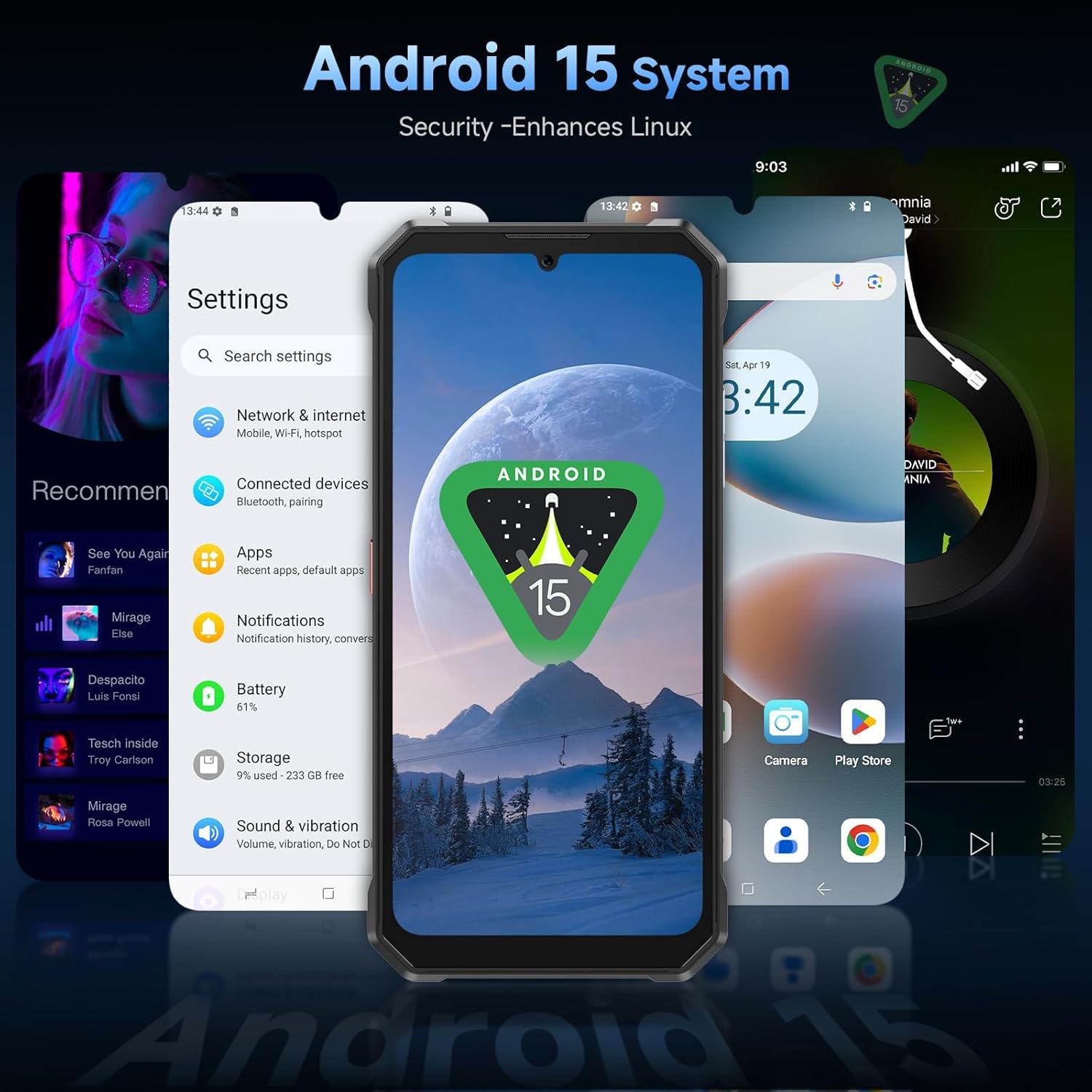
Image: Close-up of the FOSSIBOT F109S's innovative rear display, showing various customizable dial designs and notification examples.
5.3 Camera Operation
The F109S is equipped with a 50MP AI main camera, a 16MP front camera, and a 5MP macro camera. Open the Camera application to access various modes such as Photo, Video, Portrait, Night, and Macro. Tap on the screen to focus and press the shutter button to capture images or start recording.
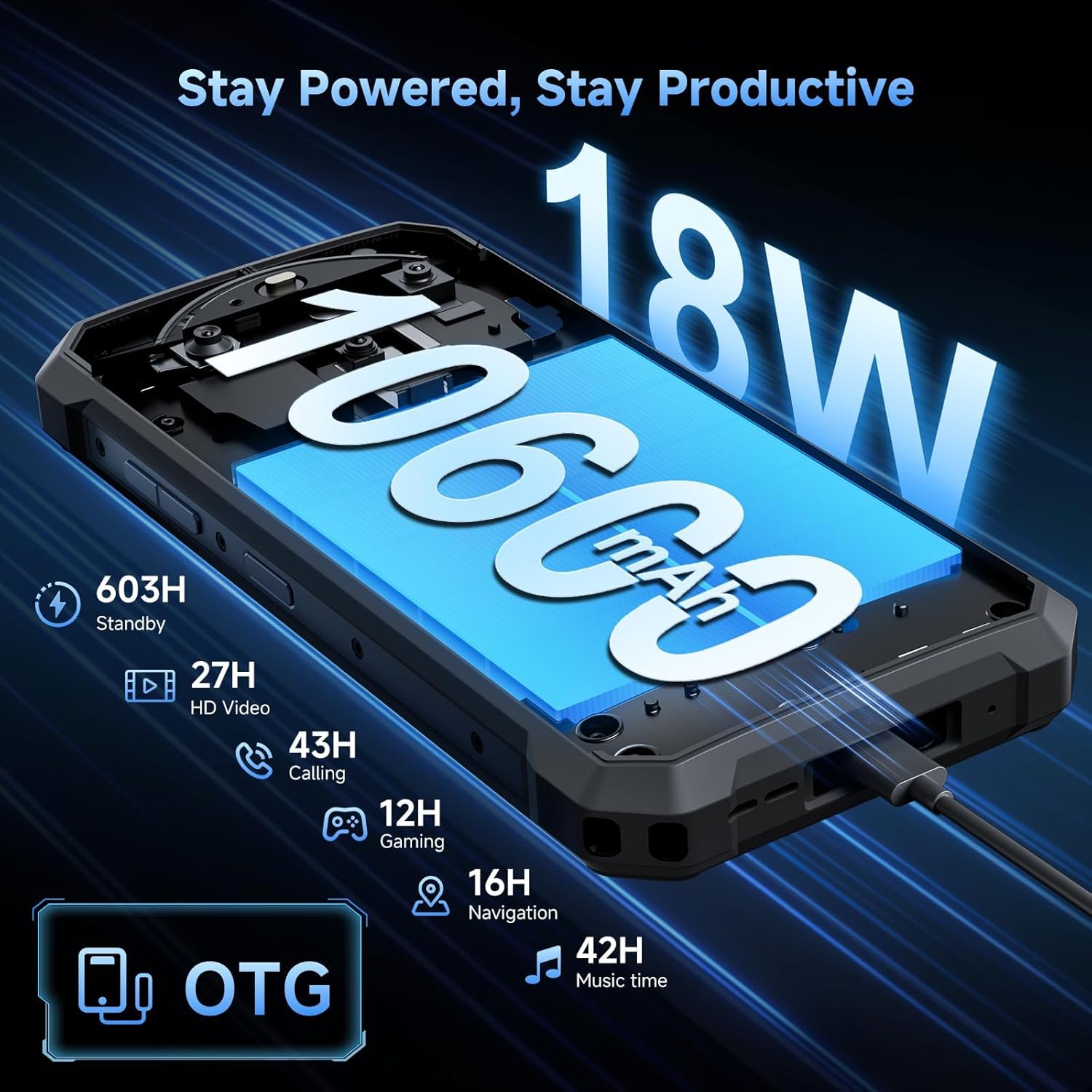
Image: Overview of the FOSSIBOT F109S camera system, detailing the 50MP main camera, 16MP front camera, and 5MP macro camera, with example photos.
5.4 Battery Management
The 10600mAh battery provides extended usage times. To optimize battery life, adjust screen brightness, disable unnecessary background apps, and use power-saving modes. The device supports 18W fast charging for quick power replenishment and OTG reverse charging to power other devices.
5.5 Connectivity and Navigation
The F109S supports Dual SIM 4G LTE for global network coverage. It includes NFC for contactless payments and data transfer. For navigation, the device integrates GPS, GLONASS, Beidou, and Galileo systems for accurate positioning.
5.6 Security Features
Unlock your device using facial recognition or the rear-mounted fingerprint sensor. Configure these options in the Security settings menu.
6. Maintenance
6.1 Water and Dust Resistance
The FOSSIBOT F109S is IP68/IP69K rated, meaning it is resistant to dust ingress and can withstand immersion in water up to 1.5 meters for 30 minutes. It also meets MIL-STD-810H standards for drop resistance.
- Ensure all port covers are securely closed before exposing the device to water or dust.
- Do not intentionally submerge the device in corrosive liquids or saltwater.
- If the device gets wet, dry it thoroughly with a clean cloth before charging or opening any ports.
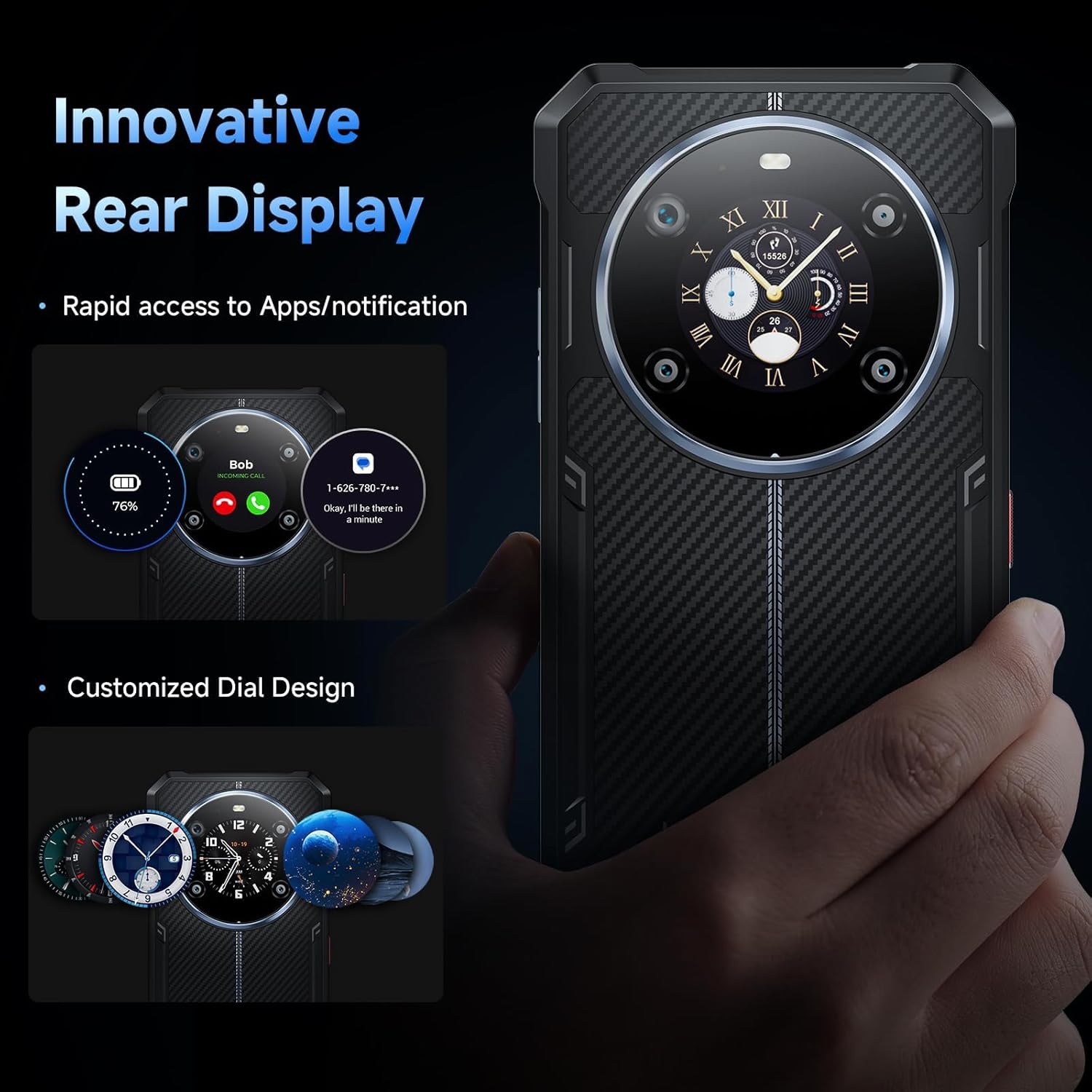
Image: Visual representation of the FOSSIBOT F109S's rugged features, including resistance to drops, water immersion, and dust.
6.2 Cleaning
Use a soft, lint-free cloth to clean the screen and body of the phone. For stubborn dirt, a slightly damp cloth can be used. Avoid harsh chemicals or abrasive materials.
7. Troubleshooting
This section addresses common issues you might encounter with your FOSSIBOT F109S.
| Issue | Possible Solution |
|---|---|
| Device does not power on | Ensure the battery is charged. Connect the charger and wait a few minutes before attempting to power on again. If unresponsive, press and hold the Power button for 10-15 seconds to force a restart. |
| Poor network signal | Check if the SIM card is correctly inserted. Move to an area with better network coverage. Restart the device. Verify network settings in 'Settings > Network & internet'. |
| Apps are crashing or freezing | Close and reopen the app. Clear the app's cache and data in 'Settings > Apps'. Ensure the app is updated to the latest version. If the issue persists, uninstall and reinstall the app. |
| Battery drains quickly | Reduce screen brightness. Disable Wi-Fi, Bluetooth, and GPS when not in use. Close background applications. Check battery usage in 'Settings > Battery' to identify power-hungry apps. |
| Fingerprint sensor not working | Ensure your finger is clean and dry. Re-register your fingerprint in 'Settings > Security & privacy > Device unlock'. |
8. Specifications
Detailed technical specifications for the FOSSIBOT F109S:
| Feature | Specification |
|---|---|
| Model Name | F109S |
| Operating System | Android 15 |
| Processor | MediaTek Helio G81 Octa-core (2.0 GHz) |
| RAM | 24 GB (6GB physical + 18GB virtual) |
| Internal Storage | 256 GB ROM |
| Expandable Storage | Up to 2TB via TF Card |
| Main Display | 6.745 Inches HD+ (720 x 1600 Resolution, 60 Hz Refresh Rate) |
| Rear Display | 1.32 Inches Round Screen |
| Main Camera | 50MP F1.8 AI Main Camera |
| Front Camera | 16MP F2.45 |
| Macro Camera | 5MP |
| Battery Capacity | 10600 mAh Lithium Polymer |
| Charging | 18W Fast Charging, OTG Reverse Charging |
| Durability | IP68/IP69K Water & Dust Resistant, MIL-STD-810H Shockproof |
| Connectivity | Dual SIM, 4G LTE, NFC, Bluetooth, Wi-Fi |
| Navigation | GPS+GLONASS+Galileo+Beidou+Qzss |
| Security | Facial Recognition, Rear Fingerprint Sensor |
| Dimensions | 3.18 x 0.69 x 0.73 inches |
| Weight | 4.6 ounces (129 Grams) |
9. Warranty and Support
The FOSSIBOT F109S comes with a standard manufacturer's warranty. Please refer to the warranty card included in your package for specific terms and conditions, including warranty period and coverage details.
For technical support, troubleshooting assistance, or warranty claims, please contact FOSSIBOT customer service through their official website or the contact information provided in your warranty documentation. Keep your proof of purchase for warranty validation.


