
Introduction
The ETIKEZ PM290C is a compact and portable thermal sticker printer designed for various labeling and creative tasks. This manual provides detailed instructions on how to set up, operate, and maintain your printer to ensure optimal performance.
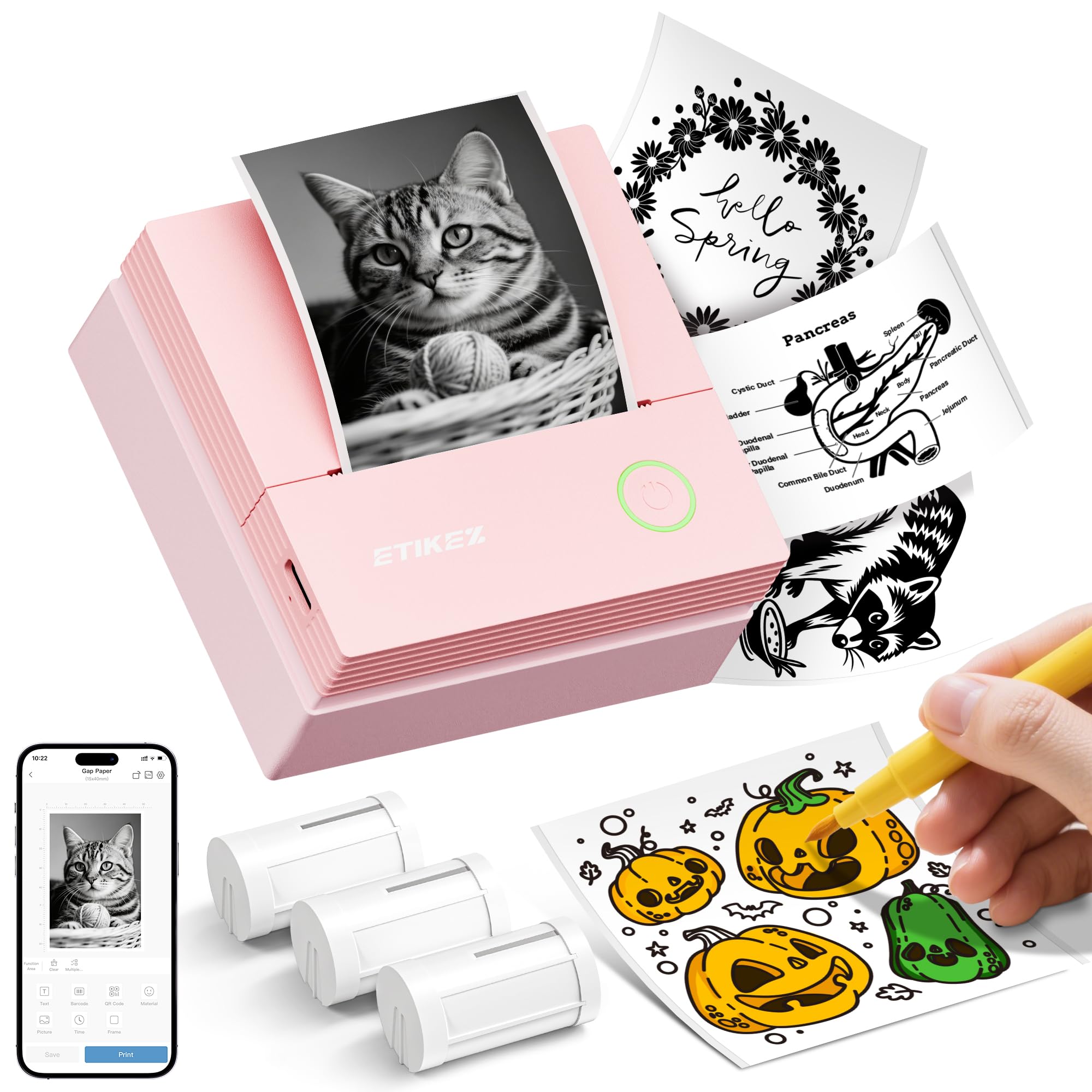
Image: The ETIKEZ PM290C Thermal Sticker Printer, a compact pink device, shown on a wooden desk with paper rolls and pens.
Setup Guide
1. Unboxing and Initial Inspection
Upon receiving your ETIKEZ PM290C printer, carefully remove all components from the packaging. Verify that all items are present and undamaged. The package should include the printer, three rolls of paper, and a charging cable.
2. Loading Paper Rolls
- Open the printer cover by gently lifting it.
- Tear off the green sticker from the paper roll. Ensure the printing side of the paper is facing downwards.
- Align the paper roll with the notch inside the printer and insert it vertically.
- Pull out approximately 1-2 cm of the print paper from the printer's output slot.
- Close the printer cover securely. The printer is now ready for use.
Video: Demonstrates the step-by-step process of loading paper rolls into the ETIKEZ PM290C mini printer.
3. App Download and Bluetooth Connection
To operate your ETIKEZ PM290C printer, you need to download and connect to the "Labelnize" application.
- Download the "Labelnize" App:
- Method 1 (QR Code): Scan the QR code provided in your printer's packaging or on the official website to directly install the "Labelnize" app.
- Method 2 (App Store Search): Search for "Labelnize" on the Apple App Store (for iOS devices) or Google Play Store (for Android devices) and download the official application.
- Turn on Bluetooth: Ensure Bluetooth is enabled on your mobile device.
- Connect the Printer:
- Open the "Labelnize" app.
- Allow the app to use wireless data and grant Bluetooth permissions when prompted.
- Click on "Connect now" within the app.
- Find "PM290" in the list of available devices and click "Click to connect" next to it.
- Once connected, you can choose to register an account for a better experience or skip this step.
Video: A guide on how to download the "Labelnize" app and connect it to the ETIKEZ PM290C printer via Bluetooth.
Operating Instructions
1. Basic Printing with Labelnize App
The "Labelnize" app offers various functions and templates to fulfill your creative and organizational needs. You can print text, images, and use pre-designed templates.
- From the app's main interface, select your desired function (e.g., "Image printing", "System templates", "Text editing").
- If printing an image, allow the app access to your photo library and select the image you wish to print.
- Use the in-app editing tools to make any necessary adjustments to your image or text (e.g., rotate, crop, adjust density).
- Once satisfied with your design, click the "Print" button.
- Adjust print settings such as density and number of copies, then confirm to start printing.
2. Versatile Printing Applications
The ETIKEZ PM290C printer is suitable for a wide range of applications, enhancing organization and creativity:
- Text Printing: Print notes, lists, or short messages for quick reference.
- Bullet Journaling: Create custom stickers and labels to personalize your bullet journal entries.
- Study Notes: Print diagrams, definitions, or key information to stick into your study materials.
- Home Organization: Label containers, shelves, and storage boxes for efficient home management.
- Gift Labels: Design and print unique labels for gifts, adding a personal touch.
- File Labels: Organize documents and files with custom labels for easy identification.
- To-Do Lists: Print small, portable to-do lists to keep track of your tasks.
- Bookmarks: Create personalized bookmarks with quotes or images.
Video: Demonstrates various creative and organizational uses of the ETIKEZ PM290C Thermal Sticker Printer, including text printing, bullet journaling, home organization, and creating gift labels.
Maintenance
To ensure the longevity and optimal performance of your ETIKEZ PM290C printer, follow these maintenance guidelines:
- Cleaning the Print Head: Regularly clean the thermal print head with a soft, lint-free cloth lightly dampened with isopropyl alcohol. Ensure the printer is turned off and cooled down before cleaning.
- Exterior Cleaning: Wipe the exterior of the printer with a dry, soft cloth. Avoid using harsh chemicals or abrasive materials.
- Storage: Store the printer in a cool, dry place away from direct sunlight and extreme temperatures.
- Paper Storage: Store thermal paper rolls in a cool, dark place to prevent premature fading or damage.
Troubleshooting
If you encounter issues with your ETIKEZ PM290C printer, refer to the following common problems and solutions:
- Printer Not Connecting via Bluetooth:
- Ensure Bluetooth is enabled on your device and the printer is turned on.
- Restart both your device and the printer.
- Check if the "Labelnize" app has Bluetooth permissions.
- Try reconnecting through the app.
- Poor Print Quality:
- Check the paper roll for proper loading and ensure it's thermal paper.
- Clean the print head as described in the Maintenance section.
- Adjust the print density settings in the "Labelnize" app.
- Ensure the paper roll is not old or damaged.
- Paper Jam:
- Turn off the printer.
- Open the printer cover and carefully remove any jammed paper.
- Reload the paper roll correctly.
- Printer Not Turning On:
- Ensure the printer is fully charged. Connect it to a power source and wait a few minutes before attempting to turn it on.
- If the issue persists, contact customer support.
Product Specifications
| Feature | Specification |
|---|---|
| Brand | ETIKEZ |
| Model Number | PM290C |
| Product Dimensions | 3.28 x 1.54 x 3.3 inches |
| Item Weight | 10.8 ounces |
| Supported Media Sizes | 50 x 30 millimeters |
| Print Media | Thermal Paper |
| Print Color | Black |
| Maximum Print Resolution | 600 dots per inch (DPI) |
| Dual-sided Printing | No (Simplex) |
| Max Input Sheet Capacity | 50 |
| Connectivity | Bluetooth |
| Color | Cerise |
Warranty and Support
Your ETIKEZ PM290C Thermal Sticker Printer comes with a standard manufacturer's warranty. For specific warranty details, including coverage period and terms, please refer to the warranty card included in your product packaging or visit the official ETIKEZ website.
If you require technical assistance, have questions about your product, or need to report an issue, please contact ETIKEZ customer support through their official channels. Contact information can typically be found on the product packaging, the official website, or within the "Labelnize" app.