1. Introduction
Thank you for choosing the Colorcool M8 MP3 Player. This portable music player is designed to provide a versatile audio and media experience with its Bluetooth 5.3 connectivity, built-in speaker, FM radio, video playback, and voice recording capabilities. This manual will guide you through the setup, operation, and maintenance of your device to ensure optimal performance.

Image: Front and back view of the Colorcool M8 MP3 Player, showcasing its compact design and touch screen interface.
2. Safety Information
- Do not expose the device to extreme temperatures, direct sunlight, or high humidity.
- Avoid dropping or subjecting the device to strong impacts.
- Do not attempt to disassemble or repair the device yourself. Refer to qualified service personnel.
- Keep the device away from water and other liquids.
- Use only the provided charging cable and accessories.
- Prolonged listening at high volume levels may cause hearing damage.
3. Setup
3.1 Package Contents
Please check the package for the following items:
- 1 × Colorcool M8 MP3 Player
- 1 × USB Type-C Cable
- 1 × Wired Headset
- 1 × User Manual (this document)
3.2 Device Overview
Familiarize yourself with the buttons and ports on your MP3 player:

Image: Diagram illustrating the location of the USB Port, TF Card Slot, Volume buttons (+/-), Previous, Next, Return, and Reset buttons on the Colorcool M8 MP3 Player.
- USB Port: For charging and data transfer.
- TF Card Slot: Insert a Micro SD card for expanded storage (up to 512GB).
- Volume + / -: Adjust the audio volume.
- Previous / Next: Navigate through tracks or menu options.
- Return: Go back to the previous menu or screen.
- Reset: Small pinhole for device reset if unresponsive.
3.3 Charging the Device
Before first use, fully charge your MP3 player. The device has a 350mAh Lithium Polymer battery.
- Connect the USB Type-C cable to the MP3 player's USB port.
- Connect the other end of the cable to a USB power adapter (not included) or a computer's USB port.
- The battery indicator on the screen will show charging status.
- A full charge typically takes approximately 2.5 hours.

Image: Visual representation of the MP3 player charging, highlighting its 350mAh battery, 2.5-hour full charge time, 8 hours of earphone play, and 5 hours of Bluetooth play.
4. Operating Instructions
4.1 Power On/Off
- To Power On: Press and hold the power button (usually located on the top or side) until the screen lights up.
- To Power Off: Press and hold the power button until a power-off option appears on the screen, then select it. Alternatively, a long press may directly power off the device.
4.2 Basic Navigation (Touch Screen)
The Colorcool M8 features a full-touch screen for easy navigation.

Image: A hand holding the compact MP3 player, emphasizing its 1.8-inch full touch screen and pocket-sized design.
- Tap: Select an icon or option.
- Swipe: Navigate through menus or lists.
- Return Button: Use the physical 'Return' button or an on-screen back arrow to go to the previous screen.
4.3 Transferring Music and Files
The device has 30GB of internal memory and supports Micro SD cards up to 512GB.
- Connect the MP3 player to your computer using the provided USB Type-C cable.
- The device should appear as a removable disk on your computer.
- Drag and drop your desired music, video, or e-book files into the appropriate folders on the MP3 player.
- Safely eject the device from your computer before disconnecting the cable.
4.4 Playing Music
The Colorcool M8 supports various audio formats including MP3, WMA, APE, FLAC, WAV, DRM, and ACELP, delivering HiFi sound quality.

Image: The MP3 player displaying its music playback interface, highlighting features like AB Repeat, 3 Playback Modes, and Equalizer settings for a high-resolution audio experience.
- From the main menu, select the 'Music' icon.
- Browse your music by artist, album, genre, or all songs.
- Tap on a song to begin playback.
- Use the on-screen controls or physical buttons for play/pause, skip, and volume adjustment.
- Access equalizer settings and playback modes (e.g., repeat, shuffle) from the music playback screen.
4.5 Bluetooth Connectivity
The MP3 player features Bluetooth 5.3 for connecting to Bluetooth speakers and earbuds.
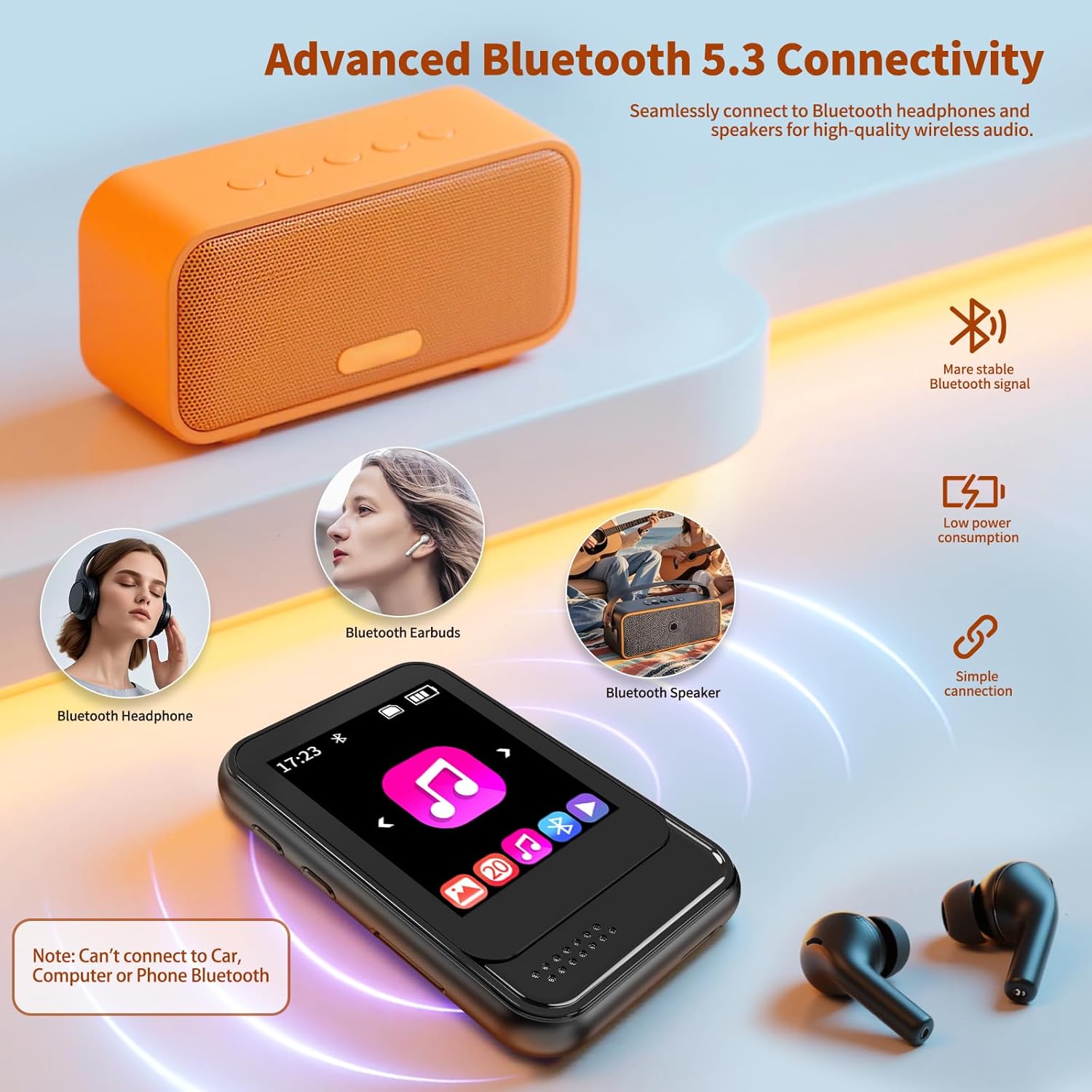
Image: The MP3 player connected via Bluetooth to various audio devices like Bluetooth headphones, earbuds, and a Bluetooth speaker, illustrating its advanced Bluetooth 5.3 connectivity.
- From the main menu, select the 'Bluetooth' icon or navigate to 'Settings' and then 'Bluetooth'.
- Turn on Bluetooth on the MP3 player.
- Ensure your Bluetooth speaker or earbuds are in pairing mode.
- The MP3 player will scan for available devices. Select your device from the list to pair.
- Note: This device is unable to pair via Bluetooth with phones, computers, or certain specific car models.
4.6 FM Radio
To use the FM radio function, a wired headset must be connected as it acts as the antenna.
- Plug in the wired headset into the 3.5mm audio jack.
- From the main menu, select the 'FM Radio' icon.
- Use the on-screen controls to scan for stations or manually tune to a frequency.
4.7 Video Playback
The MP3 player supports AVI and AMV video formats.
- From the main menu, select the 'Video' icon.
- Browse your video files and tap to play.
4.8 Voice Recording
Use the built-in microphone to record audio.
- From the main menu, select the 'Recorder' icon.
- Tap the record button to start and stop recording.
- Recordings are saved and can be played back from the same menu.
4.9 E-book Reader
The device supports TXT format e-books.
- From the main menu, select the 'E-book' icon.
- Browse your TXT files and tap to open.
4.10 Other Functions
The MP3 player includes additional utilities:
- Alarm Clock: Set alarms for specific times.
- Calendar: View the current date and month.
- Stopwatch: Use for timing activities.
4.11 Built-in Speaker
The device features a built-in HD speaker, allowing you to enjoy music without headphones. This can be turned on or off in the settings menu.
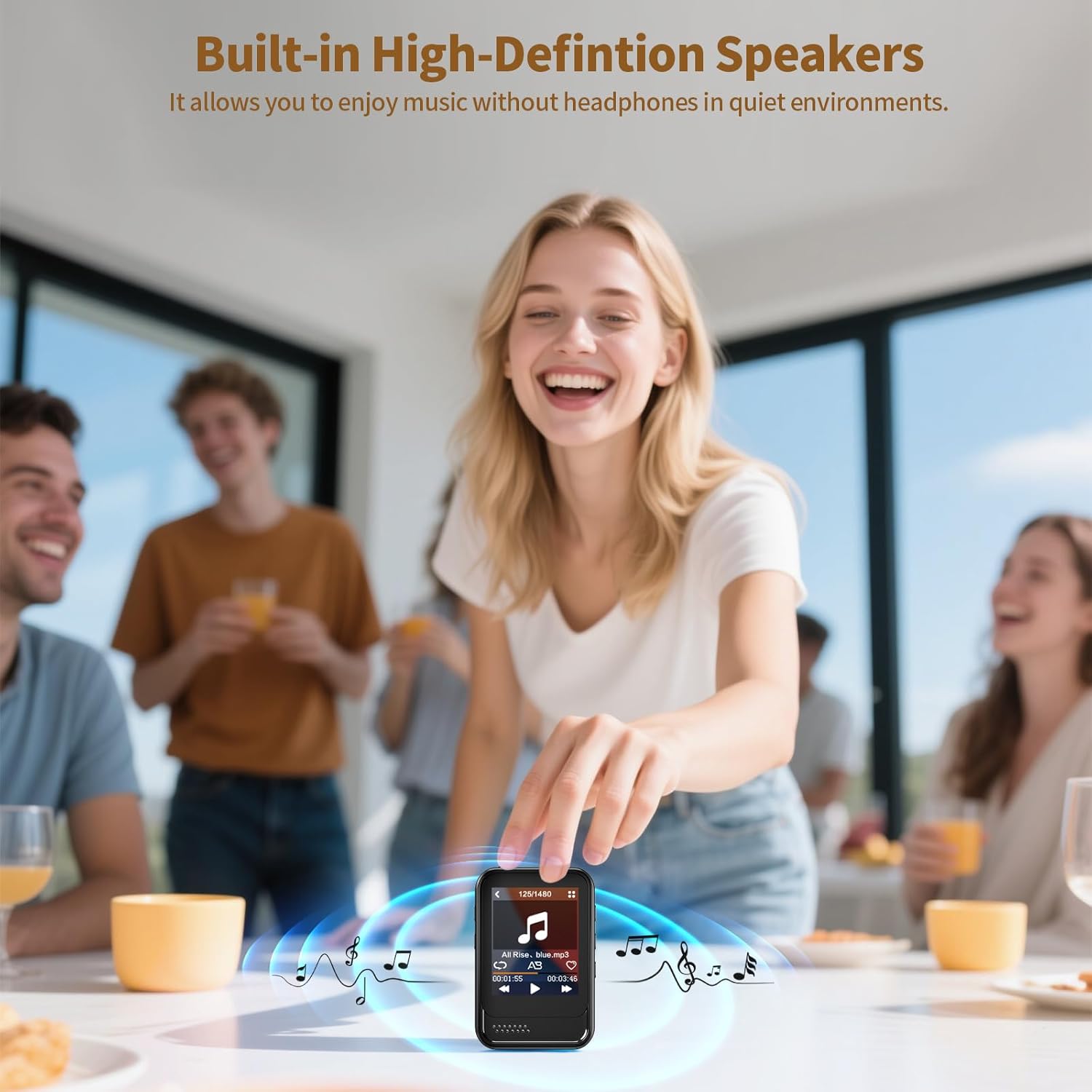
Image: A group of people enjoying music played from the Colorcool M8 MP3 Player's built-in speaker on a table, demonstrating its use without headphones.
5. Maintenance
- Cleaning: Use a soft, dry cloth to clean the device. Do not use liquid cleaners or aerosols.
- Storage: Store the device in a cool, dry place when not in use.
- Battery Care: To prolong battery life, avoid fully discharging the battery frequently. Charge the device regularly, even if not in active use.
- Software Updates: Check the manufacturer's website periodically for any available firmware updates.
6. Troubleshooting
| Problem | Possible Cause | Solution |
|---|---|---|
| Device does not power on. | Low battery; System crash. | Charge the device for at least 30 minutes. If unresponsive, use a pin to press the reset button. |
| Cannot connect to Bluetooth device. | Bluetooth not enabled; Device not in pairing mode; Incompatible device. | Ensure Bluetooth is on for both devices and the receiving device is in pairing mode. Remember, the MP3 player cannot pair with phones, computers, or some car models. |
| Files not transferring to device. | Incorrect USB connection; Corrupted files; Full storage. | Ensure the USB cable is securely connected. Check file formats for compatibility. Verify available storage space on the device or Micro SD card. |
| FM Radio not working. | Wired headphones not connected. | Plug in the wired headset; it acts as the antenna for the FM radio. |
| Poor sound quality. | Low quality audio file; Incorrect equalizer settings; Damaged headphones. | Ensure audio files are high quality. Adjust equalizer settings. Test with different headphones. |
7. Specifications
- Model: M8
- Brand: Colorcool
- Internal Memory: 30GB
- Expandable Memory: Micro SD Card up to 512GB
- Connectivity: Bluetooth 5.3, USB Type-C, 3.5mm Aux
- Screen: 1.8-inch Full Touch Screen
- Battery: 350mAh Lithium Polymer
- Charging Time: Approximately 2.5 hours
- Audio Formats: MP3, WMA, APE, FLAC, WAV, DRM, ACELP
- Video Formats: AVI, AMV
- E-book Format: TXT
- Special Features: FM Radio, Voice Recorder, Built-in Speaker, Equalizer, Alarm Clock, Calendar, Stopwatch
- Item Weight: 1.13 ounces (32g)
- Dimensions: 2.56 × 1.57 × 0.59 inches (6.5 × 4 × 1.5 cm)
8. Warranty and Support
8.1 Warranty Information
Your Colorcool M8 MP3 Player comes with a standard manufacturer's warranty. Please refer to the warranty card included in your package or contact customer support for specific details regarding warranty coverage and duration.
8.2 Customer Support
If you encounter any issues not covered in this manual or require further assistance, please contact Colorcool customer support through the retailer's platform or the official brand website. Please have your model number (M8) and purchase information ready when contacting support.


