
1. Introduction
Thank you for choosing the AVMATRIX SD1242-4K HDMI Splitter. This device is designed to distribute a single HDMI 2.0 input signal to four HDMI 2.0 outputs, supporting resolutions up to 4K@60Hz with RGB 4:4:4 color space. It features EDID management and dual power supply options (USB-C and DC) for versatile use in various professional and home environments.
2. Safety Information
- Ensure the device is placed in a well-ventilated area to prevent overheating.
- Do not expose the device to moisture, rain, or extreme temperatures.
- Use only the provided power adapter or a compatible power source.
- Avoid disassembling the unit; refer all servicing to qualified personnel.
- Keep the device away from strong magnetic fields.
3. Package Contents
Please check the package for the following items:
- AVMATRIX SD1242-4K HDMI Splitter Unit
- Power Adapter
- USB Type-C Cable
- User Manual (this document)
4. Product Overview
The AVMATRIX SD1242-4K is a compact and robust HDMI splitter designed for high-quality video distribution. It features one HDMI input and four HDMI outputs, allowing a single source to be displayed on up to four screens simultaneously.
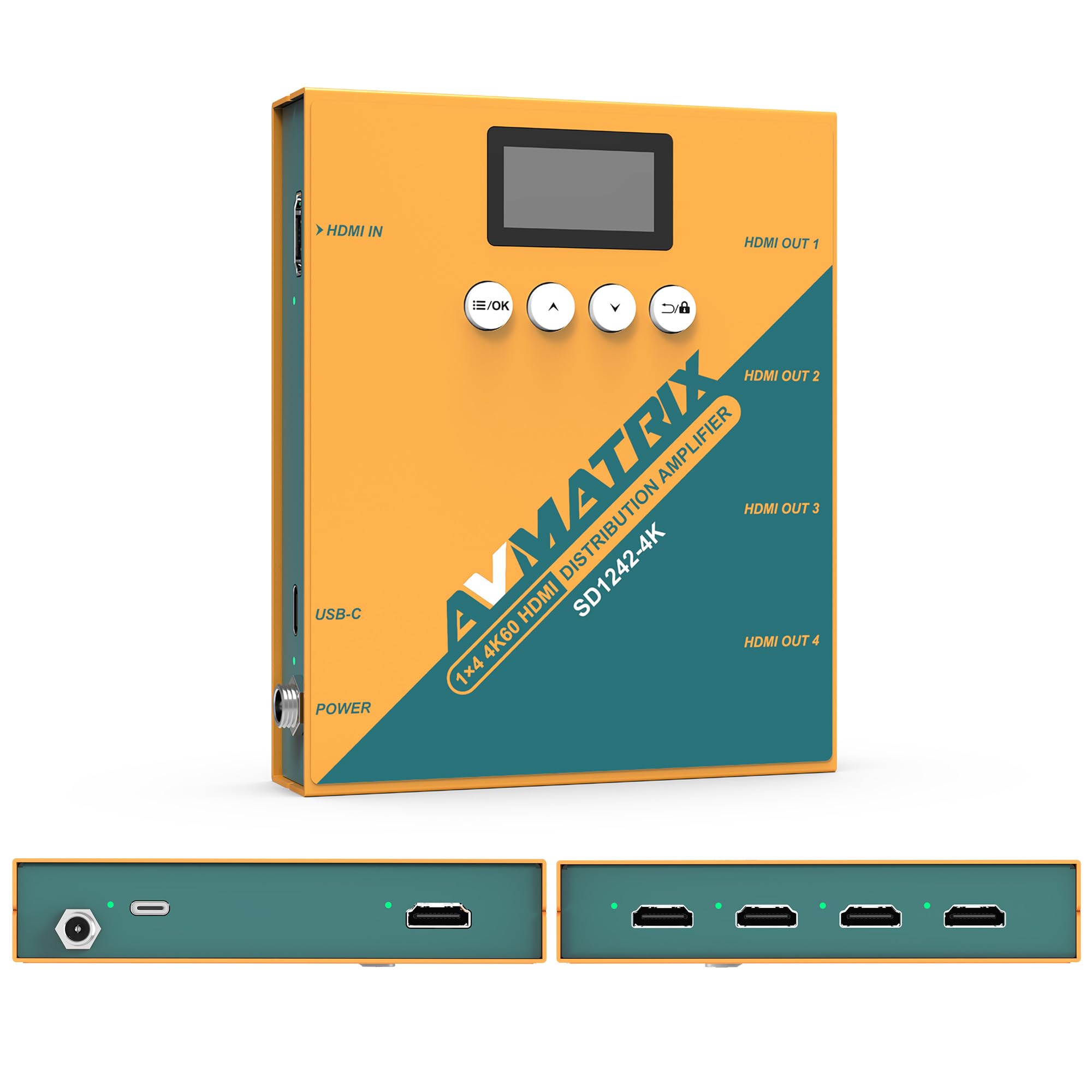
Figure 1: Front and rear view of the AVMATRIX SD1242-4K HDMI Splitter, showing HDMI input, four HDMI outputs, USB-C, and DC power ports.

Figure 2: The AVMATRIX SD1242-4K HDMI Splitter highlighting its HDMI 2.0 inputs/outputs and support for up to 4K@60Hz resolution for ultra-high-definition picture quality.
4.1 Features
- 1 HDMI 2.0 input to 4 HDMI 2.0 outputs.
- Supports resolutions up to 4K@60Hz (RGB 4:4:4).
- EDID management with Auto, Standard, Customize, and EDID Copy modes.
- Dual power supply: USB Type-C and DC 12V.
- Built-in OLED display for real-time status.
- Control via front panel buttons or PC software.
5. Setup
Follow these steps to set up your AVMATRIX SD1242-4K HDMI Splitter:
- Connect HDMI Source: Connect your HDMI source device (e.g., PS4, Blu-ray player, computer) to the HDMI IN port on the splitter using a high-quality HDMI 2.0 cable.
- Connect HDMI Displays: Connect up to four HDMI display devices (e.g., HDTVs, monitors, projectors) to the HDMI OUT 1-4 ports on the splitter using high-quality HDMI 2.0 cables.
- Connect Power: Connect the provided power adapter to the DC 12V port on the splitter, or connect a USB Type-C cable to the USB-C port and a compatible USB power source. The device supports both power options.
- Power On: Ensure all devices (source, splitter, displays) are powered on. The splitter's OLED display will show its status.
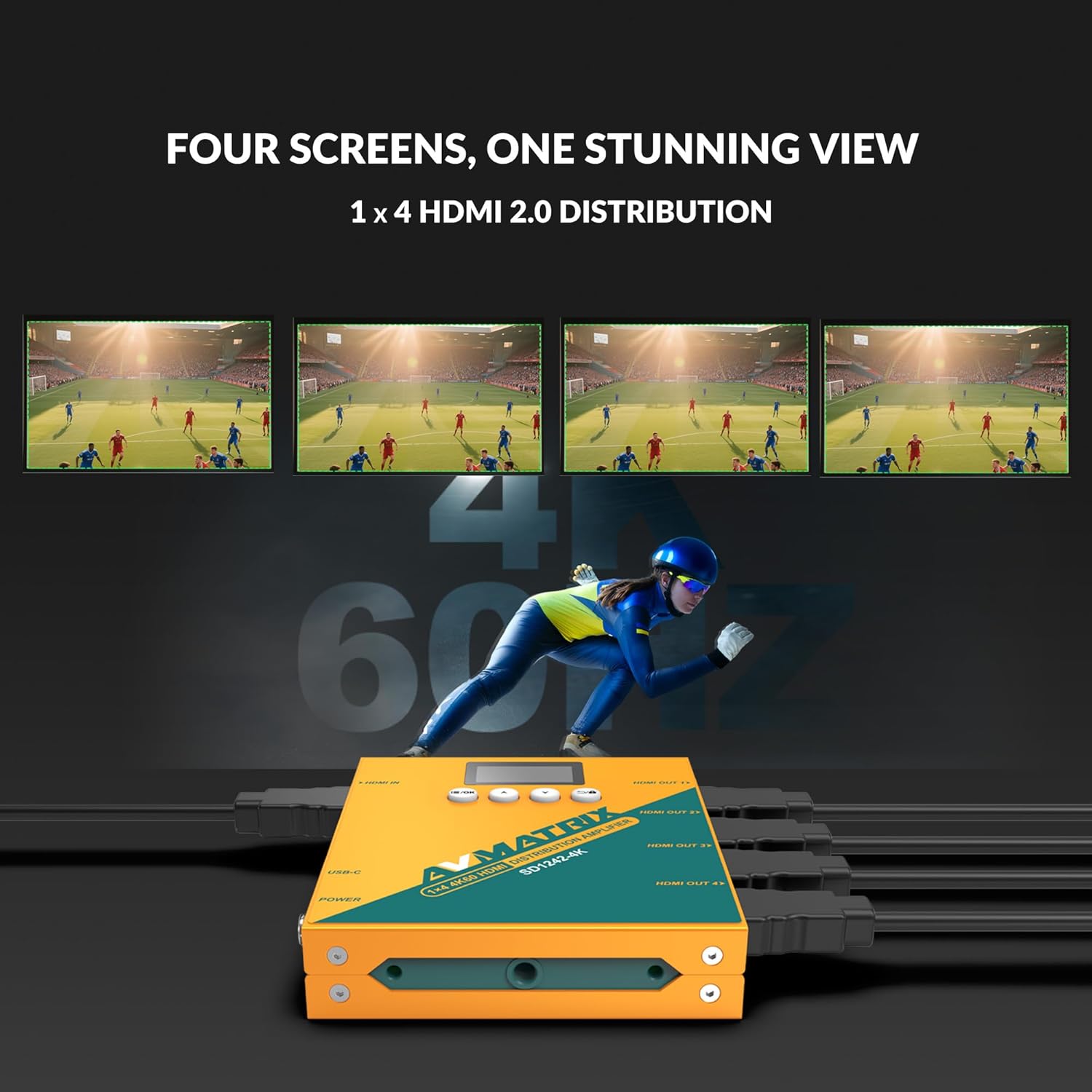
Figure 3: Illustration of the AVMATRIX SD1242-4K HDMI Splitter distributing a single video source to four separate display screens, demonstrating its 1x4 distribution capability.
6. Operating Instructions
6.1 EDID Management
The SD1242-4K features EDID management to ensure optimal compatibility and performance between your source and display devices. You can configure EDID settings using the front panel buttons or the PC control software.

Figure 4: Comparison of a display without EDID management (left, showing potential compatibility issues) and with EDID management (right, showing seamless communication and optimal display).
There are four EDID modes available:
- Auto: The splitter automatically detects and selects the best EDID settings based on the connected displays.
- Standard: Uses a default, common EDID setting for broad compatibility.
- Customize: Allows users to upload a custom EDID file via PC software.
- EDID Copy: Copies the EDID from a specific output display (e.g., Output 1) to be used for all outputs.
6.2 Control Options
The device can be controlled via its front panel buttons or through dedicated PC software.

Figure 5: Demonstrates the two primary control methods for the AVMATRIX SD1242-4K: direct interaction with the front panel buttons and comprehensive control via PC software interface.
- Front Button: Use the buttons located on the front panel to navigate menus on the OLED display and adjust basic settings, including EDID modes.
- PC Software Control: Connect the splitter to a computer via its USB port. Install the AVMATRIX control software to access advanced settings, customize EDID, and monitor device status.
6.3 Power Supply Options
The SD1242-4K offers flexible power options for convenience.

Figure 6: Illustrates the dual power supply capabilities of the AVMATRIX SD1242-4K, showing both the traditional DC power input and the modern USB Type-C power input.
- DC Power Supply: Use the included 12V DC power adapter for stable and continuous power.
- USB Type-C Power Supply: For portability or when a DC outlet is unavailable, power the device using a standard USB Type-C cable connected to a compatible USB power source (e.g., power bank, computer USB port).
7. Maintenance
- Cleaning: Use a soft, dry cloth to clean the exterior of the device. Do not use liquid or aerosol cleaners.
- Storage: When not in use for extended periods, store the device in a cool, dry place away from direct sunlight.
- Firmware Updates: Check the AVMATRIX official website periodically for firmware updates to ensure optimal performance and compatibility.
8. Troubleshooting
If you encounter issues with your AVMATRIX SD1242-4K, refer to the following common problems and solutions:
| Problem | Possible Cause | Solution |
|---|---|---|
| No video output on displays. | Loose HDMI cables, incorrect EDID setting, power issue. | Check all HDMI cable connections. Ensure the splitter is powered on. Try different EDID modes (Auto or Standard). Test with a different HDMI source or display. |
| Video flickering or unstable image. | Poor quality HDMI cables, signal interference, EDID mismatch. | Use certified high-speed HDMI 2.0 cables. Ensure cables are not excessively long. Adjust EDID settings. Reduce cable length if possible. |
| Displays show different resolutions. | EDID setting not optimized for all displays. | Use EDID Copy mode from the lowest resolution display or a custom EDID that all displays can support. |
| Device not powering on. | Power adapter not connected, faulty power source. | Verify power adapter is securely connected to both the splitter and a working power outlet. Try the USB-C power option if DC fails, or vice-versa. |
9. Specifications
| Feature | Detail |
|---|---|
| Model | SD1242-4K |
| Video Input | 1x HDMI Type A |
| Video Output | 4x HDMI Type A |
| HDMI Standard | HDMI 2.0 |
| Max Resolution | 4096x2160p 60/59.94/50/30/29.97/25/24/23.98 |
| Color Space & Precision | RGB 4:4:4 8 bit, YUV 4:2:2 8 bit, YUV 4:4:4 8 bit |
| Power Supply | DC 12V / USB-C |
| Power Consumption | 6W |
| Voltage Range (USB) | USB 5V-5.5V |
| Voltage Range (DC) | DC 5.5V-24V |
| Dimensions (LWD) | 125.5 x 104 x 24.5 mm |
| Net Weight | 471g |
| Operating Temperature | -20°C ~ 60°C |
| Storage Temperature | -30°C ~ 70°C |
10. Warranty Information
AVMATRIX products are covered by a limited warranty against defects in materials and workmanship. The warranty period typically begins from the date of purchase. Please retain your proof of purchase for warranty claims. For specific warranty terms and conditions, refer to the warranty card included with your product or visit the official AVMATRIX website.
This warranty does not cover damage caused by improper installation, accident, misuse, abuse, natural disaster, or unauthorized modification of the product.
11. Customer Support
If you require further assistance or have questions not covered in this manual, please contact AVMATRIX customer support:
- Website: www.avmatrix.net (for product information, drivers, and firmware updates)
- Email: Refer to the official website for specific support email addresses.
- Phone: Refer to the official website for regional contact numbers.
When contacting support, please have your product model (SD1242-4K) and a detailed description of your issue ready.


