
Introduction
Thank you for choosing the Smart Home Video Doorbell U9. This device is designed to enhance your home security by providing real-time monitoring, two-way communication, and motion detection capabilities. Please read this manual carefully before installation and operation to ensure proper use and optimal performance.
Package Contents
Before you begin, please verify that all items listed below are present in your package:
- Doorbell Camera
- Indoor Chime
- Mounting Hardware (screws, anchors)
- USB Cable
- User Manual (this document)
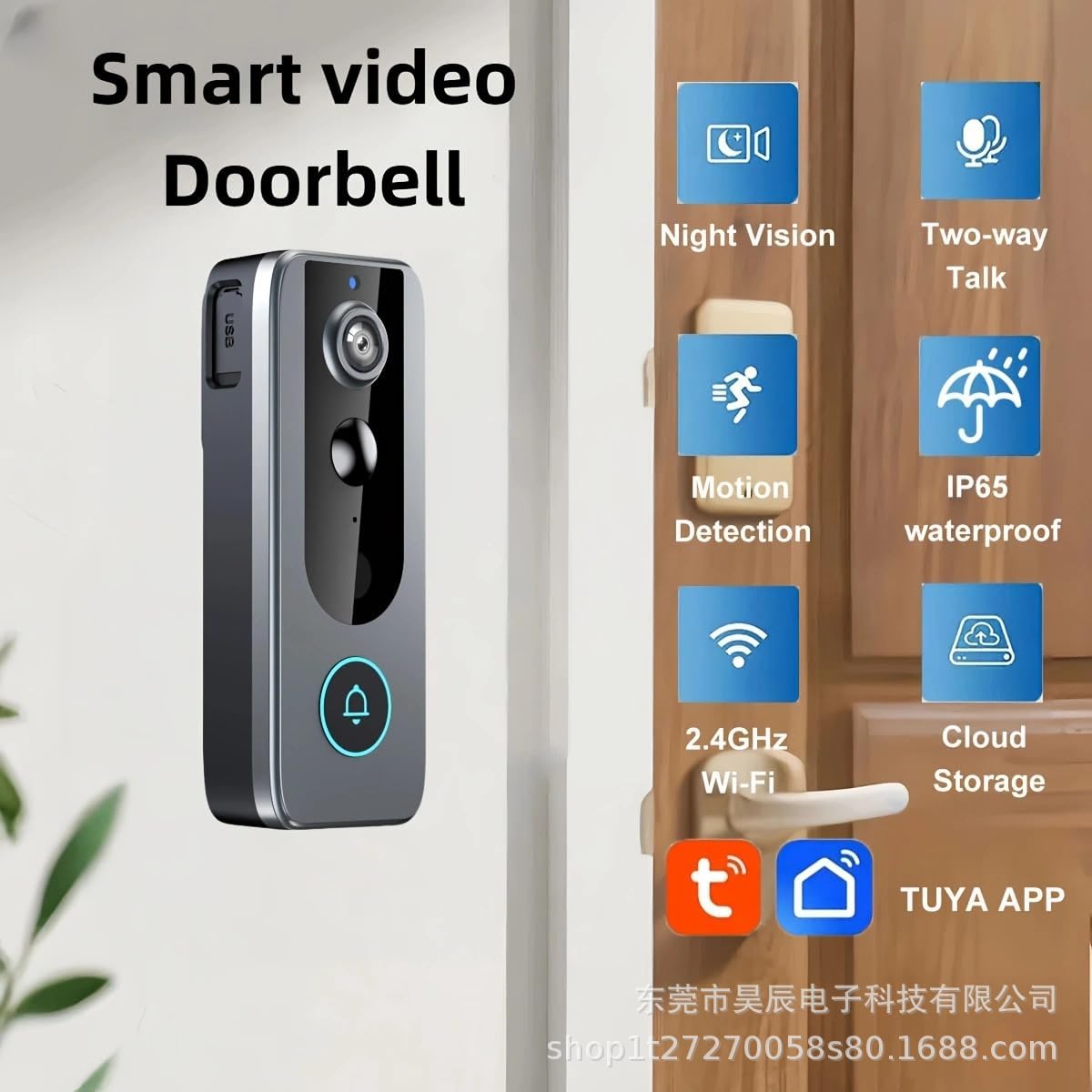
Image: All components included in the Smart Home Video Doorbell U9 package.
Product Overview
The Smart Home Video Doorbell U9 (Model HC-M20) features a sleek design with integrated camera, motion sensor, and doorbell button. The accompanying indoor chime provides audible alerts when the doorbell is pressed. Key features include:
- Real-time Video View: Monitor your doorstep from anywhere via the mobile app.
- Motion Detection: Automatically detects activity and captures snapshots.
- Two-Way Audio: Communicate with visitors using the built-in speaker and microphone.
- Cloud Storage: Lifetime free 30-day cyclic cloud storage for recorded events.
- 24/7 Monitoring: Long-lasting battery ensures continuous security.
- IP65 Water Resistance: Designed for outdoor use, resistant to dust and water splashes.

Image: The Smart Home Video Doorbell U9 and its indoor chime.

Image: Key features of the Smart Home Video Doorbell U9.
Setup
1. Charging the Doorbell
Before initial use, fully charge the doorbell camera using the provided USB cable. Connect the USB cable to the doorbell's charging port and a standard USB power adapter (not included). The indicator light will show charging status and turn off when fully charged.
2. Downloading the Mobile App
Search for and download the recommended mobile application (e.g., "Tuya Smart" or "Smart Life") from your smartphone's app store (Google Play Store for Android or Apple App Store for iOS).
3. Pairing the Doorbell with the App
- Open the mobile app and create an account or log in.
- Tap "Add Device" or the "+" icon to add a new device.
- Select "Video Surveillance" or "Smart Doorbell" from the device list.
- Follow the on-screen instructions to connect the doorbell to your 2.4GHz Wi-Fi network. Ensure your phone is connected to the same Wi-Fi network during setup.
- The app will guide you through the pairing process, which may involve scanning a QR code displayed on your phone with the doorbell camera.
4. Installing the Doorbell
The doorbell is designed for surface mount installation. Choose a suitable location near your front door, ensuring a clear view and good Wi-Fi signal strength.
- Mark the drilling points on the wall using the mounting bracket as a template.
- Drill holes and insert wall anchors if necessary.
- Secure the mounting bracket to the wall using the provided screws.
- Attach the doorbell camera to the mounting bracket, ensuring it clicks securely into place.

Image: Different angles of the doorbell, useful for identifying ports and mounting points.
Operating Instructions
1. Real-Time View
Open the mobile app and select your doorbell device. You will see a live video feed from the doorbell camera. You can use this to monitor your doorstep at any time.
2. Two-Way Communication
When a visitor presses the doorbell button or motion is detected, you will receive a notification on your smartphone. Tap the notification to answer the call and engage in two-way audio communication with the visitor.
3. Motion Detection and Alerts
The doorbell is equipped with advanced motion sensors. When motion is detected within its field of view, it will automatically capture snapshots or record video clips and send instant notifications to your mobile app. You can adjust motion detection sensitivity in the app settings.
4. Cloud Storage
All detected events and doorbell presses are automatically uploaded to the cloud. The device offers lifetime free 30-day cyclic cloud storage, meaning recordings are stored for 30 days and then overwritten. You can access and review past events through the mobile app's history or playback section.

Image: Cloud storage interface on the mobile app.
5. Indoor Chime
The indoor chime will ring when the doorbell button is pressed. You can pair multiple chimes and adjust their volume or ringtone settings via the mobile app.
Maintenance
1. Cleaning
Wipe the doorbell camera lens and body with a soft, damp cloth. Do not use harsh chemicals or abrasive cleaners, as they may damage the device. Ensure the lens is clean for optimal video quality.
2. Battery Management
The Smart Home Video Doorbell U9 is battery-powered. When the battery level is low, you will receive a notification via the mobile app. Recharge the doorbell using the provided USB cable. The battery life is designed for ultra-long standby, but frequent activity or live viewing will consume more power.
3. Firmware Updates
Periodically check the mobile app for available firmware updates. Keeping your doorbell's firmware updated ensures optimal performance, security, and access to new features.
4. Weather Resistance
The doorbell has an IP65 rating, making it water and dust resistant. While it can withstand rain and splashes, avoid submerging it in water or exposing it to extreme weather conditions for prolonged periods.

Image: The doorbell's IP65 water and dust resistance.
Troubleshooting
- Doorbell not connecting to Wi-Fi:
- Ensure your Wi-Fi network is 2.4GHz. The doorbell does not support 5GHz networks.
- Check Wi-Fi signal strength at the installation location.
- Verify correct Wi-Fi password entry in the app.
- Restart your Wi-Fi router and the doorbell.
- No notifications on phone:
- Check app notification settings on your phone and within the doorbell app.
- Ensure your phone has an active internet connection.
- Verify motion detection settings are enabled and sensitivity is appropriate.
- Poor video quality:
- Clean the camera lens.
- Ensure adequate Wi-Fi signal strength.
- Check for obstructions in front of the camera.
- Indoor chime not ringing:
- Ensure the chime is plugged into a power outlet.
- Verify the chime is paired with the doorbell via the app.
- Check the chime's volume settings.
- Battery draining quickly:
- Frequent live viewing or high motion detection sensitivity can increase battery consumption.
- Ensure the doorbell is fully charged after each recharge.
Specifications
| Feature | Detail |
|---|---|
| Model Number | HC-M20 |
| Video Capture Resolution | 1080p |
| Effective Video Resolution | 1920 (pixels) |
| Viewing Angle | 160 Degrees |
| Night Vision Range | 32 Feet |
| Wireless Communication | Wi-Fi (2.4GHz) |
| Power Source | Battery Powered (Rechargeable) |
| Material | Plastic Metal |
| Water Resistance Level | IP65 (Water Resistant) |
| Dimensions (L x W x H) | 11.94 x 4.57 x 15.24 cm |
| Item Weight | 1.18 kg |
| Cloud Storage | Lifetime Free 30-day Cyclic |
| Compatible Devices | Smartphone, Tablet |
| Controller Type | Mobile App |
Warranty and Support
This product comes with a standard manufacturer's warranty. Please refer to the warranty card included in your package for specific terms and conditions. For technical support, troubleshooting assistance, or warranty claims, please contact the retailer or manufacturer directly using the contact information provided on the product packaging or the official brand website.
Please retain your proof of purchase for warranty purposes.


