
1. Introduction
This manual provides detailed instructions for the operation and maintenance of your CAWRUGA A80 Language Translator Device. Please read this manual thoroughly before using the device to ensure proper functionality and to maximize your user experience. The A80 is designed to facilitate communication across language barriers with its advanced translation capabilities.
2. Package Contents
Please verify that all items listed below are included in your package:
- CAWRUGA A80 Language Translator Device
- USB Charging Cable
- Protective Case
- Lanyard
- User Manual (this document)
3. Product Overview
The CAWRUGA A80 features a 5.5-inch IPS touch screen and a streamlined design with minimal buttons for intuitive operation. It is equipped with a 5MP camera for photo translation and supports various translation modes.
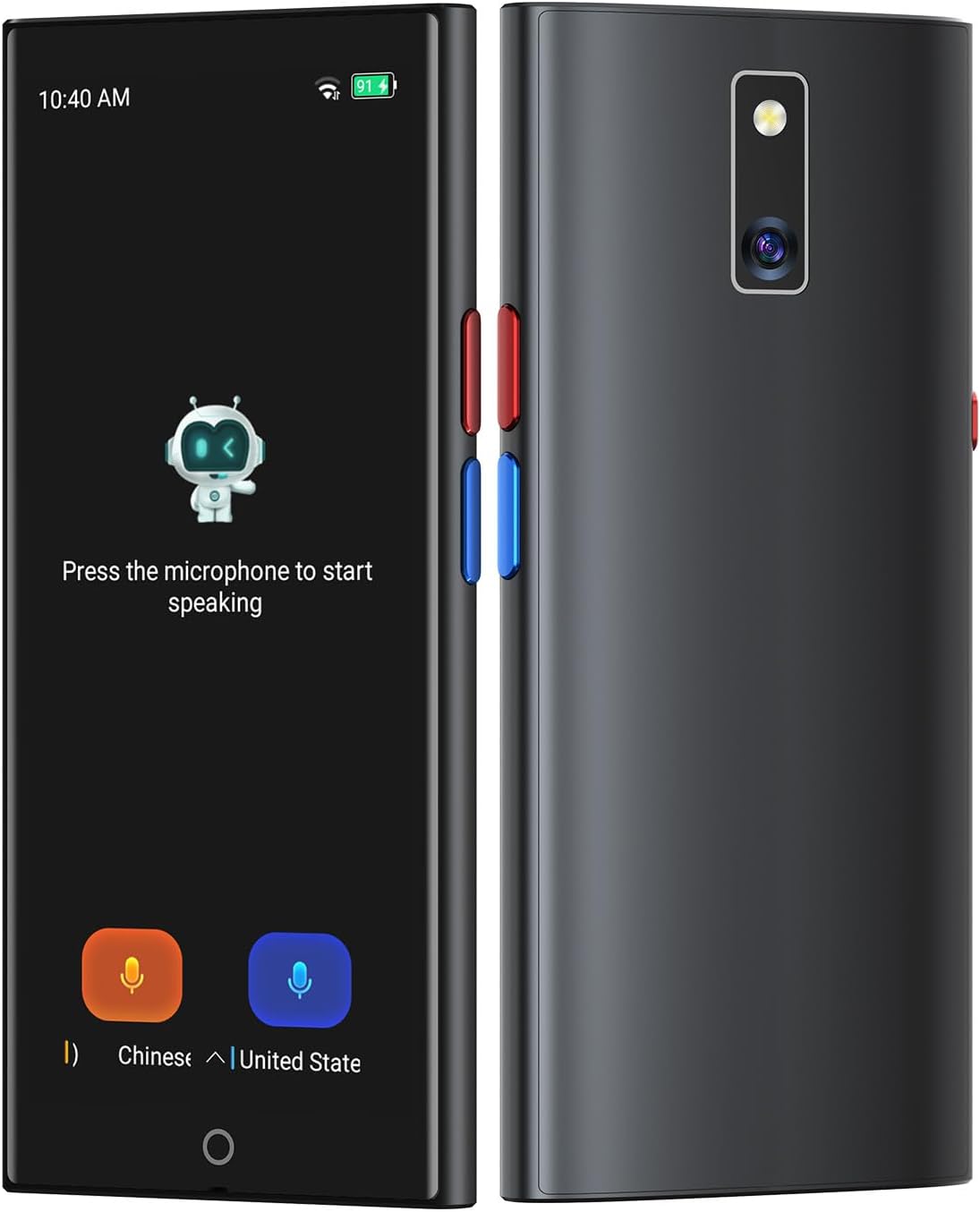
Image 3.1: Front and back view of the CAWRUGA A80 Language Translator Device, highlighting its sleek design and camera.
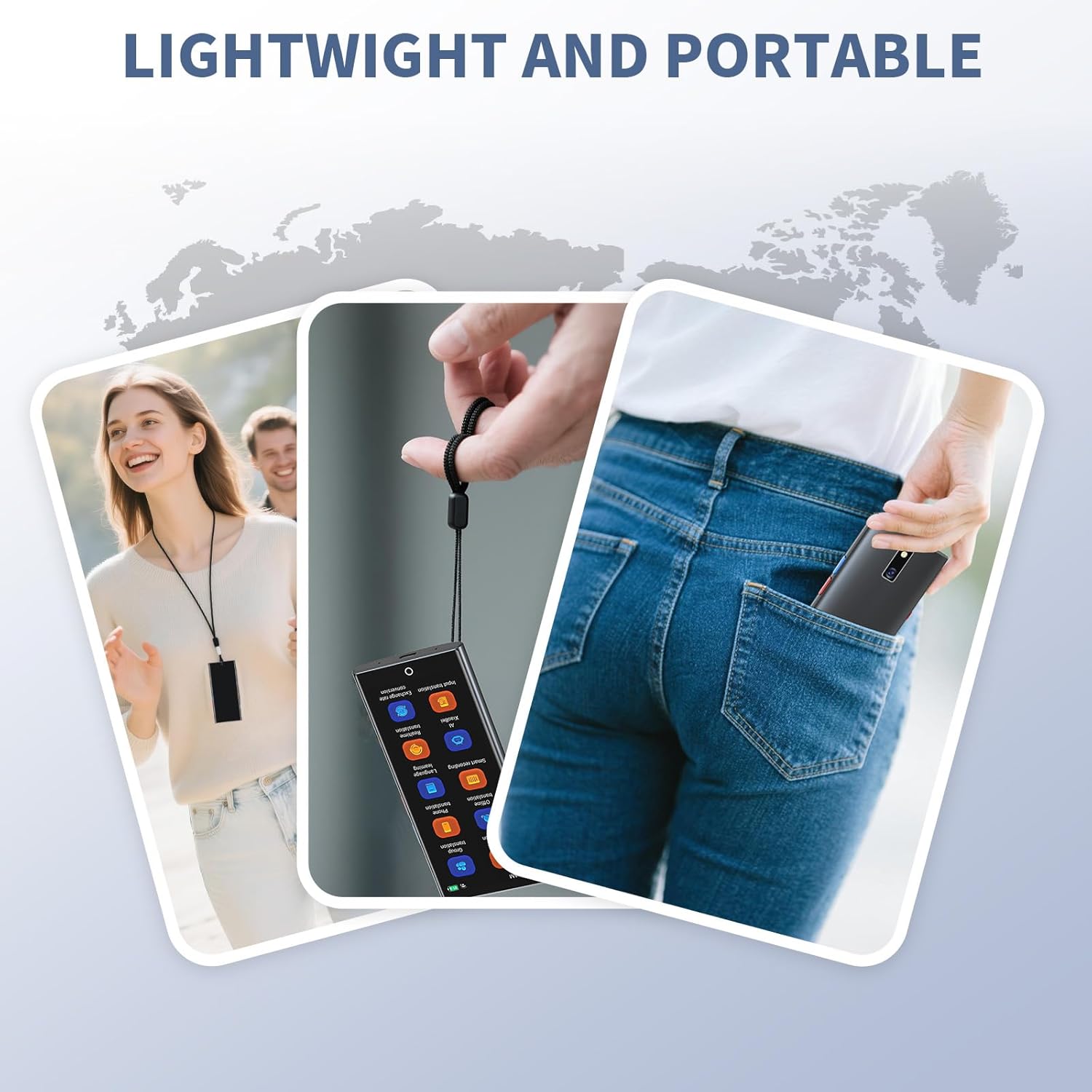
Image 3.2: The CAWRUGA A80 device shown in various portable use cases, emphasizing its lightweight and compact design for travel and daily use.
4. Setup
4.1 Charging the Device
Before first use, fully charge the device using the provided USB charging cable. Connect the cable to the device's charging port and a compatible USB power adapter (not included). The charging indicator will show the charging status.
4.2 Power On/Off
- To Power On: Press and hold the power button located on the side of the device until the screen illuminates.
- To Power Off: Press and hold the power button, then select 'Power Off' on the screen.
4.3 Initial Setup
Upon first power-on, follow the on-screen prompts to select your preferred language, connect to a Wi-Fi network (if available), and set up basic device preferences. A stable internet connection is recommended for optimal performance of online translation features.
5. Operating Instructions
5.1 Voice Translation (Online)
The device supports over 150 languages for online voice translation with high accuracy. Ensure the device is connected to Wi-Fi or a mobile hotspot.
- Select the two languages for translation on the main screen.
- Press and hold the corresponding voice translation button (usually indicated by a microphone icon) for your language.
- Speak clearly into the device's microphone.
- Release the button once you have finished speaking. The device will translate and play the audio in the target language, also displaying the text on the screen.

Image 5.1: The CAWRUGA A80 device on a desk, illustrating its 150-language voice translation capability with high accuracy and fast response time.
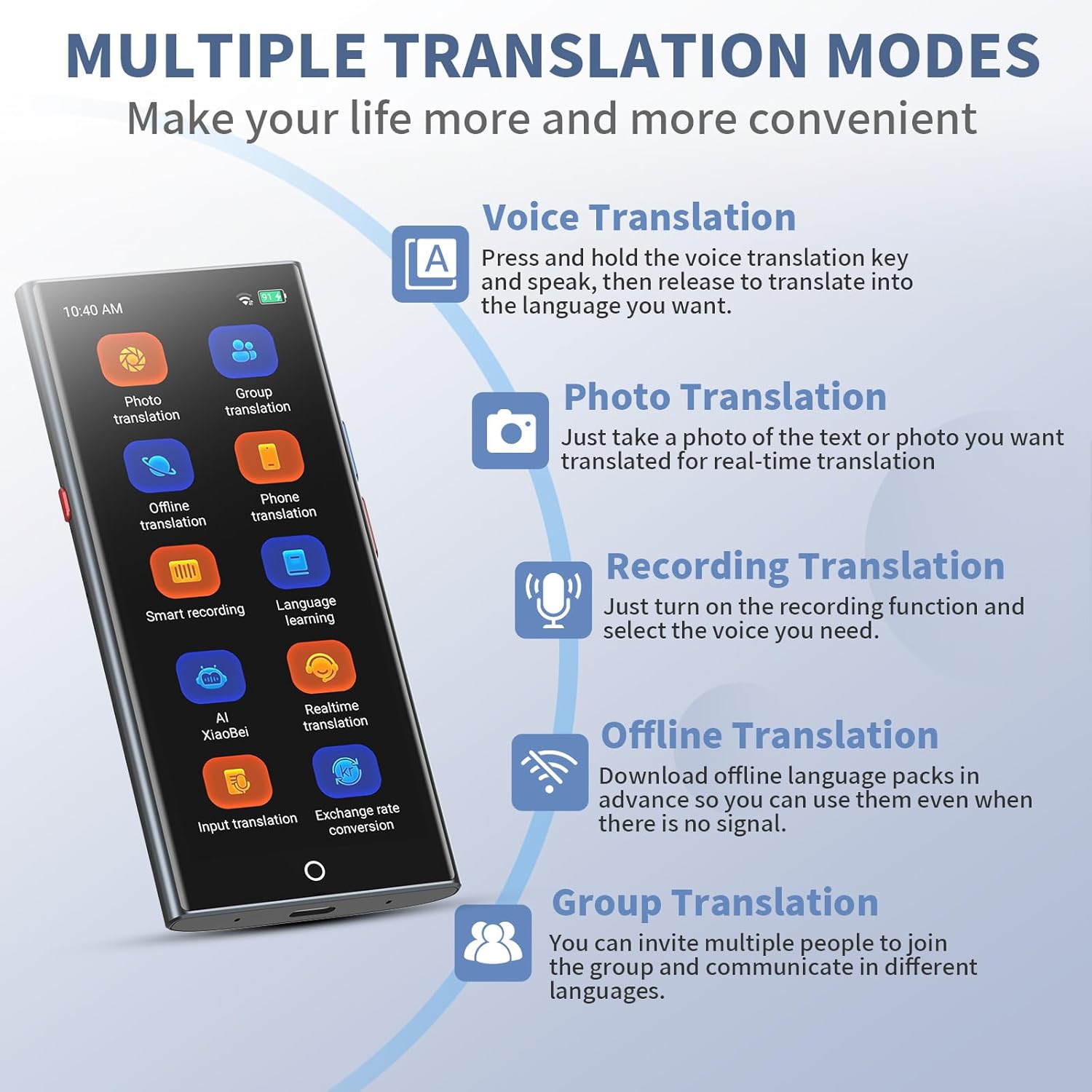
Image 5.2: A visual guide to the various translation modes available on the CAWRUGA A80, including Voice, Photo, Recording, Offline, and Group Translation.
5.2 Offline Translation
The device supports offline voice translation for 21 languages. This feature is useful in areas without internet access.
- Navigate to the 'Offline Translation' option on the device.
- Download the desired language packs in advance while connected to Wi-Fi.
- Once downloaded, select the offline languages and proceed with voice translation as described in Section 5.1.

Image 5.3: The CAWRUGA A80 screen showing the flags of 20 languages supported for offline voice translation, emphasizing its utility without an internet connection.
5.3 Photo Translation
The built-in 5MP camera allows for image and text translation in 75 online and 41 offline languages.
- Select the 'Photo Translation' function from the main menu.
- Point the camera at the text you wish to translate (e.g., a menu, sign, or label).
- Tap the screen to capture the image.
- The device will process the image and display the translated text.
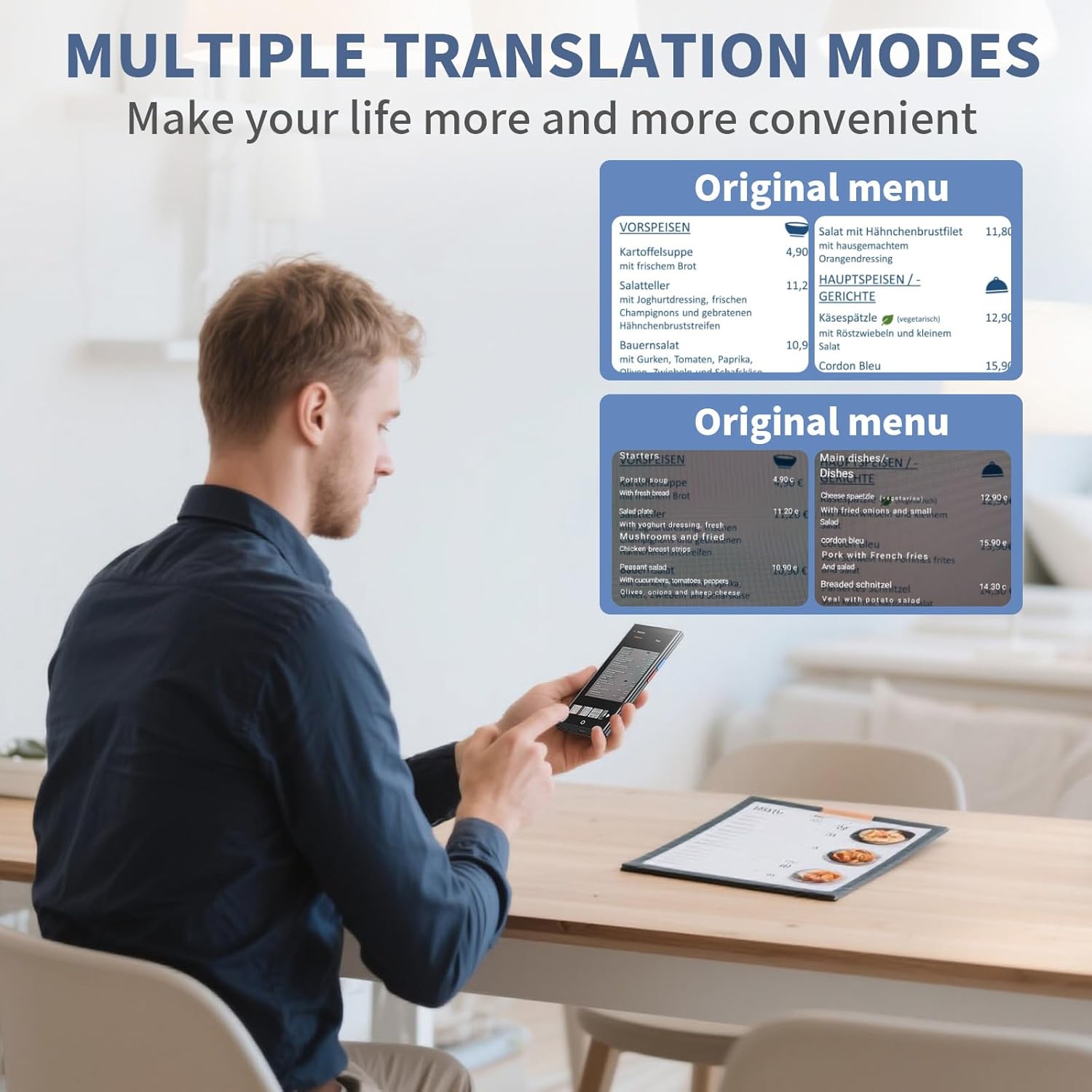
Image 5.4: A user translating a restaurant menu with the CAWRUGA A80, demonstrating the practical application of the photo translation feature.
5.4 Recording Translation
This feature allows you to record spoken content and translate it into text, which can be useful for meetings or lectures.
- Access the 'Recording Translation' function.
- Start recording the audio.
- After recording, select the desired language for translation. The device will convert the spoken content into text.
5.5 Group Translation
The group translation feature enables multiple users to communicate in different languages simultaneously.
- Select 'Group Translation' from the menu.
- Create a new group or join an existing one using a unique code.
- Participants can then speak in their native language, and the device will translate it for others in the group.
5.6 Audio and Video Translation (VTrans App)
For audio and video call translation, the VTrans app is required. This function may require a VIP subscription.
- Download and install the "VTrans" app on your smartphone.
- Connect the CAWRUGA A80 device to the VTrans app via Bluetooth.
- Within the app, select the "Audio and Video Translation" function under Member Services.
- Invite the other party to join the call. Note that this specific translation function may require a VIP subscription within the VTrans app, while other translation features on the device do not.
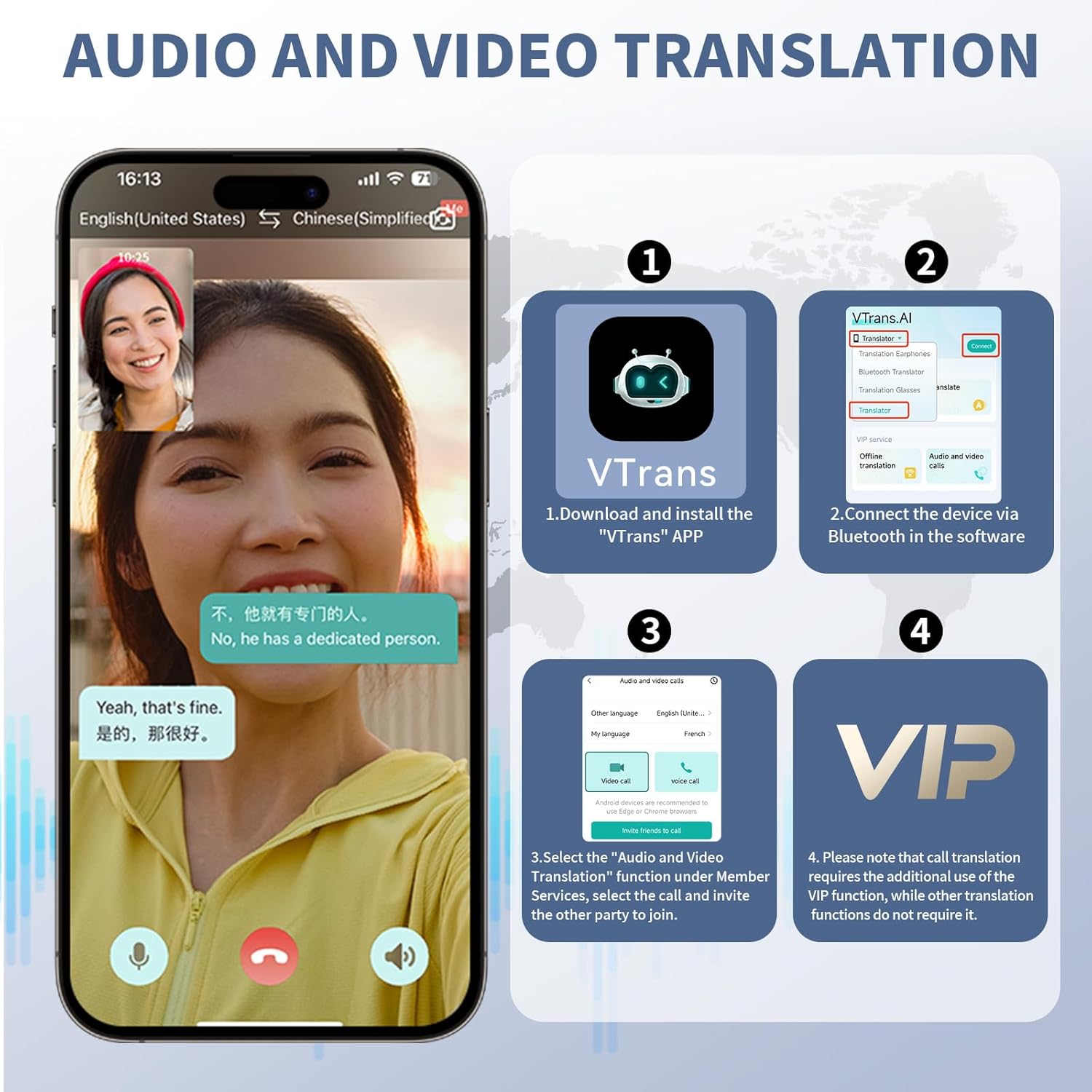
Image 5.5: A step-by-step guide illustrating how to set up and use the Audio and Video Translation feature through the VTrans application.
5.7 Other Functions
The CAWRUGA A80 also includes additional utilities:
- World Clock: View current times in various global cities.
- Real-time Currency Exchange: Convert currencies based on current rates.
- Language Learning Tools: Access features designed to assist with language acquisition.
- Voice Memos: Record and save voice notes.
6. Maintenance
6.1 Cleaning
To clean the device, use a soft, dry, lint-free cloth. Do not use liquid cleaners, aerosols, or abrasive materials, as these may damage the screen or internal components.
6.2 Storage
Store the device in a cool, dry place away from direct sunlight and extreme temperatures. When not in use for extended periods, ensure the device is partially charged (around 50%) to preserve battery health.
6.3 Battery Care
The device contains a rechargeable Lithium-Ion battery. Avoid fully discharging the battery frequently. For optimal battery life, charge the device regularly and avoid exposing it to temperatures above 45°C (113°F) or below 0°C (32°F).
7. Troubleshooting
7.1 Device Not Turning On
- Ensure the device is sufficiently charged. Connect it to a power source for at least 30 minutes.
- Try performing a hard reset by pressing and holding the power button for 10-15 seconds.
7.2 Inaccurate Translation
- Check your internet connection for online translation modes. A weak signal can affect accuracy.
- Speak clearly and at a moderate pace, avoiding slang or complex sentence structures.
- Ensure the correct source and target languages are selected.
- For photo translation, ensure the text is well-lit and clearly visible to the camera.
7.3 Connectivity Issues (Wi-Fi/Bluetooth)
- Restart the device and your Wi-Fi router/Bluetooth device.
- Ensure the device is within range of the Wi-Fi network or Bluetooth accessory.
- Verify that Wi-Fi or Bluetooth is enabled in the device settings.
8. Specifications
| Feature | Detail |
|---|---|
| Brand | CAWRUGA |
| Model Number | A80 |
| Screen | 5.5" IPS Touch Screen |
| Online Voice Translation | 150+ Languages |
| Offline Voice Translation | 21 Languages |
| Photo Translation Camera | 5MP |
| Photo Translation Languages | 75 Online, 41 Offline |
| Battery Type | Lithium Ion (included) |
| Dimensions | 16.31 x 8.51 x 3.4 cm |
| Weight | 240 g |
| Mounting Hardware | Device, Lanyard, Protective Case, USB Charging Cable, User Manual |
9. Warranty and Support
For warranty information and technical support, please refer to the warranty card included in your package or contact CAWRUGA customer service through the contact details provided on the official product website or your purchase platform. Please retain your proof of purchase for warranty claims.