
1. Introduction
The Samsung M5 (M50F) Series Smart Monitor combines the functionality of a Full HD display with integrated streaming TV capabilities. This monitor allows you to access various streaming services, utilize a Gaming Hub without a PC or console, and connect multiple devices through its versatile ports. This manual provides essential information for the proper use and care of your monitor.
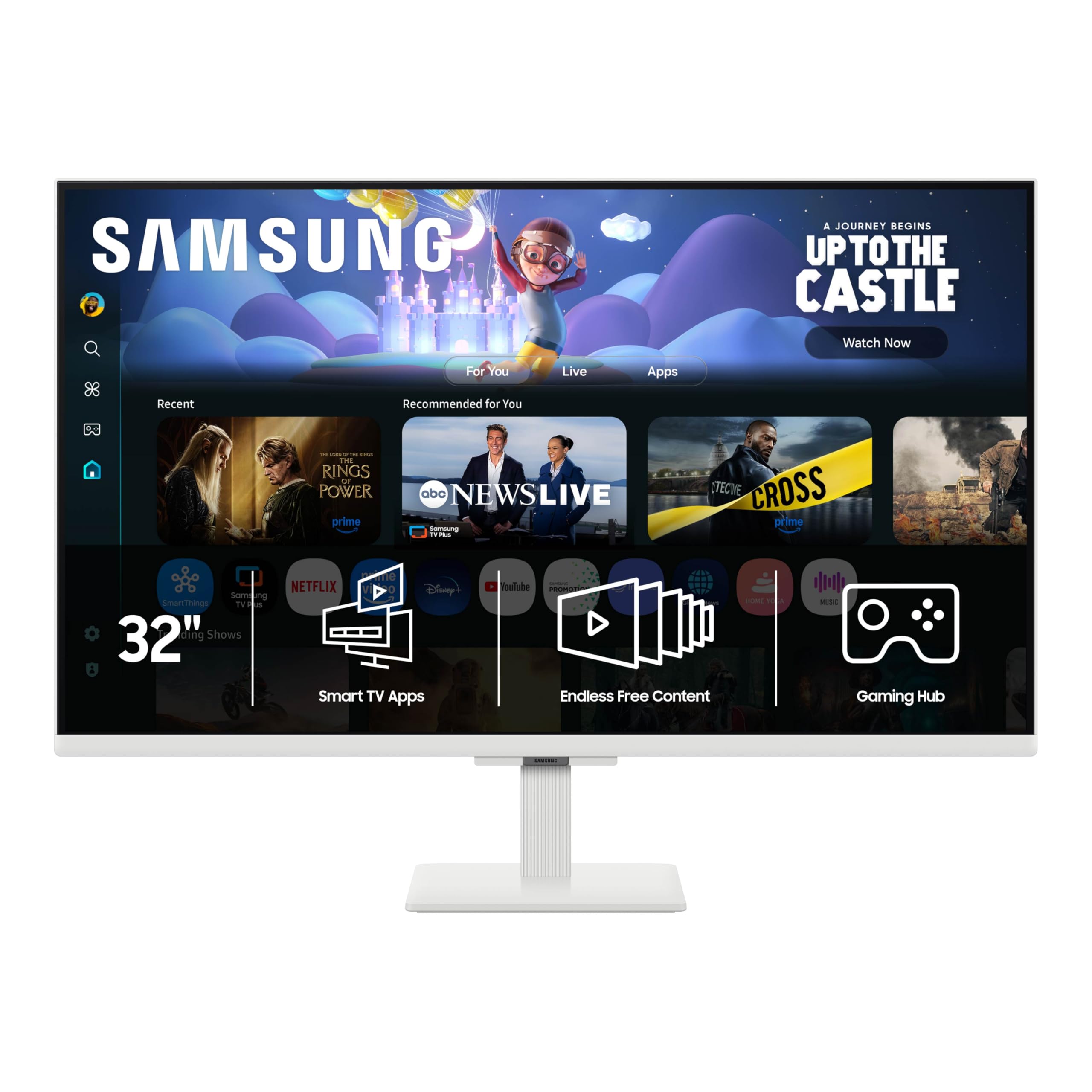
Front view of the Samsung 32-Inch M5 Smart Monitor.
2. Setup
2.1 Unpacking and Component Check
Carefully remove all components from the packaging. Ensure the following items are present:
- Samsung 32-Inch M5 Smart Monitor
- Power Cable
- HDMI Cable
- Remote Control
- Stand Components
2.2 Assembling the Stand
Attach the stand base to the stand neck, then secure the assembled stand to the back of the monitor. Refer to the included quick setup guide for detailed illustrations.
2.3 Connecting Cables
Connect the power cable to the monitor and a wall outlet. Use the provided HDMI cable to connect your external devices (e.g., computer, game console) to the HDMI IN ports on the monitor. The monitor also features USB Type-A Downstream ports for connecting peripherals.

Rear view of the monitor displaying the USB, Power, and HDMI input ports.

Detailed view of the monitor's connectivity options, including USB and HDMI ports.
3. Operating the Monitor
3.1 Power On/Off and Initial Setup
Press the power button on the monitor or the remote control to turn on the device. Follow the on-screen instructions for initial setup, including network connection and Samsung account login.
3.2 Smart TV Apps and Streaming
Access a wide range of streaming applications directly from the monitor's home screen. Browse and watch content from your favorite services without needing an external device.

The monitor's interface showing available streaming applications.
3.3 Samsung TV Plus
Enjoy free live TV channels through Samsung TV Plus, offering news, sports, movies, and children's programming. New content is regularly added.

Examples of content accessible via Samsung TV Plus.
3.4 Gaming Hub
The Samsung Gaming Hub provides instant access to games from top streaming partners without requiring a separate PC or console. Explore new titles or revisit favorites directly on your monitor.

The Gaming Hub interface on the Samsung M5 monitor.
3.5 Adaptive Sound
The monitor features Adaptive Sound technology, which analyzes audio scenes in real-time and optimizes sound output based on the content type for an immersive listening experience.
3.6 Mobile Connectivity
Effortlessly stream content from your mobile device to the monitor. This includes videos, photos, and documents, allowing for a larger viewing experience.
3.7 Video Demonstration
A video review demonstrating the features and streaming capabilities of the Samsung M5 Smart Monitor.
4. Maintenance
Proper maintenance ensures the longevity and optimal performance of your monitor.
4.1 Cleaning the Screen
Gently wipe the screen with a soft, lint-free cloth. For stubborn marks, lightly dampen the cloth with water or a specialized screen cleaner. Avoid using harsh chemicals, abrasive materials, or direct spraying onto the screen.
4.2 Cleaning the Monitor Body
Use a soft, dry cloth to clean the exterior surfaces of the monitor. Do not use liquid cleaners directly on the monitor body.
4.3 Ventilation
Ensure the monitor's ventilation openings are clear and unobstructed to prevent overheating. Do not place the monitor in an enclosed space without adequate airflow.
5. Troubleshooting
If you encounter issues with your monitor, refer to the following common troubleshooting steps.
5.1 No Power
- Check if the power cable is securely connected to both the monitor and the power outlet.
- Verify that the power outlet is functioning by plugging in another device.
5.2 No Signal
- Ensure the HDMI cable is correctly connected to both the monitor and the source device.
- Select the correct input source on the monitor using the remote control or monitor buttons.
- Restart the source device (e.g., computer, game console).
5.3 Picture Issues (Distorted, Flickering, Incorrect Colors)
- Check the HDMI cable for damage; try a different cable if available.
- Adjust the display settings on your source device (resolution, refresh rate).
- Perform a factory reset on the monitor (refer to the on-screen menu for this option).
5.4 Remote Control Not Working
- Ensure there are no obstructions between the remote and the monitor.
- Check and replace the batteries in the remote control if necessary.
6. Specifications
Key technical specifications for the Samsung 32-Inch M5 (M50F) Series Smart Monitor.
| Feature | Specification |
|---|---|
| Brand | Samsung |
| Model Number | LS32FM503ENXZA |
| Model Name | M50F |
| Screen Size | 32 inches |
| Resolution | FHD 1080p (1920 x 1080 pixels) |
| Aspect Ratio | 16:9 |
| Refresh Rate | 60 hertz |
| Response Time | 4 milliseconds |
| Display Type | LED (LCD Technology) |
| Contrast Ratio | 3,000:1 |
| Brightness | 250 cd |
| Connectivity | Bluetooth, HDMI (2 ports), USB (2 ports), Wi-Fi |
| Special Features | Built-In Speakers, HDR10, Gaming Hub, Smart TV Apps, Vision Accessibility Tools |
| Dimensions (D x W x H) | 7.87"D x 28.16"W x 20.7"H |
| Item Weight | 10.4 pounds |
| Color | White |

Physical dimensions of the Samsung M5 Smart Monitor.
7. Warranty and Support
7.1 Manufacturer's Warranty
This Samsung monitor is covered by a 1-Year Manufacturer Warranty. For detailed terms and conditions, please refer to the warranty information included with your product or visit the official Samsung support website.
7.2 Additional Support
For further assistance, technical support, or to download the full user guide in PDF format, please visit the Samsung support website or contact their customer service. You can also find the official User Guide (PDF) here.


