
1. Introduction
This manual provides essential information for setting up, operating, and maintaining your VAIO FS14 laptop. The VAIO FS14 is a high-performance laptop featuring an Intel Core Ultra 7 processor, 32GB RAM, a 2TB SSD, and a 14-inch Full HD touch display. It runs on Windows 11 Home and includes features like THX Spatial Audio and Windows Hello for enhanced security and user experience.
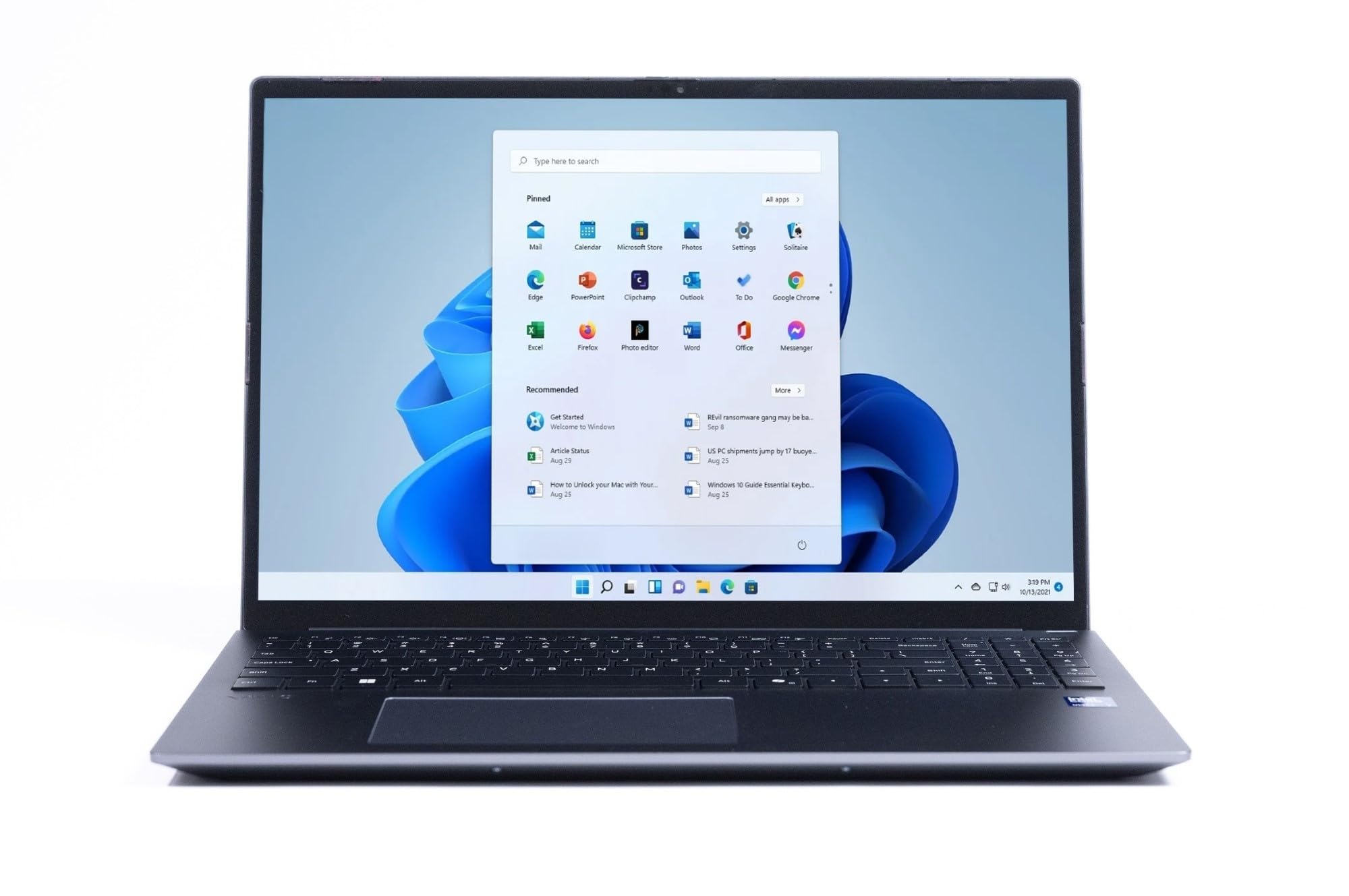
Image 1.1: The VAIO FS14 laptop in its closed state, displaying the VAIO logo on the lid.
2. Product Features
The VAIO FS14 laptop is equipped with several advanced features designed for productivity and entertainment:
- Powerful Performance: Features an Intel Meteor Lake H-series CPU with Intel Arc graphics for efficient multitasking and fast processing.
- Ample Memory & Storage: Comes with 32GB LPDDR5 RAM and a 2TB PCIe Gen 4 SSD for quick boot times and extensive storage capacity.
- Stunning Display: A 14-inch Full HD IPS touch screen (1920x1200, 300 nits) with a 16:10 aspect ratio provides clear visuals and more vertical screen space.
- Secure & Convenient: Integrated IR webcam and fingerprint reader support Windows Hello for secure and rapid user authentication.
- Durable Design: Lightweight at 1.47kg, featuring a spill-resistant backlit keyboard and an all-metal chassis. The 135° hinge offers flexible viewing angles.
- THX® Spatial Audio: Enhanced audio experience for immersive sound.

Image 2.1: Close-up view of the power button, which includes a built-in fingerprint reader for secure access.

Image 2.2: The side view of the VAIO FS14 laptop, highlighting its connectivity options including USB-C, USB-A, HDMI, RJ45 Ethernet, and an SD card reader.

Image 2.3: The THX logo, illustrating the benefits of THX-tuned audio, including immersive sound, 3D audio optimization, and crystal-clear voice capture.
Product Overview Video
Video 2.1: An overview of the VAIO FS series laptop, showcasing its design and key features. This video provides a visual demonstration of the product.
3. Setup
3.1 Initial Power-On and Charging
- Connect the provided AC adapter to the laptop's charging port (USB-C or dedicated power port) and then to a power outlet.
- Allow the laptop to charge for at least 30 minutes before the first use, or until the charging indicator light shows a full charge.
- Press the power button, located on the top right of the keyboard, to turn on the laptop.
- Follow the on-screen instructions to complete the Windows 11 initial setup, including language, region, and network settings.
3.2 Windows Hello Setup
For enhanced security and convenience, set up Windows Hello using the integrated fingerprint reader or IR webcam:
- Fingerprint Reader:
- Go to Settings > Accounts > Sign-in options.
- Select Fingerprint recognition (Windows Hello) and follow the prompts to register your fingerprints.
- IR Webcam (Facial Recognition):
- Go to Settings > Accounts > Sign-in options.
- Select Facial recognition (Windows Hello) and follow the prompts to set up facial recognition.
3.3 Connecting Peripherals
The VAIO FS14 supports various external devices:
- USB Devices: Connect USB-A or USB-C devices such as external drives, mice, or keyboards to the available USB ports.
- External Display: Use the HDMI port or a USB-C port with display capabilities to connect an external monitor.
- Network: Connect an Ethernet cable to the RJ45 port for a wired network connection, or connect wirelessly via Wi-Fi.
- Audio: Use the 3.5mm audio jack for headphones or external speakers.
4. Operating Instructions
4.1 Keyboard and Touchpad
- Backlit Keyboard: Adjust the keyboard backlight brightness using the dedicated function keys (Fn + F key combination, typically F3 or F4).
- Touchpad: The integrated touchpad supports multi-touch gestures for navigation. Refer to Windows settings for customization.
- Touch Display: The 14-inch display is touch-enabled, allowing for direct interaction with the screen.
4.2 THX Spatial Audio
Your VAIO FS14 laptop features THX Spatial Audio for an enhanced sound experience. To optimize audio settings:
- Access the THX Spatial Audio application (usually pre-installed or available via the Windows Start Menu).
- Adjust settings for different content types (e.g., movies, music, gaming) to personalize your audio output.
- Ensure your audio drivers are up to date for optimal performance.
4.3 Wireless Connectivity
- Wi-Fi: Connect to wireless networks via Settings > Network & internet > Wi-Fi.
- Bluetooth: Pair Bluetooth devices like headphones or speakers via Settings > Bluetooth & devices.
5. Maintenance
5.1 Cleaning Your Laptop
- Screen: Use a soft, lint-free cloth slightly dampened with water or a screen cleaner. Avoid harsh chemicals.
- Keyboard and Chassis: Wipe with a soft, dry cloth. For stubborn dirt, use a slightly damp cloth. Ensure the laptop is powered off and unplugged before cleaning.
- Ports: Use compressed air to gently clear dust from ports.
5.2 Battery Care
- Avoid fully discharging the battery frequently.
- Store the laptop in a cool, dry place if not used for extended periods.
- Periodically calibrate the battery by fully charging and then fully discharging it.
5.3 Software Updates
Regularly update your operating system and drivers to ensure optimal performance and security:
- Windows Updates: Go to Settings > Windows Update and check for updates.
- Driver Updates: Visit the official VAIO support website for the latest drivers for your FS14 model.
6. Troubleshooting
This section addresses common issues you might encounter with your VAIO FS14 laptop.
6.1 Laptop Does Not Power On or Charge
- Check Power Connection: Ensure the AC adapter is securely connected to both the laptop and a working power outlet. Try a different outlet.
- Verify Adapter: Confirm the AC adapter is the one supplied with the laptop or a compatible replacement.
- Battery Status: If the laptop has been stored for a long time, the battery might be deeply discharged. Leave it connected to power for several hours.
- Hard Reset: Disconnect the AC adapter, press and hold the power button for 15-30 seconds, then reconnect the adapter and try to power on.
6.2 Touchpad Not Responding
- Check for Disablement: Some laptops have a function key (e.g., Fn + F10) to enable/disable the touchpad. Ensure it's not accidentally disabled.
- Driver Issues: Go to Device Manager (right-click Start button) and check for any warnings next to "Mice and other pointing devices" or "Human Interface Devices". Update or reinstall the touchpad driver.
- Restart: A simple restart can often resolve temporary software glitches.
6.3 Wi-Fi Connectivity Issues
- Toggle Wi-Fi: Turn Wi-Fi off and on again in Windows settings.
- Restart Router: Power cycle your Wi-Fi router and modem.
- Update Drivers: Ensure your wireless adapter drivers are up to date.
- Network Troubleshooter: Use the built-in Windows Network Troubleshooter (Settings > Network & internet > Advanced network settings > Network troubleshooter).
7. Specifications
| Feature | Detail |
|---|---|
| Brand | VAIO |
| Model Name | VAIO FS14 Touch |
| Screen Size | 14 inches |
| Color | Gray |
| Hard Disk Size | 2 TB SSD (PCIe Gen 4) |
| CPU Model | Intel Core Ultra 7 (Meteor Lake H-series, 16-Core, AI) |
| RAM Memory Installed Size | 32 GB LPDDR5 |
| Operating System | Windows 11 Home |
| Graphics Card | Integrated Intel Arc Graphics |
| Special Features | Backlit Keyboard, Fingerprint Reader, HD Audio, Lightweight, Spill Resistant, THX Spatial Audio |
| Display Resolution Maximum | 1920 x 1200 pixels (FHD IPS) |
| Touch Screen Type | Capacitive |
| Connectivity Technology | Bluetooth, Ethernet, HDMI, USB (USB-C, USB-A), Wi-Fi (802.11ax) |
| Total USB Ports | 4 |
| Processor Speed | 1.4 GHz |
| Item Dimensions (L x W x Th) | 12.45"L x 9.11"W x 0.7"Th |
| Built-In Media | Webcam |
| UPC | 827396551806 |
8. Warranty and Support
8.1 Product Warranty
The VAIO FS14 laptop comes with a Limited Warranty. This includes 1 year parts and labor from the date of purchase. Please retain your proof of purchase for warranty claims.
For detailed terms and conditions of the warranty, please refer to the warranty card included with your product or visit the official VAIO support website.
8.2 Customer Support
If you encounter issues not covered in the troubleshooting section or require further assistance, please contact VAIO customer support. Support contact information can typically be found on the official VAIO website or in the documentation included with your laptop.
When contacting support, please have your laptop's model number (FS14) and serial number ready. The serial number is usually located on a sticker on the bottom of the laptop.