
1. Introduction
The Honeywell CT45XP is a rugged mobile computer designed for demanding enterprise and industrial environments. It provides reliable performance for various applications including warehouse management, logistics, manufacturing, and field operations. This manual will guide you through the setup, operation, maintenance, and troubleshooting of your device.

Figure 1: Front view of the Honeywell CT45XP Rugged Mobile Computer, showing the display and Honeywell logo.
2. Setup
2.1. Package Contents
Verify that all items are present in the package:
- Honeywell CT45XP Mobile Computer
- Battery (may be pre-installed)
- USB-C Cable
- Power Adapter (may be sold separately)
- Quick Start Guide
2.2. Battery Installation and Charging
- Ensure the device is powered off before installing or removing the battery.
- Locate the battery compartment cover on the rear of the device.
- Open the cover and insert the battery, ensuring the contacts align correctly.
- Close the battery compartment cover securely.
- Connect the USB-C cable to the device's USB-C port and the other end to the power adapter.
- Plug the power adapter into a wall outlet. The device will begin charging.
- Allow the device to charge fully before initial use. The battery is hot-swappable, allowing for uninterrupted operation during battery changes.
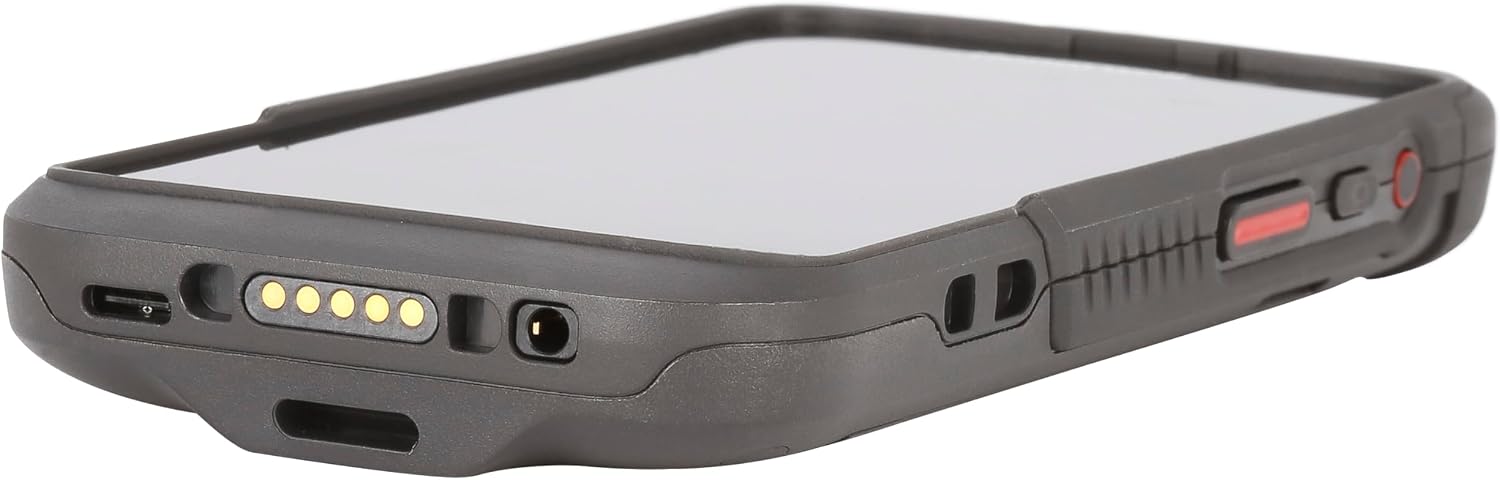
Figure 2: Bottom view of the Honeywell CT45XP, showing the USB-C port and charging contacts.
2.3. Initial Power-On
- Press and hold the Power button located on the side of the device until the Honeywell logo appears.
- Follow the on-screen prompts to complete the initial Android 11 setup, including language selection, Wi-Fi network connection, and Google account setup (optional).
3. Operating Instructions
3.1. Display and Touchscreen
The CT45XP features a 5.0-inch Full HD (1920x1080) touchscreen with Gorilla Glass 5 for enhanced durability. It supports multiple input modes:
- Finger Touch: Standard operation.
- Glove Mode: Allows operation while wearing gloves. Activate this mode in the device settings.
- Rain Mode: Optimizes touch sensitivity for use in wet conditions. Activate this mode in the device settings.
- Stylus Mode: For precise input using a compatible stylus.
3.2. Barcode Scanning
The device is equipped with a standard-range FlexRange 1D/2D imager for fast and accurate barcode capture.
- Open an application that supports barcode scanning.
- Point the scanner window at the barcode, ensuring the entire barcode is within the aiming pattern.
- Press one of the dedicated scan buttons located on the side of the device.
- The device will emit a beep or vibrate to indicate a successful scan.

Figure 3: Top view of the Honeywell CT45XP, highlighting the integrated barcode scanner.
3.3. Camera Operation
The CT45XP includes a 13MP rear camera with autofocus and an 8MP front camera for documentation and video communications.
- Rear Camera: Ideal for capturing high-resolution images of products, damages, or documents.
- Front Camera: Suitable for video calls and self-documentation.
Access the camera application from the home screen or app drawer to take photos or record videos.
3.4. Connectivity
The device supports various connectivity options:
- Wi-Fi 6: For high-speed wireless network access. Configure Wi-Fi settings via Settings > Network & internet > Wi-Fi.
- Bluetooth 5.1: For connecting to wireless peripherals such as headsets or printers. Pair devices via Settings > Connected devices > Bluetooth.
- 4G LTE: For cellular data connectivity (requires a SIM card, not included).
- NFC: For near-field communication, enabling quick pairing or data exchange with compatible devices.
- USB-C OTG: The USB-C port supports On-The-Go (OTG) functionality for connecting external USB devices.
4. Maintenance
4.1. Cleaning the Device
To maintain optimal performance and hygiene, clean your CT45XP regularly:
- Use a soft, lint-free cloth dampened with a mild cleaning solution (e.g., isopropyl alcohol or a screen cleaner) to wipe the display and exterior surfaces.
- Avoid using abrasive cleaners, solvents, or aerosol sprays.
- Ensure all ports are dry before connecting any cables.
4.2. Battery Care
The hot-swappable battery allows for continuous operation. To prolong battery life:
- Avoid exposing the battery to extreme temperatures.
- Store spare batteries in a cool, dry place.
- Replace batteries when their capacity significantly diminishes.
4.3. Durability Features
The CT45XP is built to withstand harsh conditions:
- IP65/IP68 Rated: Provides protection against dust and water ingress.
- Drop Resistance: Withstands drops from up to 1.8 meters (6 feet) to concrete; up to 2.4 meters (8 feet) with an optional protective boot.
- Tumble Resistance: Designed to endure up to 3,000 tumbles from 1 meter.
Despite its rugged design, avoid unnecessary impacts or exposure to extreme environments to ensure longevity.
5. Troubleshooting
This section addresses common issues you might encounter with your CT45XP.
5.1. Device Not Powering On
- Check Battery: Ensure the battery is properly installed and charged. Connect the device to the charger and wait a few minutes before attempting to power on.
- Hard Reset: If the device is unresponsive, press and hold the Power button for approximately 10-15 seconds until the device restarts.
5.2. Barcode Scanning Issues
- Clean Scanner Window: Ensure the scanner window is clean and free of smudges or debris.
- Proper Aiming: Make sure the barcode is fully within the aiming pattern and at an appropriate distance.
- Application Compatibility: Verify that the application you are using supports the integrated scanner.
5.3. Connectivity Problems (Wi-Fi/Bluetooth)
- Toggle On/Off: Try turning Wi-Fi or Bluetooth off and then on again in the device settings.
- Restart Device: A device restart can often resolve minor connectivity glitches.
- Forget Network/Device: For persistent issues, forget the Wi-Fi network or Bluetooth device and attempt to reconnect/re-pair.
6. Specifications
| Feature | Description |
|---|---|
| Model | CT45XP (CT45P-X0N-37D200G) |
| Operating System | Android 11 (upgradeable) |
| Processor | Qualcomm Octa-core |
| Memory | 6GB RAM / 64GB UFS Storage |
| Display | 5.0" Full HD (1920x1080), Gorilla Glass 5, Glove/Rain/Stylus modes |
| Barcode Imager | Standard-range FlexRange 1D/2D |
| Rear Camera | 13MP with Autofocus |
| Front Camera | 8MP |
| Wi-Fi | Wi-Fi 6 |
| Bluetooth | Bluetooth 5.1 (with BLE beacon support) |
| Cellular | 4G LTE |
| Other Connectivity | USB-C OTG, NFC |
| Ingress Protection | IP65 and IP68 |
| Drop Specification | 1.8 m (6 ft) to concrete; 2.4 m (8 ft) with protective boot |
| Tumble Specification | 3,000 tumbles from 1 m (3.3 ft) |
| Battery | Hot-swappable |
7. Warranty and Support
Honeywell provides long-term Android lifecycle updates and enterprise-grade security for the CT45XP. For detailed warranty information and technical support, please refer to the official Honeywell website or contact your authorized reseller.
You can find more information and support resources on the Honeywell Official Website.


