
Introduction
This manual provides essential information for the safe and efficient use of your Haier QLED 4K UHD H50S80FUX 50-inch Smart TV. Please read it thoroughly before operating the device and retain it for future reference.
Safety Information
Always follow basic safety precautions when using this television to reduce the risk of fire, electric shock, and injury. Do not expose the TV to rain or moisture. Do not open the cabinet. Refer all servicing to qualified personnel.
What's in the Box
- Haier QLED 4K UHD 50-inch Smart TV
- Smart Remote Control
- Power Cable
- User Manual
- 2 AAA Batteries (for remote control)
Setup
1. Physical Installation
Your Haier TV can be wall-mounted or placed on its central stand. Ensure the TV is placed on a stable surface or securely mounted to a wall using a VESA 400 x 400 mm compatible mount.
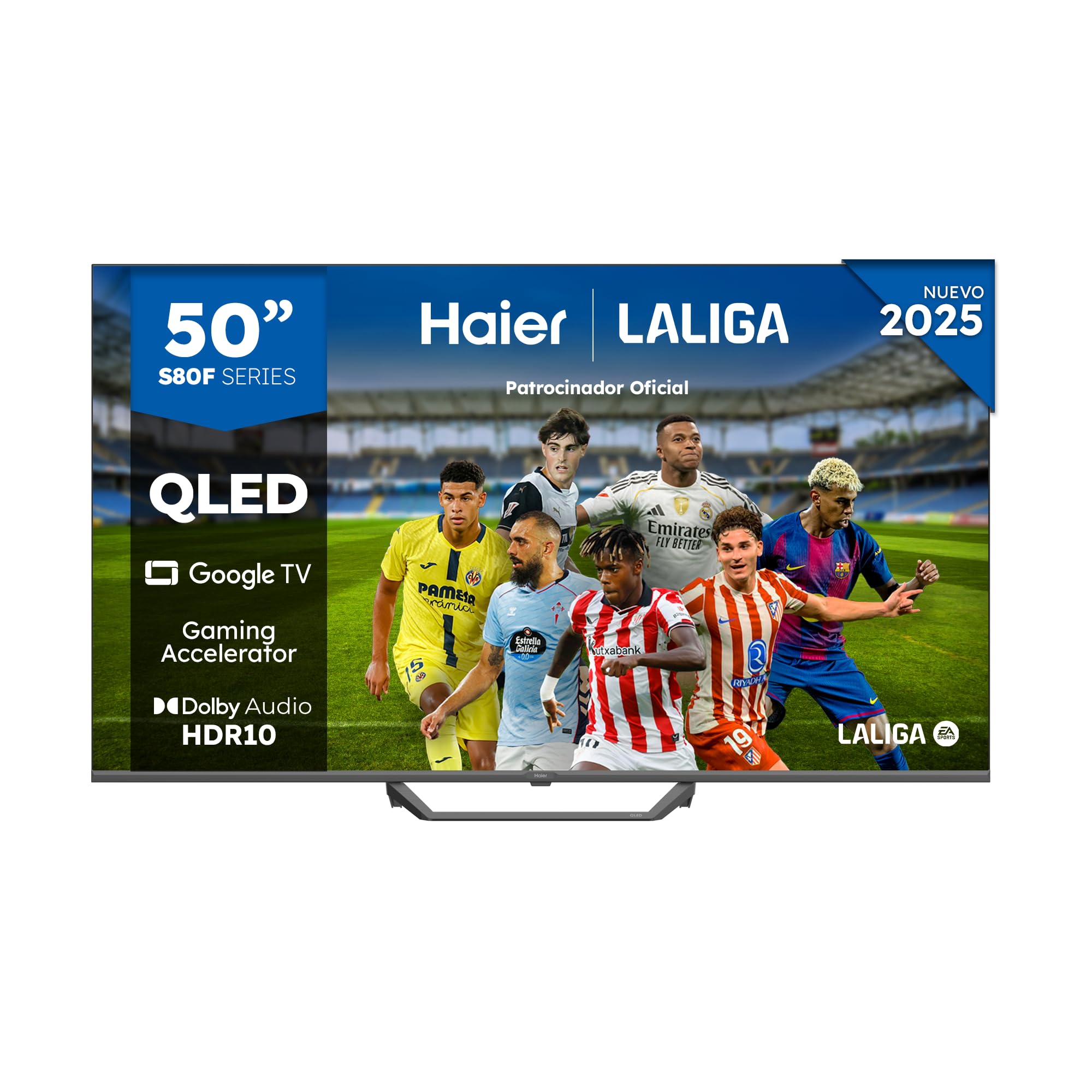
Image: Haier QLED 4K UHD 50-inch Smart TV with its sleek, frameless design.
2. Connecting Power
Connect the provided power cable to the TV's power input and then to a suitable electrical outlet (230 Volts).
3. Remote Control Setup
Insert the 2 AAA batteries into the Smart Remote Control. The remote is designed for intuitive navigation of the Google TV interface.
4. Initial Power On and Google TV Setup
Press the power button on the remote. Follow the on-screen instructions to complete the initial setup, including language selection, network connection (Wi-Fi or Ethernet), and Google account login for Google TV features.

Image: The Google TV interface displaying various streaming applications like Netflix, YouTube, and Disney+.
Operating Your TV
1. Basic Navigation
Use the directional pad and 'OK' button on your Smart Remote Control to navigate through menus and select options. Dedicated buttons provide quick access to popular streaming services.
2. Accessing Apps and Content
From the Google TV home screen, you can access pre-installed applications like Disney+, YouTube, Netflix, and Prime Video. The Google Store offers over 10,000 additional apps. Use Chromecast built-in to cast content from your mobile device.
3. Input Selection
Press the 'Input' button on your remote to switch between connected devices via HDMI 2.1 ports (x4) or USB 2.0 ports (x2).

Image: A close-up of the HDMI 2.1 port, highlighting its advanced connectivity for high-speed data transfer.
4. Picture Settings (QLED 4K UHD, HDR 10)
Your TV features QLED 4K UHD technology with Quantum Dot for vibrant colors and HDR 10 support for enhanced contrast and detail. Adjust picture modes (e.g., Standard, Cinema, Game) in the settings menu to optimize your viewing experience.

Image: Overview of Haier S81 Series QLED 50-inch TV features, including Dolby Audio, Google TV, Gaming Accelerator, and HDR 10.
5. Sound Settings (Dolby Audio)
The TV is equipped with Dolby Audio for immersive sound. You can customize audio settings, including sound modes and equalizer, through the TV's audio menu. The integrated DBX TV technology further enhances sound calibration.

Image: Visual representation of Dolby Audio technology, emphasizing cinematic sound experience.
6. Gaming Features
Benefit from the Gaming Accelerator and HDMI 2.1 ports for a smoother gaming experience with a 120Hz refresh rate. The TV supports MEMC technology for motion enhancement.

Image: Comparison of 60Hz standard and 120Hz DLG Gaming Accelerator, illustrating smoother motion for gaming.
7. Google Assistant and Bluetooth
Use the built-in Google Assistant for voice commands and smart home control. Connect Bluetooth 5.1 compatible devices such as headphones or game controllers wirelessly.
Maintenance
1. Cleaning the Screen
Gently wipe the screen with a soft, dry, lint-free cloth. For stubborn marks, slightly dampen the cloth with water or a specialized screen cleaner. Avoid harsh chemicals.
2. Software Updates
Ensure your TV is connected to the internet to receive automatic software updates. These updates provide new features and improve performance and security.
Troubleshooting
- No Power: Check if the power cable is securely connected to both the TV and the outlet. Ensure the outlet is functional.
- No Picture/Sound: Verify the correct input source is selected. Check all cable connections (HDMI, etc.).
- Remote Not Responding: Replace the AAA batteries in the remote control. Ensure there are no obstructions between the remote and the TV.
- Network Connection Issues: Restart your router and the TV. Check Wi-Fi password and signal strength. For Ethernet, ensure the cable is properly connected.
Specifications
| Model Number | 36200135 |
| Screen Size | 50 Inches |
| Display Technology | QLED, 4K UHD |
| Resolution | 4K (3840 x 2160 pixels) |
| Refresh Rate | 120 Hz |
| HDR Format Support | HDR10 |
| Operating System | Google TV |
| Audio Technology | Dolby Audio, DBX TV |
| Speaker Output Power | 24 Watts |
| Connectivity | Wi-Fi, Ethernet, Bluetooth 5.1, 4x HDMI 2.1, 2x USB 2.0 |
| VESA Mounting Standard | 400 x 400 mm |
| Dimensions (with stand) | 111.12 x 27.72 x 68.86 cm |
| Weight (with stand) | 8.5 kg |
| Energy Efficiency Class | F |
For detailed energy information, refer to the official EU EPREL database: https://eprel.ec.europa.eu/qr/2290978
Warranty and Support
This product comes with a 3-year limited warranty. For technical support or warranty claims, please contact Haier customer service. Keep your purchase receipt for proof of warranty.


