1. Introduction
This manual provides essential information for the installation, operation, maintenance, and troubleshooting of your SOYO AMD Radeon RX 580 Graphics Card. Please read this manual thoroughly before installation and retain it for future reference.

Image 1.1: The SOYO AMD Radeon RX 580 Graphics Card with its retail packaging.
2. Product Overview
The SOYO AMD Radeon RX 580 Graphics Card is designed for PC gaming and graphics tasks, offering a balance of performance and features. It includes:
- Powerful Performance: Equipped with 8GB GDDR5 RAM and 2048SP CUDA cores, operating at a 1206MHz GPU clock for smooth gameplay and rendering.
- High-Speed Data Transfer: A 256-bit bus width facilitates rapid data transfer between the GPU and memory, reducing lag.
- Efficient Cooling System: Features a dual-fan design to effectively dissipate heat and maintain optimal operating temperatures.
- Advanced Bus Interface: Utilizes a PCI Express x16 3.0 interface for high-speed communication with the motherboard.
- Comprehensive Software Support: Supports DirectX 12, OpenGL 4.6, and Vulkan for compatibility with modern games and advanced graphics features.

Image 2.1: The SOYO AMD Radeon RX 580 Graphics Card, highlighting its 8GB memory.
2.1 Package Contents
The product package typically includes:
- SOYO RX580 Graphics Card
Additional accessories such as driver CDs are generally not included. Drivers should be downloaded from the official AMD website.
3. Specifications

Image 3.1: Key technical parameters of the RX580 Graphics Card.
| Feature | Detail |
|---|---|
| Model | RX580 |
| Graphics Coprocessor | AMD Radeon RX 580 |
| Memory Size | 8 GB |
| Memory Type | GDDR5 |
| GPU Clock Speed | 1206 MHz |
| Bus Interface | PCI Express x16 3.0 |
| Power Interface | 6-pin |
| Video Output Interface | 1x DisplayPort, 1x HDMI, 1x DVI |
| Dimensions (L x W x H) | Approx. 240mm x 135mm x 45mm (9.45 x 5.31 x 1.77 inches) |
| Item Weight | 1.98 pounds |
| Manufacturer | SOYO |

Image 3.2: Physical dimensions of the graphics card.
4. Setup
4.1 Physical Installation
- Power Off: Ensure your computer is completely powered off and unplugged from the wall outlet.
- Open Case: Open your computer case to access the motherboard and PCI Express slots.
- Locate PCIe Slot: Identify an available PCI Express x16 3.0 slot on your motherboard. Note that this card occupies two expansion slots due to its thickness. Ensure adequate space in your case.
- Insert Card: Carefully align the graphics card with the PCIe slot and press down firmly until it is securely seated.
- Secure Card: Use the screw or latch mechanism on your case to secure the graphics card in place.
- Connect Power: Connect a 6-pin PCI Express power connector from your power supply unit (PSU) to the graphics card. Ensure your PSU has sufficient wattage (recommended 500W or higher) and the necessary 6-pin connector.
- Close Case: Close your computer case and reconnect all cables.
4.2 Driver Installation
- Boot System: Power on your computer.
- Download Drivers: Navigate to the official AMD website (www.amd.com/en/support) and download the latest drivers for the AMD Radeon RX 580.
- Install Drivers: Follow the on-screen instructions to install the drivers. It is recommended to perform a clean installation to avoid conflicts with previous drivers.
- Restart: Restart your computer after the driver installation is complete.
5. Operating Instructions
5.1 Display Connection
The SOYO RX580 Graphics Card supports multiple display outputs:
- 1x DisplayPort (DP)
- 1x HDMI
- 1x DVI
Connect your monitor(s) to the appropriate ports on the graphics card. For optimal performance and compatibility, use direct connections (HDMI to HDMI, DP to DP, DVI to DVI) and avoid using signal adapters (e.g., HDMI-DVI, HDMI-VGA, DP-VGA) as they may cause display artifacts or signal issues.
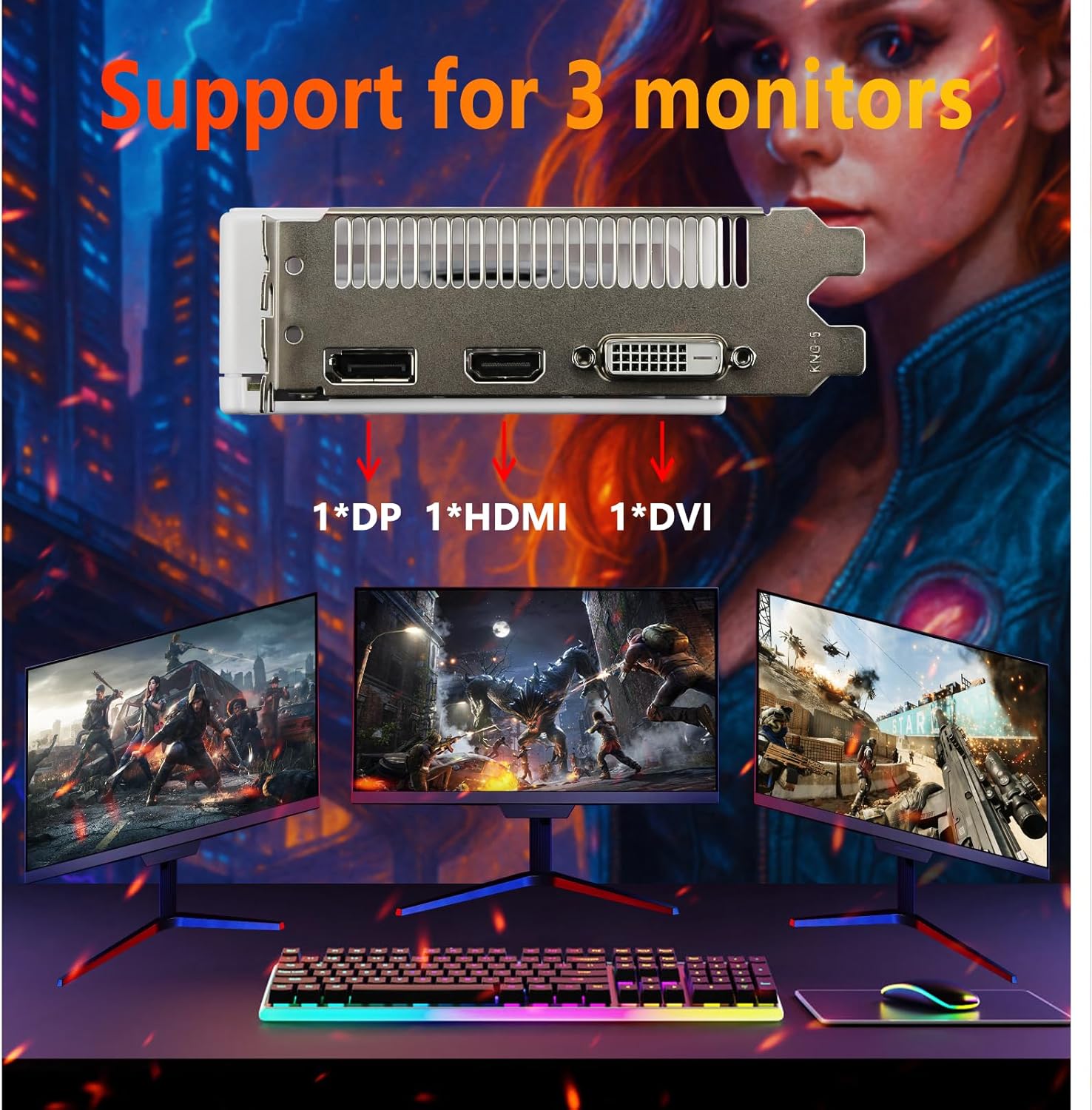
Image 5.1: The graphics card supports connecting up to three monitors simultaneously.

Image 5.2: Important warning regarding the use of signal adapters.
5.2 Software Features
The graphics card supports modern graphics APIs and features:
- DirectX 12: For enhanced gaming performance and visual effects.
- OpenGL 4.6: Broad compatibility with various graphics applications.
- Vulkan: A low-overhead, cross-platform 3D graphics and compute API.
- AMD FidelityFX Super Resolution (FSR): Enable FSR in supported games for improved frame rates at higher resolutions.
The card is capable of delivering high-quality graphics and supports resolutions up to 4K for compatible displays.

Image 5.3: Visual comparison demonstrating the impact of the RX580 on game graphics.
6. Maintenance
Regular maintenance helps ensure the longevity and optimal performance of your graphics card.
6.1 Cleaning
- Heatsink and Fans: Periodically clean the heatsink and fans. Power off your PC, remove the GPU, and use a soft brush or compressed air to blow away dust. Avoid using water or harsh cleaners.
- Case Airflow: Ensure good airflow within your PC case. Add 1-2 intake fans at the front/bottom of the case and 1 exhaust fan at the rear/top to create positive air pressure, which helps prevent dust buildup and improves cooling.
6.2 Thermal Paste
For advanced users, if you experience high temperatures after extended use, you may consider reapplying thermal paste. Disassemble the GPU cooler, clean the old thermal paste with isopropyl alcohol, and apply a small pea-sized amount of high-quality thermal paste to the GPU die. Reattach the heatsink evenly.
7. Troubleshooting
This section addresses common issues you might encounter.

Image 7.1: SOYO RX580 Quick Q&A for common issues.
7.1 Driver-Related Issues
- Uninstall and Reinstall Drivers: Open Device Manager > Display adapters. Right-click 'AMD Radeon RX 580' > 'Uninstall device'. Check 'Delete the driver software for this device'. Restart PC. Download the latest compatible driver from AMD's official website and perform a clean installation.
- Roll Back to a Stable Driver Version: If the latest driver causes issues, use AMD Radeon Software > 'Settings' > 'System' > 'Driver-Related' tab to revert to a previously working version.
- Disable Conflicting Software: Temporarily turn off antivirus/firewall tools (e.g., Windows Defender, Radeon Software) during driver installation to prevent conflicts.
7.2 Power Supply (PSU) Issues
- Verify PSU Specifications: Check your PSU's label for wattage (e.g., 500W+) and 80+ efficiency rating. Ensure it has a dedicated 6-pin PCIe connector.
- Replace the PSU if necessary: If the PSU is undersized or faulty, upgrade to a reliable 500W+ model (e.g., Corsair CX550F, EVGA 500 GD).
- Reseat Power Connectors: Power off the PC, disconnect, then firmly reseat the PCIe power cable into the GPU and the PSU.
7.3 Hardware Degradation
- Test for VRAM Errors: Use tools like MemTest86 (bootable USB) or AMD Radeon Software's 'VRAM Stress Test' to check for VRAM corruption. If errors are detected, the VRAM is likely faulty.
- Inspect for Physical Damage: Check the GPU's fan blades (replace broken fans with compatible models, e.g., Arctic P12) and PCIe bracket (straighten gently if bent).
7.4 Compatibility with Games/Software
- Optimize In-game Settings: For newer titles, lower resolution to 1080p, reduce texture quality to 'Low/Medium', and turn off resource-heavy features (e.g., ray tracing). Enable AMD FSR if available.
- Use Performance-boosting Tools: Utilize AMD Radeon Software's 'Gaming Optimization' to automatically adjust settings for better performance.
8. Warranty and Support
For warranty information, please refer to the documentation included with your purchase or visit the official SOYO website. For technical support, driver downloads, and further assistance, please visit the SOYO official support page or contact their customer service.
SOYO Official Store: Visit SOYO Store on Amazon


