
1. Introduction
The Tikom L8000 Plus Robot Vacuum and Mop is an advanced cleaning device designed to automate floor maintenance. Featuring powerful suction, intelligent navigation, and a convenient self-emptying base, it provides efficient cleaning for various floor types.

Image: The Tikom L8000 Plus Robot Vacuum and Mop, showcasing the robot, its self-emptying base, and included mopping accessories.
Key Features:
- 90-Day Hands-Free Cleaning: The 3L self-emptying dustbag minimizes manual emptying for up to 90 days.
- 6000Pa Ultra-Strong Suction: Effectively removes debris, pet hair, and dirt from hard floors and carpets, with automatic suction increase on carpets.
- 360° LiDAR Navigation & Smart Mapping: Advanced LiDAR technology for precise home mapping, obstacle avoidance, and multi-floor map saving (up to 5 maps).
- 2-In-1 Sweeping & Mopping: Combines vacuuming and mopping with adjustable suction levels and water flow settings.
- Convenient App & Voice Control: Customize cleaning schedules, no-go zones, and control via app, Alexa, or Google Assistant. Supports 2.4Ghz & 5Ghz Wi-Fi.
- 150-Min Run Time & Auto-Recharge/Resume: Up to 150 minutes of cleaning on a single charge, with automatic return to base for recharging and resume cleaning.
2. Setup
2.1 What's in the Box

Image: Diagram showing the Tikom L8000 Plus Robot Vacuum Cleaner, Self-Empty Base, Mopping Cloth Holder, Spare Mopping Cloth, Water Tank, Cleaning Brush, HEPA Filter, Cable Ties, Side Brushes, User Manual, Spare Dust Bag, and Spare Dust Bin Transparent Blocking Plate.
- Robot Vacuum Cleaner
- Self-Emptying Base
- Mopping Cloth Holder
- Spare Mopping Cloth
- Water Tank
- Cleaning Brush
- HEPA Filter
- Cable Ties (x5)
- Side Brushes (x2)
- User Manual
- Spare Dust Bag
- Spare Dust Bin Transparent Blocking Plate (x2)
2.2 Initial Charging
Place the self-emptying base against a wall in an open area with sufficient clearance. Ensure the robot is fully charged before its first use. The robot will automatically return to the charging station when the battery is low or cleaning is complete.
2.3 App Installation and Pairing
Download the Tikom app from your smartphone's app store. Follow the in-app instructions to connect your robot vacuum to your home Wi-Fi network (supports 2.4Ghz & 5Ghz). The app enables advanced features like mapping, scheduling, and voice control integration with Alexa or Google Assistant.

Image: A smartphone displaying the Tikom app interface for controlling the robot vacuum, with icons for Google Assistant, Amazon Alexa, and Wi-Fi connectivity.
2.4 Initial Mapping
For optimal performance, allow the robot to complete an initial mapping run of your home. The LiDAR navigation system will create a detailed map, which can then be customized in the app to define cleaning areas, no-go zones, and virtual walls.
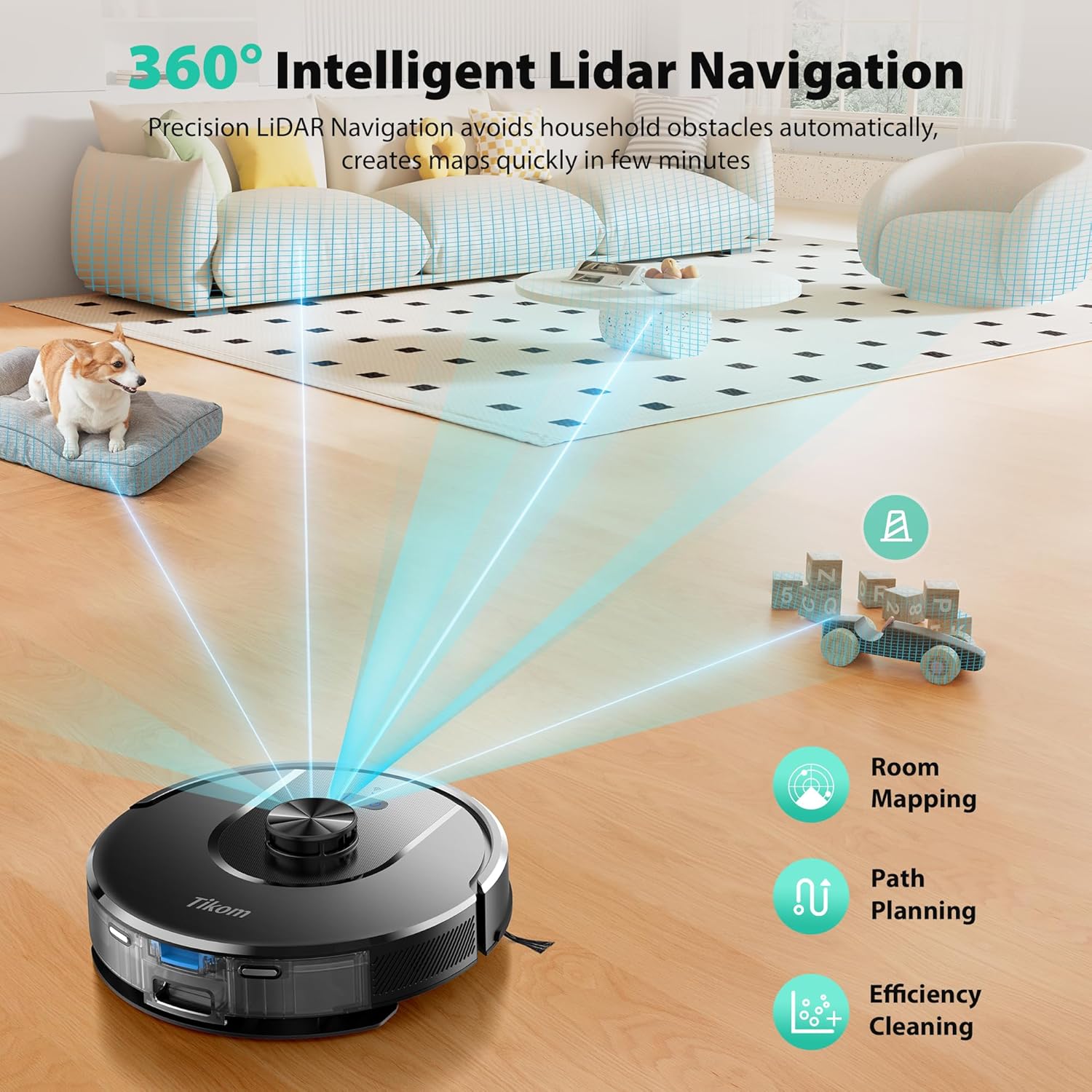
Image: The Tikom L8000 Plus robot vacuum using its 360-degree LiDAR navigation to map a room, with visual representations of room mapping, path planning, and efficient cleaning.
3. Operating Instructions
3.1 Starting a Cleaning Cycle
Press the power button on the robot or use the Tikom app to start a cleaning cycle. The robot will begin cleaning according to its programmed schedule or current settings.
3.2 Cleaning Modes
The L8000 Plus offers three cleaning modes:
- Vacuum Only: For dry debris and dust.
- Mop Only: For light mopping of hard floors.
- Vacuum & Mop: Simultaneous vacuuming and mopping.
Adjust suction levels and water flow settings via the app to suit different floor types and cleaning needs. When in mop mode, ensure the mop holder is removed or a no-go zone is established to prevent mopping carpets.

Image: Visual representation of the Tikom L8000 Plus operating in Vacuum Only, Mop Only, and 2-in-1 Vacuum & Mop modes, highlighting the dustbin and water tank capacities.
3.3 Customizing Cleaning Areas
Using the Tikom app, you can:
- Define No-Go Zones to prevent the robot from entering specific areas.
- Set No-Mop Zones to protect carpets during mopping cycles.
- Establish Virtual Walls to create invisible barriers.
- Schedule cleaning times for specific rooms or areas.

Image: An illustration showing the Tikom L8000 Plus robot vacuum cleaning different rooms (Bathroom, Living Room, Kitchen, Bedroom) at scheduled times, with 'No-Go Zone' and 'No-Mop Zone' indicated.
3.4 Auto-Recharge and Resume
The robot automatically returns to its charging station when the battery level is below 15% or when a cleaning cycle is finished. Once charged to 80%, it will resume cleaning from where it left off.

Image: A diagram illustrating the Tikom L8000 Plus robot vacuum returning to its charging base when battery is low (15%) and resuming cleaning from the last location once charged (80%).
4. Maintenance
4.1 Self-Emptying Base
The 3L self-emptying dustbag can hold debris for up to 90 days, significantly reducing the frequency of manual emptying. Replace the dustbag when full.
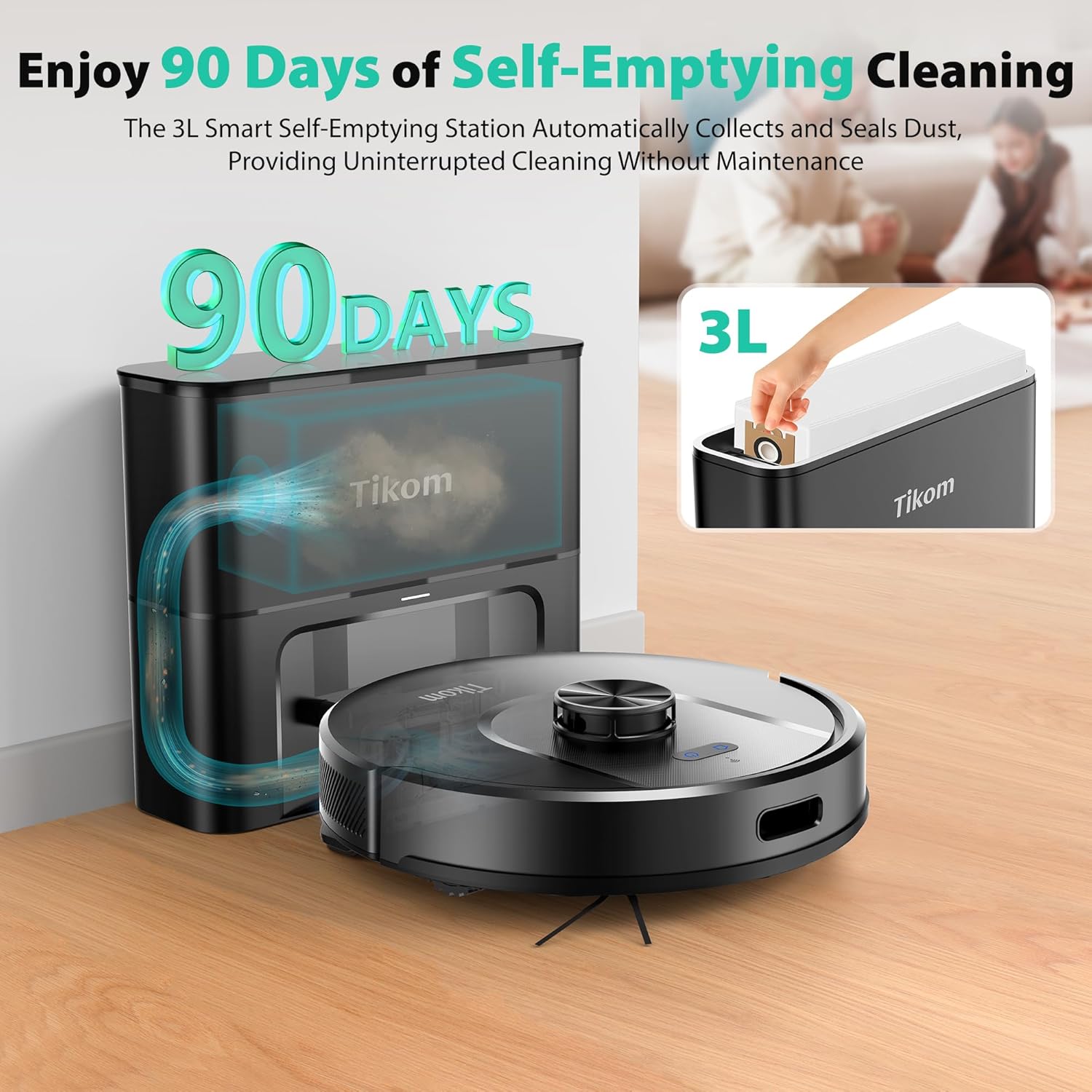
Image: The Tikom L8000 Plus robot vacuum and its self-emptying base, highlighting the 90-day capacity of the 3L dustbag.
4.2 Dustbin and Water Tank
Regularly empty the 450ml dustbin and clean the 300ml water tank. For mopping, fill the water tank with clean water only; do not use soaps or detergents.
4.3 Filter and Brushes
Clean the HEPA filter and the V-shaped anti-tangle brush regularly to maintain optimal suction performance. Replace filters and brushes as recommended in the full user manual.

Image: The Tikom L8000 Plus robot vacuum demonstrating its 6000Pa suction power, lifting dirt and debris from the floor.
5. Troubleshooting
If you encounter issues with your Tikom L8000 Plus, refer to the following general troubleshooting tips:
- Robot not charging: Ensure the charging pins on both the robot and the base are clean and making proper contact. Verify the power cable is securely plugged into the base and a working outlet.
- Robot getting stuck: Clear any loose cables, small objects, or thick rugs that might obstruct the robot's path. Use the app to define no-go zones for problematic areas.
- Poor cleaning performance: Check and clean the dustbin, filters, main brush, and side brushes. Ensure the water tank is filled for mopping and the mop pad is clean.
- App connectivity issues: Confirm your Wi-Fi network is active and the robot is within range. Restart both the robot and your router, then attempt to reconnect via the app.
- Unusual noises: Inspect the main brush and side brushes for tangled hair or debris. Check the wheels for any obstructions.
For more detailed troubleshooting steps and specific error codes, please consult the comprehensive user manual or contact Tikom customer support.
6. Specifications
| Feature | Specification |
|---|---|
| Brand | Tikom |
| Model Name | L8000 Plus |
| Special Feature | Auto-Docking, LiDAR Navigation |
| Color | Deep Black |
| Product Dimensions | 13.5"L x 7.6"W x 13.2"H |
| Included Components | Robot vacuum with self-empty base |
| Filter Type | Hepa Filter |
| Battery Life | 150 minutes |
| Voltage | 14.4 Volts |
| Capacity (Dustbag) | 3 Liters |
| Power Source | Battery Powered |
| Batteries Included | Yes (1 C battery) |
| Control Method | App |
| Compatible Devices | Smartphones |
| Form Factor | Robotic |
| Item Weight | 11 pounds |
| Manufacturer | Tikom |
| ASIN | B0FKH1RW65 |
| Item Model Number | L8000 Plus |
| Date First Available | October 10, 2025 |
| Surface Recommendation | Hard Floor |
7. Official Product Video
Video: An official product video from Tikom US showcasing the features and operation of the Tikom L8000 Pro Robot Vacuum and Mop Combo, including LiDAR navigation, app control, and self-recharge capabilities.
8. Warranty and Support
For warranty information, product registration, or technical support, please visit the official Tikom website or contact their customer service directly. Keep your purchase receipt as proof of purchase for any warranty claims.


