
1. Introduction
Welcome to the user manual for your new COOPERS CP10 10-inch Android 15 Tablet. This guide provides essential information to help you set up, operate, maintain, and troubleshoot your device. Please read this manual thoroughly to ensure optimal performance and longevity of your tablet.
2. What's in the Box
Upon opening your COOPERS CP10 tablet package, please verify that all the following items are included:
- COOPERS CP10 10-inch Android 15 Tablet
- Keyboard
- Mouse
- Protective Case
- Type-C Cable
- Stylus

Image: The COOPERS CP10 tablet displayed with its accompanying keyboard, mouse, stylus, and protective case, illustrating the complete package contents.
3. Product Overview
3.1. Android 15 Operating System
The COOPERS CP10 tablet runs on the latest Android 15 operating system, offering enhanced privacy, security, and a more personalized user experience. Key features include improved private space management, smarter screen recording capabilities, faster multitasking with app pairs, and better taskbar customization.

Image: Visual representation of the new features in Android 15, highlighting privacy, screen recording, multitasking, and taskbar customization.
3.2. Performance and Storage
Equipped with a powerful Quad-core 1.8 GHz CPU, 8GB RAM (3GB fixed + 5GB virtual), and 32GB of internal storage, the CP10 ensures smooth operation and efficient multitasking. The storage can be expanded up to 1TB using a Micro SD card (not included).

Image: A visual demonstrating the tablet's high-speed operation and large storage capacity, featuring icons for 8GB RAM, 32GB ROM, and 1TB expandable storage.
3.3. Display
The tablet features a 10.1-inch HD display with a resolution of 1280x800 pixels and a 16:10 aspect ratio. The In-cell multi-touch LCD screen provides clear visuals and responsive touch interaction.

Image: The tablet's display showcasing its 10.1-inch size, 1280x800 HD resolution, 16:10 aspect ratio, and In-cell multi-touch capabilities for detailed viewing.
3.4. Cameras
Capture moments with the tablet's dual cameras: an 8MP rear camera and a 2MP front camera, suitable for photos, video recording, and video conferencing.
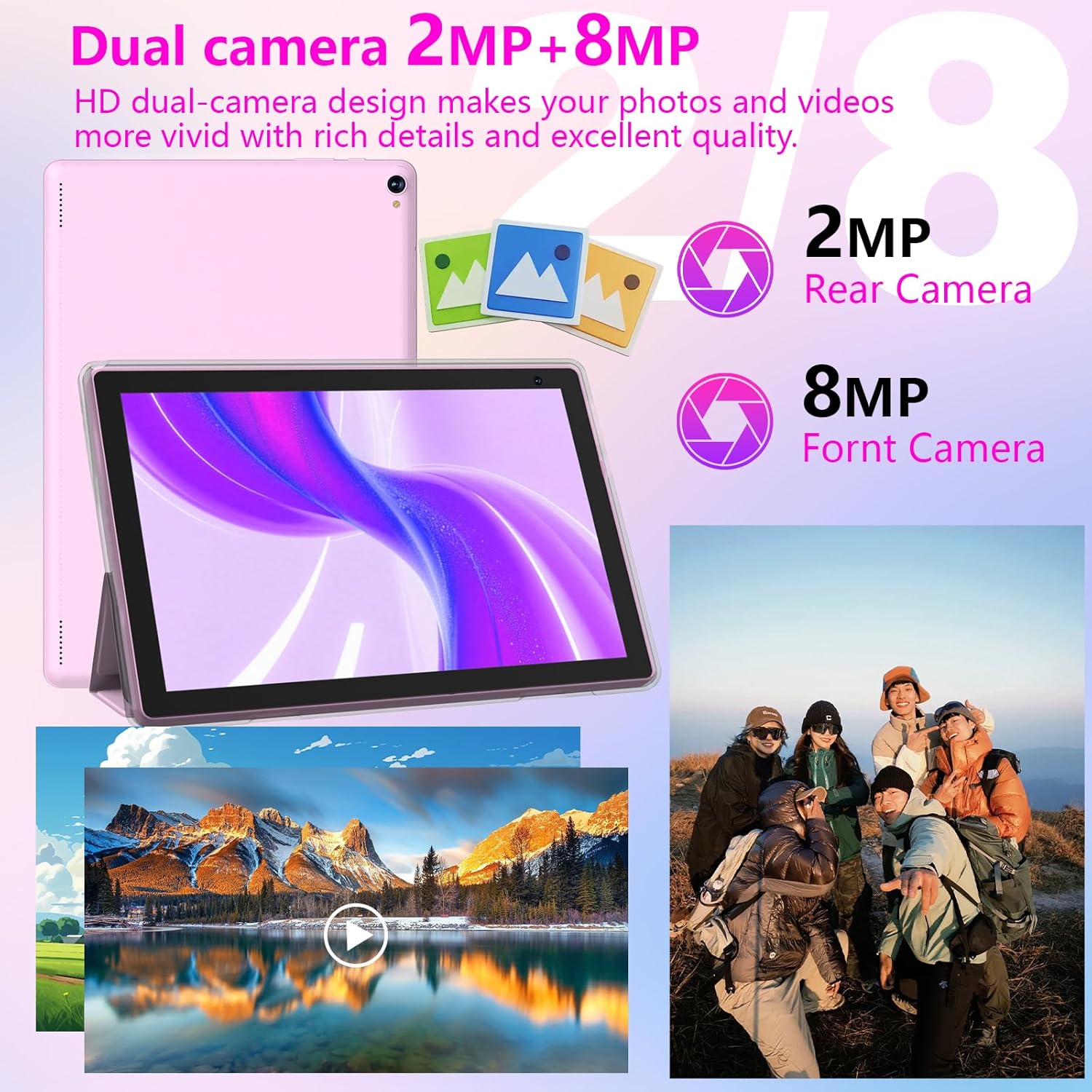
Image: The tablet highlighting its 2MP front and 8MP rear cameras, with visual examples of photography and video recording.
3.5. Battery
A 6000mAh Lithium Polymer battery provides approximately 6-8 hours of average use, making it suitable for daily tasks and entertainment.
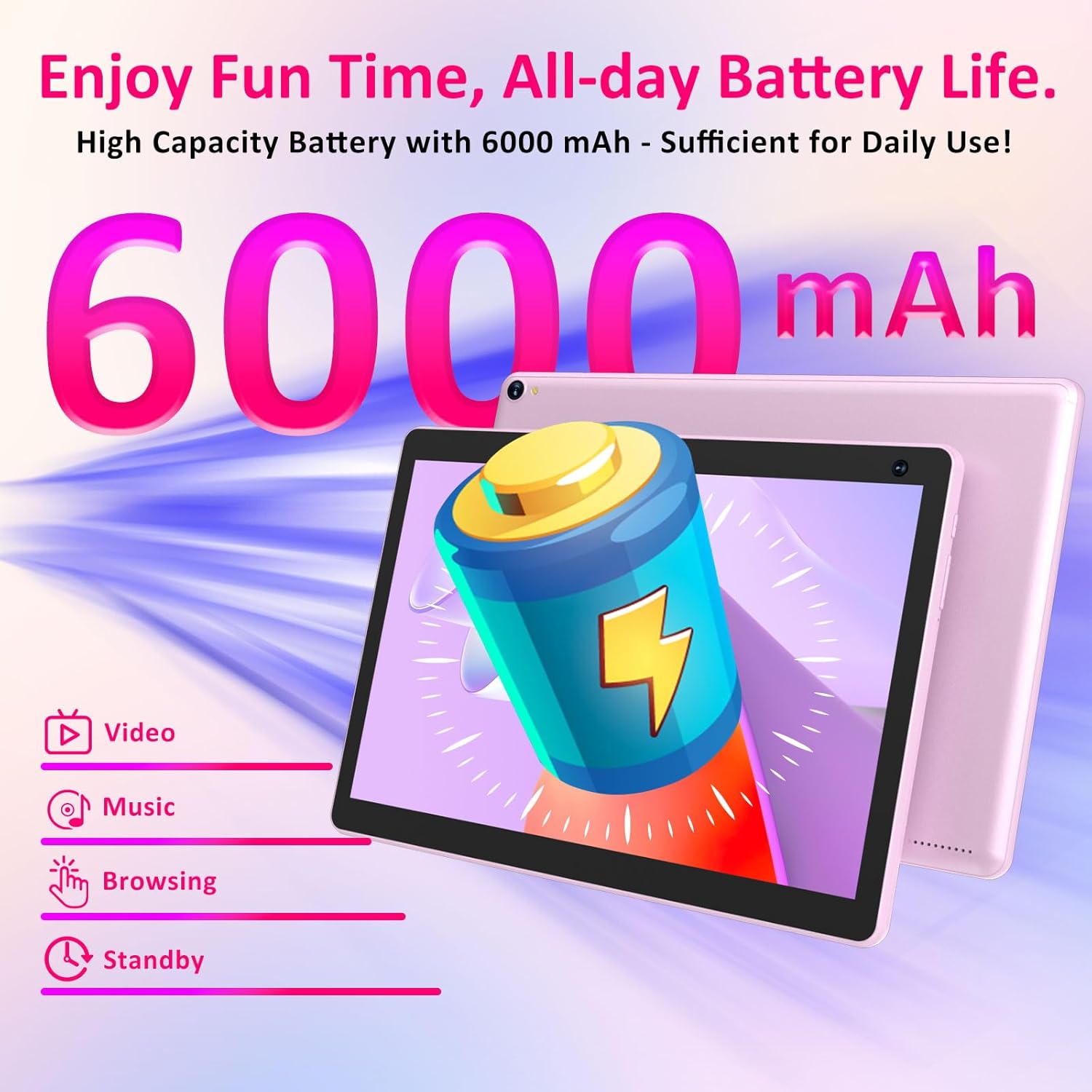
Image: A graphic illustrating the tablet's 6000mAh high-capacity battery, emphasizing its long-lasting power for various activities.
4. Setup
4.1. Initial Charging
Before first use, fully charge your tablet using the provided Type-C cable and a 5V2A charger. The charging indicator will show the charging status.
4.2. Power On/Off
- To Power On: Press and hold the Power button until the screen lights up.
- To Power Off: Press and hold the Power button, then select 'Power off' from the options on the screen.
4.3. Initial Setup Wizard
Upon first power-on, follow the on-screen instructions to complete the initial setup. This typically includes:
- Selecting your language.
- Connecting to a Wi-Fi network.
- Setting up your Google account (recommended for app downloads and services).
- Setting date, time, and screen lock.
4.4. Connecting Accessories
The tablet supports Bluetooth 5.0 for connecting the included keyboard, mouse, and other compatible devices. To connect:
- Go to Settings > Connected devices > Bluetooth.
- Turn on Bluetooth.
- Put your accessory into pairing mode (refer to the accessory's manual).
- Select the accessory from the list of available devices to pair.

Image: The tablet connected to its keyboard, illustrating wireless connectivity options (Wi-Fi, GMS Certification) and the availability of popular applications.
5. Operating Instructions
5.1. Basic Navigation
The tablet uses a touchscreen interface. Common gestures include:
- Tap: To select an item or open an app.
- Tap and Hold: To access contextual menus or move icons.
- Swipe: To scroll through pages or lists.
- Pinch: To zoom in or out on images and web pages.
5.2. Wi-Fi and Bluetooth Connectivity
To connect to Wi-Fi or manage Bluetooth devices, navigate to Settings > Network & internet for Wi-Fi, or Settings > Connected devices for Bluetooth. The tablet supports 2.4GHz and 5GHz Wi-Fi networks and Bluetooth 5.0.
5.3. App Installation
Your tablet is GMS certified, allowing full access to the Google Play Store. To download and install applications:
- Open the Play Store app.
- Search for the desired app.
- Tap Install to download and install.
5.4. Storage Management
To view and manage your tablet's storage, go to Settings > Storage. You can insert a Micro SD card (up to 1TB) into the designated slot to expand storage for photos, videos, and documents.
5.5. Camera Usage
Open the Camera app to take photos or record videos. You can switch between the 2MP front camera and the 8MP rear camera within the app interface. The tablet supports FHD 1080p video capture.
6. Maintenance
6.1. Cleaning the Tablet
Use a soft, lint-free cloth to clean the screen and body of the tablet. Avoid using harsh chemicals or abrasive materials, which can damage the screen or finish. Do not spray cleaners directly onto the tablet.
6.2. Software Updates
Regularly check for system updates to ensure your tablet has the latest features, security patches, and performance improvements. Go to Settings > System > System update to check for and install available updates.
6.3. Storage Optimization
To maintain optimal performance, periodically clear unnecessary files and apps. You can use the built-in storage management tools in Settings > Storage to identify and remove large files or unused applications.
7. Troubleshooting
This section addresses common issues you might encounter with your COOPERS CP10 tablet.
- Tablet does not turn on: Ensure the tablet is fully charged. Connect it to the charger and wait a few minutes before attempting to power it on again.
- Screen is unresponsive: Try restarting the tablet by holding the Power button for about 10-15 seconds until it reboots.
- Wi-Fi connection issues: Check if Wi-Fi is enabled in Settings. Ensure you have the correct password for your network. Try restarting your Wi-Fi router.
- Slow performance: Close unused applications running in the background. Clear cache data for frequently used apps. Consider freeing up internal storage space.
- Apps crashing: Ensure apps are updated to their latest versions. Clear the app's cache and data (Settings > Apps > [App Name] > Storage > Clear cache/Clear data). If the issue persists, reinstall the app.
- Factory Reset: If persistent software issues occur, you may perform a factory reset. Warning: This will erase all data on your tablet. Back up important data before proceeding. Go to Settings > System > Reset options > Erase all data (factory reset).
8. Specifications
| Feature | Specification |
|---|---|
| Brand | COOPERS |
| Model Name | CP10 |
| Operating System | Android 15 |
| Processor | Quad-core 1.8 GHz CPU |
| RAM Memory | 8 GB (3GB fixed + 5GB virtual) |
| Internal Storage | 32 GB |
| Expandable Storage | Up to 1 TB (Micro SD Card) |
| Screen Size | 10.1 Inches |
| Display Resolution | 1280x800 Pixels |
| Display Type | LCD, In-cell Multi-touch |
| Rear Camera | 8 MP |
| Front Camera | 2 MP |
| Video Capture Resolution | FHD 1080p |
| Battery Capacity | 6000 mAh Lithium Polymer |
| Battery Average Life | 8 Hours |
| Wireless Technology | Wi-Fi (2.4GHz & 5GHz), Bluetooth 5.0 |
| Hardware Interface | USB Type-C |
| Item Weight | 1.27 Kilograms |
| Item Dimensions (L x W x Thickness) | 9.5"L x 0.3"W x 6.5"Th |
| Human-Interface Input | Touchscreen with Stylus Support |
9. Warranty and Support
9.1. Warranty Information
The COOPERS CP10 tablet comes with a One-year limited warranty from the date of purchase. This warranty covers manufacturing defects under normal use. It does not cover damage caused by misuse, accidents, unauthorized modifications, or external causes.
9.2. Customer Support
For technical assistance, warranty claims, or further inquiries, please contact COOPERS customer support through the retailer where the product was purchased or refer to the contact information provided in your product packaging. Please have your model number (CP10) and proof of purchase ready when contacting support.

