
Introduction
This manual provides comprehensive instructions for the setup, operation, and maintenance of your EvoFox Katana X2 TKL Wireless Mechanical Gaming Keyboard. Designed for versatility and performance, this keyboard offers tri-mode connectivity, silent red mechanical switches, and dynamic backlighting. Please read this manual thoroughly to ensure optimal use and longevity of your device.
Product Overview and Features
The EvoFox Katana X2 TKL is a high-performance tenkeyless mechanical keyboard engineered for both gaming and productivity. Key features include:
- Tri-Mode Wireless Versatility: Connect seamlessly via Bluetooth (up to 3 devices), 2.4GHz wireless, or a wired USB-C connection.
- Silent Red Mechanical Switches: Pre-lubed and dustproof switches provide a smooth, quiet, and responsive typing experience.
- 1000Hz Polling Rate: Ensures instantaneous response times in both wired and 2.4GHz wireless modes for competitive performance.
- Vivid Dynamic Backlighting: Choose from 18 onboard lighting effects to customize your setup without software.
- 4000mAh Rechargeable Battery: Offers extended usage and supports Type-C fast charging.
- Multifunction Volume Knob: Provides convenient control over audio levels.
- Tenkeyless (TKL) Design: Compact 82-key layout maximizes desk space and portability.
- Durable Construction: Features non-erasable double injection keycaps and a robust build.

Figure 1: The EvoFox Katana X2 TKL Wireless Mechanical Gaming Keyboard, showcasing its compact design and RGB backlighting.
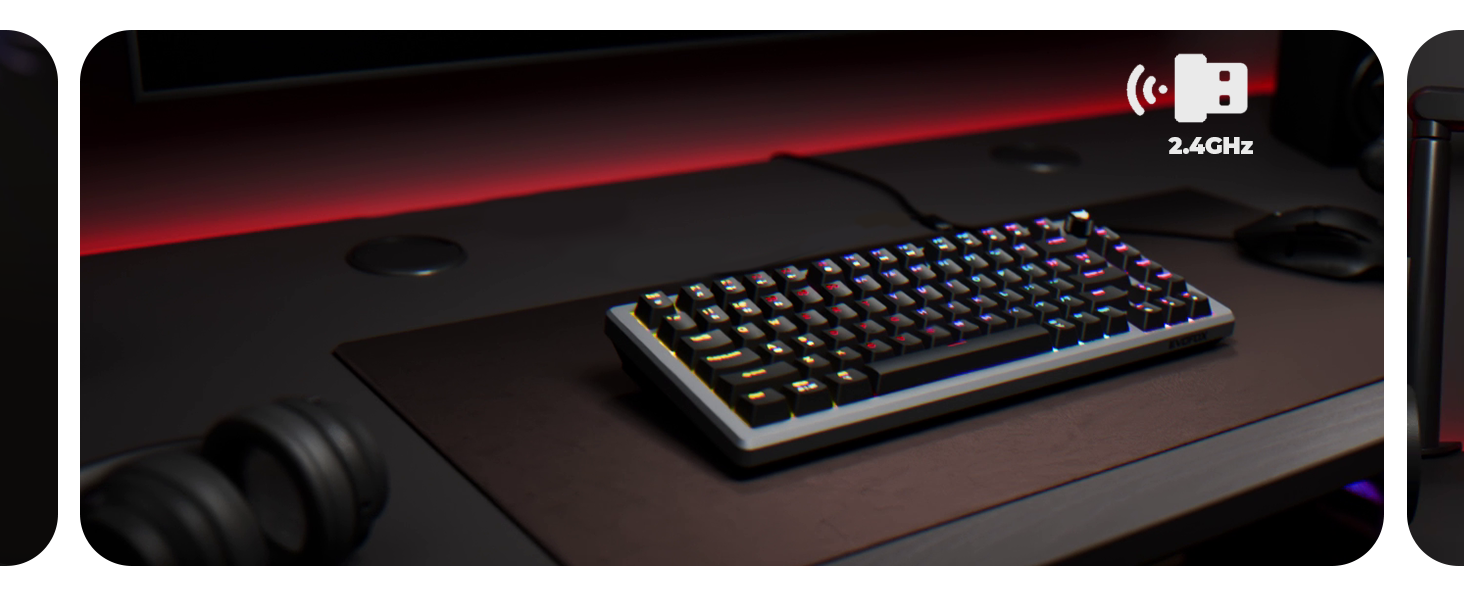
Figure 2: Illustration of the keyboard's triple mode connectivity options: Bluetooth, 2.4GHz wireless, and wired USB-C, connecting to multiple devices.
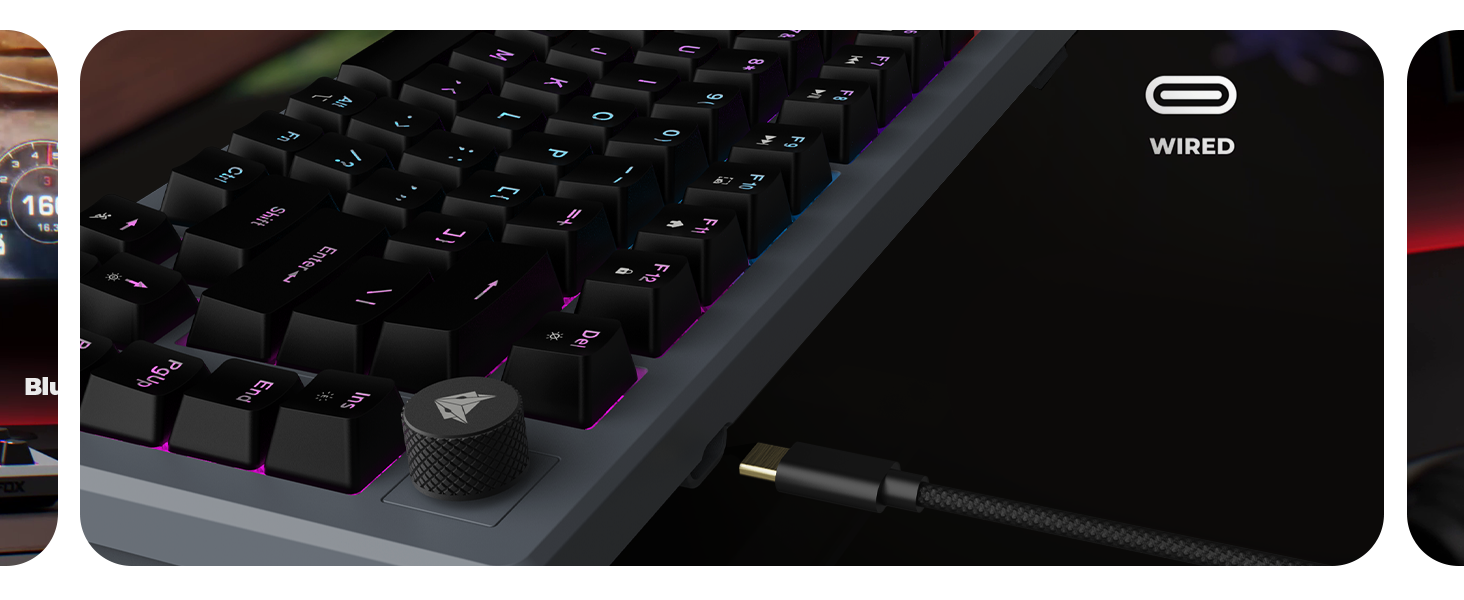
Figure 3: Close-up view of the 3-pin replaceable, pre-lubed, dustproof Silent Red mechanical switches, highlighting their design and durability.
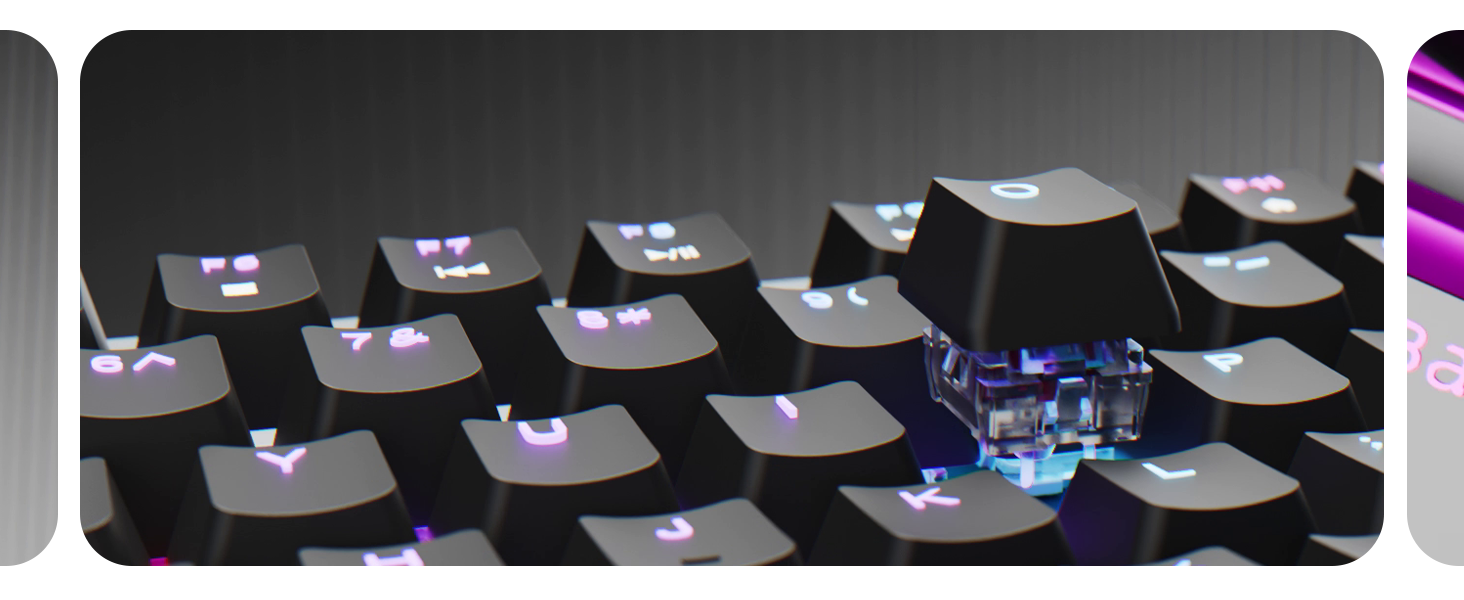
Figure 4: Diagram illustrating the multimedia functions accessible via the F-keys, including volume, playback, screenshot, and lock controls.
Setup
1. Initial Charging
Before first use, connect the keyboard to a USB power source using the provided USB-C cable. The charging indicator will show the charging status. A full charge is recommended for optimal wireless performance.
2. Wired Connection
- Connect the USB-C end of the cable to the keyboard's USB-C port.
- Connect the USB-A end of the cable to an available USB port on your computer.
- The keyboard will automatically switch to wired mode and be ready for use.
3. 2.4GHz Wireless Connection
- Locate the 2.4GHz USB receiver, usually stored in a compartment on the keyboard.
- Plug the USB receiver into an available USB port on your computer.
- Switch the keyboard's mode selector to 2.4G mode. The keyboard should connect automatically.
4. Bluetooth Connection (Up to 3 Devices)
- Switch the keyboard's mode selector to Bluetooth mode.
- Press and hold Fn + Q, Fn + W, or Fn + E for 3-5 seconds until the corresponding key (Q, W, or E) flashes rapidly. This indicates pairing mode.
- On your device (computer, tablet, phone), go to Bluetooth settings and search for "EvoFox Katana X2 TKL".
- Select the keyboard to pair. The flashing light will become solid once connected.
- Repeat for up to two additional devices using the other Fn + key combinations.
Operating Instructions
1. Switching Connectivity Modes
Use the physical switch located on the keyboard to toggle between Wired, 2.4G, and Bluetooth modes.
2. Backlight Control
The keyboard features 18 pre-programmed RGB lighting effects. Use the following key combinations to control the backlighting:
- Fn + Ins: Cycle through different lighting effects.
- Fn + Del: Change backlight colors (for static modes).
- Fn + ↑ / ↓: Adjust backlight brightness.
- Fn + ← / →: Adjust lighting effect speed (for dynamic modes).
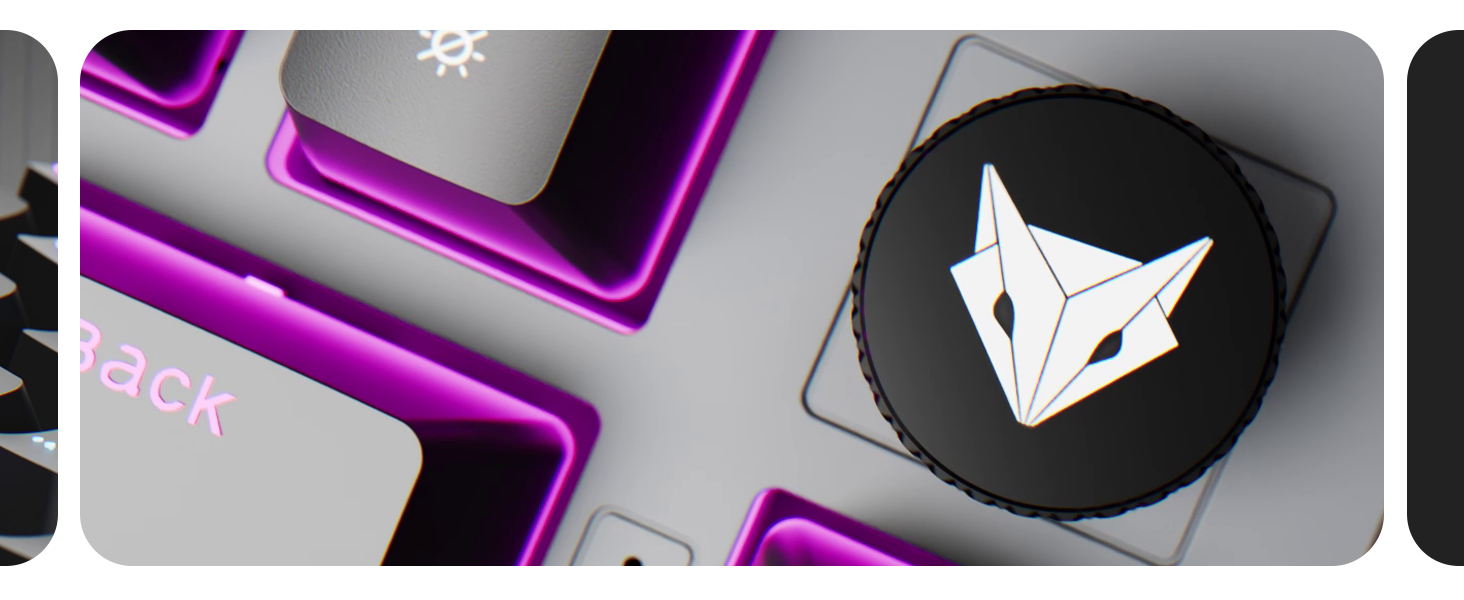
Figure 5: The keyboard displaying its vibrant rainbow backlighting, illustrating one of the 18 available lighting effects.
3. Multimedia Functions and Volume Knob
The dedicated volume knob allows for quick audio adjustments. Rotate clockwise to increase volume, counter-clockwise to decrease. Press the knob to mute/unmute audio.
Additional multimedia functions are accessible via the Fn key combined with the F-keys (F1-F12). Refer to Figure 4 for a visual guide.
- Fn + F1: Music Player
- Fn + F2: Volume Down
- Fn + F3: Volume Up
- Fn + F4: Mute
- Fn + F5: Stop
- Fn + F6: Previous Track
- Fn + F7: Play/Pause
- Fn + F8: Next Track
- Fn + F9: Screenshot
- Fn + F10: Copilot (Windows specific)
- Fn + F11: Home
- Fn + F12: Lock
4. Windows Lock Key
Press Fn + Win to lock or unlock the Windows key, preventing accidental presses during gaming.
Maintenance
Proper maintenance ensures the longevity and performance of your keyboard.
- Cleaning: Use a soft, dry cloth to wipe the keyboard surface. For deeper cleaning, remove keycaps using a keycap puller and use compressed air to clear debris from between switches.
- Keycap and Switch Replacement: The EvoFox Katana X2 TKL features hot-swappable switches. Use the provided switch puller to carefully remove switches if replacement is needed. Ensure replacement switches are compatible 3-pin mechanical switches.
- Storage: Store the keyboard in a cool, dry place away from direct sunlight and extreme temperatures.
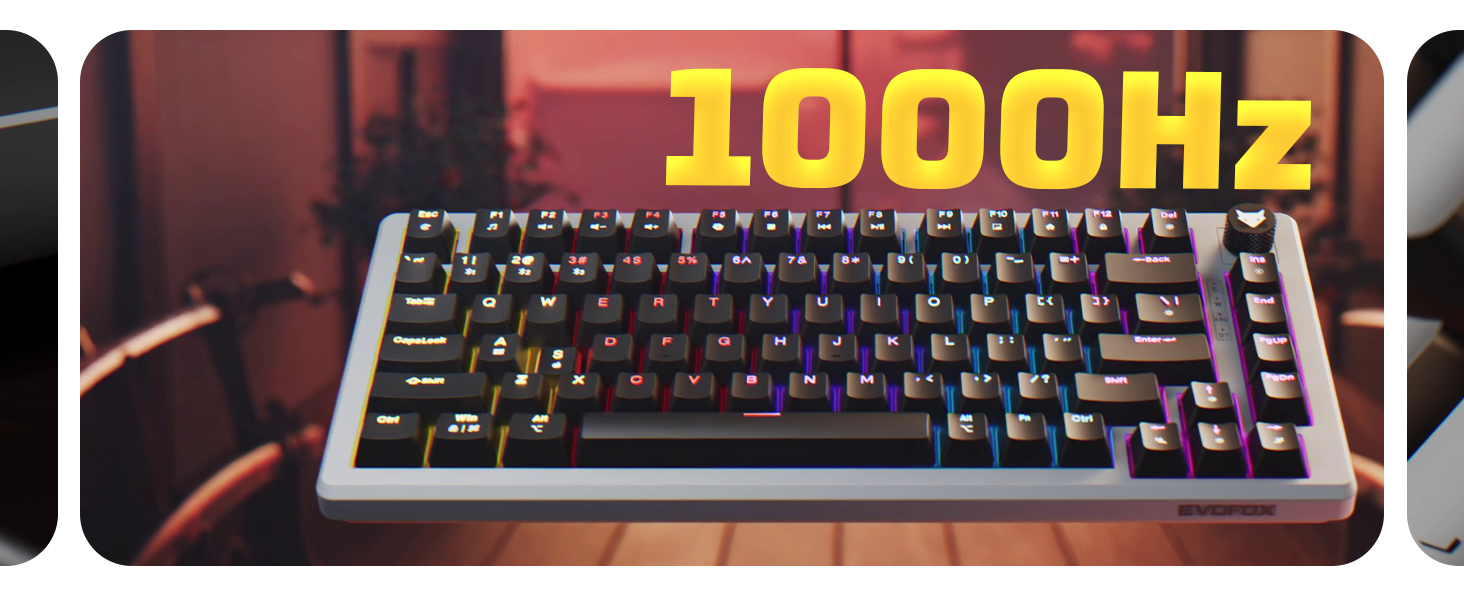
Figure 6: Details on the keyboard's durable features, including non-erasable double injection keycaps and the robust 1.8M braided USB-C cable with EMI ring.
Troubleshooting
| Problem | Possible Cause | Solution |
|---|---|---|
| Keyboard not responding (Wired) | Loose cable connection; faulty USB port. | Ensure USB-C cable is securely connected. Try a different USB port on your computer. |
| Keyboard not responding (2.4GHz Wireless) | Receiver not plugged in; keyboard in wrong mode; low battery. | Ensure 2.4GHz receiver is plugged in. Switch keyboard to 2.4G mode. Charge the keyboard. |
| Keyboard not responding (Bluetooth) | Not paired; keyboard in wrong mode; low battery; device Bluetooth off. | Ensure keyboard is in Bluetooth mode and paired (Fn+Q/W/E). Check device Bluetooth settings. Charge the keyboard. |
| Backlight not working or incorrect | Backlight turned off; low battery; incorrect settings. | Press Fn+Ins to cycle modes. Adjust brightness with Fn+↑/↓. Charge the keyboard. |
| Keys not registering or double-typing | Dust/debris under keycap; faulty switch. | Remove keycap and clean. If issue persists, consider replacing the switch (hot-swappable feature). |
Specifications
| Model Name | Katana X2 TKL |
| Connectivity | Tri-Mode (Bluetooth, 2.4GHz Wireless, Wired USB-C) |
| Switches | Silent Red Mechanical (3-pin, hot-swappable) |
| Polling Rate | 1000Hz (Wired/2.4G modes) |
| Battery Capacity | 4000mAh (Lithium Metal, included) |
| Backlighting | Vivid Dynamic RGB (18 effects) |
| Key Layout | Tenkeyless (TKL), 82 keys |
| Keycaps | Non-Erasable Double Injection |
| Cable Length | 1.8M Braided USB-C with EMI Ring |
| Product Dimensions | 38.5 x 19.5 x 4.2 cm |
| Item Weight | 766 g |
| Included Components | 4 x Extra Jixian Red Switches |
| Country of Origin | China |
Official Product Video
Video 1: An official product video showcasing the EvoFox Katana X2 TKL keyboard's features, including its tri-mode connectivity, silent red switches, 1000Hz polling rate, dynamic backlighting, and multifunction knob. This video provides a visual overview of the keyboard's capabilities and design.
Warranty and Support
For warranty information and technical support, please refer to the warranty card included with your product or visit the official EvoFox website. Keep your purchase receipt for warranty claims.
Manufacturer: Allied Electronics & Magnetics Private Limited
Address: C-64/4, Okhla Phase - 2, New Delhi - 110020

