
EASYTONE Android TV Box 2025
EASYTONE Android 14 TV Box 2025 User Manual
Model: Android TV Box 2025
Brand: EASYTONE
Introduction
This manual provides detailed instructions for setting up, operating, and maintaining your EASYTONE Android 14 TV Box 2025. Please read this manual thoroughly before use to ensure proper functionality and to maximize your viewing experience.
Package Contents
Verify that all the following items are included in your package:
- Android TV Box (1 unit)
- US Power Adapter (1 unit)
- HD Cable (1 unit)
- Remote Control (1 unit)
- User Manual (1 unit)
Product Overview
The EASYTONE Android 14 TV Box 2025 is a high-performance streaming media player designed to deliver immersive audio-visual experiences. It features a quad-core RK3528 processor, 4GB RAM, 32GB ROM, and supports up to 8K video output.
Device Ports and Interfaces
Familiarize yourself with the various ports and connections on your TV Box:

Image: Rear and side view of the Android TV Box, highlighting all input/output ports and dimensions. Ports include DC power, SPDIF, HDMI, LAN, AV, USB 3.0, USB 2.0, and TF Card slot.
- DC (5V/2A): Power input port.
- SPDIF: Digital audio output for connecting to external audio systems.
- HDMI: High-Definition Multimedia Interface for connecting to your TV or display. Supports 4K*2K UHD output.
- LAN (RJ45): Ethernet port for wired network connection (100M).
- AV: Analog video/audio output for older TVs.
- USB 3.0: High-speed USB port for connecting external storage devices or peripherals.
- USB 2.0: Standard USB port for connecting external storage devices or peripherals.
- TF CARD: Slot for inserting a TF (MicroSD) card for expanded storage (supports up to 256GB).
Setup Guide
Follow these steps to set up your Android TV Box:
- Connect to TV: Connect one end of the provided HD Cable to the HDMI port on the TV Box and the other end to an HDMI input on your television.
- Connect Power: Plug the US Power Adapter into the DC port on the TV Box, then plug the adapter into a wall outlet.
- Power On: The TV Box should automatically power on. If not, press the power button on the remote control.
- Select Input: On your TV, select the correct HDMI input source using your TV's remote control.
- Initial Setup: Follow the on-screen instructions to complete the initial setup, including language selection, network connection (Wi-Fi or Ethernet), and Google account login.

Image: The Android TV Box connected to a television, illustrating its role in a home entertainment setup. Key features like Android 14.0, WiFi 6, 4K 8K support, and 100M Ethernet are visually represented.
Operating Instructions
Remote Control Usage
Use the provided remote control to navigate the interface. The remote typically includes directional buttons, an OK button, Back, Home, Menu, Volume, and Power buttons.
Network Connection
Wi-Fi Connection:
- Go to Settings > Network & Internet.
- Select Wi-Fi and turn it on.
- Choose your desired Wi-Fi network from the list.
- Enter the password and select Connect.
Ethernet Connection:
If you connected an Ethernet cable during setup, the device should automatically detect and connect to the wired network.

Image: The Android TV Box demonstrating its WiFi6 and Bluetooth 5.0 capabilities, showing connections to various devices like headphones, speakers, and game controllers.
Bluetooth Device Pairing
- Go to Settings > Connected Devices > Pair new device.
- Put your Bluetooth device (e.g., headphones, speaker, game controller) into pairing mode.
- Select your device from the list on the TV Box screen to pair.
Screen Mirroring
The TV Box supports screen mirroring from compatible devices. Ensure your mobile device and the TV Box are connected to the same Wi-Fi network.
- On the TV Box, open the screen mirroring application (e.g., Airplay or a similar casting app).
- On your mobile device, activate the screen mirroring/casting feature (e.g., "Smart View" on Samsung, "Screen Cast" on Android, "AirPlay" on iOS).
- Select the TV Box from the list of available devices on your mobile device.
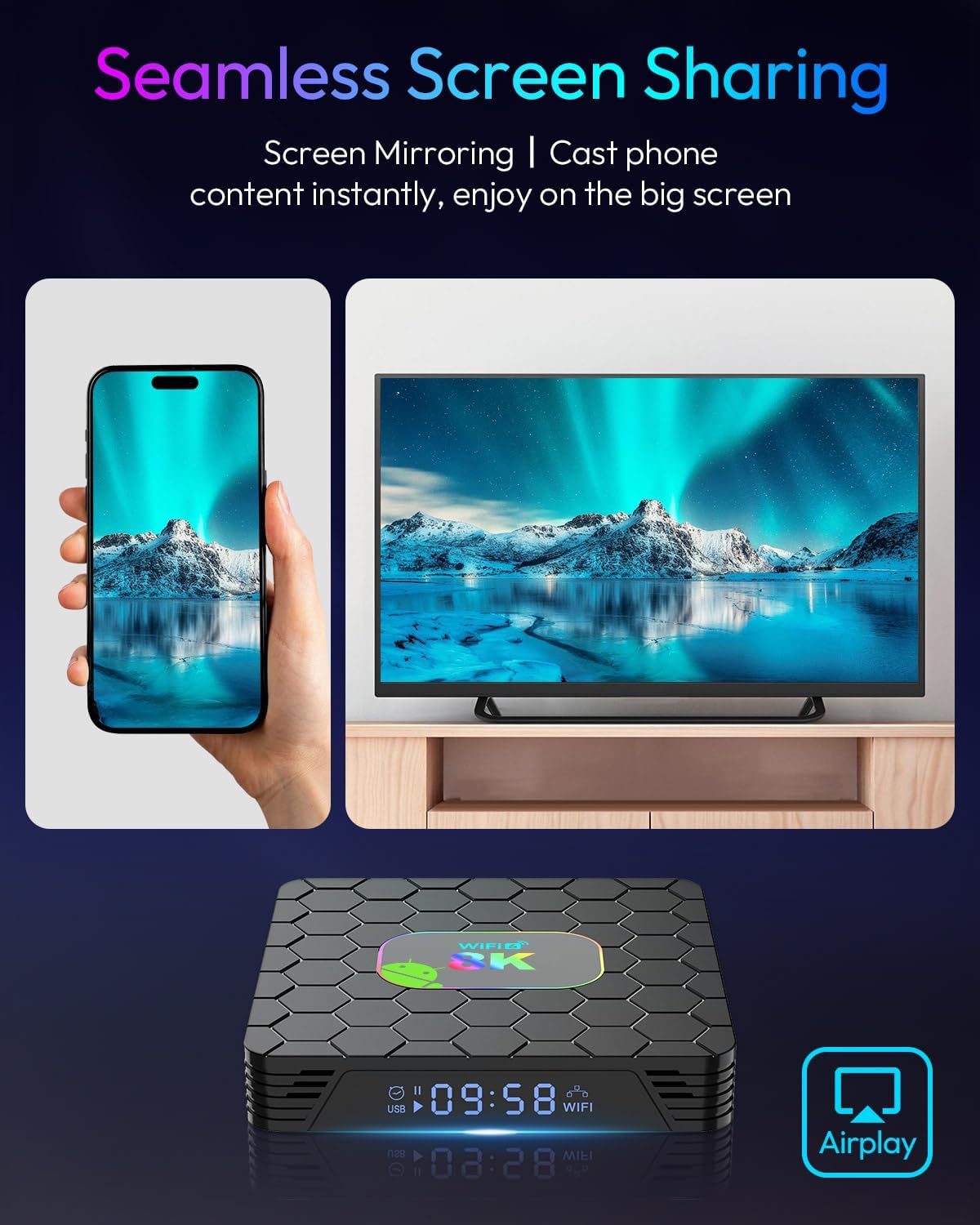
Image: A smartphone screen being mirrored onto a large television via the Android TV Box, illustrating the screen sharing functionality.
Maintenance
Cleaning:
Wipe the device with a soft, dry cloth. Do not use liquid cleaners or abrasive materials.
Software Updates:
Periodically check for system updates to ensure optimal performance and security. Go to Settings > About > System update.
Storage Management:
To maintain performance, regularly clear cache from applications and uninstall unused apps. You can also expand storage using a TF card (up to 256GB).
Troubleshooting
No Power:
- Ensure the power adapter is securely connected to the TV Box and a working power outlet.
- Check if the power indicator light on the TV Box is on.
No Signal on TV:
- Verify the HDMI cable is securely connected to both the TV Box and the TV.
- Ensure your TV is set to the correct HDMI input source.
- Try a different HDMI port on your TV or a different HDMI cable.
Wi-Fi Connection Issues:
- Check if your router is working correctly.
- Restart the TV Box and your router.
- Ensure you have entered the correct Wi-Fi password.
- Move the TV Box closer to the router to improve signal strength.
Remote Control Not Responding:
- Check and replace the batteries in the remote control.
- Ensure there are no obstructions between the remote and the TV Box.
- If it's a Bluetooth remote, try re-pairing it in the Bluetooth settings.
Lagging or Freezing:
- Close background applications.
- Clear app caches.
- Ensure sufficient free storage space.
- Restart the TV Box.
Specifications
| Feature | Detail |
|---|---|
| Model Name | Android TV Box 2025 |
| Operating System | Android 14.0 |
| Processor | RK3528 Quad-core ARM Cortex A53 |
| GPU | Mali-450 |
| RAM | 4 GB |
| Internal Storage | 32 GB |
| External Storage | TF Card slot (supports up to 256GB) |
| Video Output Resolution | Up to 8K, supports 4K output (3840 Pixels) |
| Connectivity | WiFi6 (2.4G/5.8G Dual-band), Bluetooth 5.0, 100M Ethernet |
| Ports | 1x HDMI, 1x AV, 1x USB 3.0, 1x USB 2.0, 1x RJ45, 1x TF Card, 1x DC, 1x SPDIF |
| Video Codecs | H.264, H.265, MPEG-1, MPEG-2, MPEG-4 |
| Dimensions (L x W x H) | 4"L x 0.8"W x 4"H (10.3cm x 2cm x 10.3cm) |
| Color | Black |

Image: An internal diagram of the TV Box, emphasizing the RK3528 Quad-core processor, Cortex-A53, Mali-450 GPU, 4GB RAM, and 32GB ROM.

Image: A visual comparison demonstrating the clarity and detail of 8K vivid color output from the TV Box compared to a standard resolution image.
Warranty and Support
Warranty Information:
This EASYTONE Android TV Box 2025 comes with a 1-Year Manufacturer's Warranty from the date of purchase. This warranty covers manufacturing defects under normal use. It does not cover damage caused by misuse, accidents, unauthorized modifications, or external factors.
Customer Support:
For technical assistance, troubleshooting, or warranty claims, please contact EASYTONE customer support through the retailer's platform or the official brand website. Please have your purchase receipt and product model information ready.
Ask a question about this manual
Ask about setup, troubleshooting, compatibility, parts, safety, or missing instructions. Manuals+ will review the question and use this page’s manual context to help answer it.