
1. Introduction
This manual provides essential information for the safe and efficient use of your KTC H32D6 32-inch WQHD 100Hz IPS Monitor. Please read these instructions thoroughly before operating the device and retain them for future reference.
2. Safety Information
Observe the following safety precautions to prevent damage to the monitor or injury to yourself:
- Do not expose the monitor to rain, moisture, or extreme temperatures.
- Ensure proper ventilation around the monitor.
- Use only the power adapter and cables provided by KTC.
- Avoid placing heavy objects on the power cord.
- Do not attempt to disassemble or repair the monitor yourself. Contact qualified service personnel.
- Keep the monitor away from strong magnetic fields.
3. Package Contents
Verify that all items are present in the package:
- 1 x KTC H32D6 Monitor
- 1 x Base Stand
- 1 x Power Cable
- 1 x HDMI Cable
- 1 x Power Adapter
- 1 x Instruction Manual (Japanese version)
- 1 x Quick Start Guide
- 1 x Warranty Card
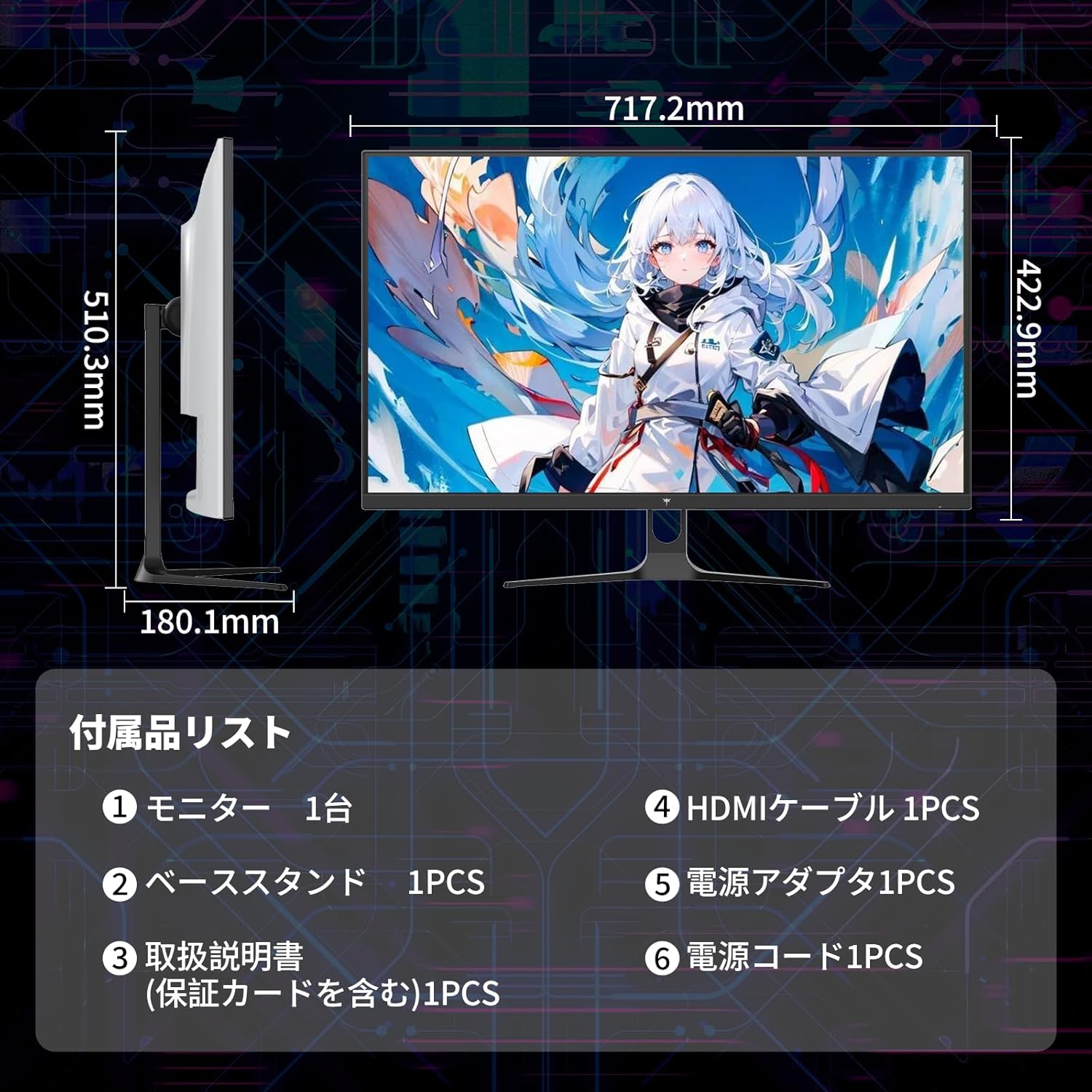
Figure 3.1: Included Accessories and Monitor Dimensions
4. Setup Instructions
4.1 Assembling the Stand
- Attach the base to the stand pillar.
- Secure the stand pillar to the back of the monitor using the provided screws.
4.2 Connecting the Monitor
The monitor supports multiple input options:
- HDMI: Connect an HDMI cable from your PC or game console to one of the two HDMI 2.0 ports on the monitor.
- DisplayPort: Connect a DisplayPort 1.4 cable from your PC to the DisplayPort on the monitor.
- Power: Connect the power adapter to the monitor's DC input and then plug it into a power outlet.

Figure 4.1: Monitor Connectivity Ports
4.3 VESA Mounting
The monitor is VESA mount compatible (100x100mm). This allows for easy installation with monitor arms or wall mounts (sold separately).

Figure 4.2: Tilt Adjustment and VESA Mount
5. Operating Instructions
5.1 Power On/Off
Press the power button located on the monitor to turn it on or off.
5.2 On-Screen Display (OSD) Menu
Use the control buttons on the monitor to navigate and adjust settings in the OSD menu. Common settings include:
- Brightness/Contrast: Adjust image luminance.
- Color Settings: Modify color temperature, gamma, and hue.
- Input Source: Select between HDMI 1, HDMI 2, and DisplayPort.
- Picture Mode: Choose preset modes for different content (e.g., Standard, Game, Movie).
5.3 Key Features
- WQHD IPS Panel: Enjoy a 2560x1440 resolution with wide 178° viewing angles and accurate colors (109% sRGB, ΔE<2).
- 100Hz Refresh Rate (120Hz OC): Provides smooth visuals, reducing motion blur in fast-paced content. Overclocking to 120Hz is supported.
- Adaptive Sync (FreeSync Compatible): Synchronizes the monitor's refresh rate with your GPU to eliminate screen tearing and stuttering.
- HDR10 Support: Delivers enhanced contrast and color depth for a more immersive viewing experience with compatible content.
- Eye Care Features: Includes Non-glare coating, Flicker-Free technology, and a Low Blue Light mode to reduce eye strain during prolonged use.

Figure 5.1: KTC H32D6 Monitor Key Features Overview

Figure 5.2: Professional Visual Display Features
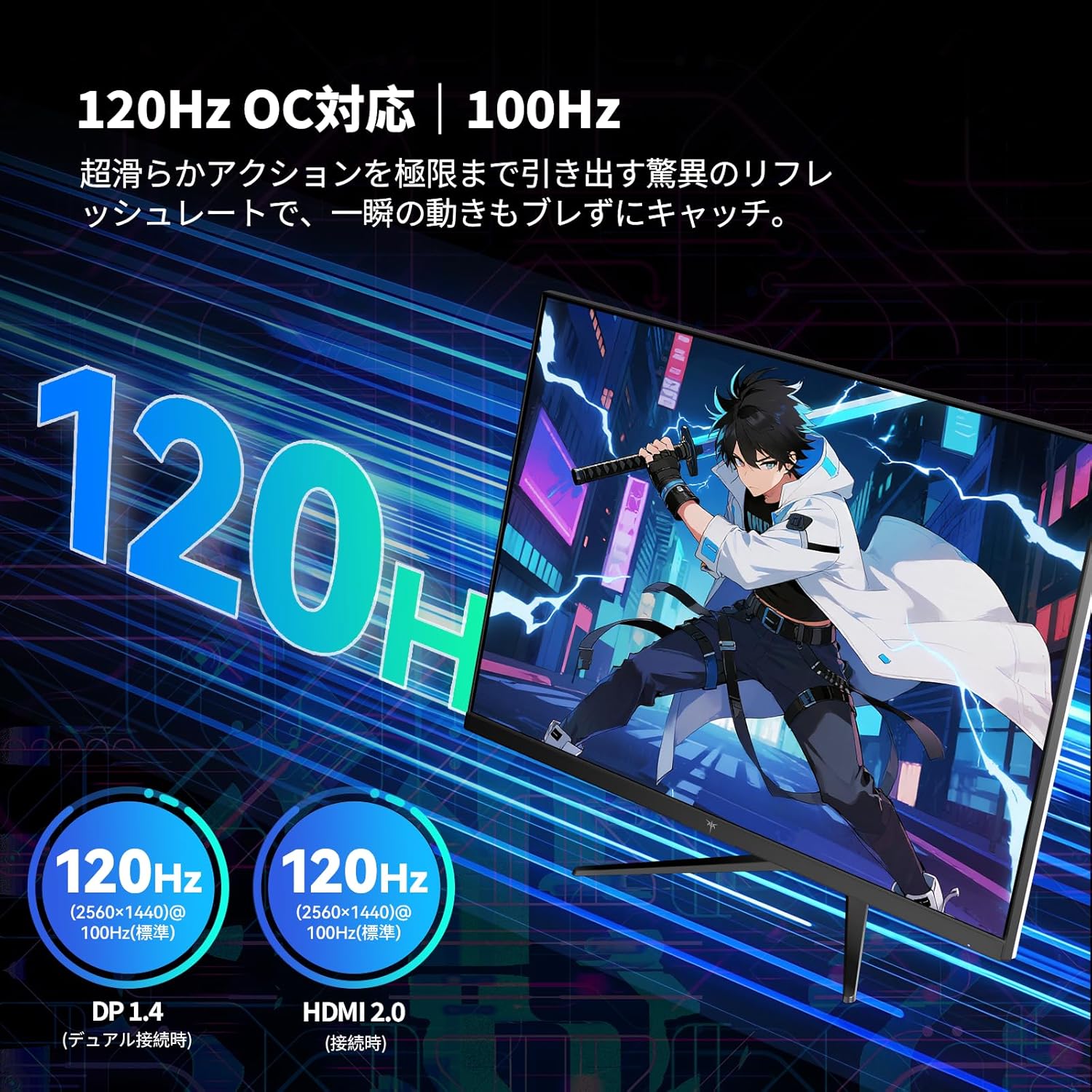
Figure 5.3: 120Hz Overclocking Capability

Figure 5.4: Eye Care Technology
6. Maintenance
To ensure the longevity and optimal performance of your monitor:
- Cleaning the Screen: Gently wipe the screen with a soft, lint-free cloth. For stubborn marks, use a monitor-specific cleaning solution applied to the cloth, not directly to the screen.
- Cleaning the Casing: Use a soft, dry cloth to clean the monitor casing. Avoid abrasive cleaners or solvents.
- Storage: If storing the monitor for an extended period, disconnect it from power, pack it in its original packaging, and store it in a dry, cool place.
7. Troubleshooting
| Problem | Possible Cause | Solution |
|---|---|---|
| No image on screen | Power cable not connected; Incorrect input source selected; Device not powered on. | Ensure power cable is securely connected. Select the correct input source via the OSD menu. Power on the connected device. |
| Image is blurry or distorted | Incorrect resolution; Loose video cable. | Set the display resolution to 2560x1440. Ensure video cables are securely connected. |
| Flickering screen | Refresh rate mismatch; External interference. | Ensure Adaptive Sync is enabled on both the monitor and your graphics card. Check for nearby electronic devices causing interference. |
| No sound (if external speakers connected to monitor) | Volume too low; Incorrect audio output selected. | Increase volume on monitor and connected speakers. Ensure monitor is selected as audio output device on your PC. |
8. Specifications
| Feature | Detail |
|---|---|
| Brand | KTC |
| Model Number | H32D6 |
| Screen Size | 32 inches |
| Resolution | WQHD (2560 x 1440 pixels) |
| Aspect Ratio | 16:9 |
| Panel Type | IPS |
| Refresh Rate | 100 Hz (120Hz Overclockable) |
| Response Time | 7 ms |
| Brightness | 350 cd/m² |
| Contrast Ratio | 1000:1 |
| Color Gamut | 109% sRGB Volume, 99% sRGB Coverage, ΔE<2 |
| HDR Support | HDR10 |
| Adaptive Sync | FreeSync, G-Sync Compatible |
| Connectivity | 2 x HDMI 2.0, 1 x DisplayPort 1.4 |
| Eye Care Features | Non-glare, Flicker-Free, Low Blue Light |
| VESA Mount | 100 x 100 mm |
| Adjustments | Tilt (-5° to 15°) |
| Color | White |
| Dimensions (D x W x H) | 6.1 x 42.3 x 71.7 cm (Monitor only) |
9. Warranty and Support
KTC provides a 3-year manufacturer's warranty and a 12-month replacement service for this product. This warranty covers defects in materials and workmanship under normal use. Damage caused by misuse, accidents, or unauthorized modifications is not covered.
For any questions or issues, please contact KTC customer support:
- Phone: 072-275-5798
- Email: support@ktcplay.com

Figure 9.1: Warranty Information and Contact Details
9.1 Customer Support Process
If you need assistance, follow these steps:
- Identify your product model (H32D6) and purchase date.
- Contact KTC support via phone or email with a detailed description of your issue.
- Follow the instructions provided by the support team for troubleshooting or replacement.

Figure 9.2: General Customer Support Steps (via Amazon)

