
1. Introduction
Thank you for choosing the Xiaomi Robot Vacuum S40. This intelligent cleaning device is designed to provide efficient and thorough cleaning for your home, combining powerful vacuuming with effective mopping. Equipped with advanced LDS laser navigation and smart features, it simplifies your cleaning routine.
To ensure optimal performance and safe operation, please read this manual carefully before using the product and retain it for future reference.
2. Product Overview
The Xiaomi Robot Vacuum S40 features a 5-in-1 cleaning system, including a powerful 10,000Pa suction fan, multidimensional anti-tangle technology, and an integrated vacuum and mop system. Its LDS laser navigation allows for precise mapping and efficient cleaning paths.

Figure 2.1: The Xiaomi Robot Vacuum S40 in white, showcasing its circular design and top-mounted LDS sensor.

Figure 2.2: The Xiaomi Robot Vacuum S40 positioned beside its compact charging dock, ready for use or recharging.

Figure 2.3: A visual summary highlighting key features: 10000Pa suction, 5200mAh battery, anti-tangle technology, integrated vacuum and mop, LDS navigation, and app control.
3. Setup
3.1 Unpacking
Carefully remove all components from the packaging. Ensure all accessories are present:
- Robot Vacuum
- Charging Dock
- Power Adapter
- Side Brush
- Mop Pad
- User Manual
3.2 Charging Dock Placement
Place the charging dock against a wall in an open area, ensuring there are no obstacles within 0.5 meters to either side and 1.5 meters in front of the dock. Connect the power adapter to the charging dock and plug it into a power outlet. Ensure the power cable is neatly arranged to prevent entanglement.
3.3 Initial Charge
Place the robot vacuum onto the charging dock. The robot will automatically align and begin charging. For first-time use, it is recommended to fully charge the robot before operation. The indicator light on the robot will show charging status.
3.4 Mi Home App Connection
- Download the Mi Home / Xiaomi Home app from your device's app store.
- Open the app and create or log in to your Xiaomi account.
- Tap the '+' icon in the top right corner to add a device.
- Select the Xiaomi Robot Vacuum S40 from the list of available devices.
- Follow the in-app instructions to connect the robot to your Wi-Fi network. Ensure your phone is connected to a 2.4GHz Wi-Fi network during the setup process.
- Once connected, the robot will perform an initial mapping of your home using its LDS laser navigation system. This map will be displayed in the app.
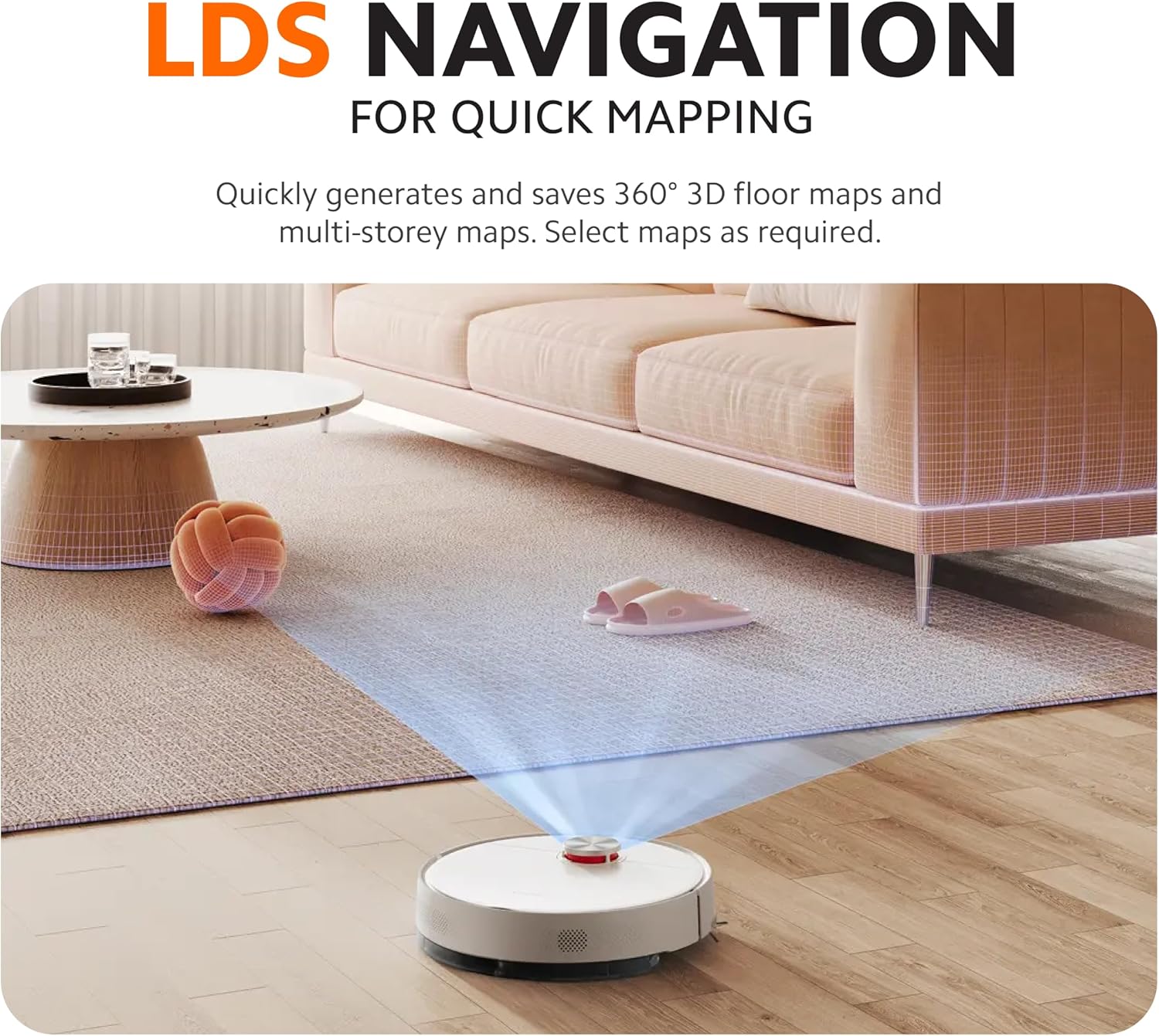
Figure 3.1: The robot vacuum emitting laser beams to map its surroundings, illustrating its LDS navigation system for efficient path planning during initial setup.
4. Operating Instructions
4.1 Basic Operation
- Start Cleaning: Press the power button on the robot or use the Mi Home app to start a cleaning cycle. The robot will automatically plan its path.
- Pause/Resume: Press the power button during cleaning to pause. Press again to resume.
- Return to Dock: Press the home button on the robot or use the Mi Home app to send the robot back to its charging dock.
4.2 App Control (Mi Home App)
The Mi Home app provides comprehensive control and customization options:
- Real-time Mapping: View the robot's cleaning path and current location on the map.
- Zone Cleaning: Select specific areas on the map for the robot to clean.
- Virtual Walls & No-Go Zones: Draw virtual boundaries on the map to restrict the robot from entering certain areas.
- Scheduled Cleaning: Set cleaning schedules for specific times and days.
- Suction Power & Water Flow Adjustment: Customize cleaning intensity and water output for different floor types and cleaning needs.
- Multi-floor Mapping: Save maps for multiple floors in your home.

Figure 4.1: A smartphone screen showing the Xiaomi Home app interface with a detailed floor plan created by the robot vacuum, indicating cleaning progress and customizable zones.
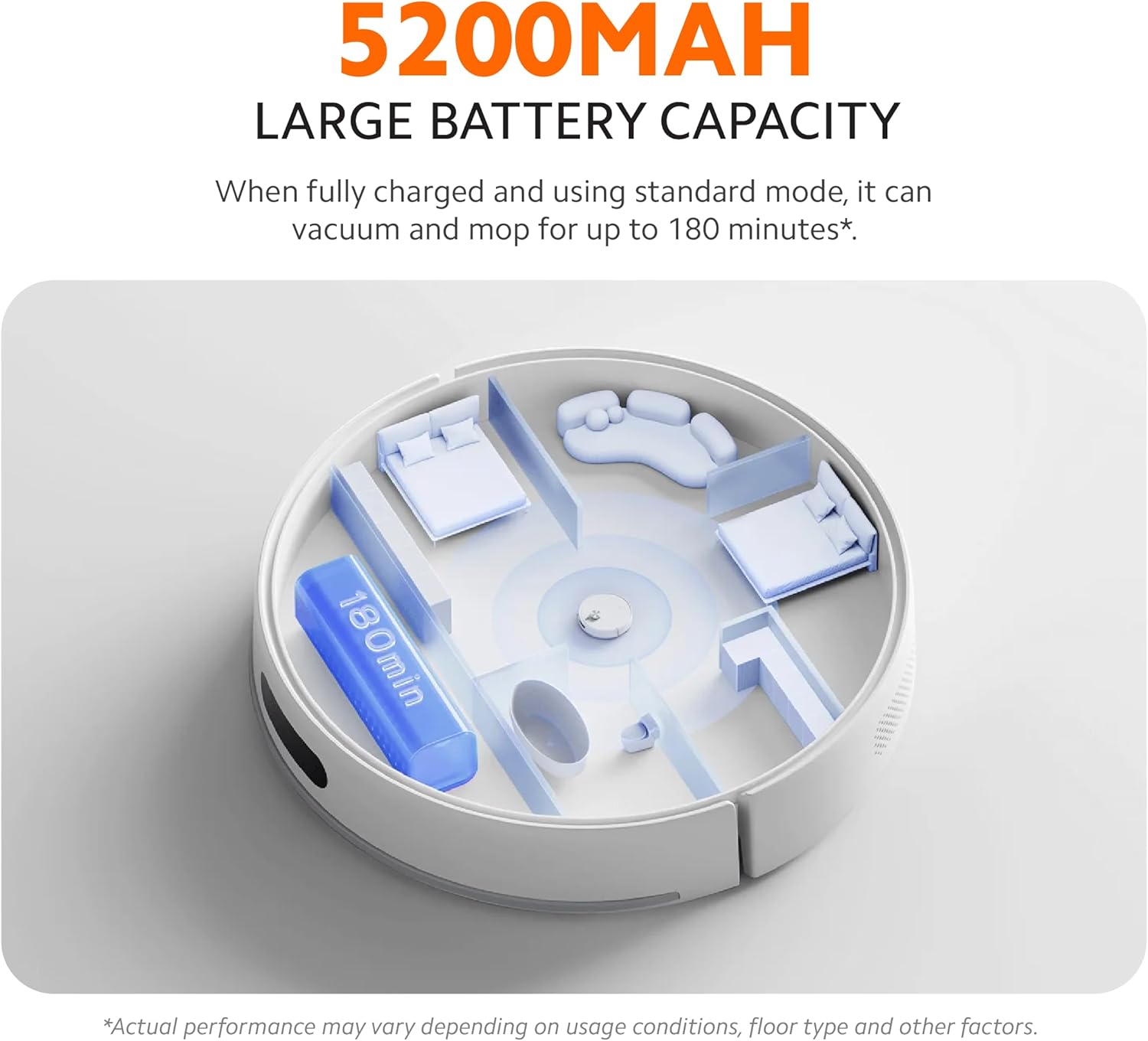
Figure 4.2: A diagram illustrating how the Xiaomi Home app allows users to define custom cleaning areas and modes, such as 'Carpet avoidance' or scheduled cleaning times.
4.3 Voice Control
The Xiaomi Robot Vacuum S40 supports voice control through smart assistants like Google Assistant and Amazon Alexa. Ensure your robot is linked to your smart assistant account via the Mi Home app.
- Example Commands:
- "Hey Google, start the robot vacuum."
- "Alexa, turn off the robot vacuum."
- "Hey Google, send the robot vacuum home."
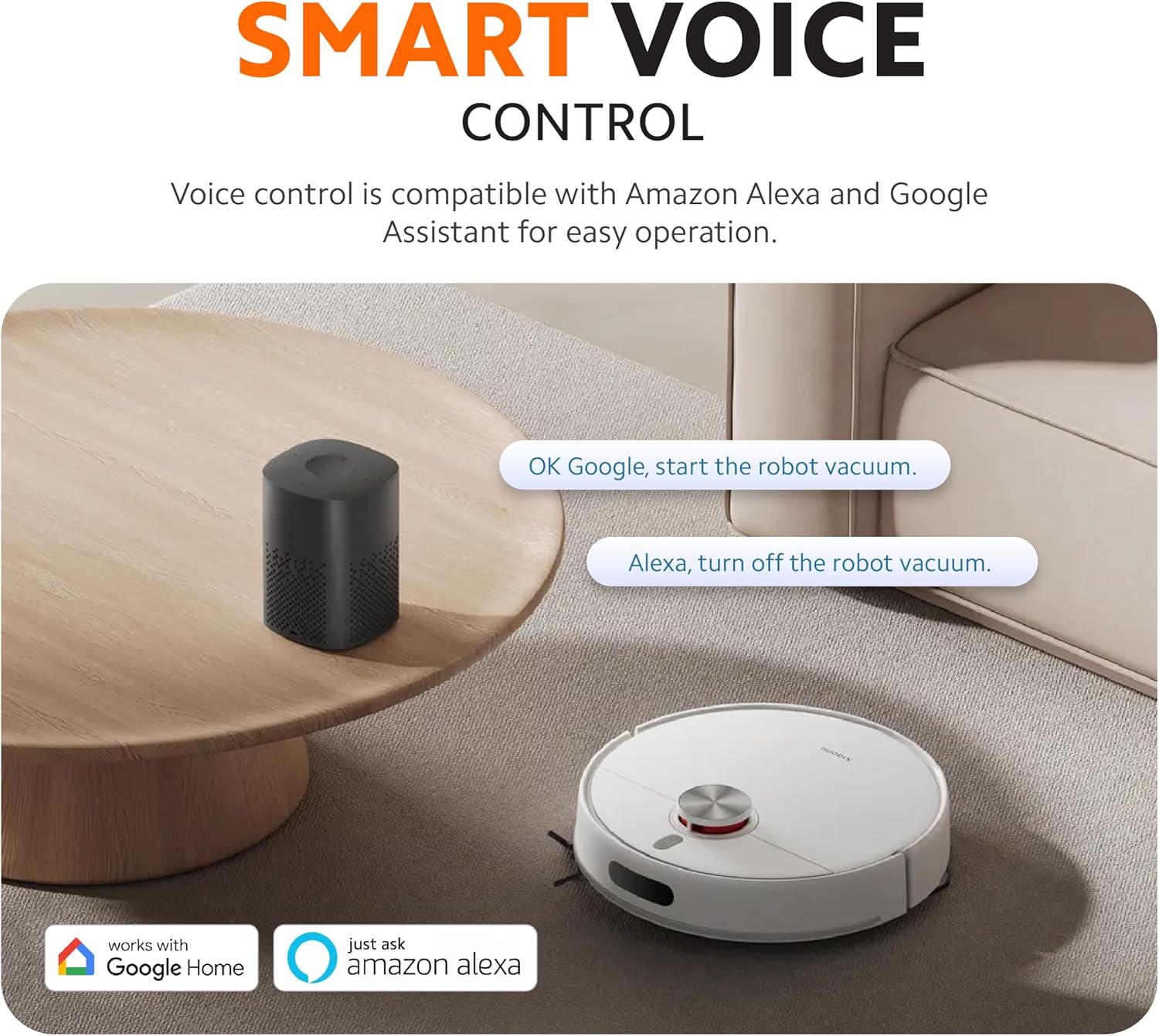
Figure 4.3: An image depicting the robot vacuum and smart speakers, demonstrating voice commands like 'OK Google, start the robot vacuum' and 'Alexa, turn off the robot vacuum'.
5. Maintenance
Regular maintenance ensures the longevity and optimal performance of your robot vacuum.
5.1 Dustbin and Filter
- Emptying the Dustbin: Press the dustbin release button, remove the dustbin, and empty its contents after each cleaning cycle.
- Cleaning the Filter: Tap the filter to remove loose dirt. Rinse the filter with water if necessary, ensuring it is completely dry before reinserting. Replace the filter every 3-6 months, depending on usage.
5.2 Main Brush and Side Brush
The S40 features multidimensional anti-tangle technology to minimize hair wrapping.
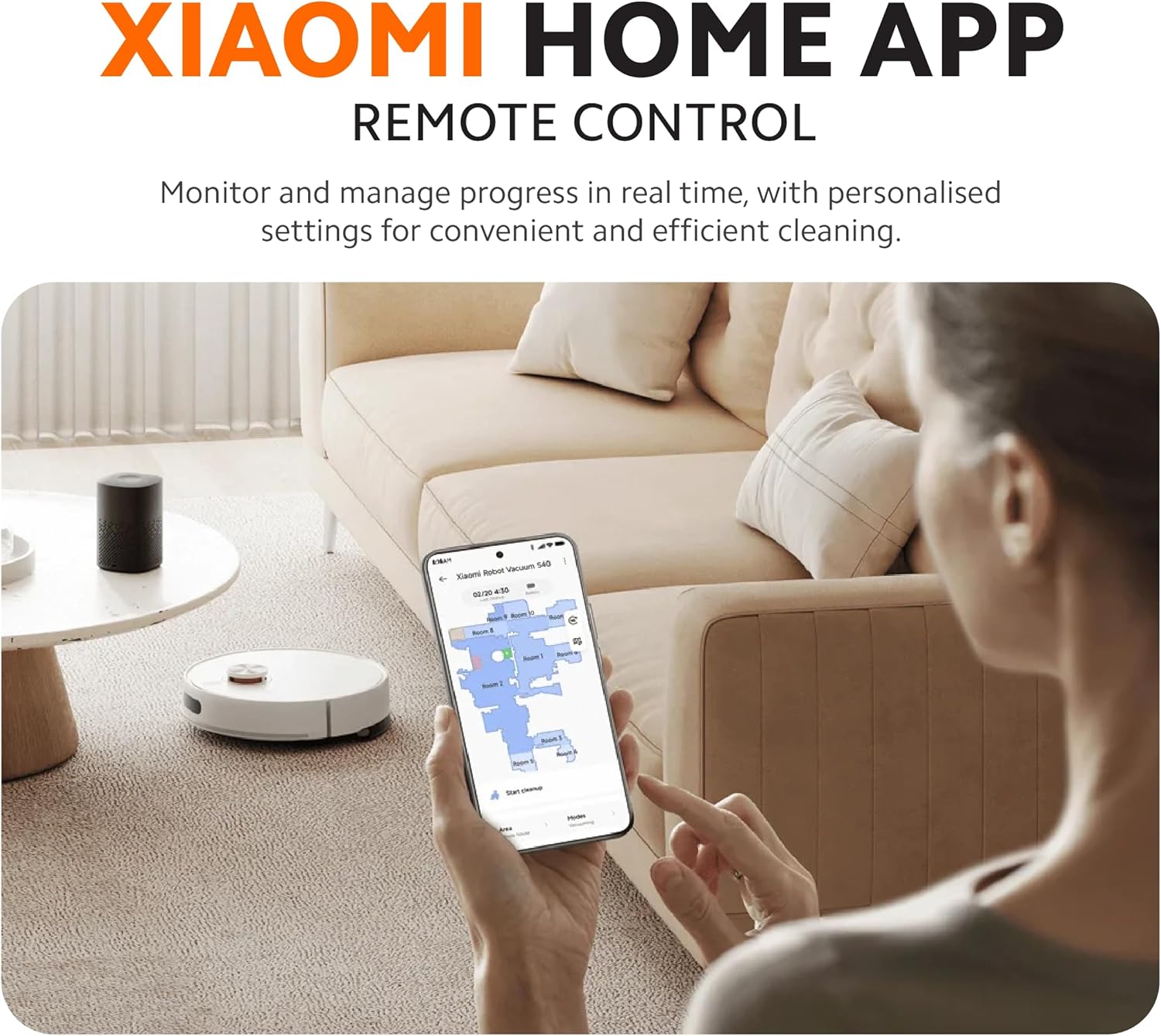
Figure 5.1: Detailed view of the robot vacuum's comb teeth, V-shaped main brush, and anti-tangle side brush, designed to prevent hair entanglement.
- Main Brush: Remove the main brush cover and lift out the brush. Use the cleaning tool (if provided) to cut and remove any tangled hair or debris. Clean the brush bearings.
- Side Brush: Unscrew and remove the side brush. Clean any hair or debris wrapped around it. Reinstall securely.
5.3 Water Tank and Mop Pad
- Emptying and Cleaning the Water Tank: After mopping, empty any remaining water from the tank. Rinse the tank and allow it to air dry.
- Cleaning the Mop Pad: Remove the mop pad from the water tank module. Wash the mop pad thoroughly with water and mild detergent. Allow it to air dry completely before reattaching.
5.4 Sensors and Charging Contacts
- Wipe the cliff sensors, wall sensors, and charging contacts on both the robot and the charging dock with a clean, dry cloth. This ensures proper navigation and charging.
6. Troubleshooting
If you encounter issues with your Xiaomi Robot Vacuum S40, refer to the following common problems and solutions:
| Problem | Possible Cause | Solution |
|---|---|---|
| Robot does not start or respond. | Low battery; Power button not pressed correctly. | Ensure robot is fully charged. Press and hold the power button for 3 seconds. |
| Robot cannot charge. | Charging contacts are dirty; Charging dock not powered. | Clean charging contacts on both robot and dock. Ensure charging dock is plugged in and powered. |
| Poor cleaning performance. | Dustbin full; Brushes tangled; Filter clogged. | Empty dustbin. Clean main brush and side brush. Clean or replace filter. |
| Robot gets stuck frequently. | Obstacles in path; Cliff sensors dirty. | Clear obstacles. Clean cliff sensors. Use virtual walls in the app. |
| App connection issues. | Incorrect Wi-Fi password; Router issues; Robot too far from router. | Verify Wi-Fi password. Restart router. Move robot closer to router. Re-pair the device in the app. |
| Robot makes unusual noises. | Debris in brushes or wheels. | Inspect and clean main brush, side brush, and wheels for any foreign objects. |
If the problem persists after attempting these solutions, please contact Xiaomi customer support.
7. Specifications
| Feature | Specification |
|---|---|
| Model | S40 (BHR084AEU) |
| Brand | XIAOMI |
| Suction Power | 10,000 Pa |
| Battery Capacity | 5200 mAh |
| Runtime | Up to 180 minutes (standard mode) |
| Navigation System | LDS Laser Navigation |
| Dustbin Capacity | 520 ml |
| Water Tank Capacity | 270 ml |
| Special Features | Wet/Dry, Anti-Tangle Technology, App Control, Voice Control |
| Voltage | 230 Volts |
| Product Dimensions | 34 x 9.8 x 34 cm |
| Item Weight | 4.12 kg |

Figure 7.1: An internal view of the robot vacuum showing powerful airflow and debris being lifted, emphasizing its 10000Pa suction capability.
8. Warranty and Support
The Xiaomi Robot Vacuum S40 is covered by a manufacturer's warranty. For detailed warranty terms and conditions, please refer to the warranty card included with your product or visit the official Xiaomi website.
For technical support, troubleshooting assistance beyond this manual, or warranty claims, please contact Xiaomi customer service or the authorized retailer from whom you purchased the product. You can find contact information on the official Xiaomi website or within the Mi Home app.


