
Showasaki 9550e041-87e7-44ec-9e6e-d09608d4db79
Showasaki Wired CarPlay Dongle USB Adapter Instruction Manual
Model: 9550e041-87e7-44ec-9e6e-d09608d4db79
1. Introduction
The Showasaki Wired CarPlay Dongle USB Adapter is designed to integrate your smartphone with your car's Android radio system, enabling access to navigation, calls, music, and messaging functions directly on your car's display. This adapter facilitates a wired connection for both Apple CarPlay and Android Auto, enhancing your in-car experience.
2. Safety Information
- Always ensure your vehicle is parked safely before attempting to install or configure the adapter.
- Do not operate your smartphone or car radio in a manner that distracts you from driving.
- Use only the original smartphone cable for connection to ensure stable performance.
- Keep the adapter away from water, extreme temperatures, and direct sunlight.
3. Package Contents
Verify that all items are present in the package:
- Showasaki Wired CarPlay Dongle USB Adapter (Black)
- Instruction Manual (this document)

Image: The Showasaki Wired CarPlay Dongle USB Adapter, shown with its packaging and a close-up of the USB port.
4. Specifications
| Feature | Detail |
|---|---|
| Brand | Showasaki |
| Model Number | 9550e041-87e7-44ec-9e6e-d09608d4db79 |
| Color | Black |
| Connectivity Technology | USB |
| Controller Type | Android App |
| Special Feature | Touchscreen compatibility |
| Compatible Devices | Smartphones (iOS and Android) |
| Connector Type | Stereo Audio, USB |
| Item Weight | 3.52 ounces |
| Package Dimensions | 5.9 x 3.7 x 1.3 inches |
5. Compatibility
This adapter is designed for use with specific car radio and smartphone systems:
- Car Radio System: ONLY compatible with Android Car Radio systems version 4.2 and above.
- iOS Devices: Supports iPhone 5 and above, running iOS 9 or newer.
- Android Devices: Supports Android phones running Android 5.2 or newer. Your Android phone must be able to download and install the "Android Auto" app from the Play Store.
Important Note:
- This adapter provides a wired connection for Android car radios; it does not support wireless connections.
- Before purchasing or attempting installation, ensure your car radio can install the necessary APK. If APK installation is not possible, this adapter may not be suitable for your vehicle.
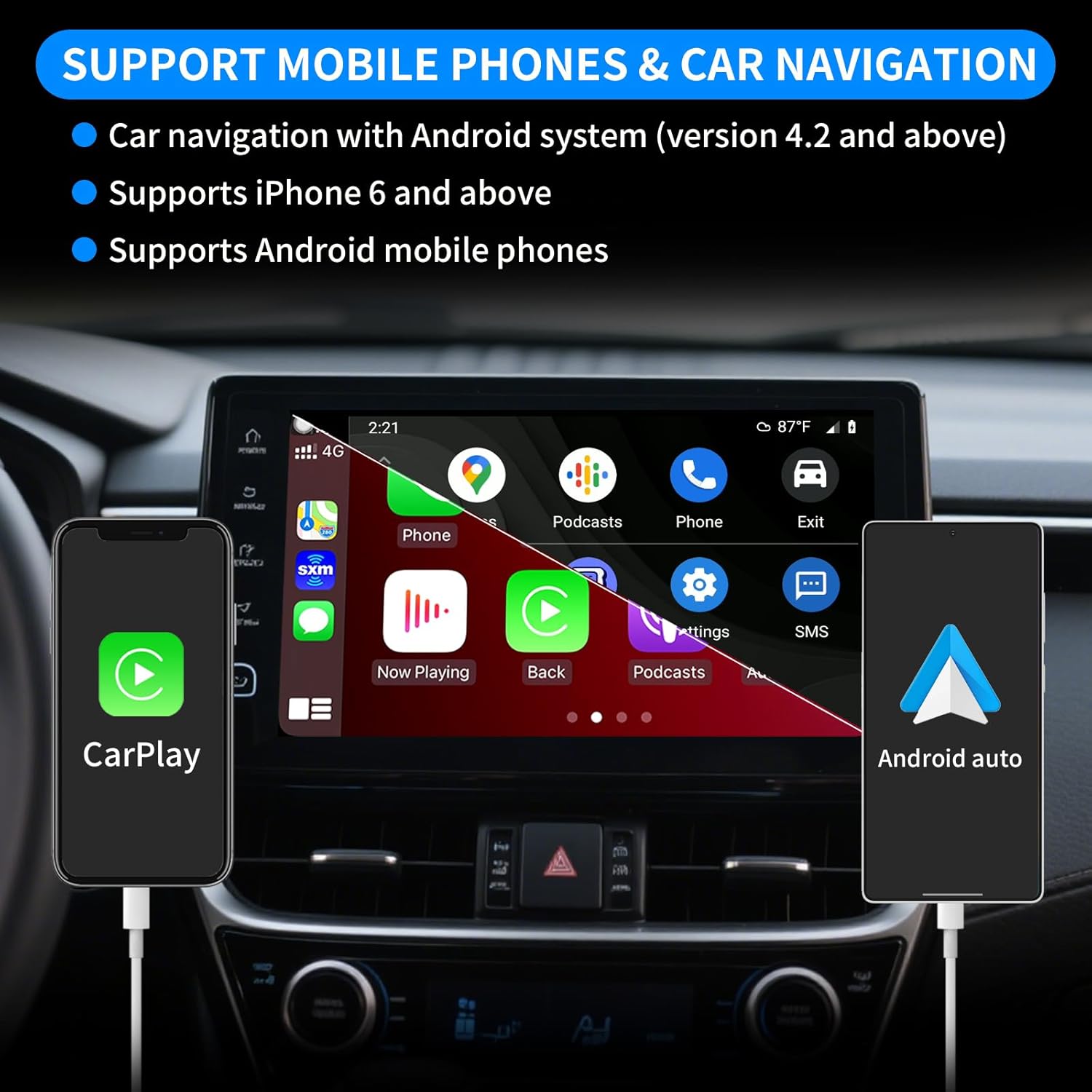
Image: Visual representation of mobile phone and car navigation compatibility, highlighting Android system version 4.2+ and support for iPhone 6+ and Android phones.
6. Setup Instructions
Follow these steps to set up your Showasaki Wired CarPlay Dongle:
6.1. Install the AutoKit APK on Your Car Radio
- Access your car radio's web browser.
- Navigate to the following URL to download the AutoKit APK: http://121.40.123.198:8080/AutoKit/AutoKit.apk
- Download and install the APK file on your car radio. If your car radio does not have internet access, you may need to download the APK to a USB drive on a computer and then transfer it to your car radio for installation. Refer to your car radio's manual for specific instructions on installing applications from external sources.
- Once installed, locate and open the "AutoKit" application on your car radio.

Image: A visual guide illustrating the three main steps for setting up the wired CarPlay dongle: installing the AutoKit app, connecting the dongle to the car's USB port, and connecting the phone to the dongle.
6.2. Connect the Dongle and Your Smartphone
- Plug the Showasaki Wired CarPlay Dongle into a USB port on your car's Android radio.
- Using your original smartphone's USB cable, connect your smartphone to the USB port on the CarPlay dongle.
- The AutoKit application on your car radio should automatically detect the connection and launch either Apple CarPlay or Android Auto, depending on your smartphone's operating system.
- Follow any on-screen prompts to grant necessary permissions for the AutoKit app to access your phone's features.
6.3. Visual Setup Guide (Video)
Video: A step-by-step demonstration on how to install the AutoKit APK and connect the Showasaki Wired CarPlay Dongle for both iOS and Android phone systems, showing the interface on the car radio.
7. Operating Instructions
Once connected, your car radio display will mirror your smartphone's CarPlay or Android Auto interface. You can interact with it using the car radio's touchscreen or voice commands.
7.1. Key Features
- Navigation: Use your preferred navigation apps (e.g., Apple Maps, Google Maps, Waze) directly on the car screen.
- Phone Calls: Make and receive calls hands-free. Access your contacts and call history.
- Music & Audio: Play music, podcasts, and audiobooks from your smartphone apps.
- Messaging: Send and receive messages using voice commands (Siri for iOS, Google Assistant for Android).
- Voice Control: Utilize Siri or Google Assistant for hands-free control of various functions.
- Steering Wheel Controls: In most compatible vehicles, existing steering wheel controls can be used to manage audio playback and calls.

Image: The CarPlay interface displayed on a car radio screen, highlighting the integration of voice control, steering wheel controls, and navigation features.

Image: A comparison showing the distinct user interfaces of Wired Android Auto and Wired CarPlay as they appear on a car radio display.
8. Maintenance
- Cleaning: Wipe the adapter with a soft, dry cloth. Do not use liquid cleaners or solvents.
- Storage: When not in use, store the adapter in a cool, dry place away from direct sunlight.
- Cable Care: Always use the original smartphone cable. Avoid bending or twisting cables excessively to prevent damage.
- Software Updates: The AutoKit APK supports online updates. Periodically check for updates within the application to ensure optimal performance and compatibility with the latest smartphone operating systems.
9. Troubleshooting
| Problem | Possible Cause / Solution |
|---|---|
| Adapter not recognized / CarPlay/Android Auto not launching. |
|
| "APK cannot be installed" error. |
|
| Slow performance or disconnections. |
|
| Steering wheel controls not working. |
|
10. Warranty and Support
Showasaki is committed to providing high-quality products and customer service.
- Warranty: This product comes with a 1-year warranty from the date of purchase.
- Returns & Exchanges: We offer 30-day exchange and return options.
- Customer Support: For any questions, technical assistance, or warranty claims, please contact Showasaki customer support. We aim to provide a quick reply within 24 hours.
You can typically find contact information through the seller's store page where you purchased the product or on the official Showasaki website.

Image: Summary of Showasaki's after-sale service support, including warranty and response times.
Ask a question about this manual
Ask about setup, troubleshooting, compatibility, parts, safety, or missing instructions. Manuals+ will review the question and use this page’s manual context to help answer it.