
Introduction
This manual provides detailed instructions for the Redragon K686 HE Rapid Trigger Gaming Keyboard. It covers setup, operation, key features, maintenance, and troubleshooting to ensure optimal performance and user experience. Please read this manual thoroughly before using your keyboard.
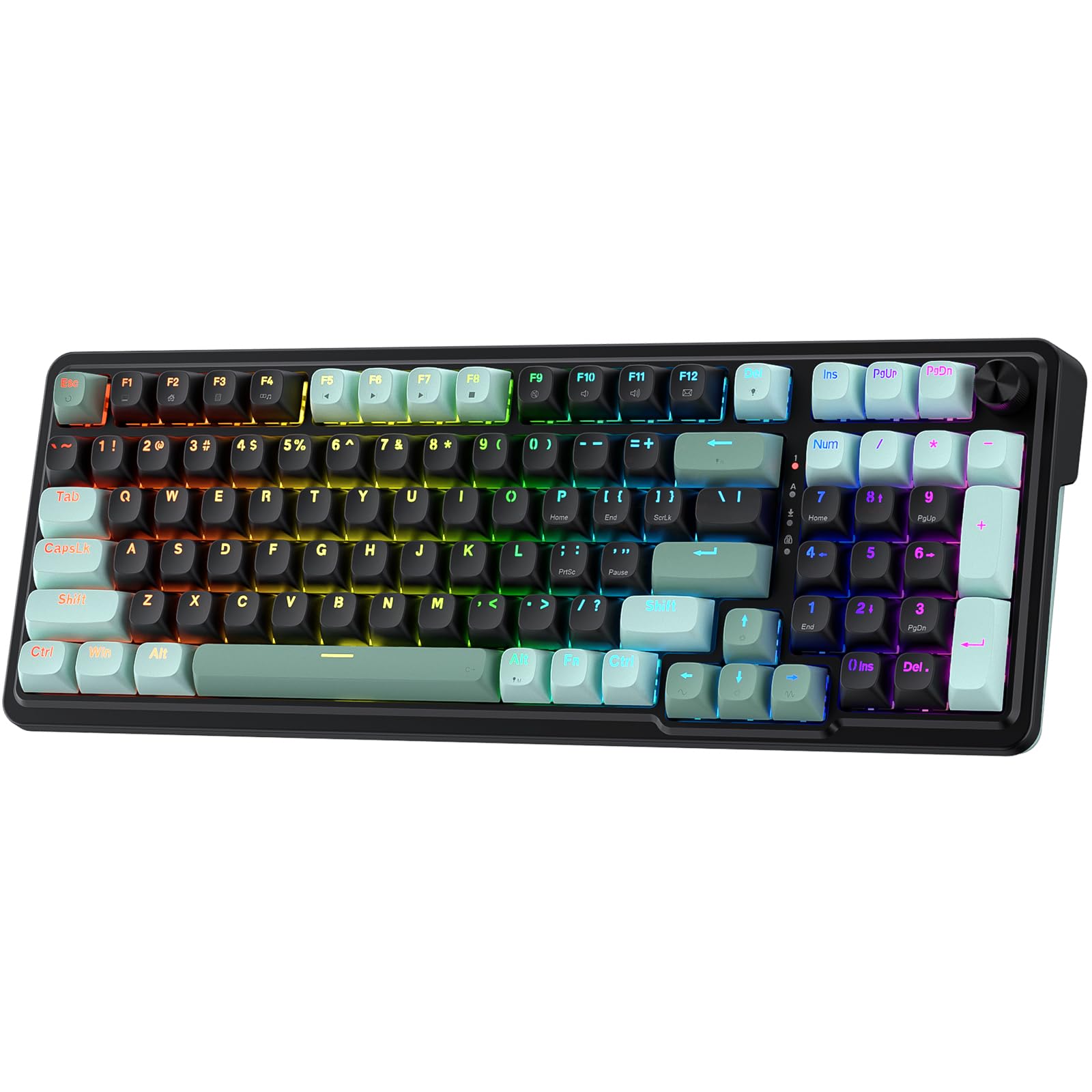
Image: The Redragon K686 HE Rapid Trigger Gaming Keyboard, showcasing its compact 98-key layout and RGB backlighting.
Package Contents
Verify that all items are present in the package:
- Redragon K686 HE Rapid Trigger Gaming Keyboard
- USB Cable (USB-A to USB-C)
- Keycap/Switch Puller
- Spare Switches
Setup
1. Wired Connection
Connect the provided USB-A to USB-C cable to the keyboard's USB-C port and then to an available USB port on your computer. The keyboard will be automatically detected and ready for use.
2. Software Installation and Calibration
The K686 HE keyboard supports both a desktop client (Windows-exclusive) and web-based driver software for advanced customization. For optimal performance and to access features like Rapid Trigger and PRCS, it is recommended to install or access the software.
- Desktop Client: Download and install the Redragon software from the official Redragon website (for Windows users).
- Web-based Driver: For other operating systems, access the web-based driver directly via your browser. Visit redragonshop.com for more information and access.
Initial Calibration: After connecting and installing the software, it is crucial to calibrate all keys for initial use. This process helps prevent potential defective key responses and ensures precise actuation.
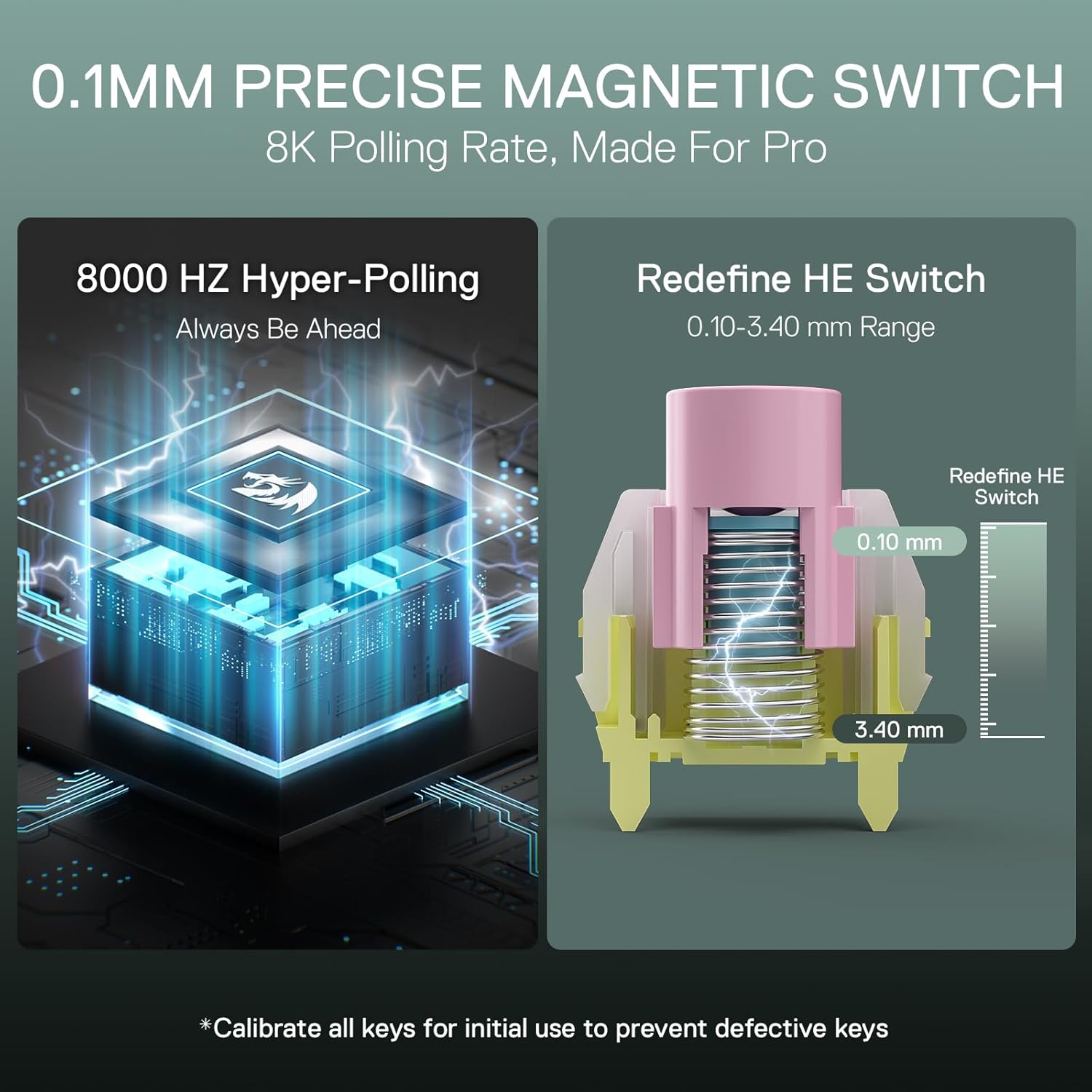
Image: Diagram illustrating the 0.1mm precise magnetic switch with an adjustable actuation range of 0.10-3.40 mm, alongside the 8K Hyper-Polling feature. Note: Calibrate all keys for initial use.
Operating Instructions
Key Features
- UltraMag Magnetic Switches: The keyboard features next-generation UltraMag magnetic switches with a dual-module floating structure for enhanced stability and precision. The full-POM construction with an enclosed base provides a smooth keystroke experience.
- Rapid Trigger Technology: Utilize the software to enable Rapid Trigger ON, allowing for precise actuation point adjustment between 0.1mm and 3.4mm. This feature enables dynamic activation and deactivation, optimizing response times for gaming.
- 8K Hyper-Polling: Experience ultra-low latency with an 8,000Hz hyper-polling rate, transmitting inputs up to 8 times faster (0.125ms lowest latency) for immediate in-game actions.
- PRCS Technology (4 Modes): The revolutionary PRCS (Precision Response Control System) technology offers 4 distinct modes to eliminate redundant inputs, providing clean and precise actions, particularly beneficial in competitive gaming.
- DKS/MT/TGL Modes: Advanced control modes allow for detailed customization of key presses. DKS dynamically adjusts key processes, MT adjusts click or long press events, and TGL defines continuous trigger switches.
- 98-Key Layout with Control Knob: The compact 98-key layout retains full functionality while saving desk space. An integrated control knob provides convenient access to backlight brightness and media controls (volume, play/pause, switch tracks).
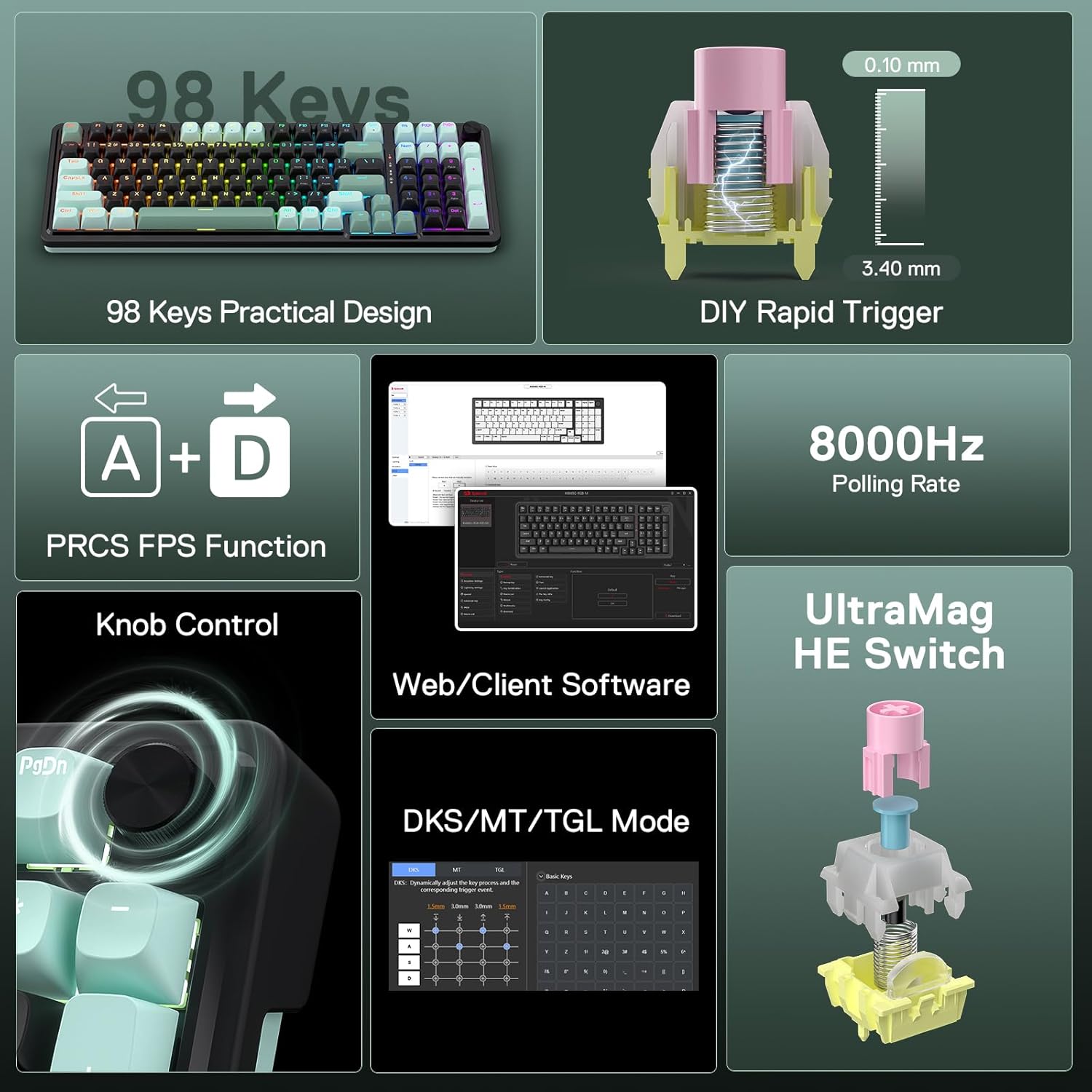
Image: An overview of the Redragon K686 HE's key features, including 98-key design, DIY Rapid Trigger, 8000Hz Polling Rate, PRCS FPS Function, Knob Control, Web/Client Software, and UltraMag HE Switch.
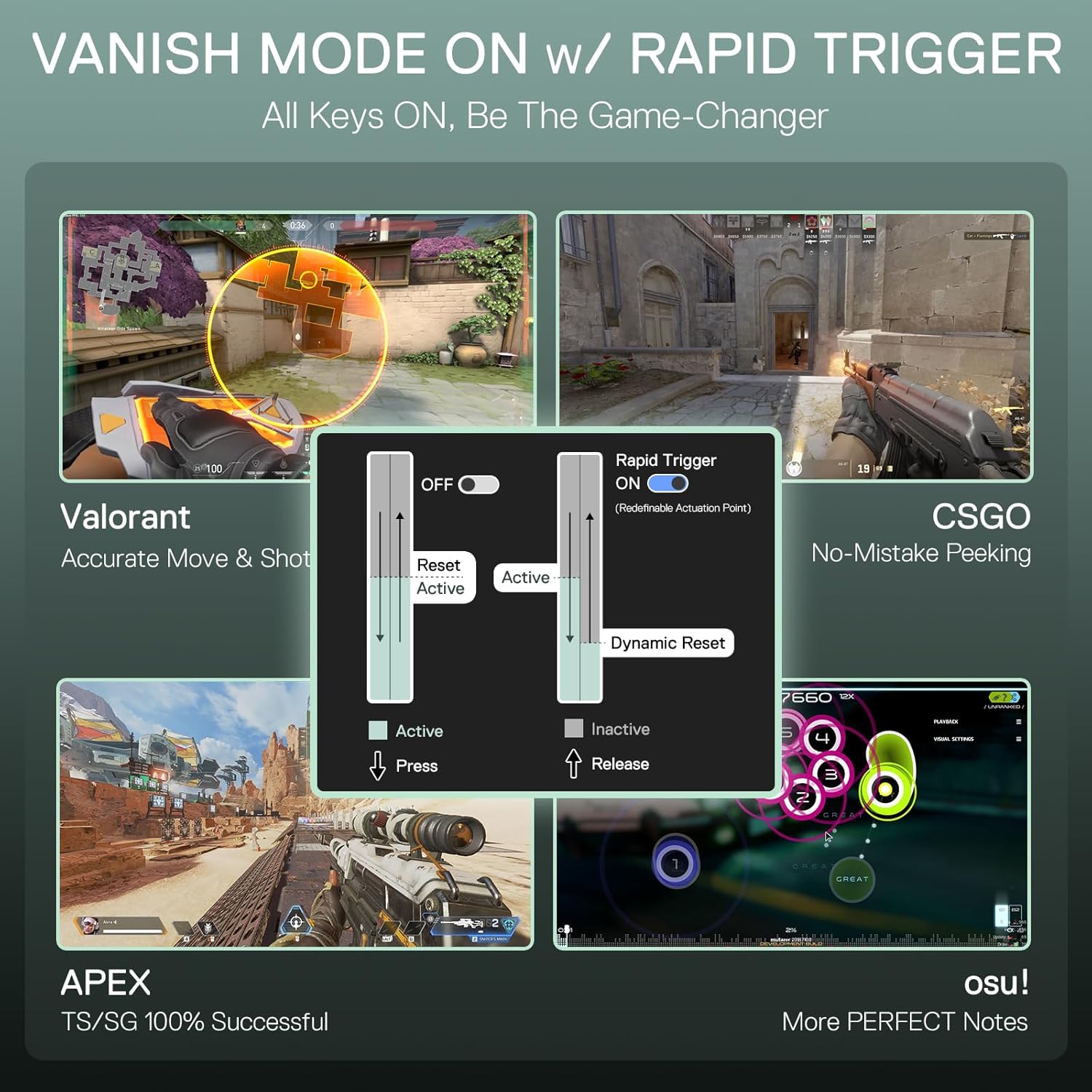
Image: Visual representation of Rapid Trigger technology in action across various games like Valorant, CSGO, APEX, and osu!, demonstrating dynamic activation and deactivation for precise control.
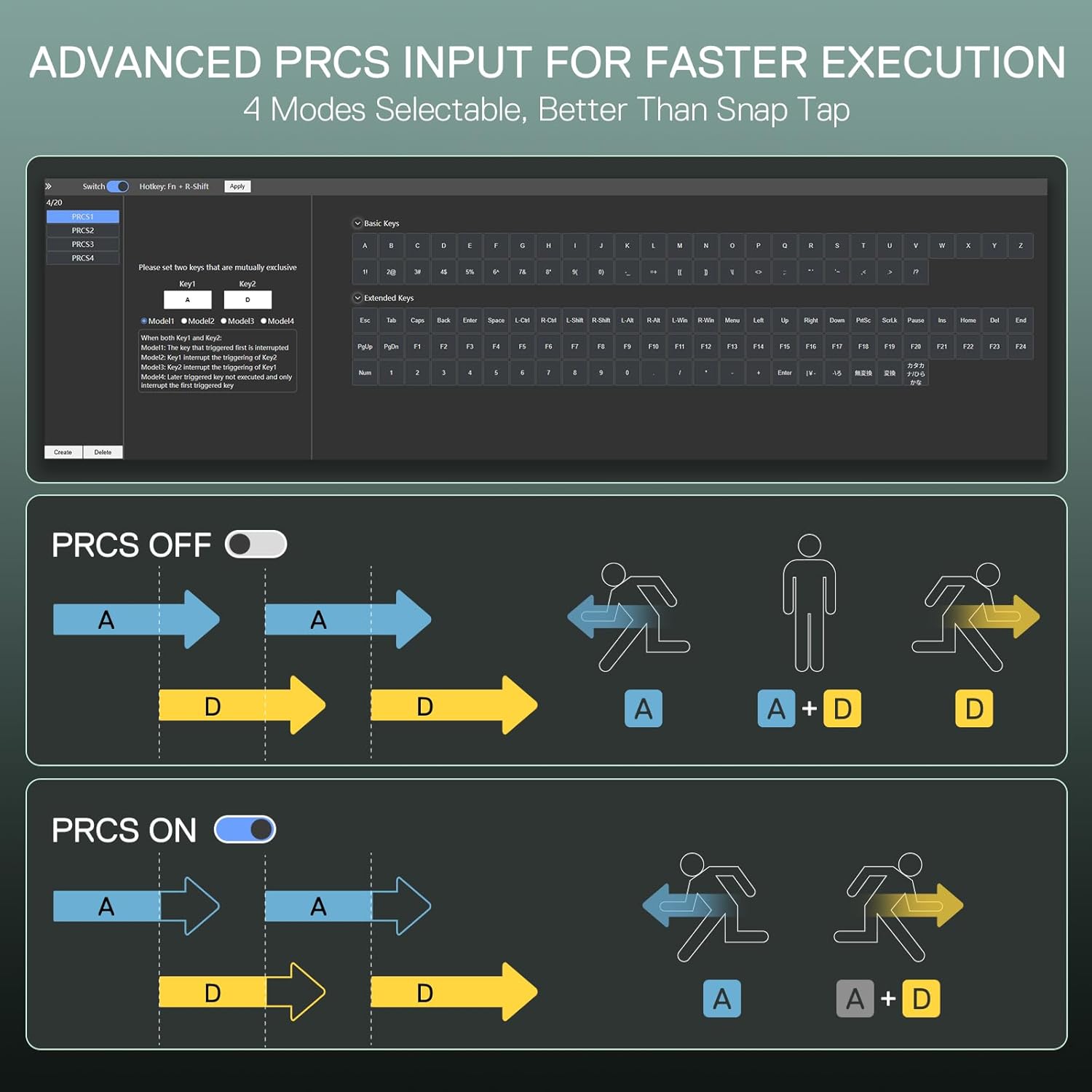
Image: A comparison illustrating the benefits of PRCS (Precision Response Control System) technology, showing how it eliminates redundant inputs for faster and more accurate execution in gaming.

Image: Screenshots demonstrating the DKS, MT, and TGL modes within the software, highlighting the granular control available for defining every key strike and optimizing performance.
Control Knob Functions
The multi-function knob located on the keyboard provides quick access to various settings:
- Press: Toggle backlight/sound on/off.
- Rotate Clockwise: Increase backlight brightness or volume.
- Rotate Counter-clockwise: Decrease backlight brightness or volume.

Image: A close-up of the keyboard's control knob, illustrating its functions for adjusting backlight and volume with simple presses and rotations.
Backlight Control
The keyboard features 18 customizable backlight modes. Use the following key combinations to adjust:
- Fn + ↑ / ↓: Adjust backlight brightness (increase/decrease).
- Fn + ← / →: Adjust breathing speed of backlight effects (increase/decrease).

Image: A visual guide demonstrating the Fn key combinations for adjusting backlight brightness and breathing speed, highlighting the 18 available backlight modes.
Maintenance
Cleaning
To maintain the keyboard's appearance and functionality:
- Use a soft, lint-free cloth to wipe the surface of the keyboard.
- For dust and debris between keycaps, use compressed air.
- Avoid using harsh chemicals or abrasive materials, as they may damage the finish.
Keycap and Switch Replacement
The K686 HE keyboard features hot-swappable switches, allowing for easy replacement. Use the provided keycap/switch puller:
- Gently remove keycaps using the keycap puller.
- Use the switch puller to carefully extract the switches.
- Align new switches with the PCB sockets and press firmly until they click into place.
- Reattach keycaps.

Image: A comparison of the keyboard's mix-color round PBT keycaps against standard keycaps, highlighting their premium texture and aesthetic.
Troubleshooting
| Issue | Possible Solution |
|---|---|
| Keyboard not responding | Ensure the USB-C cable is securely connected to both the keyboard and the computer. Try a different USB port or cable. Restart your computer. |
| Keys not actuating correctly | Perform a key calibration using the Redragon software. Ensure switches are properly seated. If a switch is faulty, replace it with a spare. |
| Backlight not working or dim | Adjust brightness using Fn + ↑. Check software settings for backlight configuration. |
| Software not detecting keyboard | Ensure the keyboard is connected via USB. Reinstall the desktop client or try accessing the web-based driver in a different browser. |
If you encounter issues not listed here, please refer to the Redragon support website or contact customer service for further assistance.
Specifications
| Feature | Detail |
|---|---|
| Model | K686 HE |
| Layout | 98 Keys |
| Switch Type | UltraMag Magnetic Switches (POM) |
| Actuation Point | Adjustable 0.1mm - 3.4mm |
| Polling Rate | 8000Hz |
| Connectivity | Wired (USB-C) |
| Keycaps | PBT Round Keycaps |
| Backlighting | RGB (18 modes) |
| Noise Dampening | 2-Layer (3.5mm PO Foam, Bottom Socket Foam) |
| Dimensions | 16.93 x 7.28 x 2.48 inches |
| Item Weight | 2.46 pounds |
| Batteries | 1 Lithium Polymer (required for internal functions, wired operation) |
| Compatible Devices | PC |
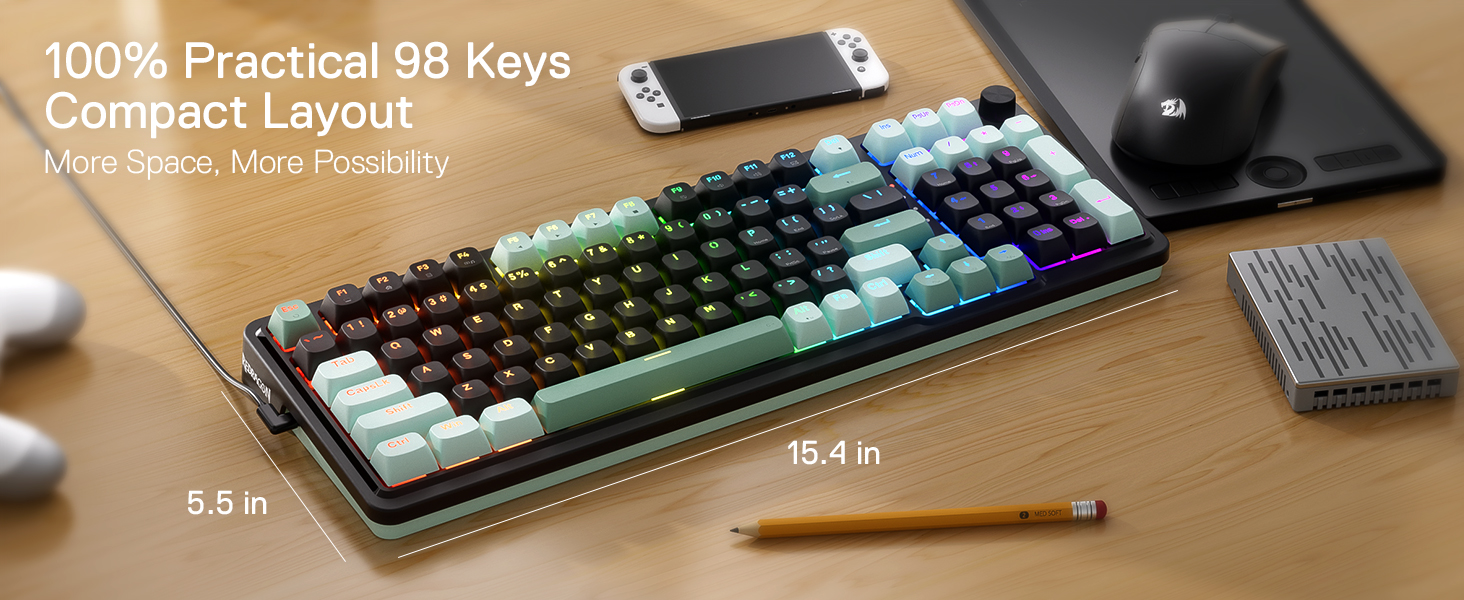
Image: The Redragon K686 HE keyboard on a desk, illustrating its compact 98-key layout and approximate dimensions (15.4 inches length, 5.5 inches width).
Warranty and Support
Redragon products are designed for durability and performance. For information regarding warranty coverage, technical support, or service inquiries, please visit the official Redragon website or contact their customer support team.
Redragon Official Website: www.redragonshop.com
Please retain your proof of purchase for warranty claims.


