1. Introduction
This manual provides detailed instructions for the setup, operation, maintenance, and troubleshooting of your Redragon H610 Wireless Gaming Headset. Please read this manual thoroughly before using the product to ensure optimal performance and longevity.

Image 1.1: Redragon H610 Wireless Gaming Headset. This image displays the black over-ear headset with its adjustable headband and earcups.
2. Package Contents
Verify that all items are present in the package:
- Redragon H610 VibeCore Headset
- USB-C Charging Cable
- 3.5mm AUX Audio Cable
- User Manual (this document)

Image 2.1: Redragon H610 Headset and included cables. The image shows the black foldable headset alongside a USB-C charging cable and a 3.5mm AUX audio cable.
3. Setup Guide
3.1 Charging the Headset
Before first use, fully charge the headset. Connect the supplied USB-C charging cable to the headset's charging port and the other end to a USB power source (e.g., computer USB port, wall adapter). The LED indicator will show charging status and turn off or change color when fully charged.
The headset features a 500 mAh battery, providing up to 50 hours of Bluetooth playback or 36 hours with Active Noise Cancellation (ANC) enabled.
3.2 Connecting via Bluetooth (Wireless)
- Ensure the headset is powered off.
- Press and hold the Power button until the LED indicator flashes, indicating pairing mode.
- On your device (PS5, PS4, PC, Mac, Nintendo Switch, or mobile device), navigate to Bluetooth settings and select "Redragon H610" from the list of available devices.
- Once connected, the LED indicator will show a steady light or flash slowly.
3.3 Connecting via AUX (Wired)
For a wired connection, use the included 3.5mm AUX audio cable. Connect one end to the headset's 3.5mm audio jack and the other end to your device's 3.5mm audio output. The headset can be used passively in wired mode without power, though ANC and other electronic features will not function.
4. Operating Instructions
4.1 Power On/Off
- To power on: Press and hold the Power button until the LED indicator lights up.
- To power off: Press and hold the Power button until the LED indicator turns off.
4.2 Active Noise Cancellation (ANC)
The Redragon H610 features Adaptive Active Noise Cancellation (ANC) with a noise reduction capability of -35 to -40 dB.
- To activate/deactivate ANC: Press the dedicated ANC button (refer to headset diagram for location).
- The ANC function helps to block out ambient noise, enhancing your audio experience.

Image 4.1: User wearing the Redragon H610 headset, demonstrating its use for gaming with active noise cancellation.
4.3 Audio Modes
Switch between different audio modes to optimize your listening experience:
- Noise Reduction Mode: Enhances ANC performance for maximum quiet.
- Game Mode: Optimizes audio for gaming, often with enhanced bass and positional audio cues.
- Music Mode: Provides a balanced audio profile for music listening.
Refer to the headset controls for the specific button to cycle through these modes.
4.4 Volume Control
Use the volume up (+) and volume down (-) buttons on the headset to adjust the audio level.
4.5 Microphone Usage
The H610 features a built-in microphone on the ear cup for clear voice communication. It is designed to filter out background noise.
- Ensure the headset is connected via Bluetooth for microphone functionality.
- For optimal clarity, position the microphone close to your mouth.

Image 4.2: Redragon H610 headset on a stand, emphasizing the integrated microphone on the ear cup and its long battery life.
4.6 Foldable Design
The headset features a foldable design for easy storage and portability. Gently fold the earcups inwards towards the headband when not in use.
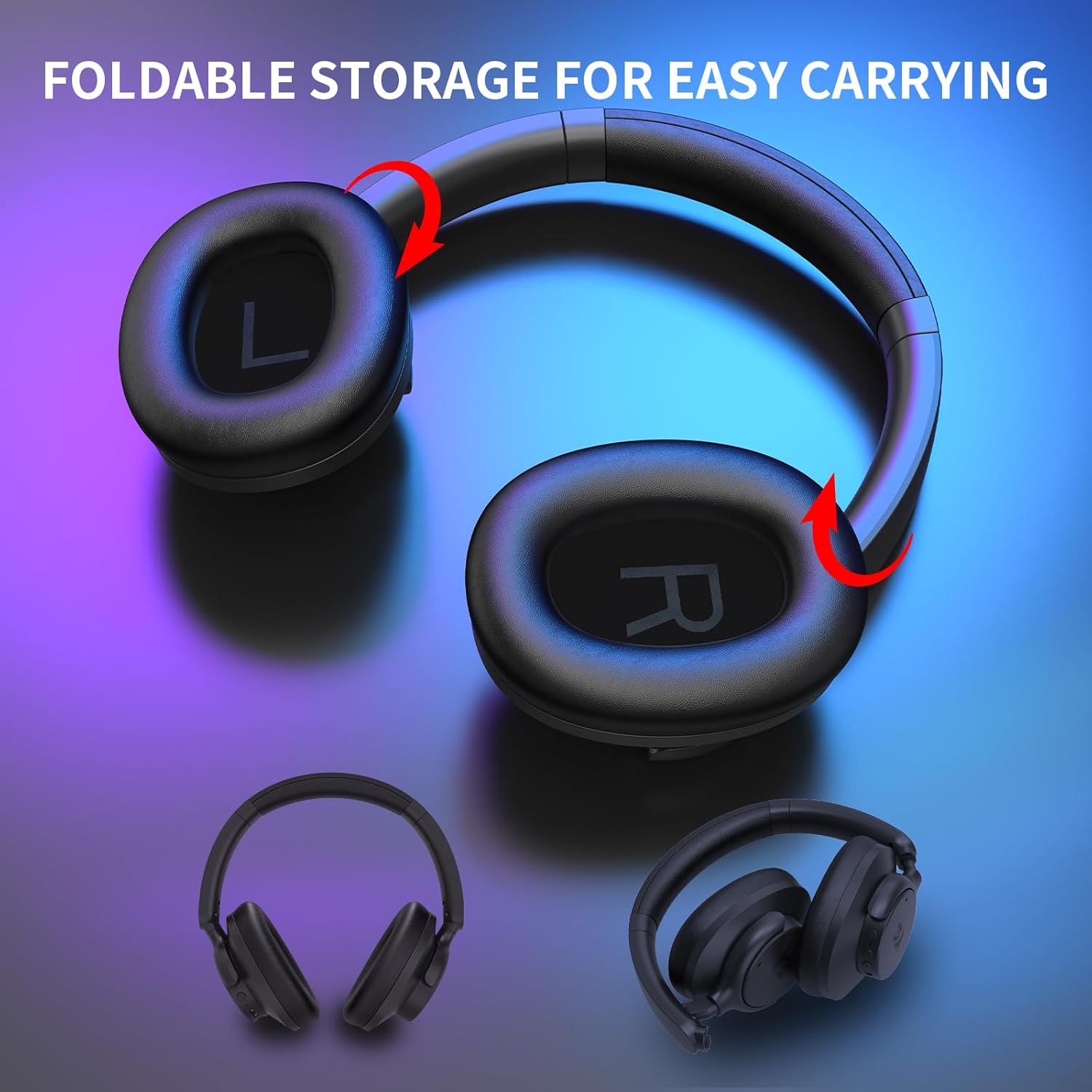
Image 4.3: Redragon H610 headset illustrating its foldable earcups for compact storage and portability.
5. Maintenance
5.1 Cleaning
- Wipe the headset with a soft, dry cloth.
- Do not use harsh chemicals, cleaning solvents, or strong detergents.
- Avoid getting moisture into any openings.
5.2 Storage
Store the headset in a cool, dry place away from direct sunlight and extreme temperatures. Utilize its foldable design for compact storage when traveling or not in use.
6. Troubleshooting
6.1 No Sound
- Ensure the headset is powered on and charged.
- Check the volume levels on both the headset and your connected device.
- Verify that the headset is correctly paired via Bluetooth or securely connected via the AUX cable.
- If using Bluetooth, try disconnecting and re-pairing the headset.
6.2 Microphone Not Working
- Ensure the headset is connected via Bluetooth. The microphone may not function in passive wired mode.
- Check microphone settings on your connected device to ensure the Redragon H610 is selected as the input device.
- Ensure the microphone is not muted on your device or application.
6.3 Bluetooth Connection Issues
- Ensure the headset is in pairing mode.
- Move the headset closer to your device.
- Clear the Bluetooth pairing list on your device and try pairing again.
- Restart both the headset and your device.
7. Specifications
| Model Name | VIBECORE (H610) |
| Brand | Redragon |
| Connectivity Technology | Bluetooth 5.3 & Wired (3.5mm AUX) |
| Ear Placement | Over Ear |
| Form Factor | Over Ear |
| Color | Black |
| Driver Size | 40mm |
| Frequency Response | 20 Hz to 20 kHz |
| Active Noise Cancellation (ANC) | Yes (-35 to -40 dB) |
| Battery Capacity | 500 mAh |
| Battery Life (Bluetooth) | Up to 50 hours |
| Battery Life (ANC On) | Up to 36 hours |
| Microphone | Built-in, Noise-filtering |
| Item Weight | 0.42 Kilograms (14.9 ounces) |
| Materials | PU Leather, Steel, ABS |

Image 7.1: Exploded view illustrating the 40mm large moving coil diaphragm of the Redragon H610 headset, responsible for rich audio output.
8. Warranty and Support
Redragon products are designed for reliability and performance. For warranty information and technical support, please refer to the official Redragon website or contact their customer service directly. Keep your proof of purchase for warranty claims.
For further assistance, visit the Redragon Store on Amazon.


