1. Introduction
This manual provides detailed instructions for the installation, operation, and maintenance of your Uckazy 15.8 Inch Android Auto Radio. This device is designed to upgrade the car stereo system in specific BMW 5 and 7 Series models, enhancing your in-car experience with modern features while retaining original vehicle functionalities.
1.1. Vehicle Compatibility
This unit is compatible with BMW 5 Series F10, F11, F01 CIC models manufactured between 2011 and 2012. It supports 520i, 525i, and 528i variants. Please ensure your vehicle has the CIC system. If you are uncertain about your vehicle's system compatibility, consult a professional or contact Uckazy support before installation.

Figure 1.1: Compatible BMW models and years with CIC system. Note the 4-pin LVDS port for CIC systems, contrasting with the incompatible 6-pin port for NBT systems.
2. Product Features
The Uckazy 15.8 Inch Android Auto Radio offers a range of features designed to integrate seamlessly with your BMW's existing system while introducing advanced functionalities:
- Display: 15.8-inch (1920*720) IN-CELL screen with full lamination technology for enhanced transparency and reduced reflection. Constructed from zinc alloy for high strength and wear resistance.
- Dual System: One-click switching between the Linux system and the original car system. Retains original car radio, amplifier function, steering wheel control, iDrive controller, display speed, fuel level, oil pressure, safety warnings, and original reverse camera.
- Connectivity: Supports wireless (wired) Apple CarPlay, wireless (wired) Android Auto, wireless MirrorLink for iOS and Android phones, Bluetooth 5.0, and Wi-Fi.
- Audio: Built-in Digital Signal Processor (DSP) with 16 EQ segments for customizable audio effects.
- Navigation & Voice Control: Access map navigation, phone contacts, email, notifications, and music through voice assistants like Siri or Google Voice Assistant.

Figure 2.1: Overview of the product's key features and supported functionalities.

Figure 2.2: Seamless switching between the original car system and the new Linux system.
3. Setup & Installation
The installation process involves carefully disassembling parts of your car's dashboard, connecting the new unit, and reassembling. It is recommended to seek professional installation if you are not comfortable with automotive electronics.
3.1. Installation Process Overview
The following video demonstrates the installation steps for the Uckazy 15.8 Inch Android Auto Radio in a BMW CIC system. Please follow the instructions carefully.
Video 3.1: Installation process for the Uckazy 15.8-inch ultra-narrow BMW CarPlay unit in a CIC system. This video guides you through prying open dashboard panels, disconnecting original cables, removing screws, connecting the new unit's cables, and reassembling the components.
3.2. Key Installation Steps
- Use an installation tool to carefully pry open the dashboard panels surrounding the original display and radio unit.
- Disconnect and pull out the cables from the original components.
- Remove the screws securing the original display and radio unit.
- Connect the new unit's cables to the corresponding ports. Ensure all connections are secure.
- Properly route and place all cables to avoid pinching or interference.
- Plug in the AUX cable into the vehicle's AUX-IN port, typically found in the manual gear position or passenger side storage box.
- Reinstall the original vehicle parts and screws in reverse order of removal. Do not miss any screws.

Figure 3.2: Wire definition and linking diagram. Carefully review and accurately link all wires as shown.

Figure 3.3: Fiber optic connection guide. Unplug the 2P fiber optic harness from the original car CD and insert it into the Linux system harness.

Figure 3.4: Connecting the AUX cable and adjusting AUX settings. Ensure the AUX cable is plugged into the stock AUX port and the 'Auto Switch to AUX' setting is turned off in the car's settings.
4. Operating Instructions
Once installed, the Uckazy Android Auto Radio provides an intuitive interface for various functions. This section covers basic operation and settings.
4.1. Connecting to the Linux System
The following video demonstrates how to link sound in the Linux system, including Bluetooth pairing and accessing various CarPlay functions.
Video 4.1: Guide on how to link sound in the Linux system. This video shows the steps to connect your phone via Bluetooth, access CarPlay features like navigation, phone, music, and messages, and adjust system settings.
4.2. Wireless CarPlay and Android Auto
The unit supports wireless Apple CarPlay and Android Auto. To connect:
- Ensure Bluetooth is enabled on your smartphone.
- On the unit's screen, navigate to the CarPlay or Android Auto section and follow the on-screen prompts to pair your device.
- Allow all necessary permissions on your phone for a successful connection.

Figure 4.2: Wireless CarPlay and Android Auto interfaces on the display.
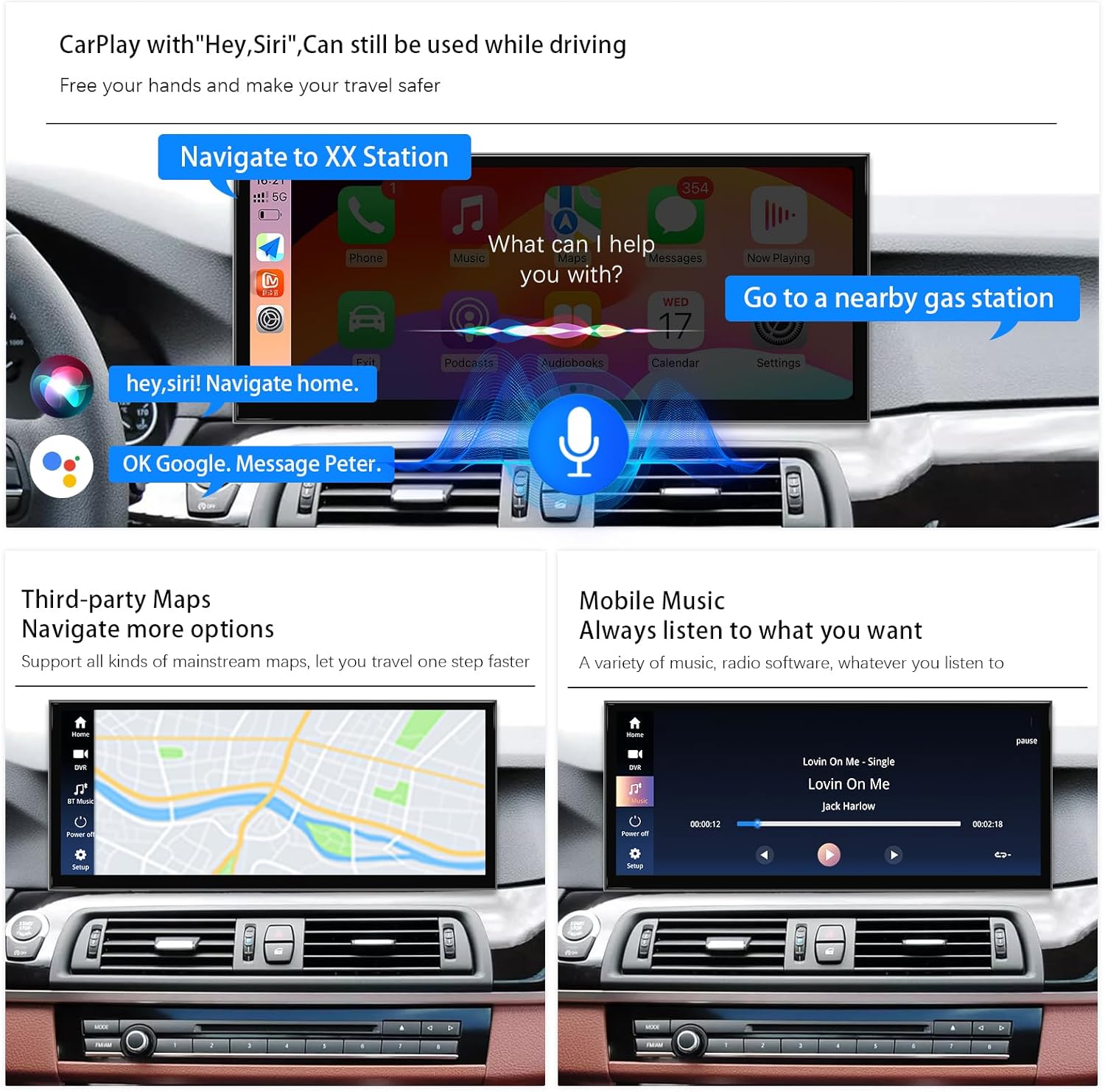
Figure 4.3: CarPlay features including voice-activated navigation and mobile music playback.
4.3. Day and Night Mode
The system features an automatic light sensitivity adjustment that adapts the display's day and night mode according to your car's original headlights, ensuring optimal visibility at all times.

Figure 4.4: Automatic Day and Night Mode adjustment.
5. Camera Functionality
The unit supports both OEM reversing cameras and aftermarket reverse/front view cameras.
5.1. Camera Support
The system is compatible with OEM reversing camera parking radar and supports aftermarket reverse cameras and front view camera DVR (CVBS input).

Figure 5.1: Camera function display with parking assistance.
5.2. Reverse Camera Wiring
When connecting a reverse camera, follow the provided wiring diagram carefully. Ensure the camera format is correctly selected in the settings (e.g., AHD 720p@25 for aftermarket cameras).

Figure 5.2: Wiring diagram for reverse camera connection and camera format settings.
6. Audio & Connectivity
6.1. Digital Sound Processor (DSP)
The unit includes a built-in DSP with 16 EQ segments, allowing you to fine-tune your audio experience. Adjust reverberation, equalization, compression, and other audio effects to achieve your preferred sound quality.
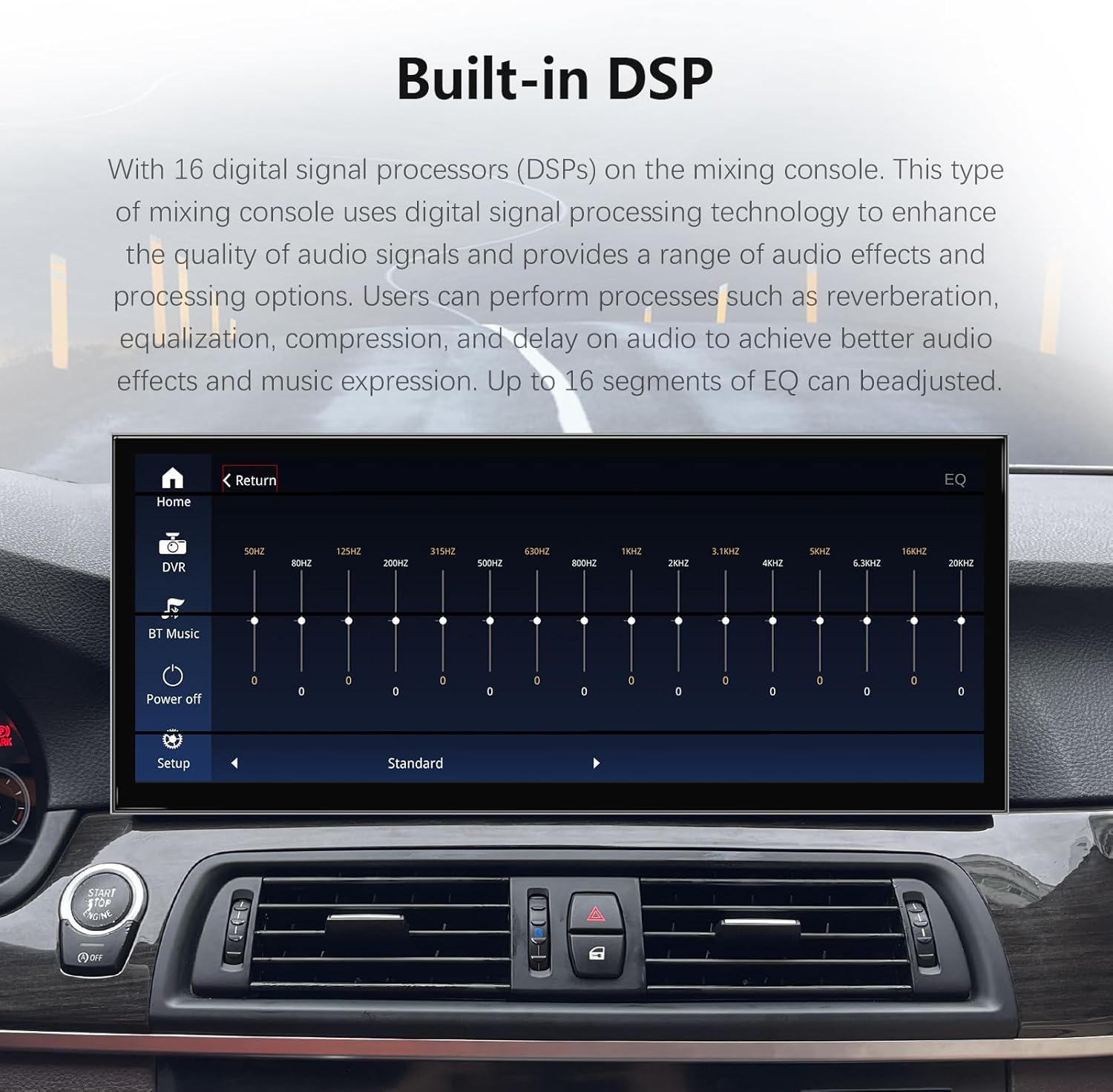
Figure 6.1: Built-in DSP interface for audio customization.
6.2. AUX Audio Connection
For optimal audio output, ensure the AUX cable is correctly connected. If you experience distorted sound (noise) from CarPlay or Android Auto, connect the AB cable as indicated in the wiring instructions.

Figure 6.2: Manual AUX setting method for audio output.

Figure 6.3: Wired CarPlay/Android Auto connection and noise reduction solution.
7. Display Settings
The 15.8-inch display offers a clear and vibrant viewing experience. Proper configuration of display settings is crucial for optimal performance.
7.1. Screen Resolution
The unit features a 1920x720 resolution screen. It is important to set the correct OEM screen resolution in the unit's settings to ensure proper display of original car information. Incorrect settings may lead to display issues.

Figure 7.1: Setting the OEM screen resolution.
7.2. Screen Technology
The display utilizes IN-CELL screen technology with full lamination, which eliminates air gaps between layers, resulting in a more transparent display and a 75% reduction in reflection. The zinc alloy material provides durability and improved heat dissipation.

Figure 7.2: Advantages of In-cell 2.5D Touch screen with Zinc Alloy construction.
8. Specifications
| Feature | Description |
|---|---|
| Brand | Uckazy |
| Connectivity Technology | Bluetooth |
| Controller Type | iPhone App |
| Special Feature | Touchscreen |
| Compatible Devices | Smartphone |
| Audio Output Mode | Stereo |
| Surround Sound Channel Configuration | 5.1 |
| Video Encoding | H.264, H.265/HEVC, MPEG-4 |
| Number of Channels | 2 |
| Control Method | Touch |
| Audio Output Type | Speakers |
| Wireless Technology | Bluetooth |
9. Troubleshooting
This section addresses common issues and provides solutions.
9.1. Firmware or MCU Update
If you are looking for firmware or MCU updates, please contact Uckazy customer support directly. Update links are not publicly provided and require specific guidance to ensure compatibility and proper installation.
9.2. Sound Distortion/Noise
If you experience distorted sound or noise when using CarPlay or Android Auto, ensure the AB cable is correctly connected as per the installation instructions (refer to Figure 6.3).
9.3. Installation or Operation Issues
Many issues can arise from incorrect installation or wiring. Double-check all cable connections and ensure they are securely plugged in. Verify that the correct OEM screen resolution is selected in the settings (refer to Figure 7.1).
10. Warranty & Support
Uckazy is committed to providing quality products and support.
10.1. Return Policy
The product is eligible for a 30-day refund or replacement policy. Please refer to the retailer's specific terms and conditions for details.
10.2. Technical Support
If you encounter any problems during the installation process, or if the sound, CarPlay, or original car UI does not display correctly, please contact Uckazy customer support. Our engineers are available to assist you with solutions.

Figure 10.1: Information on contacting technical support for assistance.


