
1. Introduction
Thank you for choosing the GYVCBREU Car Radio. This manual provides detailed instructions for the installation, operation, and maintenance of your new car stereo system. Please read this manual thoroughly before use to ensure proper functionality and to maximize your user experience. This device is designed to enhance your driving with advanced features such as wireless CarPlay, Android Auto, GPS navigation, Bluetooth 5.4, WiFi connectivity, and a high-resolution touch screen.

2. Product Overview
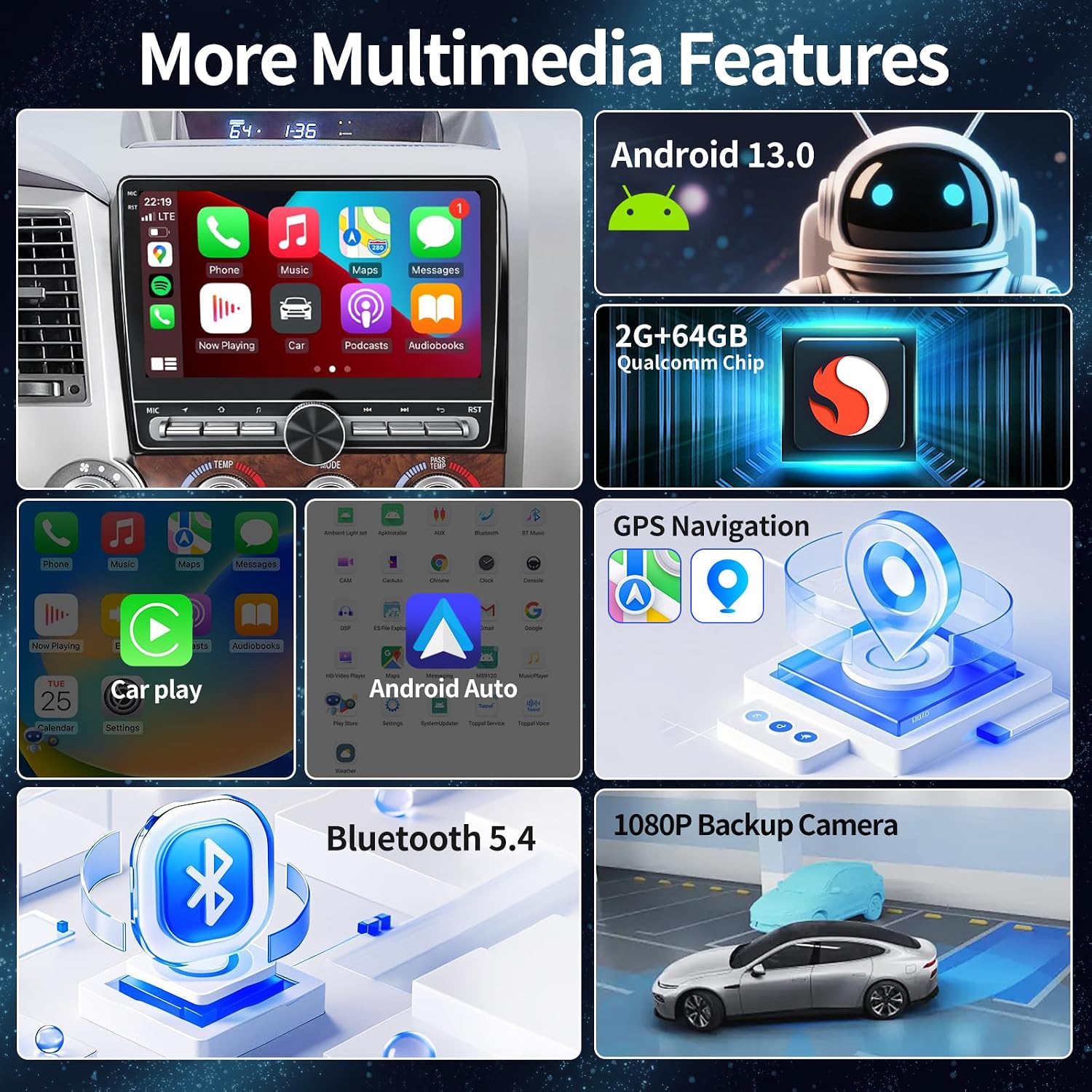
The GYVCBREU Car Radio is an advanced multimedia system featuring a 10.1-inch 1280x720 HD IPS touch screen. It operates on Android 14 with a 4-core CPU, 2GB RAM, and 64GB ROM, providing a responsive and smooth user interface. Key features include:
- Wireless CarPlay & Android Auto for seamless smartphone integration.
- Built-in GPS for online and offline navigation.
- Bluetooth 5.4 for hands-free calling and audio streaming.
- WiFi connectivity for internet access and app downloads.
- 1080P AHD Backup Camera with 170° wide-angle view.
- Steering Wheel Control (SWC) compatibility.
- DSP (Digital Sound Processor) for enhanced audio quality.
- FM/RDS Radio tuner.
- Split-screen functionality for multitasking.

3. Vehicle Compatibility
This car radio is specifically designed for:
- Toyota Tundra (2007-2013)
- Toyota Sequoia (2008-2018)
It is designed for direct connection to original car wiring. Before installation, it is recommended to verify compatibility by comparing your vehicle's dashboard with the provided images or contacting customer service with a photo of your control system.

4. Installation
The car radio is designed for easy installation, connecting directly to the original car wires. Professional installation is recommended if you are unfamiliar with car audio system wiring.
4.1 Pre-Installation Checklist
- Ensure the vehicle's battery is disconnected before starting installation.
- Confirm all necessary wiring harnesses and accessories are present.
- Review your vehicle's specific dashboard removal and installation procedures.
4.2 Wiring Connections
Connect the main power harness, speaker wires, antenna, GPS antenna, and backup camera input according to the provided wiring diagram (not included in this manual, refer to product packaging or manufacturer's website for detailed diagrams). Ensure all connections are secure to prevent intermittent issues.
4.3 Backup Camera Installation
The included 1080P AHD backup camera should be mounted at the rear of the vehicle, typically near the license plate. Route the video cable to the head unit and connect the power cable to the vehicle's reverse light circuit so it activates automatically when reversing.
5. Operating Instructions
5.1 Initial Setup
Upon first power-on, the system may guide you through initial setup steps, including language selection and time zone settings. Connect to a WiFi network to ensure the system is up-to-date and to enable online features.
5.2 Wireless CarPlay & Android Auto
To use wireless CarPlay or Android Auto:
- Ensure Bluetooth and WiFi are enabled on your smartphone.
- On the car radio, navigate to the 'Apps' menu and select 'Tlink5'.
- Connect your phone to the car radio via Bluetooth.
- Once connected, the Tlink5 app will automatically initiate CarPlay or Android Auto.

Video 1: Demonstrates the process of connecting CarPlay to the car radio, including Bluetooth pairing and launching the Tlink5 application.
5.3 GPS Navigation
The unit supports both online and offline navigation. Pre-installed map applications or downloaded apps like Apple Maps, Google Maps, and Waze can be used. Connect to WiFi for real-time traffic updates and optimal route planning.

5.4 Bluetooth 5.4
Pair your smartphone via Bluetooth for hands-free calling and wireless audio streaming. Access your phone's contacts and call history directly from the car radio interface.

5.5 Multimedia & Split Screen
Enjoy various multimedia content through pre-installed apps or by downloading from the app store. The split-screen feature allows you to run two applications simultaneously, for example, navigation on one side and music playback on the other.

5.6 Steering Wheel Control (SWC)
The unit supports your vehicle's original steering wheel controls. This allows you to adjust volume, change tracks, answer calls, and more without taking your hands off the wheel. Configuration may be required in the system settings.

5.7 Backup Camera
When the vehicle is shifted into reverse, the 1080P AHD backup camera automatically displays a wide-angle view on the screen, assisting with safer parking and maneuvering. The camera features night vision and is waterproof.
Video 2: Demonstrates various functions of the car radio, including radio tuning, music playback, DSP equalizer settings, steering wheel control setup, video playback, and split-screen functionality.
6. Specifications
| Feature | Specification |
|---|---|
| Model | 07-13 Tundra |
| Operating System | Android 14 |
| CPU | 4 Core |
| RAM | 2GB |
| ROM | 64GB |
| Screen Size | 10.1 Inches |
| Display Resolution | 1280x720 HD IPS |
| Bluetooth Version | 5.4 |
| Connectivity | Wi-Fi, Bluetooth |
| Backup Camera | 1080P AHD, 170° Viewing Angle, Waterproof |
| Item Weight | 4.4 pounds |
| Package Dimensions | 10.3 x 5.4 x 3.3 inches |
7. Troubleshooting
If you encounter issues with your car radio, please refer to the following general troubleshooting steps:
- No Power: Check all power connections and fuses. Ensure the vehicle's battery is charged.
- No Sound: Verify speaker connections. Check volume levels and audio settings (DSP, equalizer).
- Bluetooth Connection Issues: Ensure Bluetooth is enabled on both the car radio and your phone. Delete previous pairings and try reconnecting.
- GPS Signal Loss: Ensure the GPS antenna is properly installed and has a clear view of the sky.
- CarPlay/Android Auto Not Connecting: Confirm Bluetooth is connected first, then open the Tlink5 app. Ensure your phone's operating system is up to date.
- Touch Screen Unresponsive: Try restarting the unit. If the issue persists, a factory reset might be necessary (note: this will erase all user data).
For persistent issues, please contact customer support.
8. Warranty and Support
Your GYVCBREU Car Radio comes with a 30-day money-back guarantee, a 12-month warranty, and lifetime technical support.
If you have any questions regarding compatibility, installation, or operation, please contact the seller, AUTOPARTS-999, directly through Amazon. Our engineering team is available to assist you promptly.
