
Gvyugke Captain 560
Gvyugke Captain 560 Wireless Gaming Headset User Manual
Model: Captain 560 | Brand: Gvyugke
Introduction
Thank you for choosing the Gvyugke Captain 560 Wireless Gaming Headset. This headset is designed to provide a high-quality audio experience across multiple platforms, including Xbox Series X/S, Xbox One, PS5, PS4, Nintendo Switch, PC, Mac, and mobile devices. Please read this manual carefully to ensure proper setup and optimal performance.
Package Contents
Ensure all items are present in your package:
- Gvyugke Captain 560 Wireless Gaming Headset
- 2.4GHz Wireless Transmitter (Dongle)
- 3.5mm Audio Cable
- USB Type-C Charging Cable
- User Manual (this document)
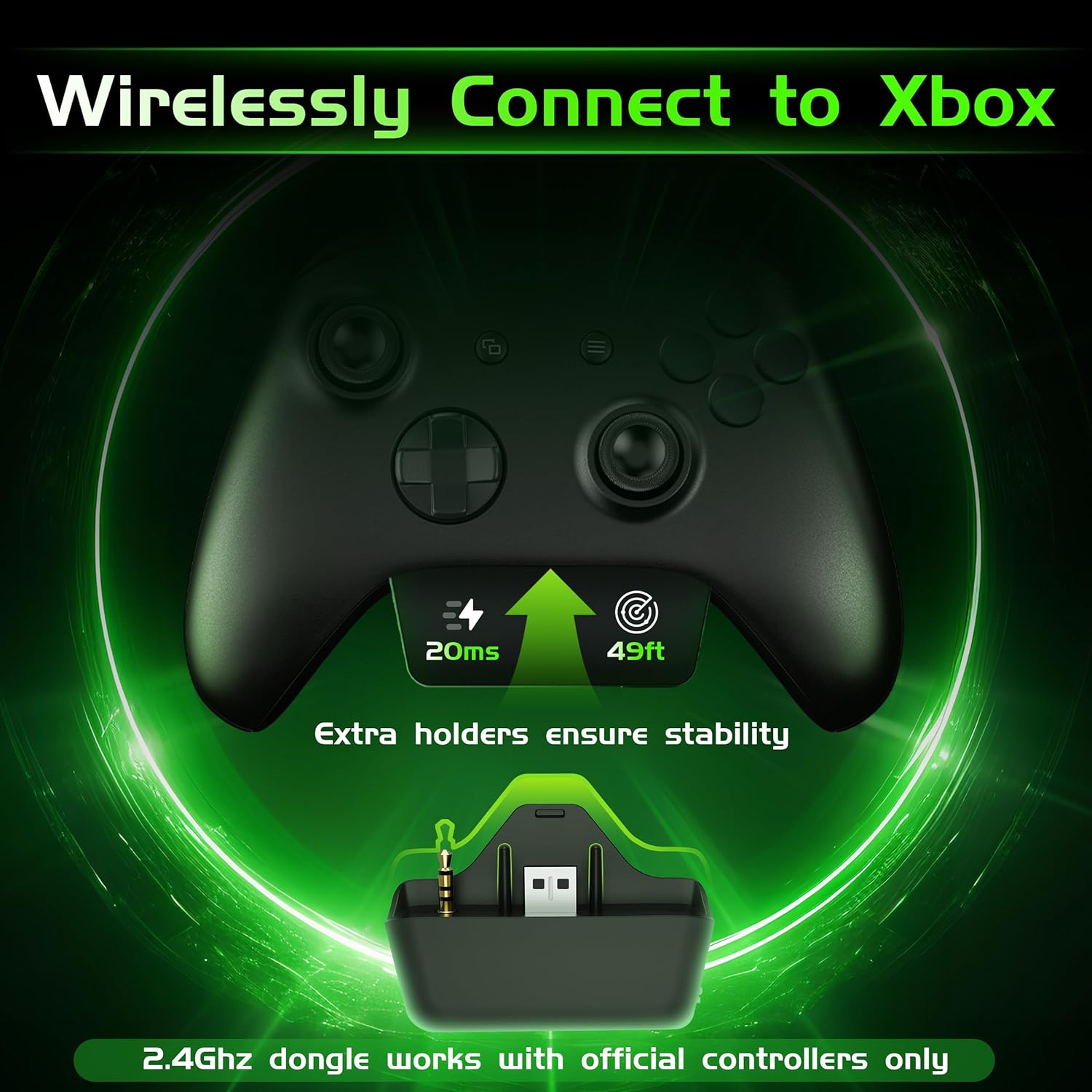
Image: Gvyugke Captain 560 Wireless Gaming Headset, 2.4GHz transmitter, 3.5mm audio cable, and USB-C charging cable.
Setup Instructions
1. Charging the Headset
Before first use, fully charge the headset. Connect the USB Type-C charging cable to the headset's charging port and the other end to a USB power source. The charging indicator will show status. A full charge takes approximately 2.5 hours.

Image: Headset highlighting its 1050mAh battery capacity, indicating up to 45 hours of playtime.
2. Connecting via 2.4GHz Wireless (for Xbox, PS5, PC, Mac, Switch)
The 2.4GHz wireless connection offers low-latency audio for gaming.
- For Xbox Series X/S or Xbox One: Insert the 2.4GHz wireless transmitter directly into the bottom port of your official Xbox controller. Ensure it is fully seated to avoid audio issues.
- For PS5, PC, Mac, or Nintendo Switch: Connect the 2.4GHz wireless transmitter to an available USB-A port on your console or computer.
- Power on your headset by pressing and holding the power button.
- Slide the connectivity switch on the headset to the "2.4G" position. The headset will automatically pair with the transmitter.
Image: The 2.4GHz wireless transmitter securely inserted into the bottom of an Xbox controller.
Note:
- The microphone is not supported when connected to Nintendo Switch.
- The transmitter is compatible with official Xbox controllers. Third-party Xbox controllers may not be supported.
Video: Instructions on how to set up voice chat on Xbox for the Gvyugke Captain 560 headset.
3. Connecting via Bluetooth 6.0 (for Mobile, PC, Mac)
Bluetooth connectivity is ideal for mobile devices, PC, and Mac for general audio and communication.
- Power on your headset.
- Slide the connectivity switch on the headset to the "BT" (Bluetooth) position. The headset will enter pairing mode, indicated by a flashing LED.
- On your device (phone, PC, Mac), go to Bluetooth settings and select "Captain 560" from the list of available devices.
- Once connected, the LED on the headset will become solid.
Note:
- Bluetooth works with mobile devices only and is not available for Xbox, PS5, or PS4.
4. Connecting via 3.5mm Wired
For universal compatibility or when battery is low, use the 3.5mm audio cable.
- Connect one end of the 3.5mm audio cable to the headset's 3.5mm port.
- Connect the other end to the 3.5mm audio jack on your device (controller, PC, etc.).
- The headset will operate in wired mode.

Image: A diagram illustrating the three connection modes: 2.4GHz wireless, Bluetooth, and 3.5mm wired, with compatible devices for each.
Operating Instructions
1. Power On/Off
- Power On: Press and hold the power button (located on the left earcup) for 3 seconds until the LED indicator lights up.
- Power Off: Press and hold the power button for 3 seconds until the LED indicator turns off.
2. Microphone Usage (Flip-to-Mute)
- Activate Microphone: Flip the integrated microphone boom down.
- Mute Microphone: Flip the microphone boom up. This action will automatically mute the microphone.

Image: The integrated microphone of the headset, demonstrating its flip-to-mute functionality and noise-canceling feature.
3. Audio Modes (Game/Music)
Press the dedicated mode button (located below the power button) to switch between Game Mode and Music Mode. Game Mode enhances spatial audio cues, while Music Mode optimizes for balanced sound reproduction.
4. Volume Control
Adjust the volume using the scroll wheel located on the left earcup.

Image: Close-up of the headset's left earcup, showing the power button, light button, 2.4G/BT mode switch, and volume scroll wheel.
5. LED Lighting Control
Press the light button (located below the power button) to toggle the LED lighting on or off. Turning off the lighting can extend battery life.
6. Triple-Mode Connectivity Switch
Use the slide switch labeled "2.4G / BT" to select your desired wireless connection mode. For wired connection, simply plug in the 3.5mm cable.
Features Overview
- Multi-Platform Compatibility: Seamlessly switch between Xbox Series X/S, Xbox One, PS5, PS4, Nintendo Switch, PC, Mac, and mobile devices.
- Ultra-Low Latency 2.4GHz Wireless: Experience responsive audio with only 20ms latency, crucial for competitive gaming.
- Integrated Flip-to-Mute Microphone: Clear communication with advanced noise reduction, easily mute by flipping the mic up.
- Immersive 3D Surround Sound: Powered by 50mm dynamic drivers for rich, detailed audio, enhancing your gaming and media experience.
- Extended Battery Life: Up to 45 hours with lighting, or over 70 hours with lighting off at half volume. Supports charging while playing.
- Comfortable and Foldable Design: Breathable fabric cushions with memory foam ensure comfort during long sessions. The foldable design allows for easy storage and portability.

Image: A person wearing the headset, surrounded by visual representations of 3D sound waves, emphasizing immersive audio.
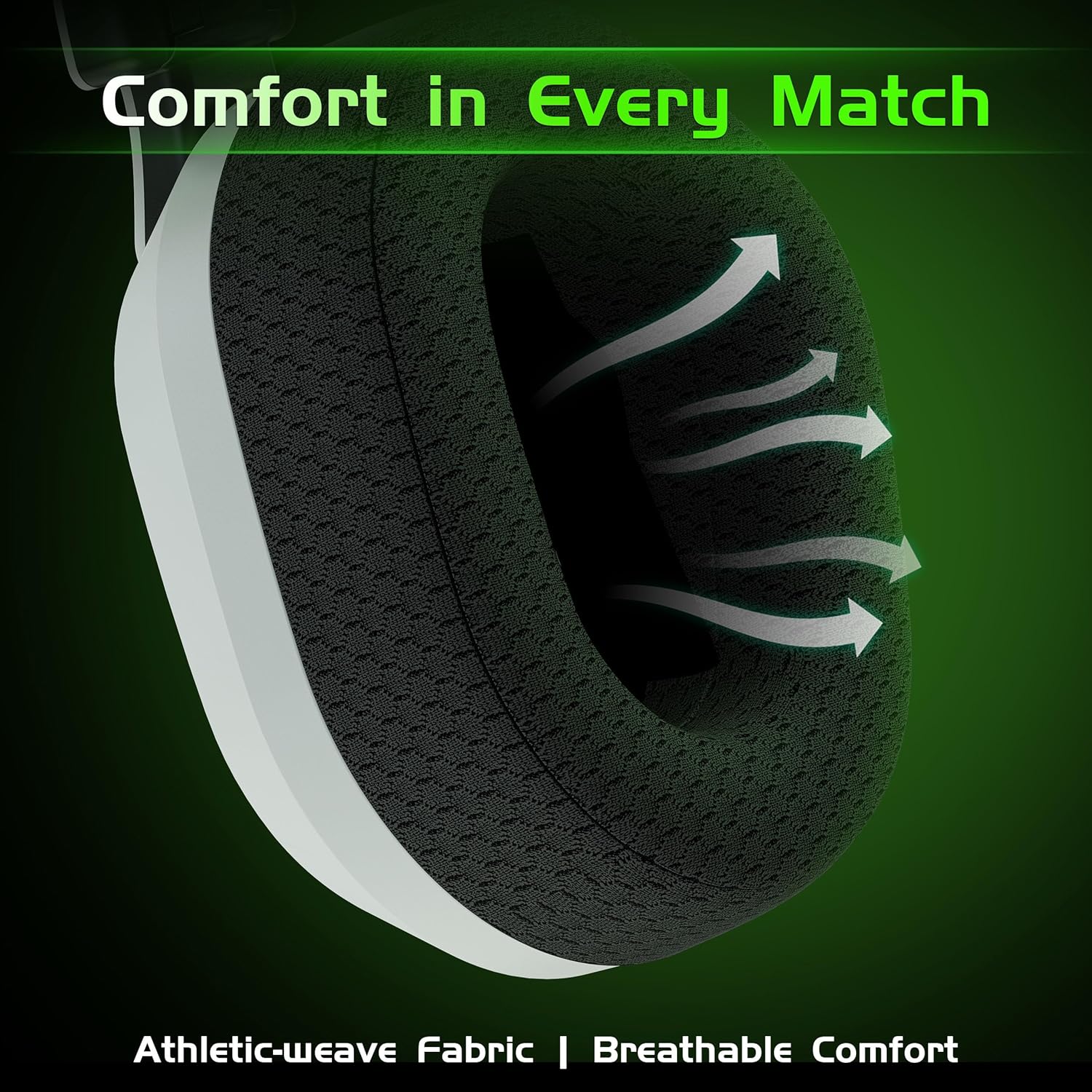
Image: Close-up view of the headset's breathable weave fabric ear pads, designed for comfort and airflow.

Image: A person demonstrating the foldable design of the headset, placing it into a bag for compact storage.
Maintenance
- Cleaning: Use a soft, dry cloth to clean the headset. Do not use harsh chemicals or abrasive materials.
- Storage: Store the headset in a cool, dry place away from direct sunlight and extreme temperatures. Utilize its foldable design for compact storage.
- Battery Care: To prolong battery life, avoid fully discharging the headset frequently. Charge it regularly, even if not in use for extended periods.
- Cable Care: Handle cables gently. Avoid sharp bends or excessive pulling to prevent damage.
Troubleshooting
| Problem | Possible Cause | Solution |
|---|---|---|
| No sound/Low volume |
|
|
| Microphone not working |
|
|
| Bluetooth pairing issues |
|
|
| Static or intermittent audio (2.4GHz) |
|
|
Specifications
| Feature | Detail |
|---|---|
| Model Name | Captain 560 |
| Connectivity Technology | 2.4GHz Wireless, Bluetooth 6.0, 3.5mm Wired |
| Wireless Communication | 2.4Ghz, Bluetooth 6.0 |
| Audio Latency | 20 Milliseconds (2.4GHz mode) |
| Audio Driver Size | 50 Millimeters |
| Noise Control | Sound Isolation, Noise Cancellation (Mic) |
| Battery Life | Up to 45 Hours (with lighting), Over 70 Hours (lighting off, half volume) |
| Charging Time | 2.5 Hours |
| Charging Port | USB Type-C |
| Bluetooth Range | 32.8 Feet (10 meters) |
| Compatible Devices | Xbox Series X/S, Xbox One, PS5, PS4, Nintendo Switch, PC, Mac, Mobile |
| Microphone | Integrated Flip-to-Mute, Noise-Canceling |
| Material | Acrylonitrile Butadiene Styrene (ABS), Polycarbonate (PC) |
| Item Weight | 10.9 ounces (0.68 Pounds) |
| Product Dimensions | 6.4 x 4 x 6.3 inches |
Warranty and Support
Gvyugke provides a 12-month warranty for this product and 45-day return policy. For technical support, warranty claims, or any inquiries, please contact Gvyugke customer service through the retailer where the product was purchased or visit the official Gvyugke store on Amazon: Gvyugke Store.
Related documentsCaptain 560

Ask a question about this manual
Ask about setup, troubleshooting, compatibility, parts, safety, or missing instructions. Manuals+ will review the question and use this page’s manual context to help answer it.