
Introduction
Welcome to the user manual for your new IWEGGO Android 15 Kids Tablet, model CP31MK. This guide provides essential information for setting up, operating, maintaining, and troubleshooting your device. Please read this manual thoroughly to ensure optimal performance and a safe user experience for your child.
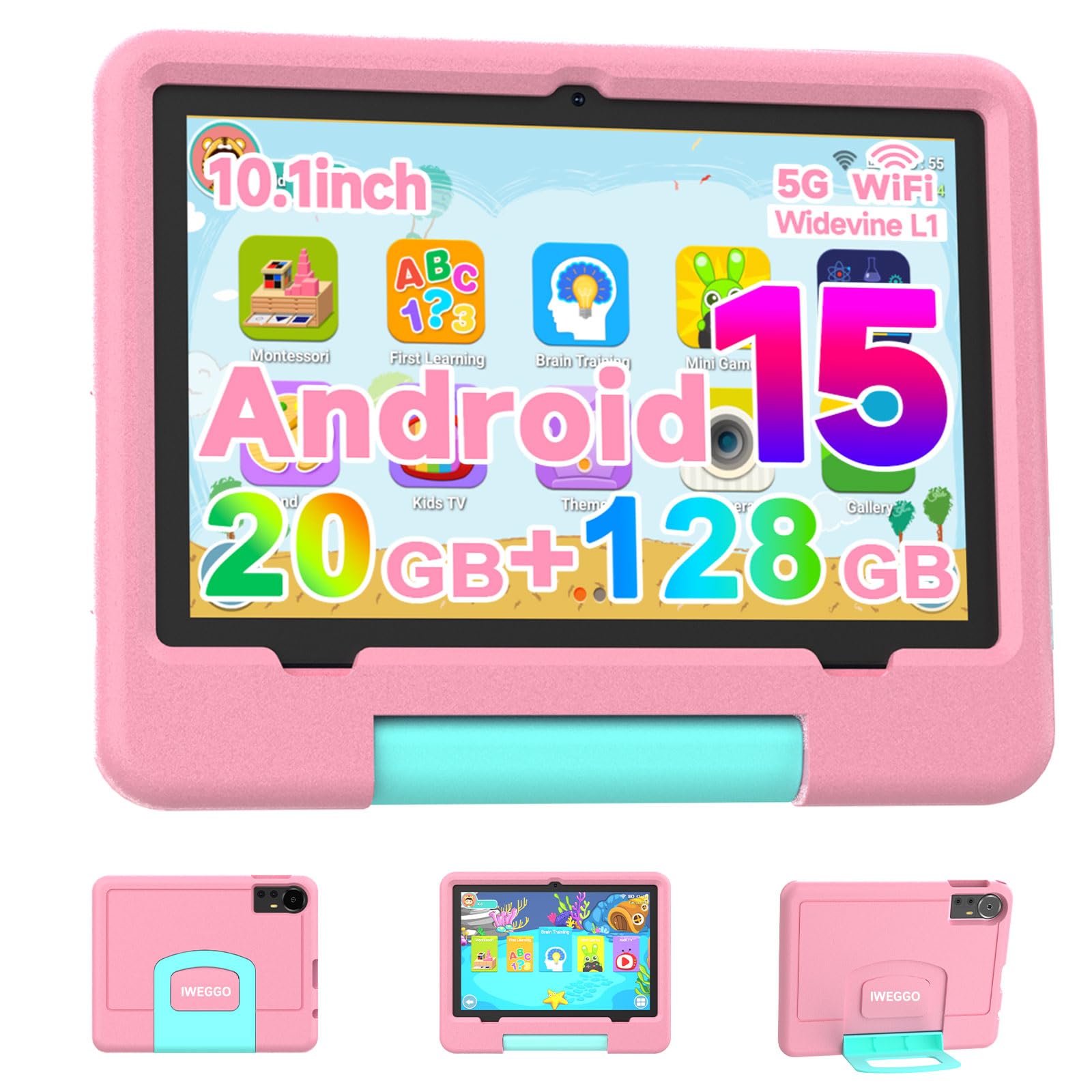
Image: The IWEGGO Android 15 Kids Tablet CP31MK, featuring a pink protective EVA case.
What's in the Box
Upon opening your IWEGGO Kids Tablet package, please verify that all the following items are included:
- IWEGGO Android 15 Kids Tablet CP31MK
- EVA Protective Case
- Charger
- USB Type-C Cable
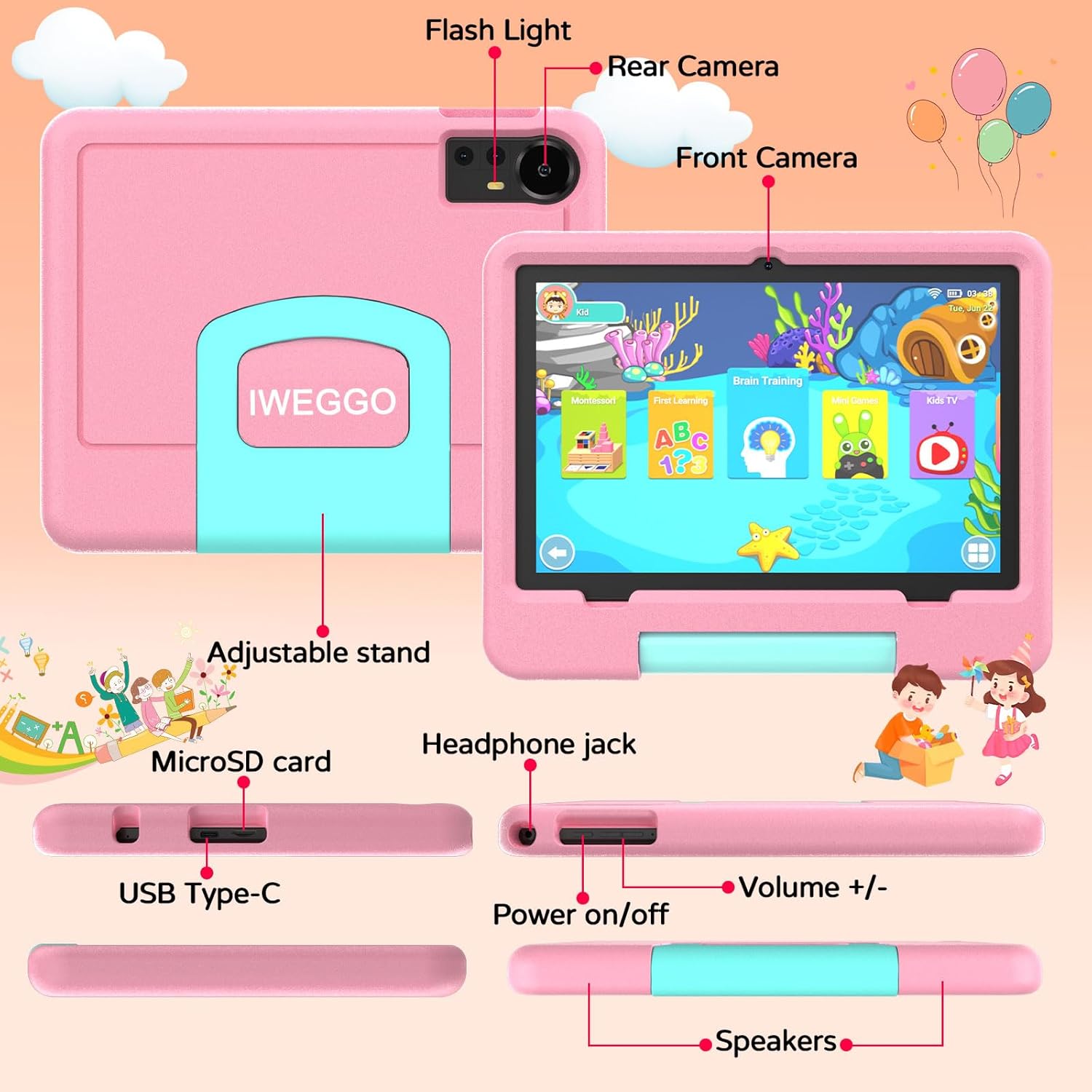
Image: A visual representation of the tablet's components and included accessories, highlighting the adjustable stand, microSD card slot, USB Type-C port, headphone jack, power button, volume controls, and speakers.
Product Overview
Familiarize yourself with the physical features of your IWEGGO Kids Tablet:
- Front Camera: Located above the screen, used for video calls and selfies.
- Rear Camera with Flashlight: Located on the back, used for taking photos and videos.
- Power On/Off Button: Located on the side, used to power the tablet on or off, or to put it to sleep.
- Volume +/- Buttons: Located on the side, used to adjust the audio volume.
- USB Type-C Port: Located on the bottom, used for charging and data transfer.
- Headphone Jack: Located on the bottom, for connecting wired headphones.
- MicroSD Card Slot: Located on the side, for expanding storage capacity.
- Speakers: Located on the sides, providing audio output.
- Adjustable Stand: Integrated into the EVA case for hands-free viewing.
Setup
1. Initial Charging
Before first use, fully charge the tablet. Connect the USB Type-C cable to the tablet's charging port and the other end to the provided charger. Plug the charger into a power outlet. The battery indicator on the screen will show charging status.
2. Powering On/Off
- To Power On: Press and hold the Power On/Off button until the IWEGGO logo appears on the screen.
- To Power Off: Press and hold the Power On/Off button until a power-off menu appears. Select "Power Off" and confirm.
- To Sleep/Wake: Briefly press the Power On/Off button to put the tablet to sleep or wake it up.
3. Initial Configuration
Upon first power-on, follow the on-screen prompts to set up your tablet:
- Language Selection: Choose your preferred language.
- Wi-Fi Connection: Select your Wi-Fi network and enter the password to connect to the internet.
- Date and Time: Set the correct date and time, or allow network synchronization.
- Google Account: Sign in with an existing Google account or create a new one. This is necessary for downloading apps from the Google Play Store.
4. Parental Controls and IWAWA App
The tablet comes pre-installed with the IWAWA app, designed for children's education and entertainment. It also features robust parental control options:
- Access IWAWA: Locate and tap the IWAWA app icon on the home screen.
- Set Screen Time Limits: Configure daily usage limits for your child.
- Content Filtering: Manage access to websites and applications.
- App Access Control: Select which apps your child can use.
- Monitor Activity: Review your child's tablet usage.
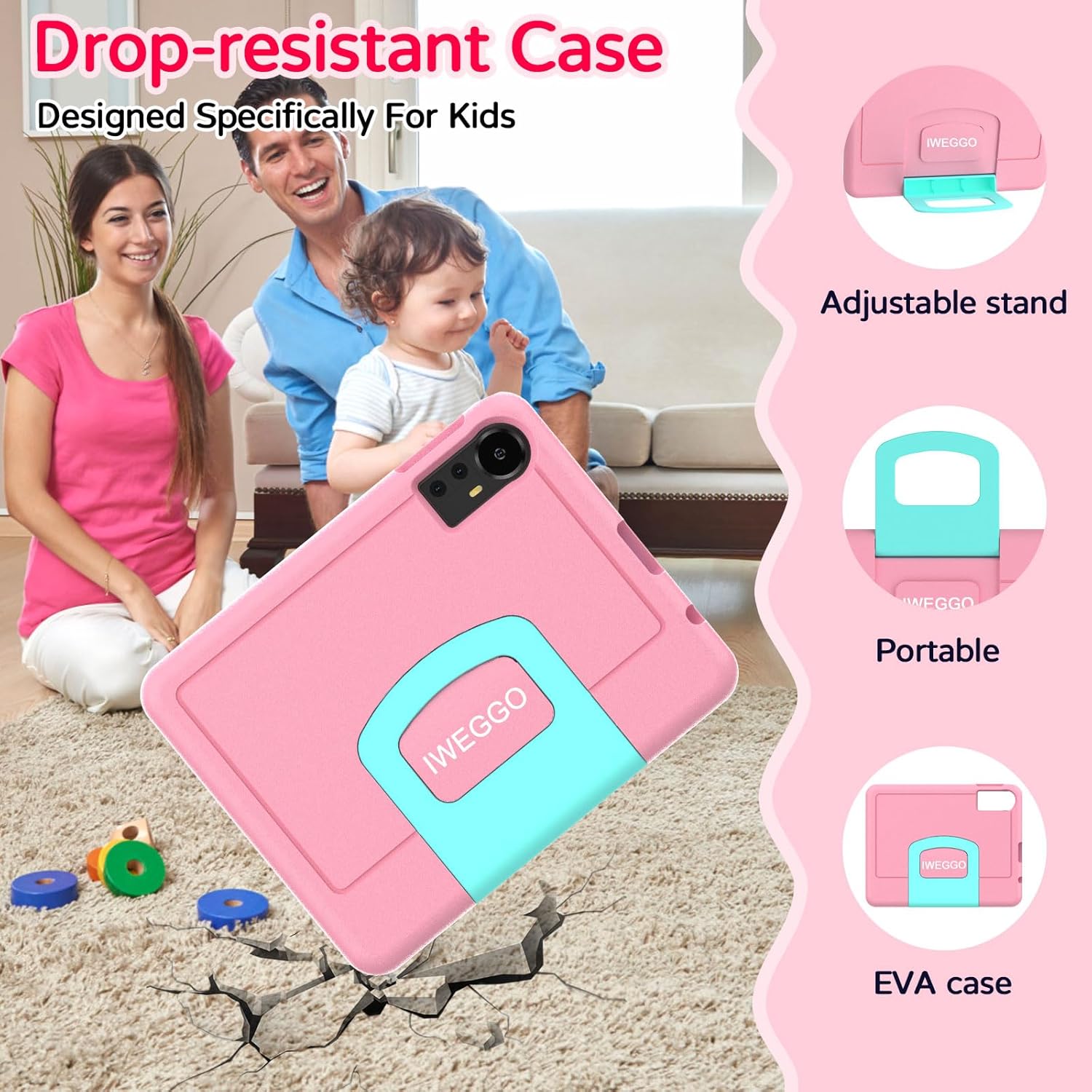
Image: The tablet displaying the parental control interface, with options for setting screen time, content filtering, app access control, and activity monitoring.
Video: An official product video from IWEGGO-US demonstrating the features and usage of the Kids Tablet, including aspects of its setup and functionality.
Operating
1. Navigating the Interface
The tablet runs on Android 15.0. Use touch gestures to navigate:
- Tap: To open apps, select items, or confirm actions.
- Swipe: To scroll through pages, menus, or switch between home screens.
- Pinch-to-Zoom: To zoom in or out on images and web pages.
2. Installing and Managing Apps
Apps can be downloaded from the Google Play Store or accessed via the pre-installed IWAWA app.
- Google Play Store: Requires a Google account. Search for and install desired applications.
- IWAWA App: Provides a curated selection of educational and entertainment content suitable for children.
- Uninstalling Apps: Go to Settings > Apps > See all apps, select the app, and choose "Uninstall".
3. Connecting to Wi-Fi
To connect to a Wi-Fi network:
- Go to Settings > Network & internet > Wi-Fi.
- Turn on Wi-Fi.
- Select your desired network from the list.
- Enter the password if prompted and tap "Connect".
4. Using Cameras
The tablet features a 2MP front camera and an 8MP rear camera.
- Open the Camera app from the home screen or app drawer.
- Tap the camera icon to switch between front and rear cameras.
- Tap the shutter button to take a photo or start/stop video recording.
5. Storage Management
The tablet comes with 128GB of internal storage and supports up to 2TB expandable memory via a microSD card.
- Insert MicroSD Card: Carefully insert a microSD card into the designated slot until it clicks into place.
- Check Storage: Go to Settings > Storage to view internal and external storage usage.
- Manage Files: Use a file manager app to move or delete files to free up space.
6. Eye Protection Features
The 10-inch IPS HD screen incorporates low blue light technology to minimize eye strain. You can further adjust display settings in the Settings menu for optimal viewing comfort.
Maintenance
1. Cleaning the Tablet
To clean the screen, use a soft, lint-free cloth. For stubborn smudges, slightly dampen the cloth with water or a screen-specific cleaning solution. Avoid harsh chemicals or abrasive materials. For the tablet body, use a dry, soft cloth.
2. Battery Care
To prolong battery life:
- Avoid extreme temperatures.
- Do not let the battery fully drain frequently.
- Use the original charger and cable.
- Reduce screen brightness and close unused apps to conserve power.
3. Software Updates
Periodically check for software updates to ensure your tablet has the latest features and security patches. Go to Settings > System > System update.
4. EVA Case Care
The ultra-light EVA case is designed for durability and shock absorption. To clean the case, wipe it with a damp cloth and mild soap if necessary. Ensure the case is completely dry before reattaching it to the tablet.
Troubleshooting
Refer to the table below for common issues and their solutions:
| Issue | Possible Cause | Solution |
|---|---|---|
| Tablet does not turn on | Low battery; System crash | Charge the tablet for at least 30 minutes. Press and hold the power button for 10-15 seconds to force restart. |
| Wi-Fi connection issues | Incorrect password; Router issue; Tablet Wi-Fi off | Verify Wi-Fi password. Restart your router. Ensure Wi-Fi is enabled in tablet settings. |
| Apps are slow or crashing | Too many apps open; Low storage; Outdated app | Close background apps. Free up storage space. Update apps to their latest versions. |
| Screen is unresponsive | Temporary software glitch | Force restart the tablet by holding the power button. |
| Tablet not charging | Faulty cable/charger; Dirty charging port | Try a different USB Type-C cable and charger. Clean the charging port gently. |
Specifications
Key technical specifications for the IWEGGO Android 15 Kids Tablet CP31MK:
| Feature | Detail |
|---|---|
| Brand | IWEGGO |
| Model Name | CP31MK |
| Operating System | Android 15 |
| Processor | T310 Quad-core, 2.0 GHz |
| RAM Memory | 20 GB (4GB fixed, 16GB virtual) |
| Internal Storage | 128 GB |
| Expandable Storage | Up to 2 TB via microSD |
| Screen Size | 10 Inches |
| Display Resolution | 1280 x 800 IPS HD |
| Aspect Ratio | 16:10 |
| Battery Capacity | 6000 mAh (Lithium Polymer) |
| Average Battery Life | 6 Hours |
| Front Camera | 2 MP |
| Rear Camera | 8 MP |
| Connectivity | 5G WiFi6, Bluetooth, USB Type-C |
| Dimensions (L x W x Thickness) | 9.7" x 6.3" x 0.3" |
| Included Accessories | EVA Case, Charger, Type-C Cable |
Warranty Information
The IWEGGO Android 15 Kids Tablet CP31MK comes with a 1-year limited warranty from the date of purchase. This warranty covers manufacturing defects under normal use. It does not cover damage caused by misuse, accidents, unauthorized repairs, or normal wear and tear. Please retain your proof of purchase for warranty claims.
Support
If you encounter any issues not covered in this manual or require further assistance, please contact IWEGGO customer support. Refer to the contact information provided with your product packaging or visit the official IWEGGO website for support resources.