
1. Introduction
Welcome to the user manual for your new Acer Nitro V 15 ANV15-52 gaming laptop. This guide provides comprehensive instructions to help you get started, operate, maintain, and troubleshoot your device. The Acer Nitro V 15 is designed for high-performance gaming and demanding tasks, featuring an Intel Core i7-13620H processor, NVIDIA GeForce RTX 5050 graphics, and a 15.6-inch Full HD IPS display with a 165 Hz refresh rate.
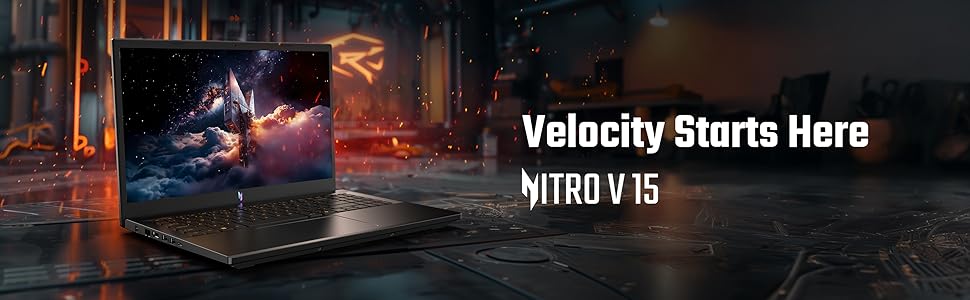
Image: The Acer Nitro V 15 gaming laptop, showcasing its sleek design and powerful capabilities.
2. What's in the Box
Upon unboxing your Acer Nitro V 15, please ensure all the following items are present:
- Acer Nitro V 15 Laptop (1N)
- Power Cord (1N)
- Power Adapter (1N)
- User Manual (1N)
3. Setup
3.1 Initial Power-On
- Connect the Power Adapter: Plug the power adapter into the laptop's DC-in port and then into a power outlet.
- Open the Laptop: Carefully open the laptop lid.
- Power On: Press the power button, usually located on the keyboard deck, to turn on your laptop.
- Windows Setup: Follow the on-screen instructions to complete the Windows 11 Home setup process. This includes selecting your region, language, connecting to a Wi-Fi network, and creating a user account.
3.2 Connecting Peripherals
You can connect various external devices to your laptop using the available ports:
- External Monitor: Use the HDMI 2.1 port to connect an external display for an extended desktop or mirrored view.
- USB Devices: Connect USB mice, keyboards, external hard drives, or other USB accessories to the USB 3.2 Gen 1 ports or the USB Type-C port.
- Network Cable: For a stable internet connection, plug an Ethernet cable into the RJ-45 port.
- Audio Devices: Connect headphones or external speakers to the headset/speaker jack.
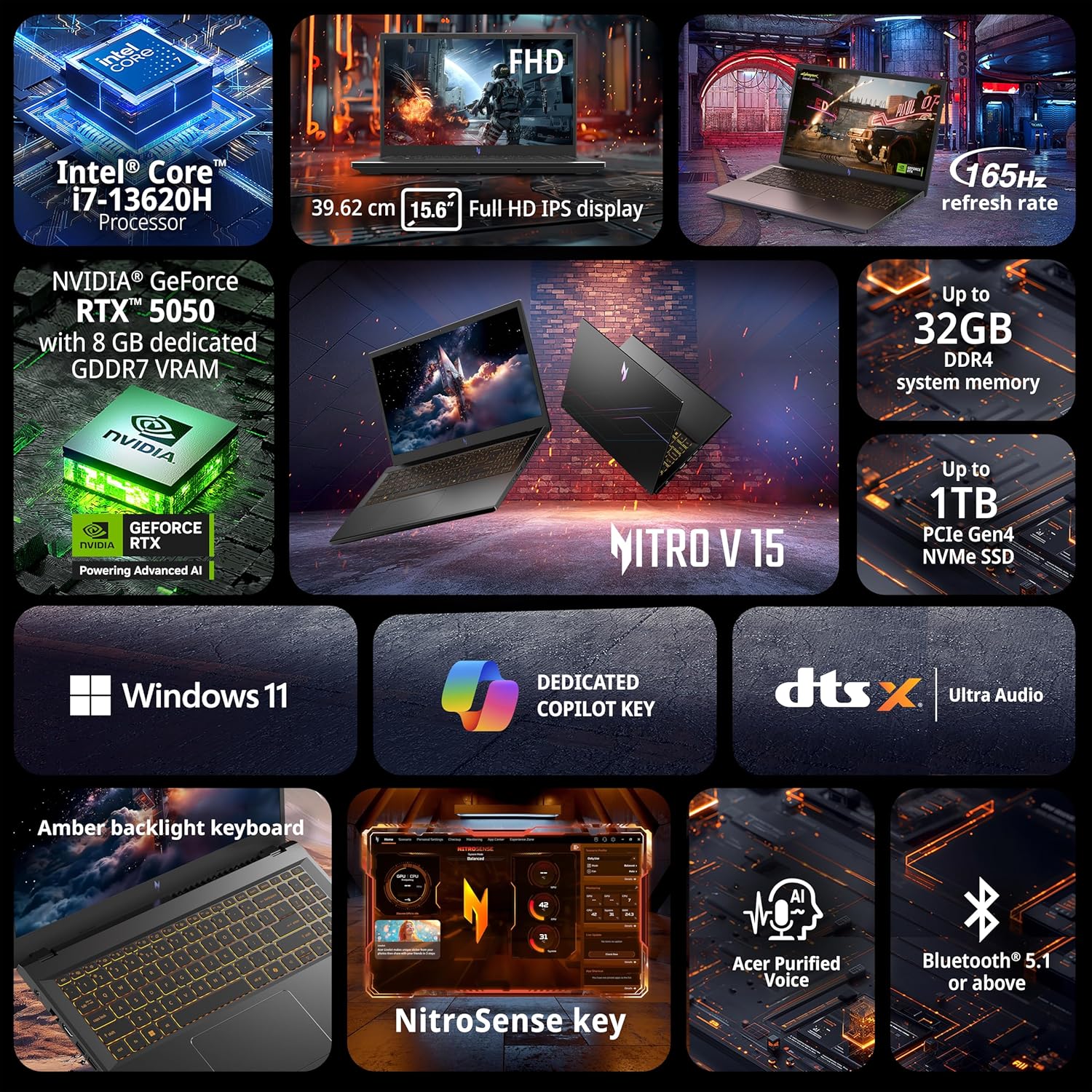
Image: Front view of the Acer Nitro V 15 laptop, illustrating its general appearance.
4. Operating Your Laptop
4.1 Power Management
- Power On: Press the power button.
- Sleep Mode: Close the lid or select 'Sleep' from the Windows Start menu.
- Shut Down: Select 'Shut down' from the Windows Start menu.
- Restart: Select 'Restart' from the Windows Start menu.
4.2 Display
Your Acer Nitro V 15 features a 15.6-inch Full HD (1920 x 1080) IPS display with a 165 Hz refresh rate, providing smooth visuals for gaming and multimedia. Adjust display settings via Windows Display Settings.
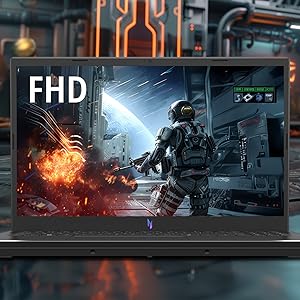
Image: The laptop's Full HD IPS display, showing vibrant visuals during gameplay.
4.3 Keyboard and Special Keys
The laptop is equipped with an amber backlit keyboard for comfortable typing in various lighting conditions. It also includes dedicated keys for enhanced functionality:
- Amber Backlit Keyboard: Adjust backlight intensity using function keys (Fn + F9/F10, specific key combination may vary).
- NitroSense Key: Press this key to launch the NitroSense utility, allowing you to monitor system performance, fan speed, and customize power plans for optimal gaming.
- Copilot Key: A dedicated key to quickly launch Windows Copilot for AI-powered assistance, commands, and shortcuts.
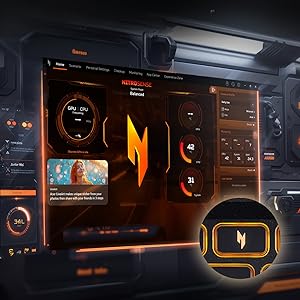
Image: Close-up of the NitroSense key, used for system performance monitoring and optimization.
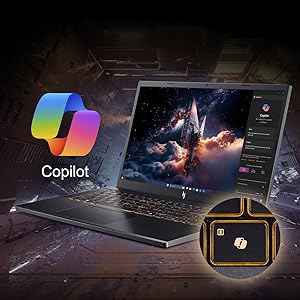
Image: The dedicated Copilot key, providing quick access to AI assistance.
4.4 Ports and Connectivity
The Acer Nitro V 15 offers a variety of ports for versatile connectivity:
- USB 3.2 Gen 1 ports: For connecting standard USB devices. One port supports power-off charging.
- USB Type-C port (Thunderbolt 4): High-speed data transfer, display output, and power delivery.
- HDMI 2.1 port: Connect to external displays or TVs.
- Ethernet (RJ-45) port: For wired network connections.
- Headset/speaker jack: For audio input/output.
- Kensington lock slot: For physical security.
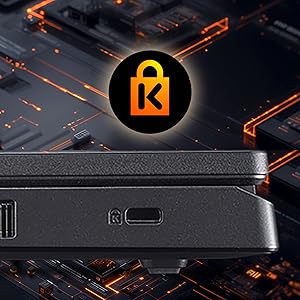
Image: Detailed view of the laptop's ports, including USB, HDMI, Ethernet, and the Kensington lock slot.
4.5 Audio Features
Experience clear audio with Acer PurifiedVoice, featuring AI noise reduction in dual built-in microphones, and DTS:X Ultra Audio for immersive sound.
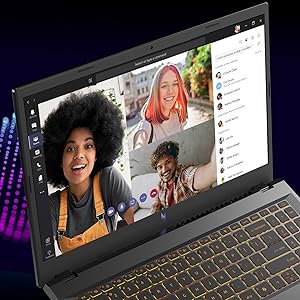
Image: Laptop screen showing a video call, highlighting the Acer PurifiedVoice technology for clear communication.
5. Maintenance
5.1 Cleaning Your Laptop
- Screen: Use a soft, lint-free cloth lightly dampened with water or a screen cleaner. Avoid harsh chemicals.
- Keyboard and Chassis: Use a soft cloth. For stubborn dirt, a slightly damp cloth is acceptable. Compressed air can remove dust from between keys.
- Vents: Regularly clean the air vents with compressed air to prevent dust buildup, which can affect cooling performance.
5.2 Battery Care
- Avoid fully discharging the battery frequently.
- Store the laptop in a cool, dry place if not used for extended periods.
- Do not expose the battery to extreme temperatures.
5.3 Software Updates
Regularly update your Windows operating system, drivers, and Acer utilities (like NitroSense) to ensure optimal performance and security. You can check for updates through Windows Update and the Acer support website.
5.4 Storage Management
Periodically review and delete unnecessary files to free up storage space on your 512 GB PCIe Gen4 NVMe SSD. Consider using cloud storage for large files or an external drive for backups.
6. Troubleshooting
This section addresses common issues you might encounter with your Acer Nitro V 15. For more detailed troubleshooting, refer to the Acer support website or contact customer service.
6.1 Power Issues
- Laptop not turning on: Ensure the power adapter is securely connected to both the laptop and a working power outlet. Try a different outlet.
- Battery not charging: Verify the power adapter connection. Check if the battery indicator light is on.
6.2 Display Issues
- No display on screen: Connect an external monitor to check if the issue is with the laptop's internal display. Ensure the laptop is powered on.
- Flickering screen: Update your graphics drivers. Adjust the refresh rate in display settings.
6.3 Performance Issues
- Slow performance: Close unnecessary applications. Check for background processes. Ensure sufficient free storage space.
- Overheating: Ensure vents are clear of obstructions. Use NitroSense to monitor temperatures and adjust fan speeds. Consider using a cooling pad.
6.4 Network and Connectivity Issues
- No Wi-Fi connection: Check if Wi-Fi is enabled in Windows settings. Restart your router. Update Wi-Fi drivers.
- Bluetooth device not connecting: Ensure Bluetooth is enabled on both devices. Check device compatibility and pairing instructions.
7. Specifications
Below are the key technical specifications for the Acer Nitro V 15 ANV15-52:
| Feature | Specification |
|---|---|
| Brand | Acer |
| Model Name | Nitro V 15 |
| Model Number | ANV15-52 |
| Processor | Intel Core i7-13620H (13th Gen, up to 4.9 GHz) |
| Graphics Card | NVIDIA GeForce RTX 5050 with 8 GB GDDR7 VRAM |
| RAM Memory | 16 GB DDR4 (Upgradable up to 32 GB) |
| Storage | 512 GB PCIe Gen4 NVMe SSD (Upgradable up to 1 TB) |
| Display | 15.6-inch Full HD (1920 x 1080) IPS, 165 Hz Refresh Rate |
| Operating System | Windows 11 Home |
| Keyboard | Amber Backlit Keyboard with NitroSense and Copilot keys |
| Ports | 3x USB 3.2 Gen 1, 1x USB Type-C (Thunderbolt 4), 1x HDMI 2.1, 1x RJ-45, 1x Headset/Speaker Jack |
| Wireless Connectivity | Wi-Fi 6 (802.11ax) |
| Audio | Acer PurifiedVoice with AI Noise Reduction, DTS:X Ultra Audio |
| Webcam | T-Type HD camera |
| Weight | 2.1 Kilograms |
| Dimensions (L x W x Thickness) | 36.2L x 1.6W x 24Th Centimeters |

Image: Diagram illustrating the Intel Core i7 processor, the laptop's central processing unit.
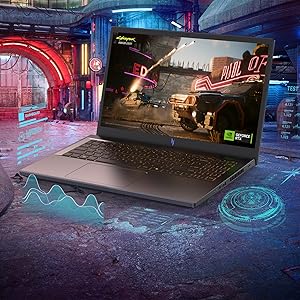
Image: Representation of the NVIDIA GeForce RTX 5050 graphics card, responsible for high-performance visuals.
8. Warranty and Support
8.1 Warranty Information
Your Acer Nitro V 15 ANV15-52 comes with a 1 Year Manufacturer Warranty. Please retain your proof of purchase for warranty claims.
8.2 Contact Information
For technical support, service, or warranty inquiries, please contact Acer customer support using the details below:
- Manufacturer: Acer, Tech-Front(Chongqing)Computer Co., Ltd (Quanta Chongqing), 18#,Zongbao Road, Shapingba District, Chongqing, China
- Importer: ACER INDIA PRIVATE LIMITED Embassy Heights, 6th Floor, No. 13, Magrath Road, Next to HOSMAT Hospital, Bangalore, INDIA – 560025
- Packer: ACER INDIA PRIVATE LIMITED, RS No.38/2, Sedarpet Village, Villanur Commune, Poducherry - 605111.
- Online Support: Visit the official Acer support website for drivers, FAQs, and service requests.


