
Eurannit E55
Eurannit E55 Handheld Inkjet Printer User Manual
Model: E55
1. Introduction
This manual provides detailed instructions for the safe and efficient operation of your Eurannit E55 Handheld Inkjet Printer. The E55 is a portable printing device designed for marking various surfaces with text, dates, logos, serial numbers, QR codes, and barcodes. It features a 4.3-inch high-definition touch screen and uses fast-drying W6900K ink cartridges.
Please read this manual thoroughly before using the printer to ensure proper setup and functionality.
2. What's in the Box
Verify that all items listed below are included in your package:
- 1 x Eurannit E55 Handheld Inkjet Printer
- 1 x W6900K Ink Cartridge (Black)
- 1 x Power Adapter
- 1 x Location Plate
- 1 x U-disk (USB drive)
- 1 x Touch Pen (Stylus)
- 1 x User Manual (this document)

Image: Contents of the Eurannit E55 package.
3. Setup Guide
3.1 Charging the Printer
Before first use, ensure the printer is fully charged. Connect the power adapter to the printer's charge port and plug it into a power outlet. The charging indicator will show the charging status.
3.2 Installing the Ink Cartridge
- Open the ink cartridge compartment cover on the printer.
- Carefully insert the W6900K ink cartridge into the slot, ensuring it is seated correctly.
- Close the compartment cover securely.

Image: W6900K Quick-Dry Ink Cartridge (42ml).
3.3 Powering On and Initial Setup
- Press and hold the power button to turn on the printer.
- The 4.3-inch high-definition touch screen will display the user interface.
- The default language is English. To change the language, navigate to the settings menu. The printer supports 28 languages. If using a language not pre-installed, you may need to install a compatible font (.ttf) via the U-disk.

Image: Printer interface showing 28 operating languages.
4. Operating Instructions
4.1 Navigating the Touch Screen Interface
The E55 printer features a responsive 4.3-inch resistive touch screen. Use the included touch pen for precise navigation and input. The main screen provides access to various functions such as editing, file management, settings, and printing.
4.2 Editing Print Content
The printer allows direct editing of content on the device. You can create and modify:
- Text: Enter custom text messages.
- Dates: Automatically generate production or expiration dates.
- Logos/Pictures: Import image files.
- Serial Numbers: Generate sequential numbers.
- Batch Numbers: Input specific batch identifiers.
- QR Codes & Barcodes: Create custom QR codes and various barcode formats.

Image: Examples of various content types printable by the E55.
4.3 Importing Content via U-disk
The included U-disk (USB drive) can be used to import images and Excel files for printing. Connect the U-disk to the printer's USB port and use the file management function on the screen to select and import your desired content.

Image: Importing images or fonts using the U-disk.
4.4 Adjusting Print Height and Length
The E55 supports a maximum print height of 0.5 inches (approximately 12.7mm) and a minimum of 2mm. The print length is unlimited. You can adjust the text font and size directly on the screen to fit your requirements.
Image: Adjustable print height range.
4.5 Printing on Various Surfaces
The E55 handheld inkjet printer is designed to mark on a wide range of materials using its fast-drying solvent ink. Compatible surfaces include:
- Cartons and Paper
- Fabrics and Leather
- Wooden Boards
- Plastics (e.g., bottles, containers)
- Metals (e.g., aluminum cans)
- Glass
- Ceramic
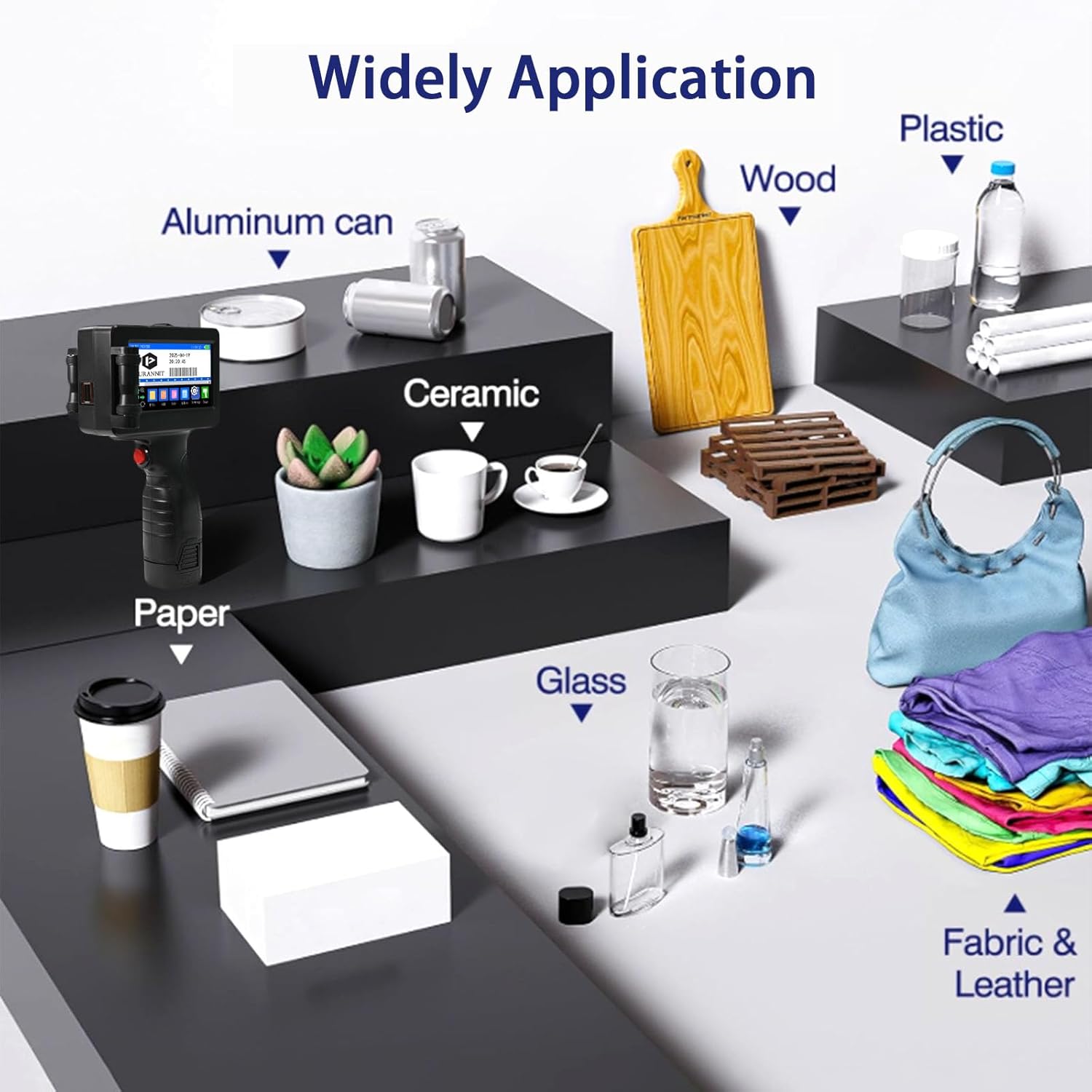
Image: Wide application of the E55 printer on various surfaces.
4.6 Using the Location Plate
The included location plate assists in accurately positioning the print on your desired surface, improving print performance and consistency, especially for repetitive tasks.

Image: Printer in use with a positioning plate for precise coding.
5. Maintenance
5.1 Ink Cartridge Handling and Replacement
The E55 printer uses W6900K fast-drying ink cartridges. When the ink level is low or the print quality degrades, replace the cartridge. The machine is unencrypted and can also use other universal half-inch cartridges.
- Turn off the printer before replacing the cartridge.
- Open the ink cartridge compartment.
- Carefully remove the old cartridge.
- Insert the new cartridge firmly into the slot.
- Close the compartment cover.
Store ink cartridges in a cool, dry place away from direct sunlight. Avoid touching the nozzle directly.
5.2 Cleaning the Printer
Regular cleaning helps maintain optimal performance. Use a soft, lint-free cloth to wipe the exterior of the printer. If the print nozzle appears clogged or print quality is poor, gently wipe the nozzle area with a specialized cleaning wipe or a lint-free cloth dampened with isopropyl alcohol. Do not use excessive force or abrasive materials.
6. Troubleshooting
This section addresses common issues you might encounter with your Eurannit E55 printer.
| Problem | Possible Cause | Solution |
|---|---|---|
| Printer does not turn on | Low battery; Power button not pressed correctly | Charge the printer; Press and hold the power button for a few seconds. |
| No ink or faint print | Ink cartridge empty or clogged nozzle; Incorrect print settings | Replace ink cartridge; Gently clean the nozzle; Adjust print density in settings. |
| Print is blurry or inconsistent | Printer moved too fast/slow; Uneven pressure; Surface not suitable | Maintain a consistent, moderate speed and even pressure during printing; Use the location plate for stability; Ensure surface is flat and clean. |
| Cannot print on small or rounded objects | Roller width too wide for object curvature | The printer's design may limit effective printing on highly curved or very small surfaces. Consider alternative marking methods for such items. |
| Difficulty with software/interface | Unfamiliarity with touch screen operation | Refer to the operating instructions in this manual; Practice with test prints; Use the touch pen for better precision. |
| Cannot import files from U-disk | Incorrect file format; U-disk not properly connected | Ensure files are in compatible formats (e.g., .bmp for images, .ttf for fonts, .xls for Excel); Reinsert U-disk; Check U-disk for errors on a computer. |
7. Technical Specifications
| Feature | Detail |
|---|---|
| Model Name | E55 printer |
| Brand | Eurannit |
| Printing Technology | Inkjet |
| Printer Output | Monochrome |
| Connectivity Technology | USB |
| Maximum Print Resolution | 600 x 600 dpi |
| Maximum Print Speed (Monochrome) | 200 pages per minute (PPM) |
| Print Height | 2mm - 12.7mm (0.5 inch) |
| Ink Cartridge Type | W6900K Fast-Drying Ink (Black, 42ml) |
| Display | 4.3-inch Resistive Touch Screen |
| Battery | 2000mAh removable battery (1 x 9V battery included) |
| Product Dimensions | 9.8D x 13W x 23H Centimetres (9.8 x 13 x 23 cm) |
| Item Weight | 900 g |
| Operating Languages | 28 languages supported |
| Special Features | Portable, Versatile Surface Printing, Data Import/Export, Variable Data Printing |
| Country of Origin | China |
8. Warranty and Support
8.1 Warranty Information
The Eurannit E55 Handheld Inkjet Printer comes with a 1-Year Manufacturer's Warranty from the date of purchase. This warranty covers defects in materials and workmanship under normal use. It does not cover damage caused by misuse, accidents, unauthorized modifications, or consumable parts like ink cartridges.
8.2 Technical Support
For technical assistance, operational videos, or warranty claims, please contact Eurannit customer support:
- Manufacturer: Wuhan Dechuang Innovation Technology Co.ltd.
- Address: No.A06, 20th floor, No.7, Zhongnan Road, Zhongnan road street, Wuchang District
- Telephone: (86) 18971444866
- Email: info@eurannit.com
You can also visit the official Eurannit store for more information and resources: Eurannit Amazon Store
Related documentsE55


Ask a question about this manual
Ask about setup, troubleshooting, compatibility, parts, safety, or missing instructions. Manuals+ will review the question and use this page’s manual context to help answer it.