
PYY Cash Register for Small Business
PYY Cash Register with Scanner - User Manual
Model: Cash Register for Small Business
1. Introduction
This manual provides comprehensive instructions for the setup, operation, and maintenance of your PYY Cash Register with Scanner. Please read this manual thoroughly before using the product to ensure proper functionality and to maximize its lifespan. This electronic cash register is designed for small businesses, offering features such as a high-speed scanner, integrated receipt printer, dual displays, and a secure cash drawer.
2. Package Contents
Verify that all items listed below are included in your package. If any items are missing or damaged, please contact customer support.
- PYY Cash Register Unit
- Barcode Scanner
- Cash Box Keys (6 keys)
- USB Cable
- Power Cable
- Thermal Paper Rolls (10 rolls, 2 1/4 inches)
- User Manual (this document)
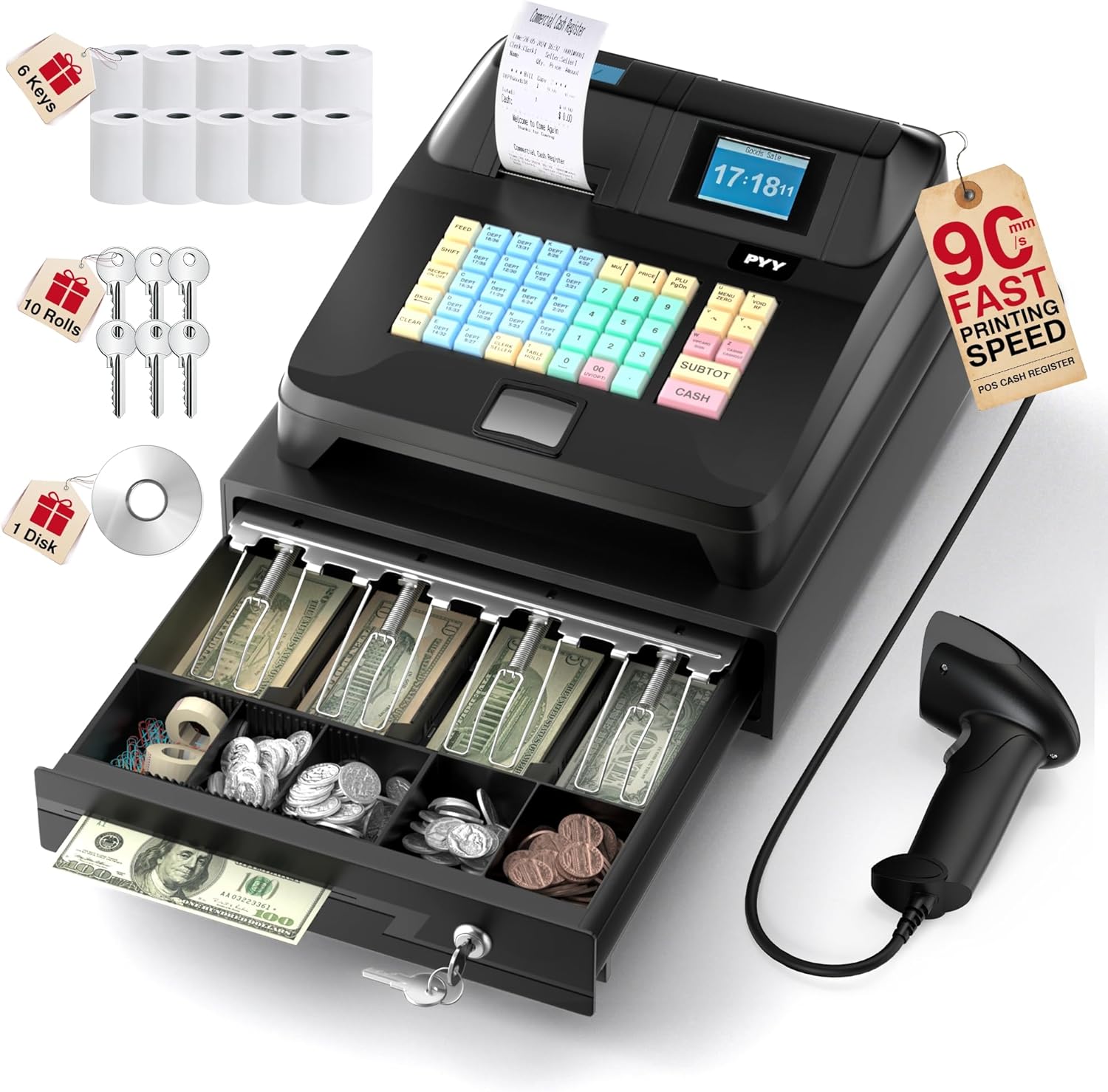
Image: The PYY Cash Register unit, showing the integrated scanner, cash drawer, receipt printer, and included accessories such as thermal paper rolls and keys.

Image: A detailed view of the PYY Cash Register, highlighting the power cable, USB cable, cash box keys, and thermal paper rolls, along with product dimensions.
3. Product Overview
The PYY Cash Register is an all-in-one solution for point-of-sale operations. It features a robust design and multiple functionalities to streamline your business transactions.
3.1 Key Components
- Main Unit: Central processing unit with integrated printer and displays.
- Cash Drawer: Secure drawer with 4 bill slots and 5 coin slots.
- Scanner: High-speed barcode scanner for efficient product entry.
- Keypad: 48 keys with waterproof caps for various functions.
- Displays: 2.8-inch TFT LCD for the cashier and an 8-digit LED display for the customer.
- Ports: RS232 (x2), USB (x1), PS2 (x1) for external device connectivity.

Image: The PYY Cash Register showing its dual display system, with a 2.8-inch TFT LCD screen for the cashier and an 8-digit LED display for the customer, designed for clear readability.

Image: A view of the cash drawer, illustrating its organized layout with 4 slots for bills and 5 slots for coins, including a removable tray for easy management.

Image: The rear panel of the PYY Cash Register, highlighting the universal interface ports including RS232 for scales/scanners, USB for computers, and PS2 for keyboards, enabling multi-device connection.
4. Setup
4.1 Initial Placement
Place the cash register on a stable, flat surface. Ensure adequate ventilation around the unit. Avoid placing it near heat sources or in direct sunlight.
4.2 Power Connection
- Connect the power cable to the power port on the back of the cash register.
- Plug the other end of the power cable into a standard electrical outlet (AC 100-240V).
- Turn on the power switch, usually located near the power port.
4.3 Installing Thermal Paper
- Open the printer cover located on the top of the unit.
- Insert a 2 1/4 inch thermal paper roll, ensuring the paper feeds from the bottom and the leading edge is straight.
- Close the printer cover firmly until it clicks into place.
4.4 Connecting Peripherals
- Scanner: Connect the barcode scanner to one of the RS232 ports.
- Computer: Use the USB cable to connect the cash register to a PC for data management (if applicable).
- Keyboard: Connect an external PS2 keyboard if desired for data entry.
- Scale/Printer: Additional RS232 ports are available for connecting a scale or an external printer.

Image: The included barcode scanner, demonstrating its ability to decode various types of 1D and 2D QR codes, including blurred, colorful, underwater, and damaged codes, without requiring additional drivers.
5. Operating Instructions
The PYY Cash Register supports various operational modes and functions. Familiarize yourself with the keypad and display for efficient use.

Image: A close-up of the PYY Cash Register's 48-key keyboard, showing color-coded keys for departments (Blue), cash functions (Red), number entry (Green), and general functions (Yellow), all with waterproof caps.
5.1 Basic Sales Transaction
- Ensure the cash register is in "Sale" mode.
- Scan the product barcode using the integrated scanner. The item price will appear on the display.
- For multiple quantities of the same item, enter the quantity and then scan the item, or use the quantity key.
- Repeat for all items.
- Press the "SUBTOT" key to view the subtotal.
- Enter the amount received from the customer and press the "CASH" key. The change due will be displayed, and the cash drawer will open.
- A receipt will be printed automatically.
5.2 Customizing Receipts
The integrated thermal printer offers fast printing at up to 90mm/s and allows for customization of receipt headers and footers.

Image: A sample receipt printed by the PYY Cash Register, demonstrating customizable elements such as header, time, order ID, clerk/seller details, sale details, settlement details, tax details, and a customized footer, with a printing speed of 90mm/s.
Refer to the programming section of the detailed manual (if available) for instructions on how to configure custom receipt information such as store name, address, and promotional messages.
5.3 Reporting Functions
The cash register can generate various reports to track business performance:
- Hourly Reports: Sales performance per hour.
- Cashier Reports: Individual cashier performance.
- Item Reports: Sales data for specific products.
- Department Reports: Sales data by department.
- Refund Reports: Records of all refunds processed.
- Drawer Opening Reports: Tracks instances of the cash drawer being opened.
Access these reports through the system menu on the cashier's display. Specific navigation steps are detailed in the full programming guide.
6. Maintenance
6.1 Cleaning
- Turn off and unplug the cash register before cleaning.
- Wipe the exterior with a soft, damp cloth. Avoid abrasive cleaners or solvents.
- Clean the scanner window with a soft, lint-free cloth to ensure optimal scanning performance.
- The ABS casing is designed to resist water and oil, making it easy to clean in demanding environments.
6.2 Thermal Paper Replacement
When the paper roll is nearly empty, replace it following the steps in Section 4.3. Always use 2 1/4 inch thermal paper rolls for best results.
6.3 Cash Drawer Security
Regularly check the cash drawer lock mechanism. Use the provided keys for manual locking and unlocking. Keep spare keys in a secure location.
7. Troubleshooting
| Problem | Possible Cause | Solution |
|---|---|---|
| Cash register does not power on. | Power cable not connected, power switch off, power outlet issue. | Check power cable connection, ensure power switch is on, test power outlet with another device. |
| Printer not printing. | No thermal paper, paper incorrectly loaded, printer cover not closed, printer error. | Replace paper roll, re-load paper correctly, ensure cover is closed, restart the unit. |
| Scanner not reading barcodes. | Scanner cable loose, barcode damaged, scanner window dirty, incorrect scanning mode. | Check scanner cable connection, ensure barcode is clear, clean scanner window, verify scanner mode. |
| Cash drawer not opening. | Transaction not completed, drawer locked, mechanism jammed. | Complete the transaction, unlock the drawer with the key, check for obstructions. |
If the problem persists after attempting these solutions, please contact PYY customer support.
8. Specifications
- Model: Cash Register for Small Business
- Brand: PYY
- Dimensions (L x W x H): 41.5 x 38 x 26 cm (16.3 x 15 x 10.2 inches)
- Weight: Approximately 6.4 kg
- Power Input: AC 100-240V
- Power Output: DC 12V/3A
- Power Consumption: 36W
- Departments Supported: 200
- Products Supported: 10,000
- Members Supported: 1,000
- Cashiers Supported: 50
- Tax Rates: 9 customizable rates
- Printer Speed: Up to 90 mm/s
- Cashier Display: 2.8-inch TFT LCD
- Customer Display: 8-digit LED
- Ports: 2x RS232, 1x USB, 1x PS2
- Certifications: RoHS, FCC
9. Warranty and Support
9.1 Product Warranty
The PYY Cash Register comes with a one-year manufacturer's warranty from the date of purchase. This warranty covers defects in materials and workmanship under normal use. It does not cover damage caused by misuse, accidents, unauthorized modifications, or improper installation.
9.2 Technical Support
For technical assistance, troubleshooting, or warranty claims, please contact PYY customer support. We offer professional one-to-one technical support to ensure your satisfaction.
Please have your product model number and purchase date ready when contacting support.
Contact information can typically be found on the product packaging or the official PYY website.
Ask a question about this manual
Ask about setup, troubleshooting, compatibility, parts, safety, or missing instructions. Manuals+ will review the question and use this page’s manual context to help answer it.