
BIEGEDY S23
BIEGEDY S23 11-inch 2K Tablet User Manual
Model: S23
1. Product Overview
The BIEGEDY S23 is an 11-inch tablet designed for versatile use, featuring a high-resolution 2K display, a powerful Octa-Core processor, and ample memory for smooth performance. This manual provides essential information to help you get started and make the most of your device.

Figure 1.1: Front and back view of the BIEGEDY S23 Tablet, showcasing its sleek design and camera placement.
Key Features:
- Display: 11-inch IPS 2K (2000 x 1200 pixels) for vibrant and clear visuals.
- Processor: Octa-Core 2.0GHz for efficient multitasking and smooth operation.
- Memory: 16GB RAM (8GB physical + 8GB extended) for quick app launches and fluid performance.
- Storage: 256GB internal ROM, expandable up to 1TB via microSD/TF card.
- Battery: High-capacity 10000mAh battery for extended usage.
- Cameras: 8MP front camera and 20MP rear camera with 2MP macro lens.
- Connectivity: 5G WiFi (2.4G + 5G) and Bluetooth 5.0 for fast and stable connections.
- Operating System: Latest Android system with enhanced privacy and data control.
2. Setup Guide
2.1 Package Contents
Before you begin, ensure all items are present in the package:
- BIEGEDY S23 Tablet
- USB Type-C Charging Cable
- Power Adapter (may vary by region)
- User Manual (this document)
2.2 Device Layout: Buttons and Connectors
Familiarize yourself with the physical layout of your tablet:

Figure 2.1: Diagram illustrating the location of buttons, ports, and cameras on the BIEGEDY S23 Tablet, including the power button, volume controls, USB Type-C port, and microSD card slot.
- Power Button: Located on the side, used to power on/off or wake/sleep the device.
- Volume Buttons: Adjust audio volume.
- USB Type-C Port: For charging and data transfer.
- MicroSD Card Slot: For expanding storage up to 1TB.
- Front Camera: 8MP camera for video calls and selfies.
- Rear Camera: 20MP main camera with flash.
- Speakers: Four stereo speakers for enhanced audio.
2.3 Initial Charging
Before first use, fully charge your tablet. Connect the USB Type-C cable to the tablet's charging port and the other end to the power adapter, then plug it into a wall outlet. The battery indicator on the screen will show charging status.

Figure 2.2: The BIEGEDY S23 Tablet connected to a Type-C charger, illustrating the charging process and the 10000mAh battery capacity.
2.4 Powering On/Off
- To Power On: Press and hold the Power button until the BIEGEDY logo appears.
- To Power Off: Press and hold the Power button, then select "Power off" from the options on the screen.
- To Sleep/Wake: Briefly press the Power button to put the tablet to sleep or wake it up.
2.5 Inserting a MicroSD Card
To expand your tablet's storage, you can insert a microSD/TF card (up to 1TB). Locate the card slot as shown in Figure 2.1. Gently insert the card with the gold contacts facing down until it clicks into place. The tablet will detect the new storage automatically.
2.6 Initial Android Setup
Upon first power-on, follow the on-screen prompts to complete the initial setup:
- Select your preferred language.
- Connect to a Wi-Fi network.
- Sign in with your Google account or create a new one.
- Review and accept the terms and conditions.
- Set up screen lock (PIN, pattern, or password).
- Restore data from a previous device (optional).
3. Operating Your Tablet
3.1 Basic Navigation
- Tap: Select an item or open an app.
- Tap and Hold: Access contextual menus or move icons.
- Swipe: Scroll through screens, lists, or pages.
- Pinch-to-Zoom: Zoom in or out on images and web pages.
3.2 Connecting to Wi-Fi
Your BIEGEDY S23 supports 2.4GHz and 5GHz Wi-Fi for fast internet access.
- Go to Settings > Network & internet > Wi-Fi.
- Toggle Wi-Fi On.
- Select your desired network from the list.
- Enter the password if prompted, then tap Connect.

Figure 3.1: The BIEGEDY S23 Tablet supports both 2.4GHz and 5GHz Wi-Fi for stable internet, and Bluetooth 5.0 for connecting peripherals.
3.3 Connecting Bluetooth Devices
Pair your tablet with Bluetooth headphones, keyboards, or other accessories.
- Go to Settings > Connected devices > Bluetooth.
- Toggle Bluetooth On.
- Ensure your Bluetooth device is in pairing mode.
- Select the device from the list and follow any on-screen prompts to complete pairing.
3.4 Using the Camera
Capture photos and videos with the tablet's 8MP front and 20MP rear cameras.
- Open the Camera app.
- Tap the camera switch icon to alternate between front and rear cameras.
- Tap the shutter button to take a photo or start/stop video recording.
- Explore different modes like Macro for close-up shots.
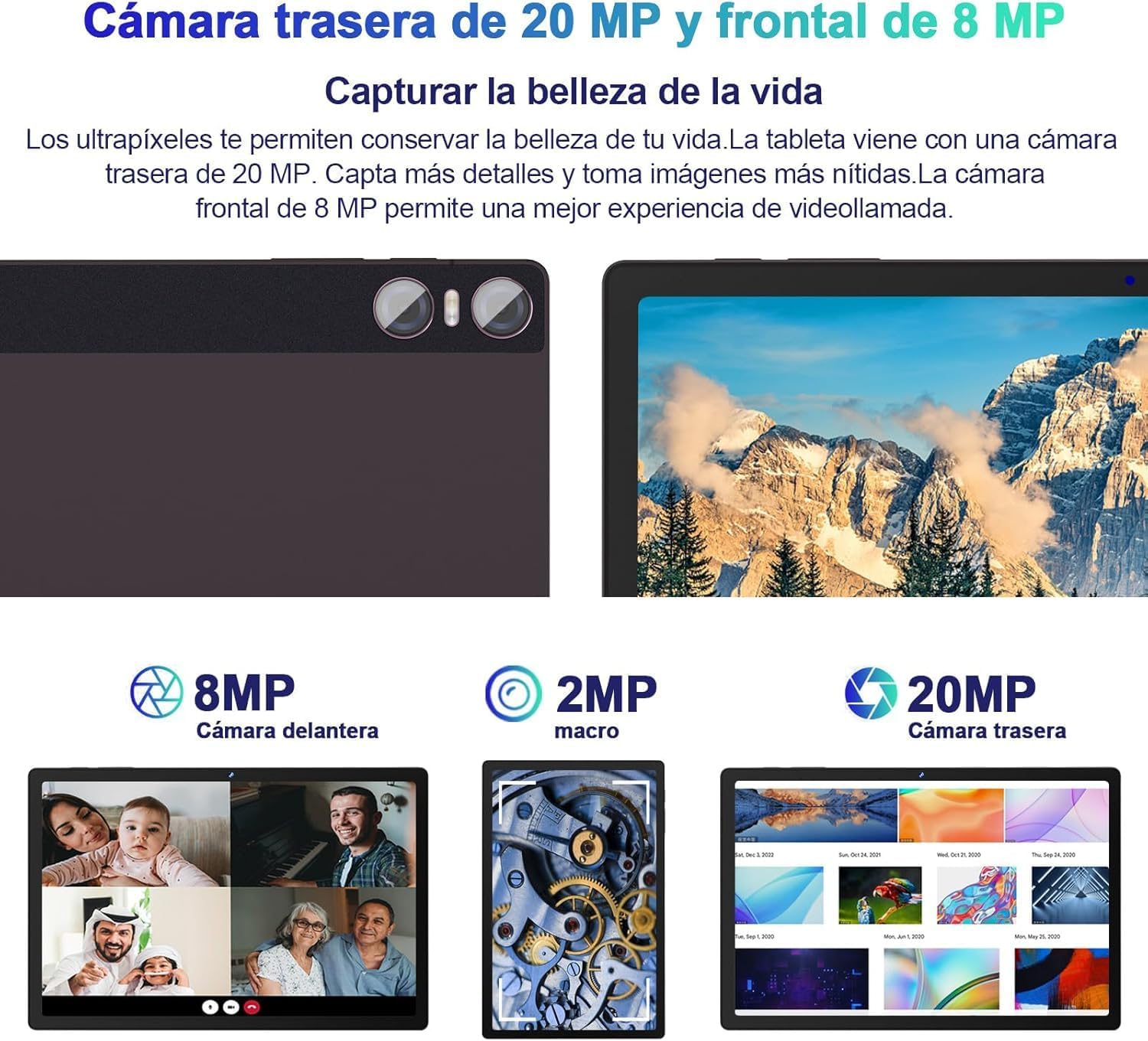
Figure 3.2: Details of the BIEGEDY S23 Tablet's camera system, highlighting the 8MP front, 2MP macro, and 20MP rear cameras, suitable for various photography needs and video calls.
3.5 Display Settings
Customize your viewing experience with the 2K IPS display.
- Go to Settings > Display.
- Adjust brightness, enable adaptive brightness, or change screen timeout.
- Modify font size, display size, and screen resolution (if applicable).

Figure 3.3: Visual comparison demonstrating the superior clarity and detail of the BIEGEDY S23 Tablet's 2K (2000x1200) display compared to a standard 1920x1080 resolution.
4. Maintenance
4.1 Battery Care
To prolong the life of your 10000mAh battery:
- Avoid extreme temperatures.
- Do not let the battery completely drain frequently.
- Use the original charger or a certified compatible charger.
- Unplug the charger once the battery is full.
4.2 Cleaning Your Tablet
Use a soft, lint-free cloth to clean the screen and body of the tablet. Avoid using harsh chemicals or abrasive materials that could damage the surface.
4.3 Software Updates
Regularly check for and install system updates to ensure optimal performance, security, and access to new features.
- Go to Settings > System > System update.
- Follow the on-screen instructions to check for and install available updates.
4.4 Storage Management
Manage your 256GB internal storage and any inserted microSD card to maintain performance.

Figure 4.1: Illustration of the BIEGEDY S23 Tablet's memory configuration, featuring 16GB RAM (8GB + 8GB extended) and 256GB ROM, expandable up to 1TB with a microSD card.
- Go to Settings > Storage to view usage.
- Uninstall unused apps, clear cache, and move large files to the microSD card or cloud storage.
5. Troubleshooting
5.1 Device Not Powering On
- Ensure the battery is charged. Connect the tablet to its charger for at least 30 minutes.
- Press and hold the Power button for 10-15 seconds to perform a forced restart.
5.2 Wi-Fi Connection Issues
- Restart your Wi-Fi router and the tablet.
- Forget the network in Wi-Fi settings and reconnect.
- Ensure you are within range of the Wi-Fi signal.
5.3 Slow Performance
- Close unused applications running in the background.
- Clear app caches regularly via Settings > Apps > select app > Storage & cache > Clear cache.
- Ensure sufficient free storage space.
- Restart the tablet periodically.
5.4 Factory Reset
If persistent issues occur, a factory reset can resolve many software-related problems. Warning: This will erase all data on your tablet. Back up important data before proceeding.
- Go to Settings > System > Reset options.
- Select Erase all data (factory reset).
- Confirm your choice and enter your PIN/pattern if prompted.
6. Specifications
| Feature | Specification |
|---|---|
| Brand | BIEGEDY |
| Model Name | S23 |
| Display Size | 11 Inches |
| Display Resolution | 2000 x 1200 Pixels (2K IPS) |
| Operating System | Android (Latest Version) |
| Processor | Octa-Core 2.0 GHz (MediaTek MT8183) |
| RAM | 16 GB (8GB physical + 8GB extended) |
| Internal Storage (ROM) | 256 GB |
| Expandable Storage | Up to 1 TB via MicroSD/TF card |
| Battery Capacity | 10000 mAh (Lithium-Ion) |
| Rear Camera | 20 MP + 2 MP Macro |
| Front Camera | 8 MP |
| Wireless Connectivity | 5G Wi-Fi (802.11ac), Bluetooth 5.0 |
| Ports | USB Type-C |
| Dimensions (L x W x T) | 25.8 x 16.2 x 0.7 cm |
7. Warranty and Support
BIEGEDY provides comprehensive support for your S23 Tablet.
- Product Warranty: This product comes with a lifetime warranty.
- Customer Service: 24-hour customer service is available.
- Technical Support: Lifetime technical support is provided.
If you have any questions or require assistance, please contact our customer service team immediately. Our staff will respond within 24 hours and provide solutions tailored to your needs.
Ask a question about this manual
Ask about setup, troubleshooting, compatibility, parts, safety, or missing instructions. Manuals+ will review the question and use this page’s manual context to help answer it.