
1. Introduction
This manual provides detailed instructions for the setup, operation, and maintenance of your Facmogu M10 Home Audio Amplifier. Please read thoroughly to ensure optimal performance and longevity of your device.
2. Product Overview
The Facmogu M10 is a compact and powerful 2.0 channel stereo amplifier designed for home audio systems. It features Bluetooth 5.4 connectivity and a TI TPA3255 Class D audio chip, delivering 300W+300W output (4~8 Ohm).
Key Features
- 300W+300W dual channel stereo output with upgraded TI TPA3255 Class D audio chip.
- Superior Signal-to-Noise Ratio (SNR) >110 dB for clear audio without audible noise.
- Minimalist design with volume, play/pause, bass, and treble controls on the front panel.
- Two input options: Bluetooth 5.4 and AUX.
- Includes a DC 36V 5A power supply.
- Super compatibility with various devices (tablet PC, TV, smartphone, laptop with Bluetooth).
Front and Rear Panel Diagram
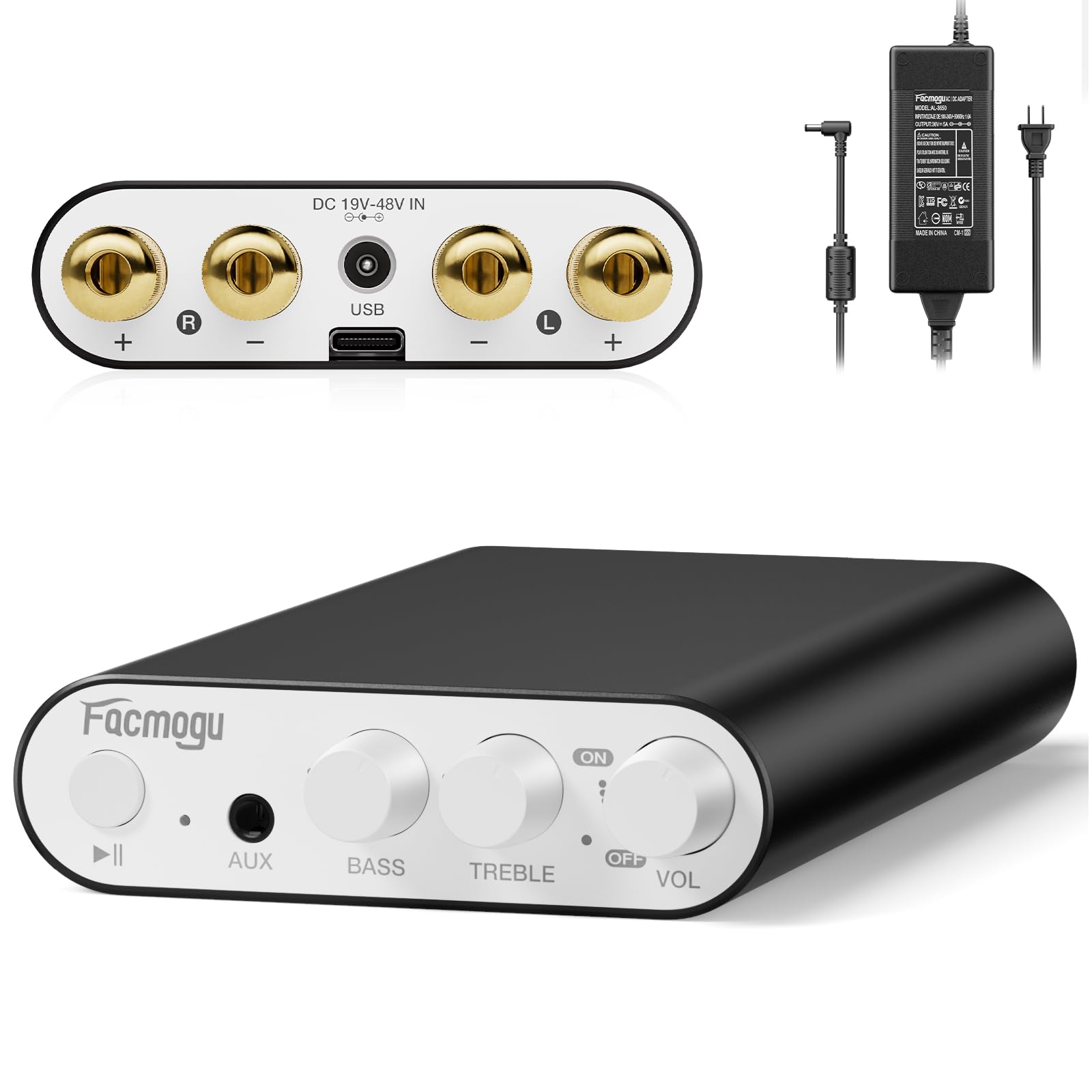
This image displays the front and rear panels of the Facmogu M10 amplifier, highlighting all input/output ports and control knobs for easy identification.
3. Setup
What's in the Box
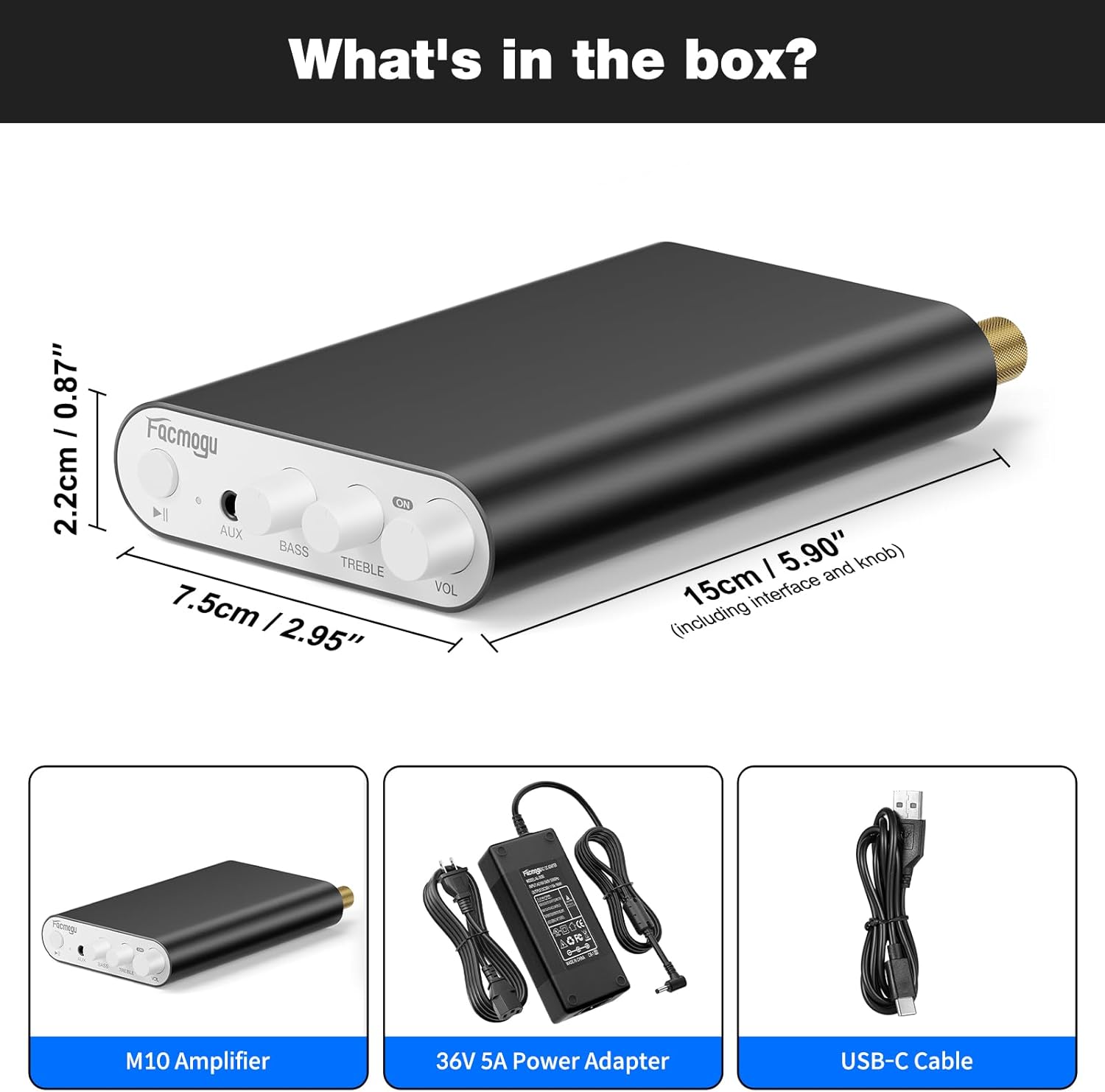
The package includes the M10 Amplifier unit, a DC 36V 5A power adapter, and a USB-C cable.
Connecting Speakers
The Facmogu M10 amplifier supports passive speakers with 4-8 Ohm impedance.
- Connect your speakers to the "OUTPUT" terminals on the rear panel. Ensure correct polarity (+ to + and - to -) for each channel (Left and Right).
- Tighten the binding posts securely.
Power Connection
- Connect the included DC 36V 5A power adapter to the "DC 19V-48V IN" port on the rear panel.
- Plug the power adapter into a suitable wall outlet.
Audio Input Options
Bluetooth 5.4 Connection
- Turn on the amplifier by rotating the VOL knob. The indicator light will illuminate.
- On your source device (smartphone, tablet, laptop), enable Bluetooth and search for "Facmogu M10".
- Select "Facmogu M10" to pair. The indicator light will change to solid blue once connected.
- To clear all Bluetooth pairing history, press and hold the "Play/Pause" button for 6 seconds.
- Note: Maintain a distance of 16.4ft/5m for general devices and 6.5ft/2m for PC devices without obstructions for optimal Bluetooth performance.
AUX Input Connection
- Connect your audio source (PC, media player, TV) to the "AUX" input port on the front panel using a 3.5mm audio cable.
- The amplifier will automatically switch to AUX input when a cable is detected.
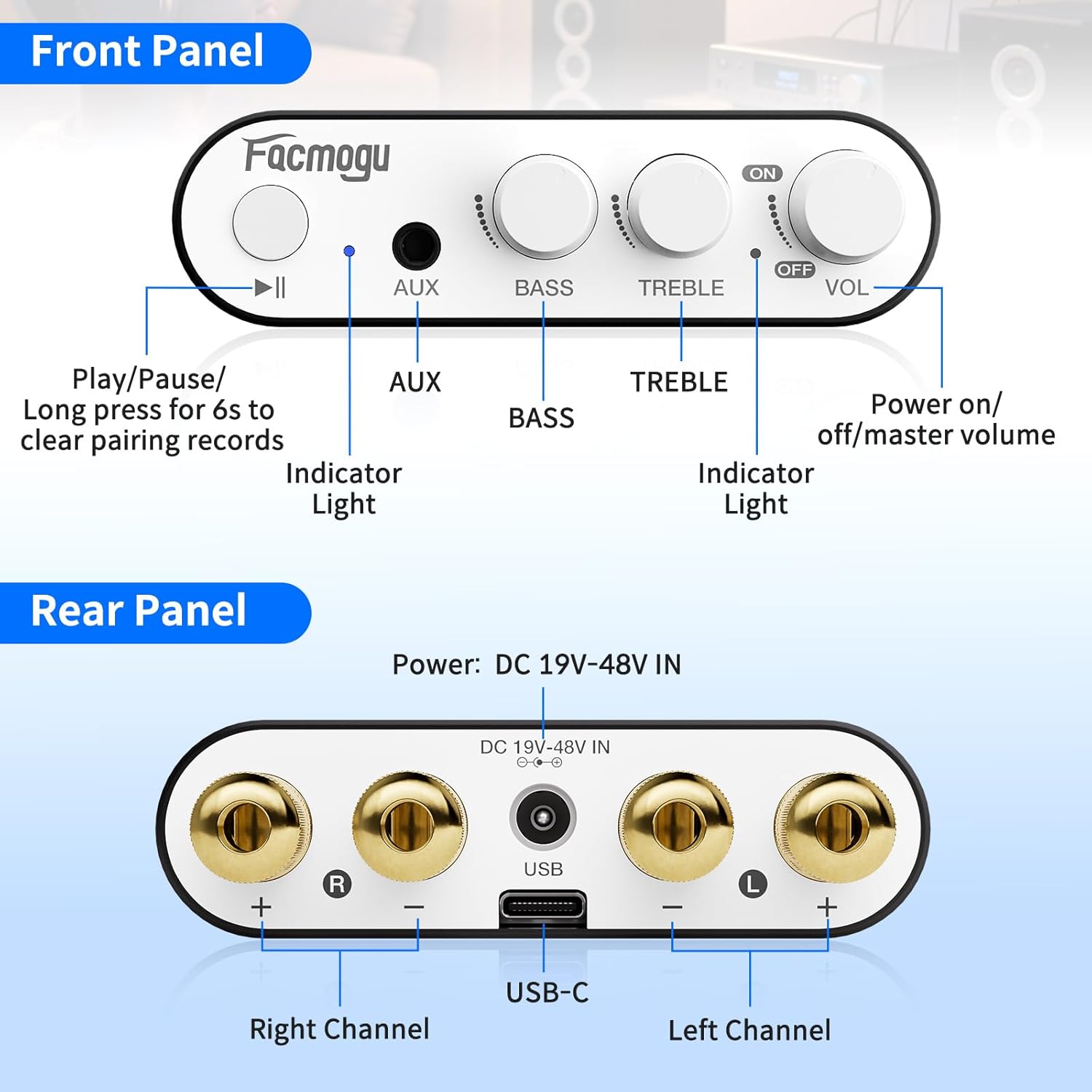
This diagram illustrates the various connection points on the front and rear panels, including speaker outputs, power input, and audio inputs.
4. Operating Instructions
Controls
- VOL (Volume) Knob: Rotate clockwise to increase volume, counter-clockwise to decrease. Also acts as the power ON/OFF switch.
- BASS Knob: Adjusts the low-frequency output.
- TREBLE Knob: Adjusts the high-frequency output.
- Play/Pause Button: Controls media playback. Long press for 6 seconds to clear Bluetooth pairing records.
- AUX Input: 3.5mm jack for wired audio sources.
- Indicator Light: Shows power and Bluetooth status.
Basic Operation
- Ensure all connections (speakers, power, audio source) are secure.
- Turn on the amplifier by rotating the VOL knob clockwise.
- Select your desired input source (Bluetooth or AUX).
- Adjust the volume, bass, and treble to your preference.
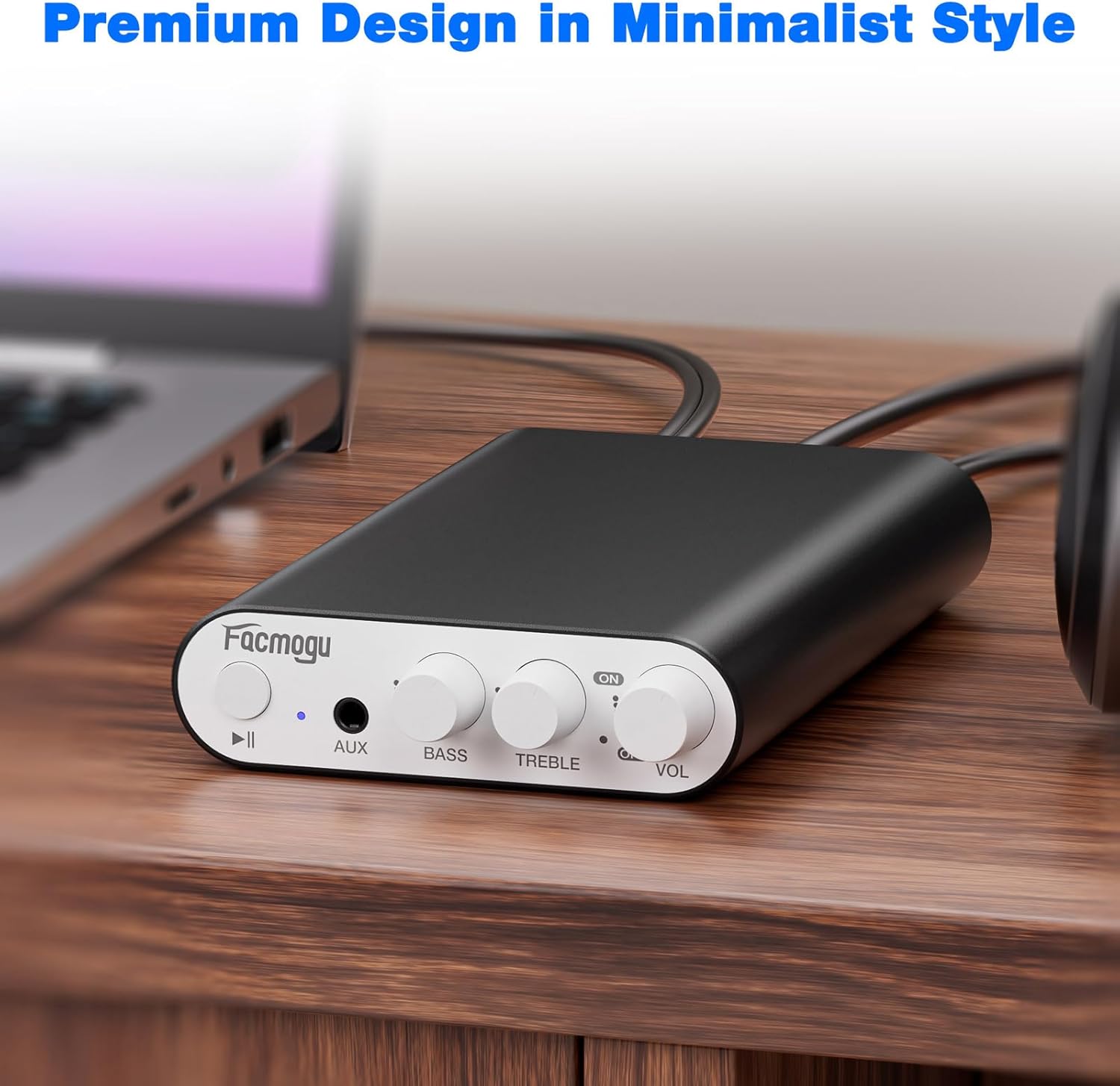
The image shows the Facmogu M10 amplifier connected to speakers and a laptop, demonstrating a typical usage scenario.
5. Maintenance
To ensure the longevity and optimal performance of your Facmogu M10 amplifier, follow these simple maintenance guidelines:
- Keep the device in a dry, well-ventilated area away from direct sunlight, heat sources, and moisture.
- Clean the exterior with a soft, dry cloth. Avoid using harsh chemicals or abrasive cleaners.
- Ensure proper airflow around the unit to prevent overheating.
- Disconnect power before cleaning or if the unit will be unused for an extended period.
6. Troubleshooting
Common Issues and Solutions
| Problem | Possible Cause | Solution |
|---|---|---|
| No Sound Output | Incorrect speaker connections; Volume too low; Incorrect input selected; Source device not playing. | Check speaker wire polarity and secure connections. Increase volume. Ensure correct input (Bluetooth/AUX) is selected. Verify audio playback on source device. |
| Poor Bluetooth Connection/Range | Obstructions between device and amplifier; Device too far from amplifier; Interference. | Reduce distance between devices. Remove obstructions. Avoid placing near other wireless devices. Clear Bluetooth pairing history by long-pressing Play/Pause button. |
| Distorted Sound | Volume too high; Speaker impedance mismatch; Faulty cables. | Reduce volume. Ensure speakers are 4-8 Ohm. Try different audio cables. |
| Unit Does Not Power On | Power adapter not connected; Faulty power adapter/outlet. | Check power adapter connection to unit and wall outlet. Try a different power outlet. |
Additional Support
If you encounter issues not listed here, please refer to the official Facmogu support channels or website for further assistance.
7. Specifications
| Feature | Detail |
|---|---|
| Model | M10 |
| Brand | Facmogu |
| Output Power | 300W + 300W (4~8 Ohm) |
| Audio Chip | TI TPA3255 Class D |
| Signal-to-Noise Ratio (SNR) | >110 dB |
| Bluetooth Version | 5.4 |
| Input Options | Bluetooth 5.4, AUX (3.5mm) |
| Power Supply | DC 36V 5A (included) |
| Dimensions | Approx. 15cm x 7.5cm x 2.2cm (5.90" x 2.95" x 0.87") |
| Item Weight | 3.2 ounces |
| Manufacturer | Facmogu |
8. Warranty and Support
For warranty information and customer support, please visit the official Facmogu website or contact their customer service directly. Keep your purchase receipt for warranty claims.
9. Official Product Videos
Facmogu M10 Amplifier Overview
This video provides a brief overview of the Facmogu M10 amplifier, demonstrating its compact size and basic functionality. It highlights the ease of connecting the device to speakers and a power source.
Facmogu M10 Amplifier Setup and Sound Test
This video demonstrates the simple setup process of the Facmogu M10 amplifier, including connecting speakers and an audio source. It also showcases the sound output quality.