
1. Introduction
Thank you for choosing the Boldever S100 Mini Projector. This device is designed to provide a versatile and immersive viewing experience with its advanced features, including official Netflix licensing, WebOS, TOF auto focus, auto vertical keystone correction, 5G WiFi, and Bluetooth 5.2 connectivity. This manual will guide you through the setup, operation, maintenance, and troubleshooting of your new projector.
2. Safety Information
- Do not look directly into the projector lens when the lamp is on.
- Ensure proper ventilation around the projector to prevent overheating.
- Keep the projector away from water or other liquids.
- Use only the provided power adapter.
- Avoid placing the projector on unstable surfaces.
- Do not attempt to disassemble or repair the projector yourself. Contact customer support for assistance.
3. Package Contents
Verify that all items are present in your package:
- Boldever S100 Mini Projector
- Remote Control
- Power Cord
- HDMI Cable
- Cleaning Kit
- User Manual
4. Product Overview
The Boldever S100 features a compact design with a 270° rotatable stand for flexible projection angles. It includes various ports for connectivity and a user-friendly interface.
4.1. Front View
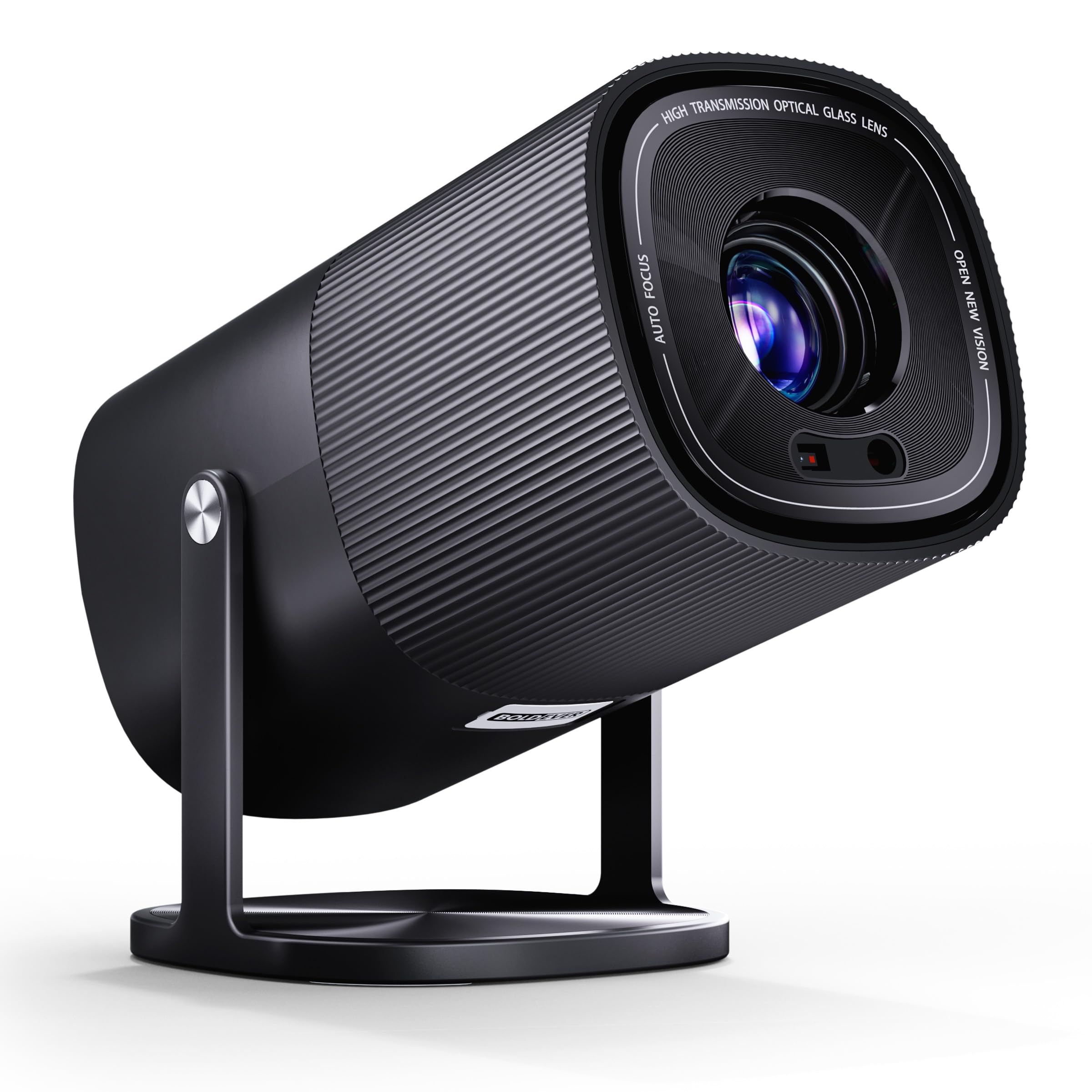
Figure 4.1: Front view of the Boldever S100 Mini Projector, highlighting the projection lens and TOF sensor.
4.2. Rear Ports

Figure 4.2: Rear ports of the projector, including HDMI, USB, and 3.5mm audio jack.
- HDMI Port: Connect to laptops, gaming consoles, Blu-ray players, or other media players.
- USB Port: Connect USB drives for media playback.
- 3.5mm Audio Jack: Connect external headphones or speakers.
- Power Input: Connect the power cord.
5. Setup
5.1. Initial Setup
- Power Connection: Connect the power cord to the projector's power input and then to a power outlet. The projector will power on automatically.
- Remote Control: Insert two AAA batteries (not included) into the remote control. Ensure the remote points to the IR receiver on the projector.
- Wi-Fi Setup: On the projector's main interface, navigate to 'Settings' > 'Network Settings' to connect to your 5G or 2.4G Wi-Fi network.
- Language and Time: Adjust language and time settings as needed in the 'Settings' menu.
5.2. Placement and Adjustment
The projector offers flexible placement options and automatic adjustments for optimal viewing.

Figure 5.2.1: The projector's 270° rotatable stand allows for versatile projection angles, including ceiling projection.
- 270° Rotatable Stand: Adjust the projector's angle to project onto walls, ceilings, or any desired surface. The stand is designed to hold its position securely.
- TOF Auto Focus: The advanced TOF sensor provides seamless and quick autofocus, ensuring crystal-clear visuals without manual adjustments.
- Auto Vertical Keystone Correction: The projector automatically adjusts the image to a perfect square, correcting vertical trapezoidal distortion regardless of placement.
6. Operating Instructions
6.1. Smart OS and Apps
The Boldever S100 features a built-in WebOS with official Netflix licensing, providing direct access to popular streaming services.

Figure 6.1: The WebOS interface with pre-installed streaming applications.
- Pre-installed Apps: Access Netflix, YouTube, Prime Video, and more directly from the projector's home screen.
- WebOS: Enjoy a low-lag, intelligent operating system with fast updates.
6.2. Connecting External Devices
Use the available ports to connect various external devices.

Figure 6.2: Connectivity options for external devices.
- HDMI: Connect your laptop, PC, TV stick, TV box, PS5, or other media players using an HDMI cable.
- USB: Plug in USB storage devices to play local media files.
6.3. Screen Mirroring
Mirror your mobile device screen to the projector via 5G WiFi.

Figure 6.3: Seamless screen mirroring with 5G WiFi.
- 5G WiFi: Enjoy seamless screen mirroring from iOS and Android devices for gaming, streaming, or presentations.
6.4. Audio Options
The projector offers versatile audio connectivity.

Figure 6.4: Bluetooth 5.2 two-way audio functionality.
- Built-in 5W Speaker: Enjoy clear audio directly from the projector.
- Bluetooth 5.2 Two-Way: Use the projector as a Bluetooth speaker for your devices or connect external Bluetooth speakers for enhanced sound.
Video 6.4.1: Demonstration of the Smart Projector with WiFi and Bluetooth 5.4 features by SalangeDirect.
7. Maintenance
7.1. Lens Cleaning
To maintain optimal image clarity, regularly clean the projector lens.
- Use the provided cleaning kit or a soft, lint-free cloth.
- Gently wipe the lens surface to remove dust or smudges. Avoid harsh chemicals.
7.2. Software Updates
The projector supports Over-The-Air (OTA) updates to ensure optimal performance and new features.
- When an OTA upgrade reminder appears, it is recommended to carry out the upgrade for intelligent maintenance and fast updates.
8. Troubleshooting
Refer to the following tips for common issues:
- Copyrighted Video Content: Some video content from streaming media like Hulu, Disney+, Netflix, etc., are copyrighted and cannot be mirrored from smartphones. Please play these videos directly using the apps inside the projector or connect via HDMI.
- Remote Control Issues: Ensure the remote points to the IR receiver and is not covered. Make sure two AAA batteries are correctly installed. Avoid mixing new batteries with old ones.
- Power Supply: After plugging in the power supply, wait for the red light to stop flashing before turning on the projector.
- iOS/Android Device Compatibility (Mirroring): If the projector is still not compatible with iOS/Android devices, ensure your Wi-Fi connection is 2.4G/5G and your device supports multi-screen/wireless display/SmartView. Due to HDCP protocol, the projector does not support streaming/mirroring videos from Netflix, Hulu, or Prime Video.
- Disney+ or Hulu Playback: Disney+ and Hulu are only available via internet browser and will not load directly as dedicated apps.
- Sideloading Android Apps: Currently, sideloading Android apps is not supported. Future upgrades may include this feature.
9. Specifications
| Feature | Detail |
|---|---|
| Brand | Boldever |
| Model Name | S100 |
| Item Model Number | BE-BD001SX-CABK0-A1S1 |
| Display Technology | LCD |
| Display Resolution | 1920 x 1080 (1080P) |
| Image Brightness | 250 lm (ANSI Lumens) |
| Image Contrast Ratio | 700:1 |
| Aspect Ratio | 16:9, 4:3 |
| Connectivity Technology | Bluetooth 5.2, HD (HDMI), IR, USB, Wi-Fi (5G & 2.4G) |
| Special Features | Netflix Officially-Licensed, WebOS, TOF Auto Focus, Auto Vertical Keystone, 270° Rotatable Stand, 5W Speaker |
| Compatible Devices | Laptops, Smartphones, Gaming Consoles, Blu-ray Players, Other Media Players |
| Mounting Type | Tabletop Mount (Tripod compatible) |
| Wattage | 40 watts |
| Refresh Rate | 60 Hz |
10. Warranty and Support
Boldever is committed to providing excellent customer service and product support.
- Warranty: The product includes a 2-year warranty.
- Replacement: Replacement available within 24 months.
- Returns: 30-day no-reason return policy.
- Customer Service: Lifetime professional customer service. Quick reply within 24 hours.
- Contact: For after-sales support, please email: support@boldever.com
