
1. Introduction
This manual provides detailed instructions for the installation, operation, and maintenance of your CP PLUS 3MP Smart Wi-Fi CCTV Security Camera, model CP-E35Q. Please read this manual thoroughly before using the product to ensure proper functionality and safety. Keep this manual for future reference.

Image 1.1: CP PLUS CP-E35Q Smart Wi-Fi Security Cameras (Pack of 2)
2. Product Overview
2.1 Key Features
- 3MP Full HD Clarity: Delivers high-definition video (2304x1296) with H.265 compression for clear indoor surveillance.
- 360° Pan & 85° Tilt: Motorized pan and tilt functionality provides comprehensive room coverage, eliminating blind spots.
- Motion Tracking & Detection: Automatically tracks human movement and sends instant motion alerts to your smartphone.
- Two-Way Audio: Built-in microphone and speaker enable real-time communication via the ezyKam+ app.
- CTC Cyber Secure Technology: Enhanced security with multi-layered data encryption and cyber protection.
- Cloud & SD Card Recording: Supports both cloud storage and local microSD card recording (up to 256GB).
- 15m IR Night Vision: Enhanced IR LED night vision allows monitoring in complete darkness, with automatic day/night mode switching.
- Smart Home Integration: Compatible with Amazon Alexa and Google Home for voice control and viewing.
2.2 Package Contents
Ensure all items are present in the package:
- CP PLUS CP-E35Q Camera (x2)
- Power Adaptor (x2)
- USB Type-C Cable (x2)
- User Manual QR Card
- Mounting Screws and Wall Plugs
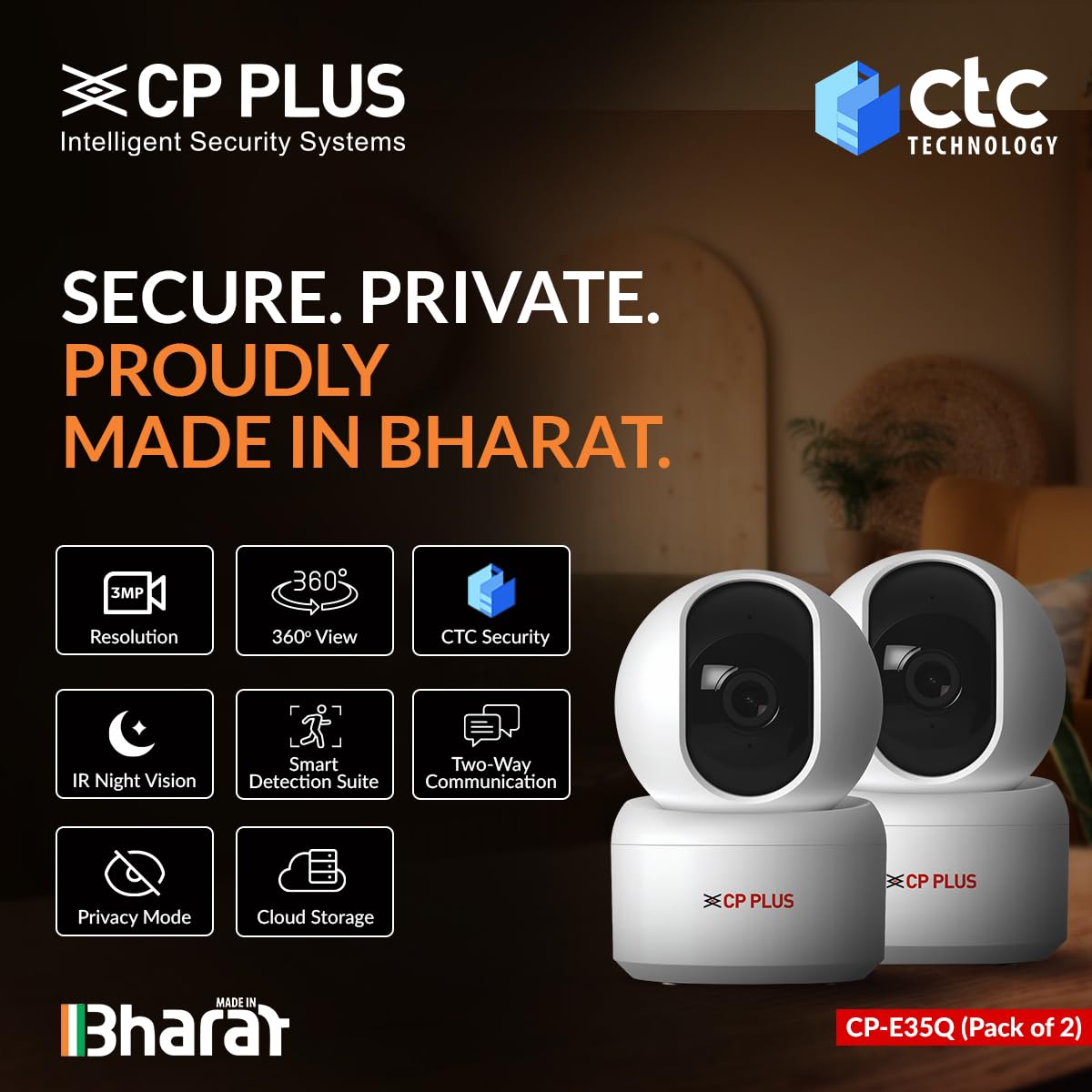
Image 2.1: Front View of CP-E35Q Camera
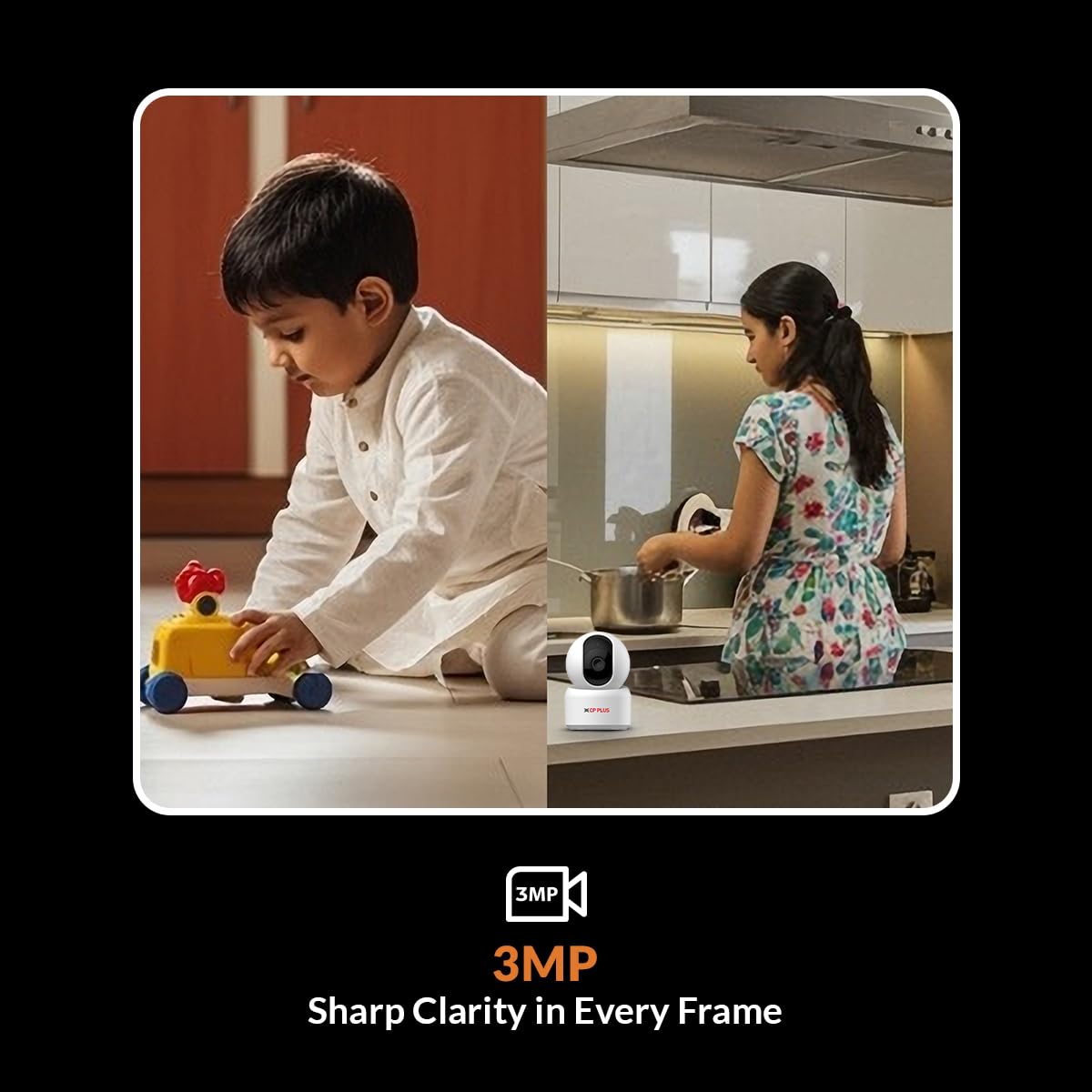
Image 2.2: Side View of CP-E35Q Camera

Image 2.3: Back View of CP-E35Q Camera
3. Setup Instructions
3.1 Initial Setup (App Integration)
Follow these steps to integrate your camera with the ezyKam+ app:
- Download the ezyKam+ App: Search for "ezyKam+" on the App Store (iOS) or Google Play Store (Android) and download the application. Register your account if you are a new user.
- Add Device: Open the ezyKam+ app. On the home page, click the '+' icon to add a new device. Select the model number of your device (CP-E35Q).
- Connect to Wi-Fi: Enter your 2.4GHz Wi-Fi network name and password. Confirm the details. Note: The camera supports 2.4GHz Wi-Fi only.
- Scan QR Code: The app will generate a QR code. Hold your camera approximately 15-20 cm (6-8 inches) in front of your smartphone screen. Ensure the camera lens is facing the QR code. You will hear a voice prompt "Beep" from the camera once the QR code is successfully scanned.
- Configuration Complete: After hearing the beep, wait for a steady blue indicator light on the camera, which signifies that the configuration is complete and the camera is connected to your Wi-Fi network.
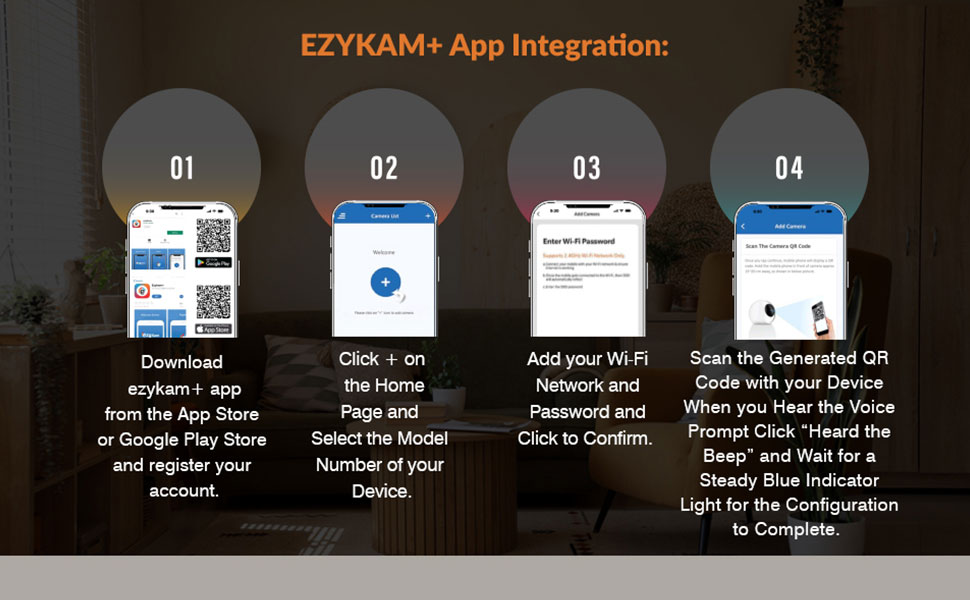
Image 3.1: Ezykam+ App Integration Steps
3.2 Physical Installation
The CP-E35Q camera is designed for indoor use. It can be placed on a flat surface or mounted on a wall or ceiling.
- Placement: Choose a location that provides the desired viewing angle and is within range of your 2.4GHz Wi-Fi network. Ensure the power cable can reach a power outlet.
- Mounting (Optional): If mounting, use the provided screws and wall plugs. Mark the drilling points, drill holes, insert wall plugs, and secure the mounting bracket (if applicable) or the camera directly. Ensure the camera is securely fastened.
- Power Connection: Connect the USB Type-C cable to the camera and the power adaptor. Plug the adaptor into a power outlet. The camera will power on and begin its startup sequence.
4. Operating Instructions
4.1 Live View
Once the camera is successfully connected and configured, open the ezyKam+ app. Select your camera from the device list to access the live video feed. You can view the area in 3MP Full HD resolution.
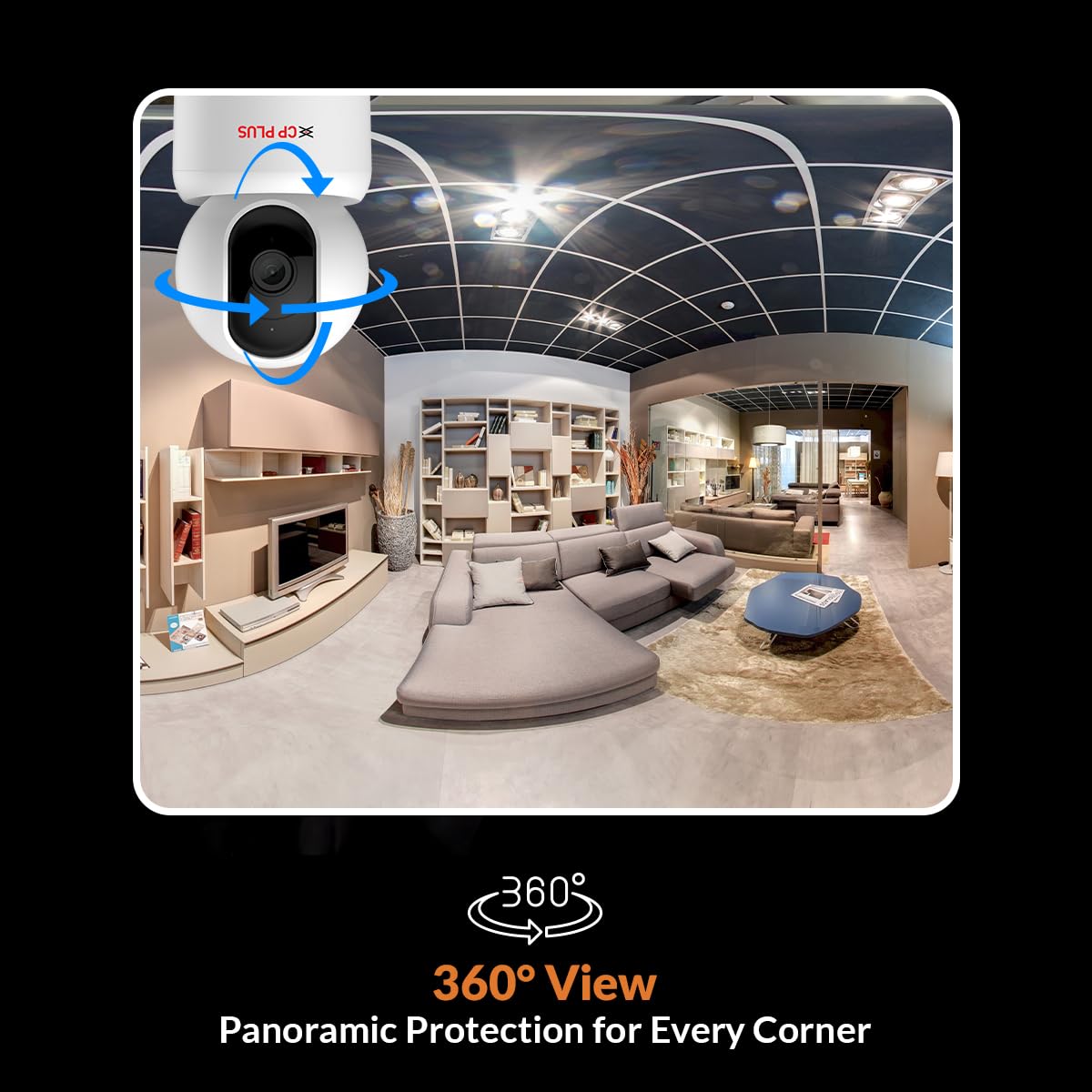
Image 4.1: 3MP Sharp Clarity in Every Frame
4.2 Pan & Tilt Control
From the live view interface in the ezyKam+ app, use the on-screen controls to remotely pan (horizontal rotation up to 360°) and tilt (vertical movement up to 85°) the camera lens. This allows you to adjust the viewing angle and cover a wider area.

Image 4.2: 360° Panoramic View
4.3 Two-Way Audio
The camera features a built-in microphone and speaker. To use two-way audio, tap the microphone icon in the ezyKam+ app's live view. You can then speak through your phone, and your voice will be projected through the camera's speaker. Similarly, you can hear audio from the camera's environment through your phone.
4.4 Motion Detection & Tracking
The CP-E35Q camera is equipped with a Smart Detection Suite:
- Human Body Detection: Identifies human shapes to reduce false alarms.
- Sound Detection: Alerts you to unusual sounds.
- Motion Detection: Triggers recording and alerts upon detecting general movement.
- Motion Tracking: When human motion is detected, the camera automatically pans and tilts to follow the subject.
- Built-in Siren: Can be activated manually or set to trigger automatically upon detection to deter intruders.
Configure detection settings and alert preferences within the ezyKam+ app. You will receive instant notifications on your smartphone when an event is detected.
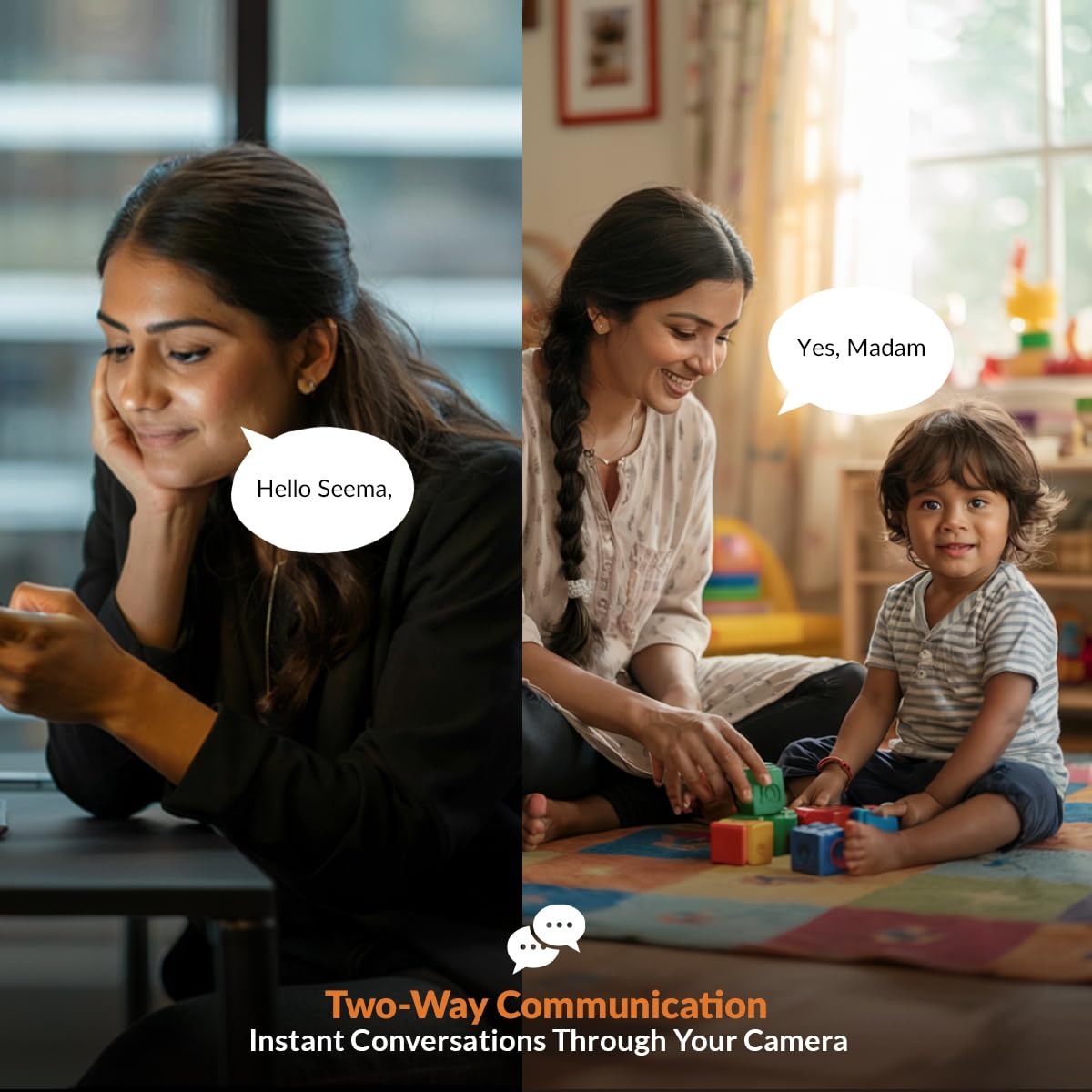
Image 4.3: Smart Detection Suite
4.5 Night Vision
The camera automatically switches to infrared (IR) night vision mode in low-light conditions, providing clear black-and-white video up to 15 meters. The auto IR cut filter ensures accurate color reproduction during the day.
4.6 Privacy Mode
To temporarily disable recording and live viewing for privacy, activate the Privacy Mode through the ezyKam+ app. This feature allows you to pause surveillance when not needed.
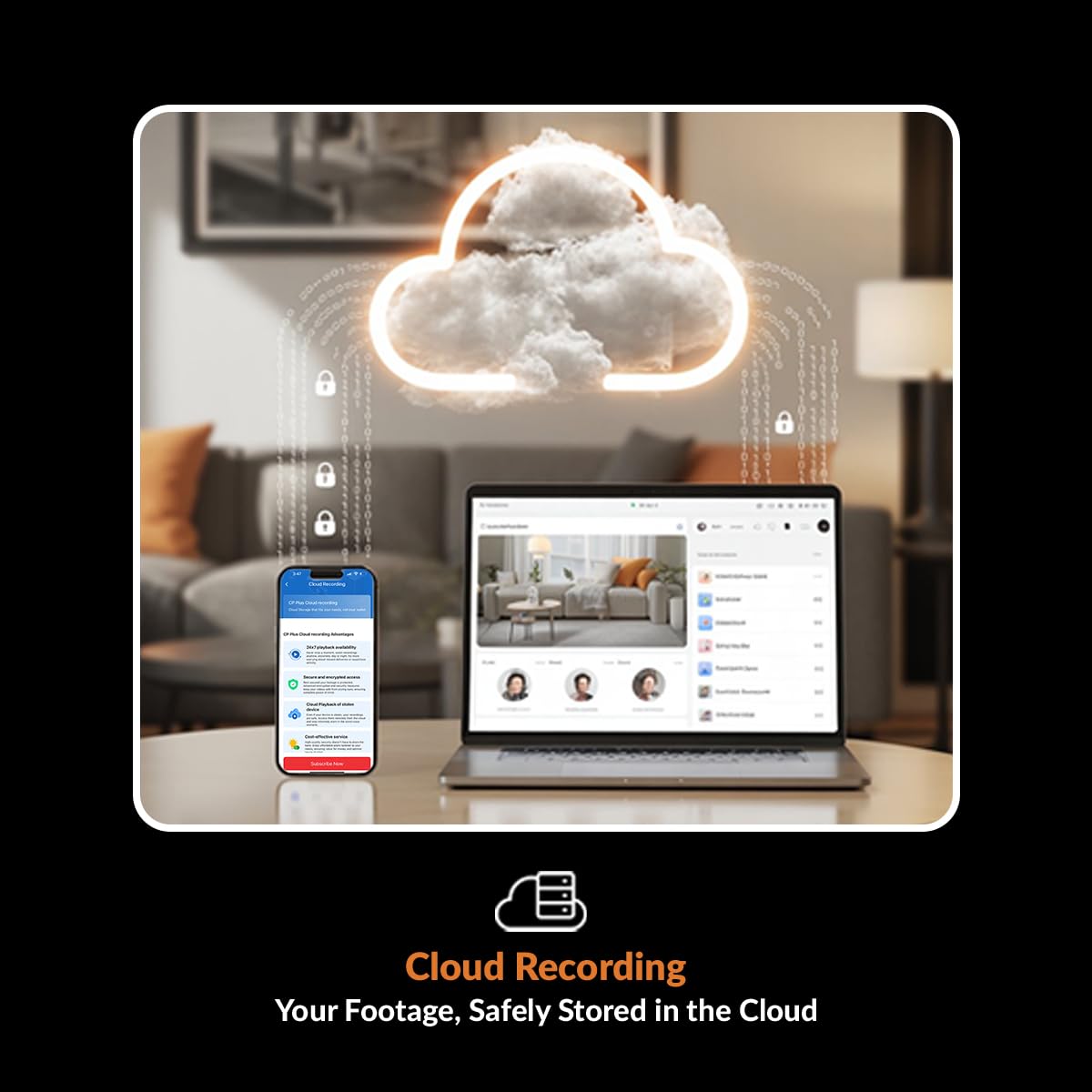
Image 4.4: Privacy Mode Activation
4.7 Recording Options (Cloud & SD Card)
- MicroSD Card Recording: Insert a microSD card (up to 256GB, Class 10 recommended) into the designated slot on the camera. The camera will automatically begin recording based on your settings (e.g., continuous, motion-triggered). You can review footage via the ezyKam+ app.
- Cloud Storage: For enhanced security and remote access to recorded footage, subscribe to the cloud storage service through the ezyKam+ app. Cloud recording typically stores event-based footage (e.g., motion detection) and provides secure backup.
4.8 Smart Home Integration
The CP-E35Q camera can be integrated with Amazon Alexa and Google Home. Follow the instructions within the respective smart home apps to link your ezyKam+ account. Once linked, you can use voice commands to view the camera feed on compatible smart displays.
5. Maintenance
- Cleaning: Use a soft, dry cloth to clean the camera lens and body. Avoid using harsh chemicals or abrasive materials that could damage the surface or lens.
- Firmware Updates: Periodically check the ezyKam+ app for available firmware updates. Keeping your camera's firmware updated ensures optimal performance, security, and access to new features. Follow the in-app instructions for updating.
- SD Card Management: If using a microSD card, it is recommended to format it periodically (e.g., monthly) through the ezyKam+ app to maintain optimal recording performance and prevent data corruption.
6. Troubleshooting
- Camera Offline:
- Ensure the camera is powered on and the power adapter is securely connected.
- Verify your Wi-Fi router is working and the camera is within range of the 2.4GHz network.
- Restart the camera by unplugging and re-plugging the power cable.
- If the issue persists, try re-configuring the Wi-Fi connection through the ezyKam+ app.
- Cannot Connect to Wi-Fi:
- Confirm your Wi-Fi network is 2.4GHz. The camera does not support 5GHz networks.
- Double-check the Wi-Fi password for accuracy.
- Ensure the camera is close to the router during the initial setup.
- Reset the camera to factory settings (refer to the QR card for specific reset instructions) and attempt setup again.
- Poor Video Quality:
- Check your internet connection speed. A stable and fast connection is required for optimal streaming.
- Ensure the camera lens is clean and free from dust or smudges.
- Adjust the video quality settings within the ezyKam+ app if available.
- SD Card Not Recording/Malfunctioning:
- Ensure the SD card is inserted correctly.
- Format the SD card through the ezyKam+ app.
- Check if the SD card has sufficient free space.
- Try using a different, high-quality microSD card (Class 10 or higher).
7. Specifications
| Feature | Specification |
|---|---|
| Model Name | CP-E35Q |
| Resolution | 3MP (2304x1296) |
| Pan/Tilt Range | Pan 360°, Tilt 85° |
| Connectivity | Wi-Fi (2.4GHz only) |
| Night Vision | Up to 15 meters (IR) |
| Storage Options | MicroSD Card (up to 256GB), Cloud Storage |
| Audio | Two-Way Audio (Built-in Mic & Speaker) |
| Special Features | Motion Detection, Motion Tracking, Human Body Detection, Sound Detection, Privacy Mode, Built-in Siren |
| Compatible Devices | Smartphone (iOS, Android) |
| Controller Type | Amazon Alexa, Google Home |
| Power Source | Corded Electric |
| Product Dimensions | 7.2 x 7.2 x 10.9 cm |
| Weight | 161 g |
| Indoor/Outdoor Usage | Indoor |
8. Warranty and Support
For warranty information, please refer to the warranty card included with your product or visit the official CP PLUS website. For technical support, product registration, or service inquiries, please contact CP PLUS customer support through their official channels. Contact details are typically available on the manufacturer's website or the product packaging.