
1. Introduction
The Creality Cordless Rotary Tool Kit is designed for precision work, particularly for post-processing 3D printed models and various crafting tasks. Its cordless design offers portability and flexibility, allowing you to work on intricate details without being tethered by a power cord. This manual provides essential information for safe and effective operation, maintenance, and troubleshooting.
2. Safety Instructions
Always adhere to the following safety guidelines to prevent injury and damage to the tool:
- Eye Protection: Always wear safety glasses or goggles to protect your eyes from debris.
- Secure Workpiece: Ensure your workpiece is securely clamped or held to prevent movement during operation.
- Flammable Materials: Do not operate the tool near flammable liquids, gases, or dust.
- Keep Hands Clear: Keep hands and fingers away from rotating accessories.
- Accessory Changes: Always power off the tool and ensure it has stopped rotating before changing accessories.
- Proper Ventilation: Work in a well-ventilated area, especially when generating dust.
- Storage: Store the tool and accessories in a dry, secure place, out of reach of children.
- Battery Care: Do not expose the battery to extreme temperatures or attempt to disassemble it.
3. Product Overview and Components
The Creality Cordless Rotary Tool Kit includes the main rotary tool unit and a comprehensive set of 24 accessories, all housed in a portable storage case.
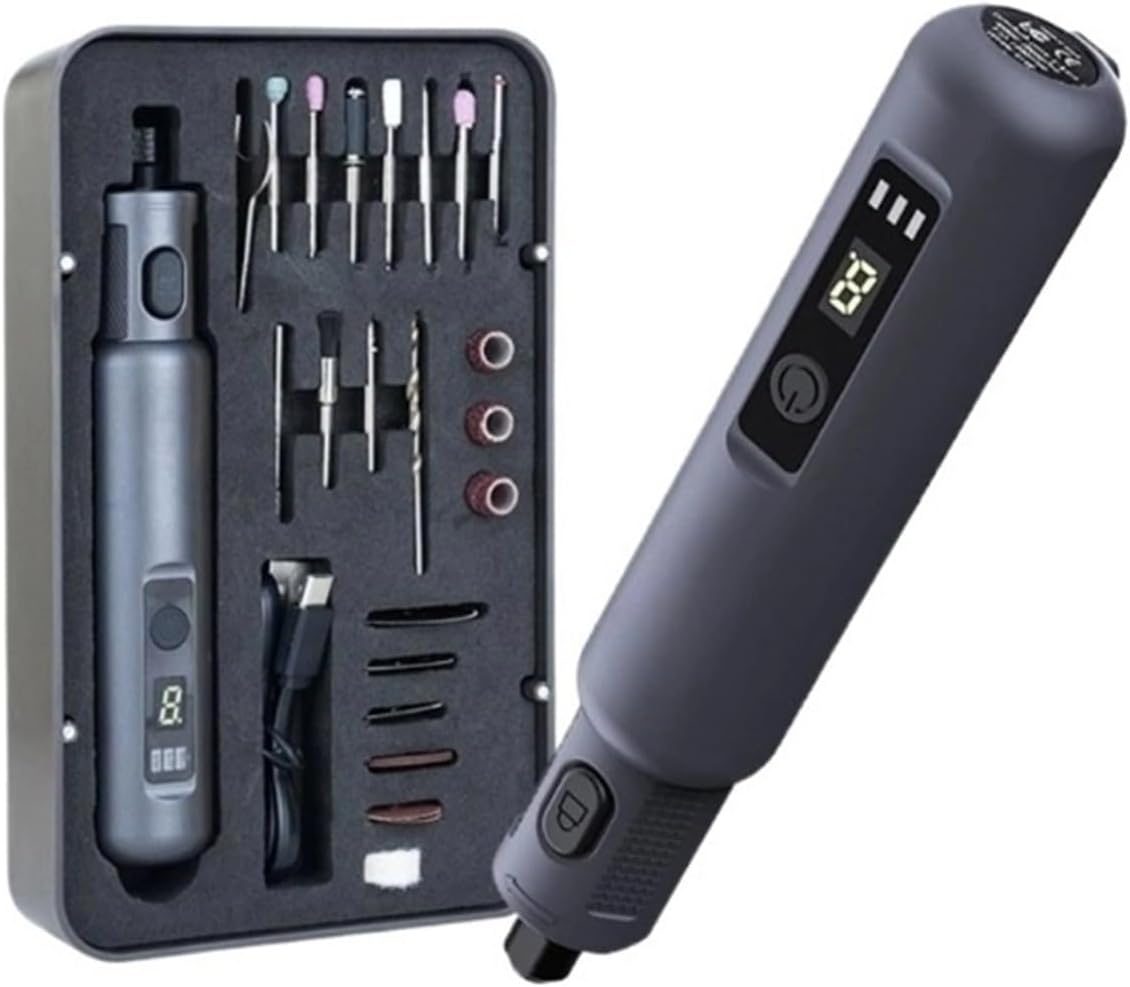
Figure 1: The Creality Cordless Rotary Tool Kit, showcasing the tool and its 24 accessories neatly organized in a compact grey storage case.
Included Components:
- Cordless Rotary Tool Unit
- 24-piece Accessory Set (various grinding heads, polishing wheels, sanding bands, drill bits, etc.)
- USB Charging Cable
- Portable Storage Case

Figure 2: Front view of the cordless rotary tool, highlighting the power button, digital speed display, and battery indicator lights.
4. Specifications
| Feature | Specification |
|---|---|
| Voltage | 3.7V |
| Battery Capacity | 1500mAh |
| Speed Range | 10000 - 18000 RPM (6-speed adjustable) |
| Charging Time | 2 - 3 hours |
| Max Charging Current | 1A |
| Weight | 431g |
| Drill Bit Clamp Range | 1.8 - 3.2 mm |
| Accessories Included | 24 pieces |
5. Setup
5.1 Charging the Tool
Before first use, fully charge the rotary tool. Connect the provided USB charging cable to the tool's charging port and to a compatible USB power adapter (not included). The battery indicator lights will show charging progress and turn solid when fully charged. Charging typically takes 2-3 hours.
5.2 Attaching Accessories
Follow these steps to safely and securely attach or change accessories:
- Loosen Nut: Press and hold the spindle lock button located near the chuck. While holding the button, loosen the collet nut by turning it counter-clockwise.
- Select Collet: Choose the appropriate collet that matches the shank size of your desired accessory (1.8mm to 3.2mm). Insert the collet into the black nut.
- Insert Accessory: Insert the accessory shank into the collet. Ensure it is seated firmly.
- Tighten Nut: While still holding the spindle lock button, tighten the collet nut clockwise until the accessory is securely held. Do not overtighten.
- Release Lock: Release the spindle lock button. Gently pull on the accessory to confirm it is securely fastened before operation.

Figure 3: Side view of the rotary tool, illustrating the location of the spindle lock button and the collet assembly for accessory changes.
6. Operating Instructions
6.1 Powering On/Off
Press and hold the power button (usually marked with a circle and a vertical line) for a few seconds to turn the tool on or off. The digital display will illuminate when the tool is active.
6.2 Adjusting Speed
The tool features 6-stage variable speed control, ranging from 10000 to 18000 RPM. Use the speed adjustment buttons (often '+' and '-' or a single button to cycle through speeds) to select the desired RPM. Lower speeds are suitable for delicate tasks like fine polishing or deburring, while higher speeds are effective for grinding, cutting, or removing support structures from 3D prints.
6.3 General Usage Tips
- Light Pressure: Apply light, consistent pressure. Excessive force can cause the tool to bog down, overheat, or damage the workpiece.
- Continuous Movement: Keep the tool moving to prevent burning or gouging the material.
- Material Compatibility: Select the correct accessory and speed for the material you are working on (e.g., PLA, ABS, resin, wood, soft metals).
- Post-Processing 3D Prints: This tool is ideal for smoothing rough edges, removing support material, deburring, and adding fine details to 3D printed models.

Figure 4: Angled view of the cordless rotary tool, demonstrating its compact and ergonomic design for comfortable handling during detailed work.
7. Maintenance
7.1 Cleaning the Tool
After each use, ensure the tool is powered off and cool. Use a soft, dry cloth to wipe down the exterior. For stubborn dust or debris, a slightly damp cloth can be used, but ensure no moisture enters the internal components. Never use harsh chemicals or abrasive cleaners.
7.2 Accessory Care
Clean accessories after use to maintain their effectiveness. Store them in the provided case to prevent loss or damage. Replace worn or damaged accessories promptly.
7.3 Battery Maintenance
- Charge the battery regularly, even if the tool is not in frequent use, to maintain battery health.
- Avoid completely draining the battery before recharging.
- Store the tool in a cool, dry place, away from direct sunlight and extreme temperatures.
8. Troubleshooting
| Problem | Possible Cause | Solution |
|---|---|---|
| Tool does not turn on. | Battery is depleted. | Charge the tool fully. |
| Power button not pressed correctly. | Press and hold the power button for a few seconds. | |
| Accessory wobbles or falls out. | Collet nut is loose. | Ensure the collet nut is tightened securely. |
| Incorrect collet size for accessory. | Use the correct collet that matches the accessory shank diameter. | |
| Reduced performance or overheating. | Excessive pressure applied. | Reduce pressure and allow the tool to do the work. |
| Accessory is dull or worn. | Replace the accessory. |
9. Warranty and Support
For warranty information, technical support, or to purchase replacement parts and accessories, please refer to the manufacturer's official website or contact customer service directly. Keep your purchase receipt as proof of purchase.