
Introduction
This manual provides detailed instructions for the AULA F2066-II USB Full Size Wired Mechanical Gaming Keyboard. Please read this manual thoroughly before using the product to ensure proper operation and to maximize your user experience. This keyboard features 104 programmable keys, a military-grade metal top, and rainbow backlighting, designed for durability and performance.
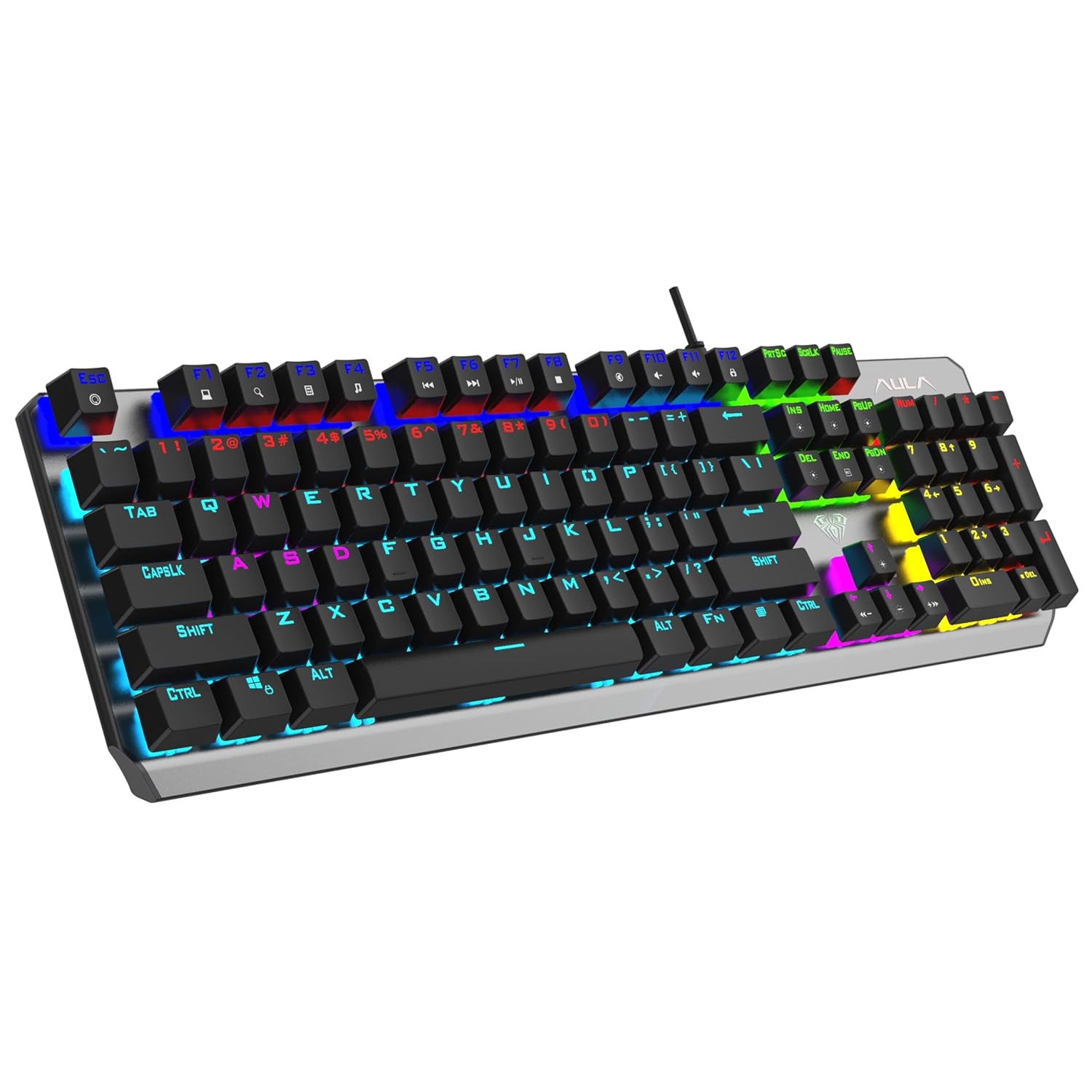
Image 1: The AULA F2066-II Mechanical Gaming Keyboard, showcasing its full layout and rainbow backlighting.
Package Contents
- AULA F2066-II Mechanical Gaming Keyboard
- Keycap Puller
- USB Cable
- User Manual (this document)
Setup
- Connect the Keyboard: Plug the USB cable from the AULA F2066-II keyboard into an available USB port on your computer.
- Driver Installation: The keyboard is plug-and-play. Your operating system (Windows XP/7/8/10) will automatically detect and install the necessary drivers. No additional software installation is typically required for basic functionality.
- Initial Test: Open a text editor or web browser and type to confirm that the keyboard is functioning correctly.
Operating Instructions
Multimedia Key Combinations
The AULA F2066-II keyboard features dedicated multimedia functions accessible via the FN key in combination with the F1-F12 keys. Refer to the image below for a visual guide.
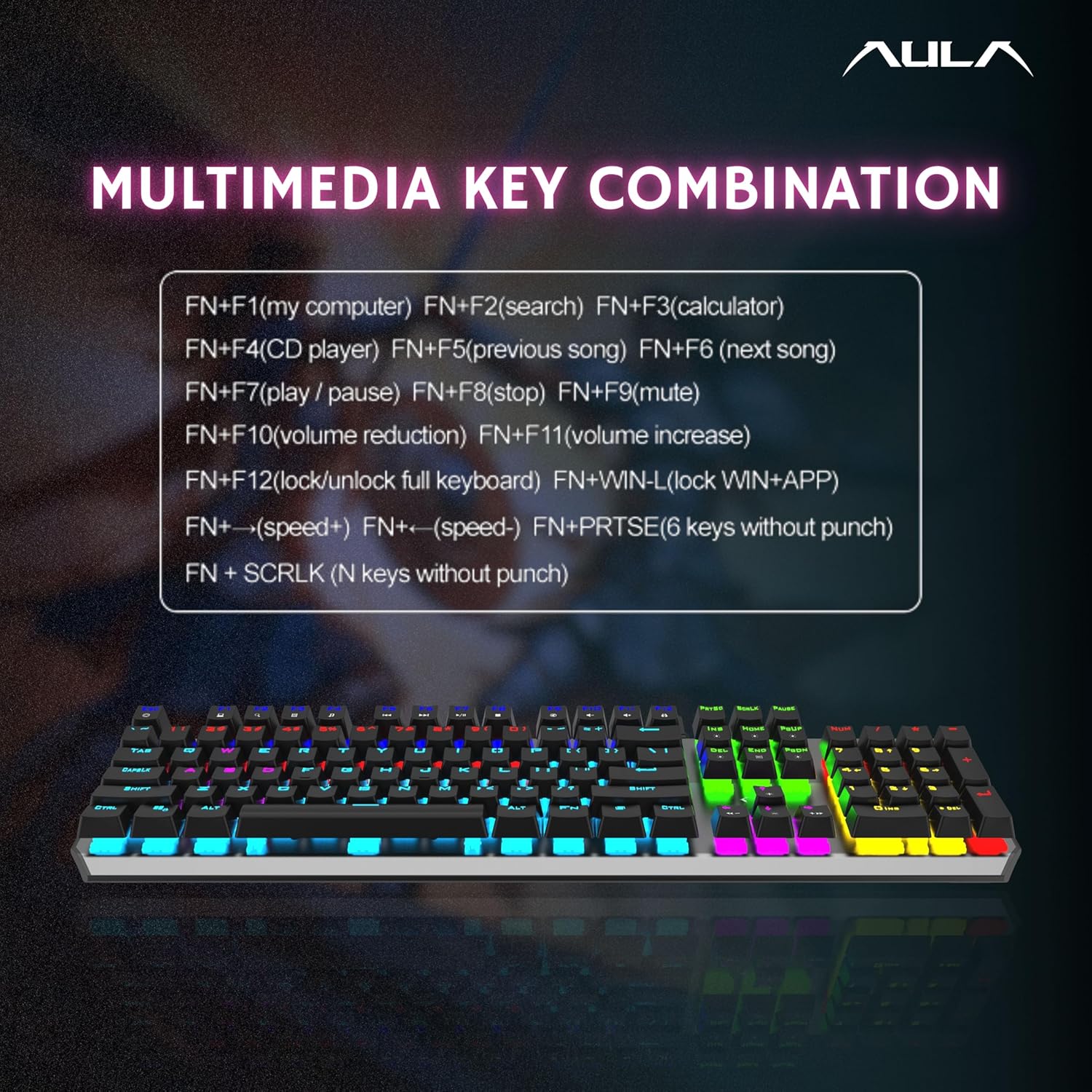
Image 2: Diagram illustrating the FN key combinations for multimedia and system functions.
- FN + F1: My Computer
- FN + F2: Search
- FN + F3: Calculator
- FN + F4: CD Player
- FN + F5: Previous Song
- FN + F6: Next Song
- FN + F7: Play / Pause
- FN + F8: Stop
- FN + F9: Mute
- FN + F10: Volume Reduction
- FN + F11: Volume Increase
- FN + F12: Lock / Unlock Full Keyboard
- FN + WIN-L: Lock Windows Key + APP
- FN + ↑ (Speed+): Increase backlight speed
- FN + ↓ (Speed-): Decrease backlight speed
- FN + PRTSC: 6 keys without punch (6-key rollover)
- FN + SCROLL LOCK: N keys without punch (N-key rollover)
Backlight Control
The keyboard features a rainbow backlight with 20 different lighting effects. Use the dedicated keys or FN combinations to cycle through effects and adjust brightness/speed.

Image 3: The keyboard displaying various rainbow backlight effects.
Programmable Keys and Macros
The AULA F2066-II supports custom programmable functions via dedicated software. This allows users to create macros, remap keys, and customize lighting profiles. The software interface provides options for profile management, macro editing, and light brightness adjustments.

Image 4: Screenshot of the AULA keyboard software interface for custom programming and lighting control.
Key Rollover
The keyboard supports both 6-key and N-key rollover modes, which can be toggled using FN key combinations (FN + PRTSC for 6-key, FN + SCROLL LOCK for N-key). N-key rollover ensures that every keypress is registered accurately, even when multiple keys are pressed simultaneously, which is beneficial for fast-paced gaming and typing.

Image 5: Illustration of key rollover functionality, showing multiple simultaneous key presses being registered.
Maintenance
Cleaning
- Disconnect the keyboard from your computer before cleaning.
- Use a soft, dry cloth to wipe the surface of the keyboard.
- For stubborn dirt, lightly dampen the cloth with water or a mild, non-abrasive cleaner. Avoid excessive moisture.
- Use the included keycap puller to remove keycaps for deeper cleaning of dust and debris underneath. Clean keycaps with a mild soap solution and ensure they are completely dry before reattaching.
- Do not use harsh chemicals, solvents, or abrasive materials as they may damage the keyboard's finish or components.
Storage
Store the keyboard in a cool, dry place away from direct sunlight and extreme temperatures when not in use for extended periods.
Troubleshooting
- Keyboard not responding:
- Ensure the USB cable is securely connected to both the keyboard and the computer.
- Try plugging the keyboard into a different USB port.
- Restart your computer.
- Check if the keyboard is locked (FN + F12).
- Backlight not working or incorrect:
- Ensure the backlight is not turned off or set to the lowest brightness. Use the backlight control keys to adjust.
- If using custom software, verify the lighting profile settings.
- Keys not registering:
- Clean the affected key(s) to remove any debris that might be obstructing the switch.
- Test the keyboard on another computer to rule out a software or system issue.
- Programmable functions not working:
- Ensure the AULA software is installed and running.
- Verify that the macros or key reassignments are correctly configured and saved within the software.
- Check if the correct profile is active.
Specifications

Image 6: Visual representation of the keyboard's dimensions and key specifications.
| Interface Type | Wired USB |
| Number of Keys | 104 |
| Key Stroke | 4.0mm |
| Key Force | 60 ± 20gf |
| Key Life | 60 million times |
| Rated Voltage / Current | DC 5V / <200mA |
| Product Dimensions (LxWxH) | 440mm x 131.8mm x 34.9mm (13.2 x 44 x 3.5 cm) |
| Product Weight | 690g |
| System Requirements | Windows XP/7/8/10 |
| Country of Origin | China |
| Manufacturer | AULA, DONGGUAN SUOAI ELECTRONICS CO., LTD |
Warranty and Support
Warranty Information
This AULA F2066-II Mechanical Gaming Keyboard comes with a 1-year warranty from the date of purchase, covering manufacturing defects only. Please retain your proof of purchase for warranty claims.
Customer Support
For technical support or warranty inquiries, please contact your retailer or the manufacturer's authorized service center. Refer to the product packaging or the official AULA website for contact details.


