
1. Introduction
Thank you for choosing the UCOCARE Mini Portable Projector V18. This projector is designed to provide a high-quality visual and audio experience for various entertainment and presentation needs. Featuring native 1080P resolution with 4K support, AI-enhanced visuals and audio, and smart screen adjustments, it offers versatility and ease of use. Please read this manual thoroughly before using the product to ensure proper operation and to maximize its lifespan.
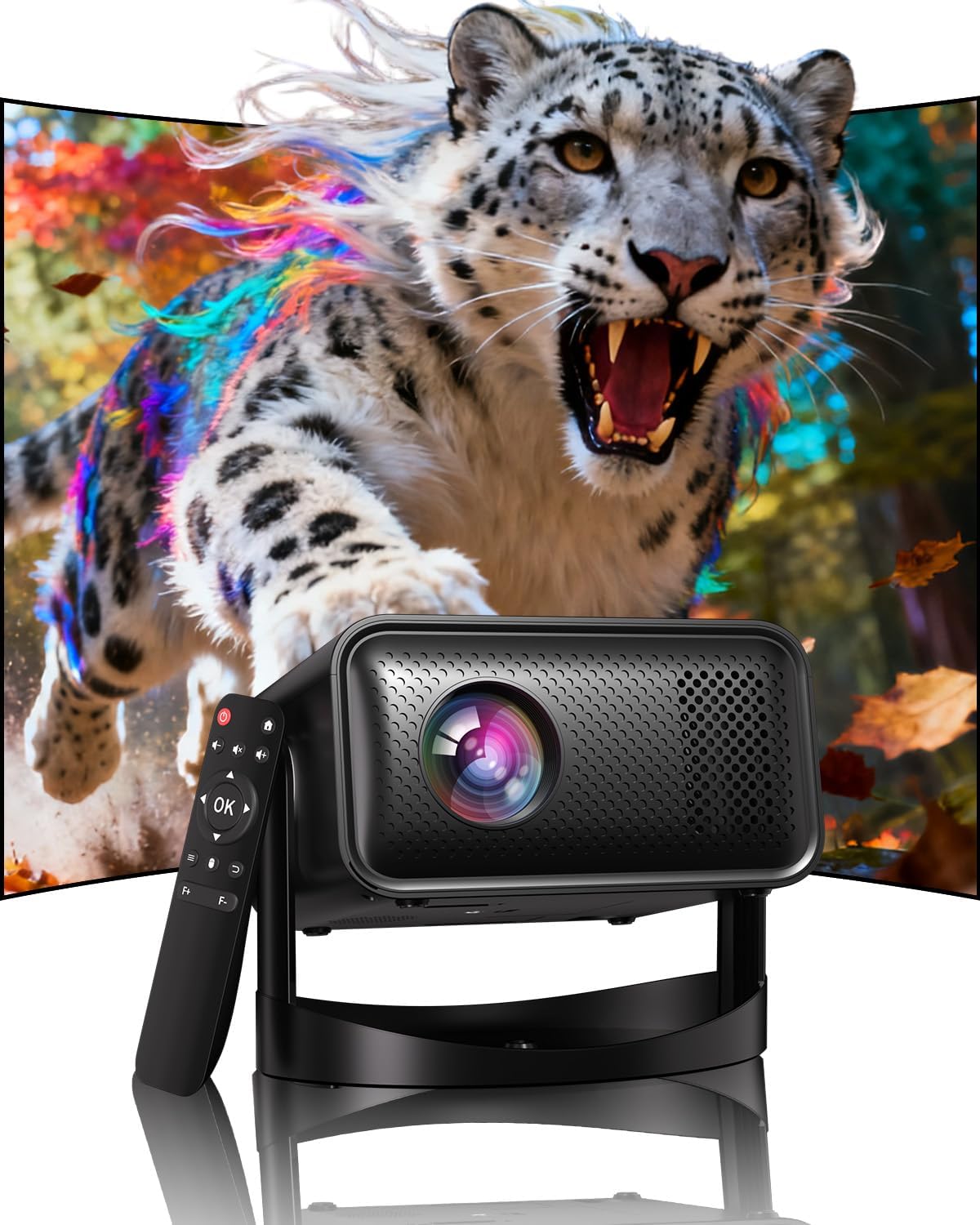
Image: The UCOCARE Mini Portable Projector V18, showcasing its compact design and the vibrant projection capabilities.
2. Safety Information
- Do not look directly into the projector lens when the lamp is on.
- Ensure proper ventilation around the projector to prevent overheating.
- Use only the power adapter provided with the device.
- Keep the projector away from water, moisture, and flammable materials.
- Avoid placing the projector on unstable surfaces.
- Do not attempt to disassemble or repair the projector yourself. Contact customer support for assistance.
3. Package Contents
Verify that all items are present in your package:
- UCOCARE Mini Portable Projector V18
- Remote Control
- Power Cord
- User Manual (this document)
4. Product Overview
The UCOCARE V18 projector combines advanced features in a compact design, making it suitable for various environments. It weighs approximately 2.09 pounds and measures 8.35 x 8.03 x 5.28 inches.

Image: The compact and lightweight design of the UCOCARE Mini Portable Projector V18, highlighting its dimensions and portability.
4.1 Key Features
- Native 1080P Resolution with 4K Support: Delivers sharp and detailed images.
- AI-Enhanced Visuals: Improves detail, contrast, and color for a lifelike viewing experience.
- AI-Enhanced Audio: Provides clear dialogue and rich, distortion-free sound.
- Smart Screen Adjustment: Features electric focus, 50%-100% zoom, and auto keystone correction.
- Dual-Band WiFi: Supports 2.4GHz/5GHz for stable and high-speed streaming.
- Bluetooth Connectivity: For wireless audio devices.
- 180° Flexible Rotating Stand: Allows projection on walls, ceilings, or tables.
- Universal Connectivity: HDMI, USB, and 3.5mm audio jack.
5. Setup
5.1 Placement
Position the projector on a stable surface. The 180° flexible rotating stand allows you to adjust the projection angle to suit your needs, whether projecting on a wall, ceiling, or screen.
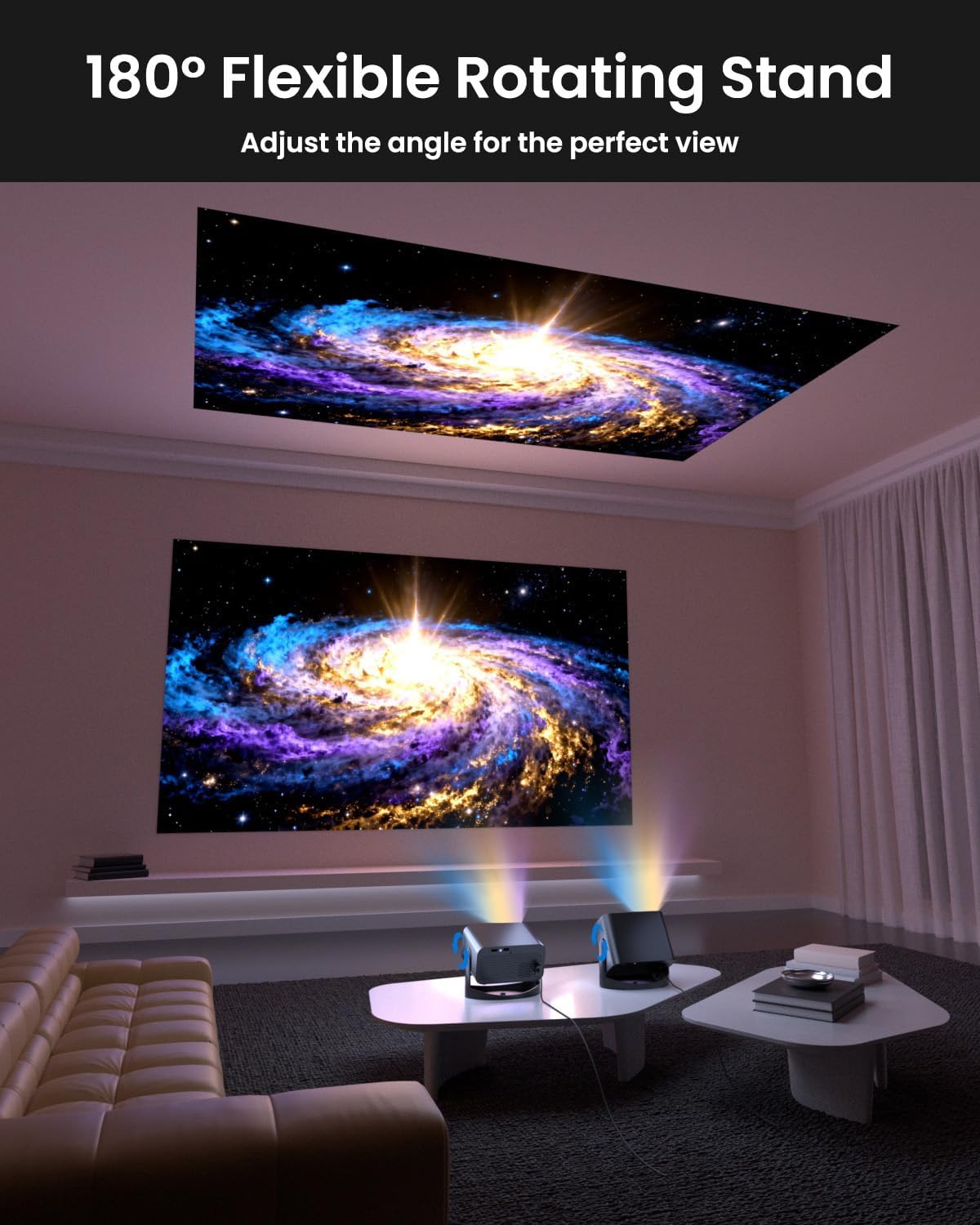
Image: The UCOCARE Mini Portable Projector V18 demonstrating its flexible 180° rotating stand, allowing projection onto various surfaces.
5.2 Power Connection
- Connect the power cord to the projector's power input port.
- Plug the other end of the power cord into a power outlet.
- Press the power button on the projector or remote control to turn it on.
5.3 Initial Screen Adjustment
The projector features smart screen adjustment for optimal viewing.
- Electric Focus: Use the remote control to activate one-touch electric focus for a clear image.
- Auto Keystone Correction: The projector will automatically correct vertical distortion.
- Zoom Function (50%-100%): Adjust the screen size without moving the projector using the remote control.

Image: Visual representation of the smart screen adjustment features: Electric Focus, 50%-100% Zoom, and Auto Keystone Correction.
5.4 Network Connection (WiFi)
- Navigate to the 'Settings' menu on the projector.
- Select 'Network' or 'WiFi Settings'.
- Choose your desired 2.4GHz or 5GHz WiFi network from the list.
- Enter the password and connect.
5.5 Bluetooth Pairing
- Go to the 'Settings' menu and select 'Bluetooth'.
- Enable Bluetooth on the projector.
- Put your Bluetooth audio device (e.g., speaker, headphones) into pairing mode.
- Select your device from the list on the projector screen to pair.
6. Operating
6.1 Connecting External Devices
The projector supports various input sources:
- HDMI: Connect devices like laptops, gaming consoles, or TV sticks using an HDMI cable.
- USB: Plug in a USB drive to play media files directly.
- 3.5mm Audio Jack: Connect external wired speakers or headphones.
- Wireless Casting: Stream content from your smartphone or tablet via WiFi.

Image: Overview of the UCOCARE Mini Portable Projector V18's universal multi-device connectivity options.
6.2 Picture Quality
Experience stunning visuals with AI-enhanced technology.

Image: The UCOCARE Mini Portable Projector V18's AI-enhanced video quality, detailing 4K support, HDR 10+, Native 1080P, and Wide Color Gamut.
6.3 Audio Quality
The projector features AI-enhanced audio for an immersive sound experience.
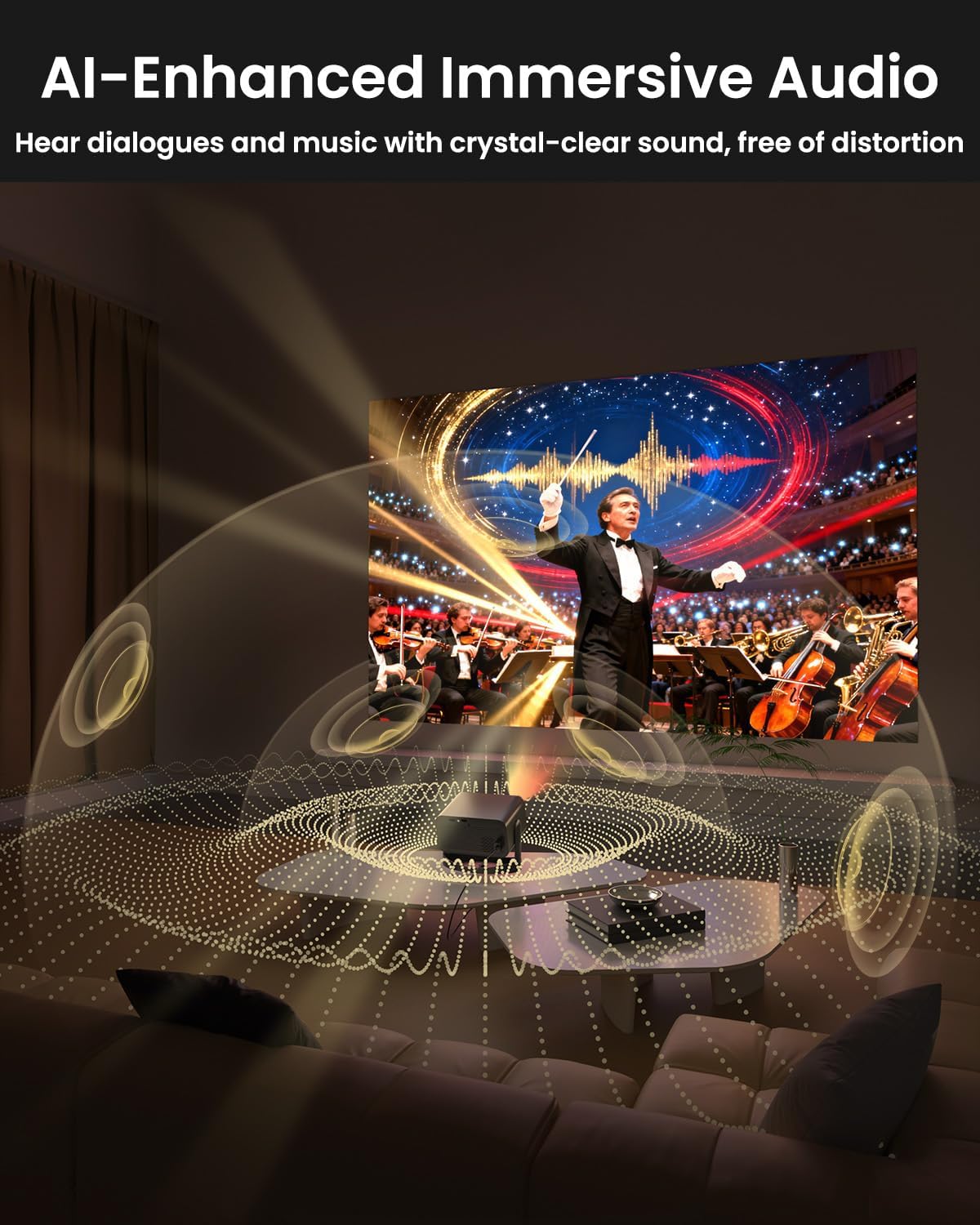
Image: The UCOCARE Mini Portable Projector V18 delivering AI-enhanced immersive audio, creating a surround sound experience.
6.4 Remote Control Functions
The included remote control allows you to navigate menus, adjust volume, change input sources, and control playback. Refer to the remote control diagram in your quick start guide for specific button functions.
6.5 Usage Scenarios
The UCOCARE V18 projector is versatile for various uses:
- Home Theater: Enjoy movies and shows on a large screen.
- Gaming: Connect your console for an immersive gaming experience.
- Business Presentations: Project documents and slides for meetings.
- Bedtime Relax: Project calming visuals or stories onto the ceiling.

Image: The UCOCARE Mini Portable Projector V18 adapting to various scenarios, including home theater, business, gaming, and relaxation.
7. Maintenance
7.1 Cleaning the Lens
Use a soft, lint-free cloth specifically designed for optical lenses to gently wipe the projector lens. Avoid using abrasive materials or harsh chemicals.
7.2 Dust Removal
Regularly clean the projector's exterior with a soft, dry cloth. For ventilation openings, use a soft brush or compressed air to remove dust buildup, ensuring proper airflow.
7.3 Storage
When not in use for extended periods, store the projector in a cool, dry place, away from direct sunlight and extreme temperatures. Use the original packaging or a protective case to prevent dust and damage.
8. Troubleshooting
If you encounter issues with your projector, refer to the following common problems and solutions:
| Problem | Possible Cause | Solution |
|---|---|---|
| No image on screen | Power cable disconnected, incorrect input source, lens cap on. | Check power connection, select correct input source, remove lens cap. |
| Image is blurry | Focus not adjusted, projector too far/close. | Use electric focus function. Adjust projector distance if necessary. |
| No sound | Volume too low, external audio device not connected, incorrect audio output. | Increase volume, check Bluetooth connection or 3.5mm cable, select correct audio output in settings. |
| WiFi/Bluetooth connectivity issues | Out of range, incorrect password, interference. | Ensure projector is within range of router/device. Re-enter password. Reduce interference. |
| Remote control not working | Batteries low/dead, obstruction, remote not paired. | Replace batteries. Remove obstructions. Re-pair remote if applicable. |
9. Specifications
| Feature | Detail |
|---|---|
| Brand | UCOCARE |
| Model Number | V18 |
| Display Resolution | Native 1920 x 1080 (1080P), 4K Supported |
| Connectivity Technology | 2.4GHz/5GHz Wi-Fi, Bluetooth, 3.5mm Jack, HDMI, USB |
| Special Features | 4K Supported, Native 1080P, Adjustable Stand, Electric Focus, Auto Keystone, Portable Mini Size, Built-In 2.4G/5GHz WiFi, Built-In Bluetooth |
| Item Weight | 2.09 pounds |
| Package Dimensions | 8.35 x 8.03 x 5.28 inches |
| Recommended Uses | Business, Education, Gaming, Home Cinema |
10. Warranty and Support
UCOCARE products are manufactured to high-quality standards. For warranty information, please refer to the documentation included with your purchase or visit the official UCOCARE website. If you require technical assistance or have questions not covered in this manual, please contact UCOCARE customer support.
Contact information can typically be found on the product packaging or the official brand website.
