
1. Introduction
This manual provides instructions for the Genérico SK98W Tri-Mode Wireless Mechanical Keyboard. It covers setup, operation, maintenance, and troubleshooting to ensure optimal performance and user experience. This keyboard offers versatile connectivity options and customizable features for both gaming and productivity.
2. Package Contents
Verify that all items listed below are included in your package:
- 1 x Genérico SK98W Mechanical Keyboard
- 1 x USB Type-C Cable
- 2 x Extra Mechanical Switches
- 1 x Switch Removal Tool
- 1 x User Manual (this document)
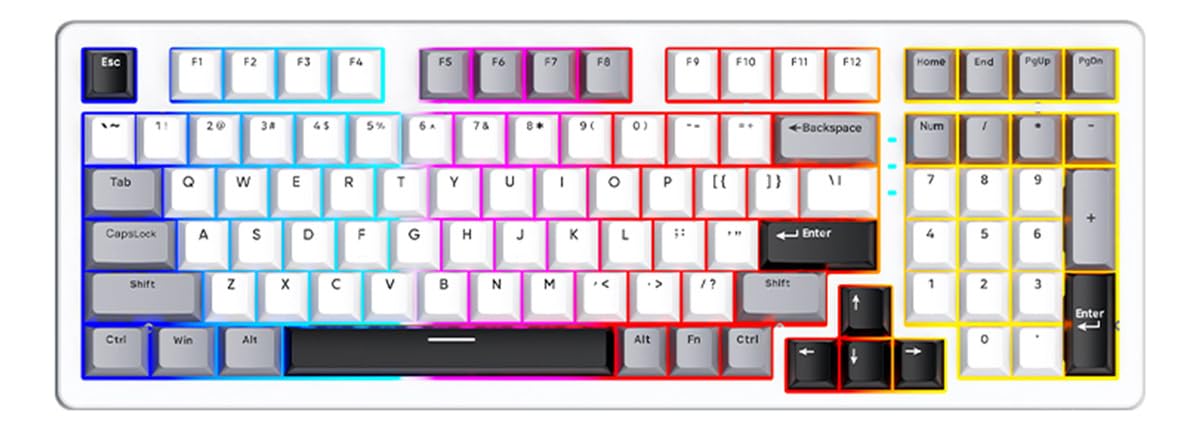
Image: The Genérico SK98W Mechanical Keyboard with its included USB Type-C cable, extra switches, and switch removal tool.
3. Setup
3.1 Charging the Keyboard
Before initial use, fully charge the keyboard. Connect the supplied USB Type-C cable to the keyboard's USB-C port and the other end to a powered USB port on your computer or a USB wall adapter. The charging indicator will show the charging status.
3.2 Connecting the Keyboard
The SK98W keyboard supports three connection modes:
- Wired USB Mode: Connect the USB Type-C cable directly from the keyboard to your computer. The keyboard will automatically switch to wired mode and begin charging.
- 2.4GHz Wireless Mode: Insert the 2.4GHz USB dongle into an available USB port on your computer. Turn on the keyboard and switch to 2.4GHz mode using the mode switch (refer to the keyboard layout for switch location). The keyboard should connect automatically.
- Bluetooth Mode: Turn on the keyboard and switch to Bluetooth mode using the mode switch. On your device (computer, tablet, or mobile phone), search for Bluetooth devices and select 'SK98W' (or similar name) to pair. Follow any on-screen prompts to complete the pairing process.
3.3 Adjusting Keyboard Height
The keyboard features two adjustable height levels. Flip out the feet located on the underside of the keyboard to achieve your preferred typing angle and ergonomic comfort.
4. Operating Instructions
4.1 Keyboard Layout and Keys
The SK98W is a 98-key mechanical keyboard, including a numeric keypad. It features an English (EN-US) layout.
4.2 RGB Lighting Control
The keyboard features zoned RGB rainbow effect lighting. Specific key combinations (often Fn + a designated key) can be used to cycle through lighting modes, adjust brightness, or change speed. Refer to the keyboard's function key legends for detailed controls. For advanced customization, use the dedicated driver/software.
4.3 Software/Driver Usage
A dedicated driver/software is available for the SK98W keyboard. This software allows for advanced customization of lighting effects, key remapping, macro creation, and other functions. Please visit the manufacturer's website to download the latest version of the software compatible with your operating system.
5. Maintenance
5.1 Cleaning the Keyboard
To clean the keyboard, disconnect it from your computer. Use a soft, dry cloth to wipe the keycaps and chassis. For deeper cleaning, you may use a can of compressed air to remove dust and debris from between the keys. Avoid using harsh chemicals or abrasive materials.
5.2 Replacing Mechanical Switches
The SK98W keyboard is equipped with hot-swappable mechanical switches. If a switch malfunctions or you wish to change the typing feel, you can replace individual switches. Use the provided switch removal tool to carefully extract the old switch. Align the pins of the new switch with the holes on the PCB and gently press it into place until it clicks. Ensure the keyboard is disconnected before performing this operation.
6. Troubleshooting
- Keyboard not responding: Ensure the keyboard is charged. Check the connection mode (wired, 2.4GHz, Bluetooth) and ensure it matches your device's connection. For 2.4GHz, ensure the dongle is properly inserted. For Bluetooth, re-pair the device.
- Keys not registering: If specific keys are not working, try replacing the mechanical switch for that key using the provided tool and extra switches.
- RGB lighting not working: Check if the lighting is turned off or set to minimum brightness via keyboard shortcuts. Ensure the software is correctly installed and configured if using custom settings.
- Wireless connection unstable: Ensure the keyboard is within range of your device. Avoid interference from other wireless devices. Try moving the 2.4GHz dongle to a different USB port or using a USB extension cable to bring it closer to the keyboard.
7. Specifications
| Model Number | SK98W |
| Brand | Genérico |
| Manufacturer | Atack Shark |
| Connectivity Technology | Wired USB, Bluetooth, 2.4GHz Wireless |
| Power Source | USB (Rechargeable Internal Battery) |
| Battery Capacity | 4000mAh |
| Material | Acrylonitrile Butadiene Styrene (ABS) |
| Key Switches | Blue Whale Mechanical Switches (Tactile with audible click) |
| Keycaps | Double-shot ABS |
| Keyboard Layout | 98-key, English (EN-US) |
| Lighting | Zoned RGB Rainbow Effect |
| Dimensions (L x W x H) | 390 × 140 × 44 mm |
| Compatibility | Windows XP/7/8/8.1/10, macOS, Linux, Mobile Devices |
8. Warranty and Support
For warranty information and technical support, please refer to the documentation provided at the time of purchase or contact your retailer. You may also visit the official Genérico or Atack Shark website for further assistance and to download the latest drivers and software.