
LG MR25GA
LG Original Smart TV Remote Control (MR25GA) User Manual
Model: MR25GA / EBX30147116
1. Introduction
This user manual provides comprehensive instructions for the LG Original Smart TV Remote Control, model MR25GA. Designed for seamless interaction with your LG LCD, LED, and OLED Smart TVs, this remote features advanced capabilities including Artificial Intelligence (AI) voice commands, an intuitive on-screen pointer, and integrated Alexa Voice functionality. Please read this manual thoroughly to ensure proper use and to maximize your viewing experience.

Figure 1: Front view of the LG MR25GA Smart TV Remote Control, showcasing its sleek design and button layout.
2. Setup
2.1. Battery Installation
The LG MR25GA remote control requires two AAA batteries (not included). Follow these steps to install them:
- Locate the battery compartment cover on the back of the remote control.
- Slide the cover downwards or press the latch (if present) to open the compartment.
- Insert two AAA batteries, ensuring the positive (+) and negative (-) terminals align correctly with the markings inside the compartment.
- Close the battery compartment cover by sliding it back into place until it clicks securely.
2.2. Pairing the Remote Control
For the pointer and voice functions to work, the remote must be paired with your LG Smart TV. This process usually happens automatically when you first turn on the TV with the new remote. If not, or if pairing is lost, follow these steps:
- Turn on your LG Smart TV.
- Point the remote control towards the TV.
- Press the Wheel (OK) button (the scroll wheel in the center of the directional pad) for approximately 5 seconds.
- A message indicating successful pairing should appear on your TV screen.
- If pairing fails, remove the batteries, wait a few seconds, reinsert them, and try again. You may also try pressing the Back button and Home button simultaneously for 5 seconds to unpair, then re-pair.
3. Operating Instructions
3.1. Button Functions
Familiarize yourself with the primary functions of the remote's buttons:
- Power (●): Turns the TV on or off.
- Settings (
 ): Accesses the TV's Quick Settings menu.
 - Input (): Changes the input source (HDMI, AV, etc.).
- Number Buttons (123/LIST): Displays the virtual number pad or accesses the channel list.
- Volume (+/-): Adjusts the volume level.
- Channel (Up/Down): Changes TV channels.
- Mute (): Mutes or unmutes the TV sound.
- Home (): Accesses the Home Dashboard or Smart TV menu.
- Back (): Returns to the previous screen or menu.
- Guide (): Displays the electronic program guide.
- AD/SAP: Audio Description / Secondary Audio Program.
- Navigation Wheel (OK): Used for scrolling, selecting items, and confirming choices. Press the wheel to select.
- Directional Pad: Navigates through menus and options (Up, Down, Left, Right).
- Quick Access Buttons: Dedicated buttons for Netflix, Prime Video, Sony Liv, Movies, LG Channels, and Alexa.
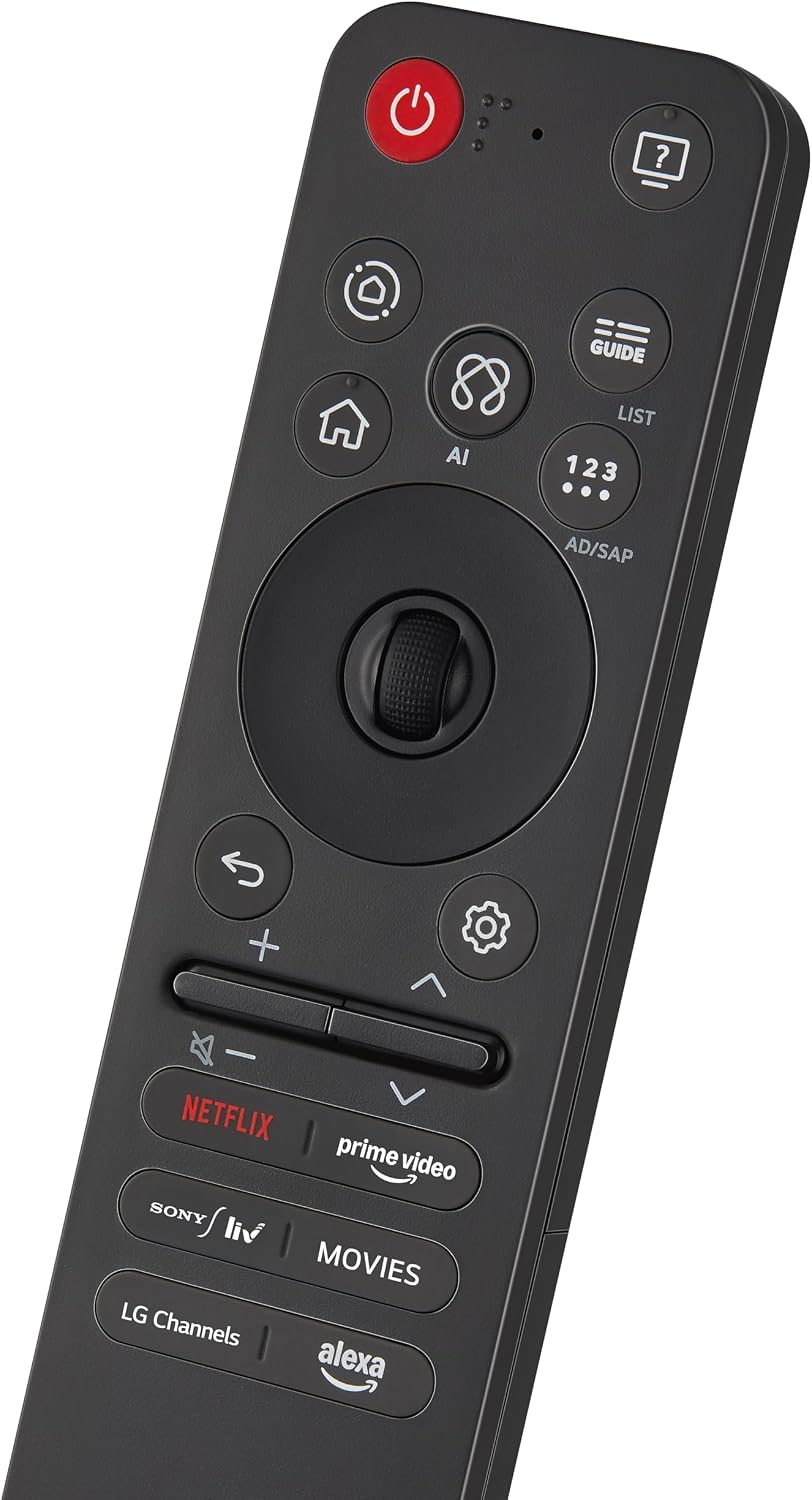
Figure 2: Angled view highlighting the various buttons and their arrangement on the remote control.
3.2. Using the Pointer Function
The pointer function allows you to move an on-screen cursor by simply moving the remote control. This is particularly useful for navigating Smart TV menus and web browsing.
- To activate the pointer, simply shake the remote gently or press any button (except Power).
- Move the remote in the air to control the cursor on the screen.
- Click the Wheel (OK) button to select an item.
- To deactivate the pointer, leave the remote still for a few seconds, and the cursor will disappear.
3.3. Using AI and Alexa Voice Commands
The remote integrates AI and Alexa Voice capabilities for convenient control and information retrieval.
- AI Button (): Press and hold this button to activate LG's AI ThinQ voice assistant. Speak your command clearly into the remote. Release the button when finished speaking.
- Alexa Button (): Press and hold this button to activate Amazon Alexa. Speak your command or question. Release the button when finished speaking.
- Examples of commands: "Change to HDMI 1", "Search for action movies", "What's the weather like?", "Open Netflix".
4. Maintenance
To ensure the longevity and optimal performance of your remote control, follow these maintenance guidelines:
- Cleaning: Wipe the remote with a soft, dry cloth. For stubborn dirt, slightly dampen the cloth with water or a mild, non-abrasive cleaner. Do not use harsh chemicals or abrasive materials.
- Battery Replacement: Replace batteries when the remote's response becomes sluggish or if the TV does not respond to commands. Always replace both batteries at the same time with new ones of the same type.
- Storage: Store the remote in a cool, dry place away from direct sunlight and extreme temperatures.
- Avoid Drops: Protect the remote from physical impact, as drops can damage internal components.
5. Troubleshooting
If you encounter issues with your LG MR25GA remote control, refer to the following common problems and solutions:
| Problem | Possible Cause | Solution |
|---|---|---|
| Remote not responding to TV. | Low batteries, remote not paired, obstruction between remote and TV, TV not powered on. | Replace batteries. Re-pair the remote (see Section 2.2). Ensure clear line of sight to TV. Check TV power. |
| Pointer not appearing or moving erratically. | Remote not paired, interference, low batteries, sensor obstruction. | Re-pair the remote. Ensure no strong light sources are interfering. Replace batteries. Ensure nothing is blocking the remote's sensor. |
| Voice commands not working. | Remote not paired, microphone obstruction, internet connection issue (for AI/Alexa), speaking too softly/loudly. | Re-pair the remote. Ensure microphone is not covered. Check TV's internet connection. Speak clearly and at a normal volume. |
| Buttons are sticky or unresponsive. | Dirt or debris under buttons. | Clean the remote as described in Section 4. |
6. Specifications
- Model Number: MR25GA (Item Model Number: EBX30147116)
- Product Dimensions: 2 x 0.6 x 7 inches
- Item Weight: 2.89 ounces
- Power Source: 2 x AAA Batteries (not included)
- Color: Black
- Special Features: AI Voice, Pointer Function, Alexa Voice
- Compatible Devices: LG LCD, LED, OLED Smart TVs (Specific models listed in product description)
- Manufacturer: LG
7. Warranty and Support
For warranty information and technical support regarding your LG Original Smart TV Remote Control (MR25GA), please refer to the documentation provided with your LG Smart TV or visit the official LG support website. You can also contact LG customer service directly for assistance.
LG Support Website: www.lg.com/us/support
Related documentsMR25GA


Ask a question about this manual
Ask about setup, troubleshooting, compatibility, parts, safety, or missing instructions. Manuals+ will review the question and use this page’s manual context to help answer it.