
1. Introduction
Thank you for choosing the Ossuret 9-inch Android 13 Car Stereo. This manual provides essential information for the proper installation, operation, and maintenance of your new car infotainment system. Please read this manual thoroughly before use to ensure optimal performance and safety.
2. Compatibility & Pre-Installation Notes
This car stereo is specifically designed for Citroen C3 and DS3 models manufactured between 2010 and 2016. Please verify your vehicle's compatibility before proceeding with installation.

Image: Installation notes for Citroen C3 DS3. The image displays two important notes for installation. Please Note 1: The original car requires removal of a patch with a blade to install the new frame. Two close-up images show the patch location. Please Note 2: If your original car has a specific button (illustrated in the image), remove its cover and install the original button. If this button is not present, there is no need to touch the plastic cover.
Important Notes:
- Note 1: On your original vehicle, you must remove a specific patch with a blade to install our Android car stereo frame.
- Note 2: If your original vehicle is equipped with the button shown in the image, remove its cover and install the original button. If this button is not present on your original vehicle, it is not necessary to touch the plastic cover.
3. Setup
Before beginning installation, ensure the vehicle's battery is disconnected. Carefully follow the wiring diagrams provided with the product. Connect all necessary cables, including power, speakers, GPS antenna, and any optional accessories like the backup camera or external microphone.
Basic Installation Steps:
- Remove the original car stereo unit and trim.
- Perform any necessary modifications as indicated in the compatibility notes (e.g., removing patches or transferring buttons).
- Connect the wiring harness from the new stereo to the vehicle's wiring. Ensure all connections are secure.
- Connect the GPS antenna, USB cables, and RCA harness (if applicable).
- Mount the new Ossuret car stereo into the dashboard opening.
- Reconnect the vehicle's battery and test the unit.
4. Operating Instructions
4.1 System Overview (Android 13)
Your Ossuret car stereo runs on the Android 13 operating system, providing a familiar and intuitive interface. Access various applications, settings, and features directly from the touchscreen display.

Image: Android system logo. The unit operates on Android 13, offering a modern and versatile user experience.
4.2 Wireless Carplay / Android Auto
This car stereo supports wireless Apple Carplay and Android Auto (Zlink application pre-installed and activated). Connect your smartphone via Wi-Fi or Bluetooth to access phone functions, navigation, music, and more directly on the car stereo display.
- Connection: Use Wi-Fi or Bluetooth to pair your smartphone.
- Features: Access phone calls, messages, maps, music, and podcasts.

Image: Carplay and Android Auto system support. The image shows the car stereo display with Carplay and Android Auto interfaces, along with a smartphone displaying the Carplay icon and an Android Auto device.
4.3 Bluetooth Function
The integrated Bluetooth module allows for hands-free calling and wireless audio streaming. The built-in microphone ensures clear communication during calls.
- Hands-Free Calls: Answer/make calls safely without distraction.
- Phonebook Download: Download your mobile phone's contacts to the stereo.
- Bluetooth Music: Stream audio from your phone to the car speakers.

Image: Bluetooth function support. The image displays the car stereo's Bluetooth interface for dialing and a smartphone, highlighting the built-in microphone for calls.
4.4 GPS Navigation
The unit features a GPS navigation system with support for both offline map data and online navigation applications. Voice guidance is available for easy directions.
- Dual Zone Function: Navigate while music plays in the background.
- Map Types: Supports Europe maps.
- Supported Apps: Compatible with popular navigation apps like Waze and Google Maps.

Image: GPS Navigator. The car stereo displays a navigation map with route information, alongside icons for Waze, Navitel, and Google Maps.
4.5 Multimedia Playback
Enjoy various media formats for music and video playback. Connect USB devices for local content.
- Music Formats: MP3, WMA, AAC, RM, FLAC, etc.
- Video Formats: MPEG-1/2/4, H264, H263, VC1, RV, RMVB, DivX, Sorenson Spark, VP8, AVS Stream, etc.
- Picture Formats: JPG/BMP/JPEG/GIF/PNG.
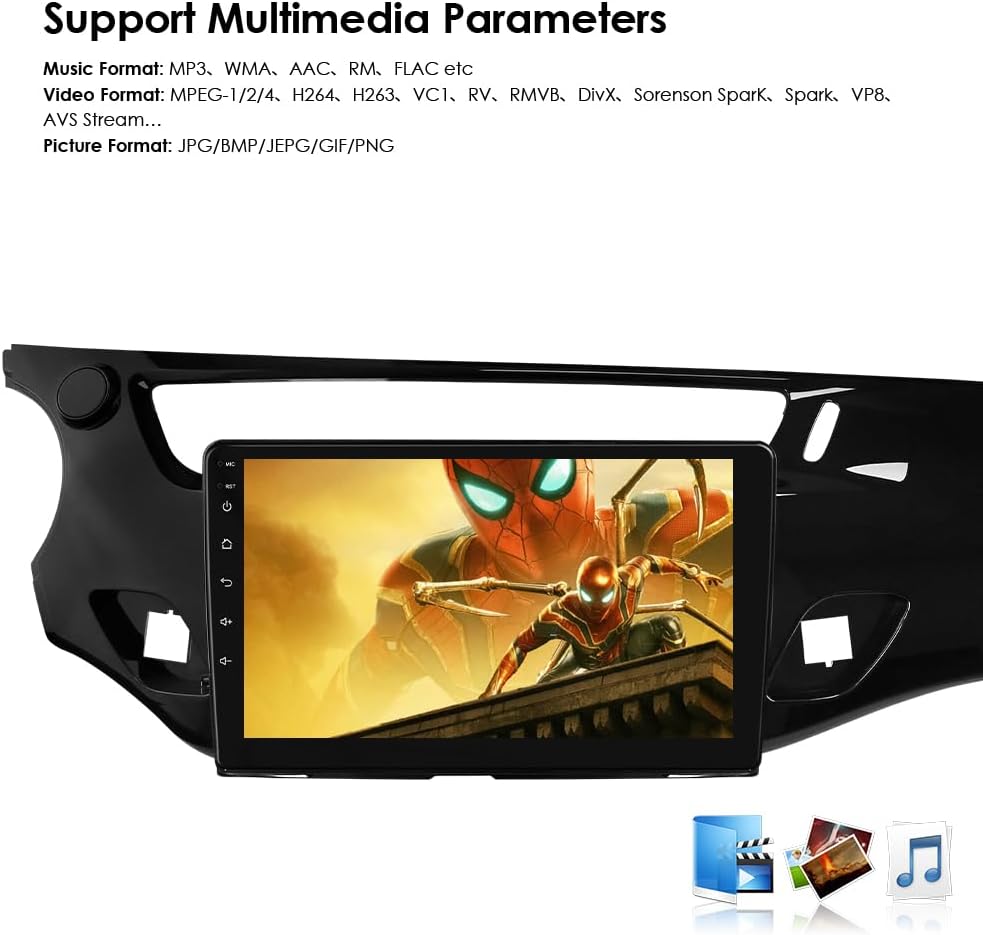
Image: Multimedia parameters. The car stereo screen shows a video playing, indicating support for various music, video, and picture formats.
4.6 Steering Wheel Control
The unit is compatible with all factory steering wheel control functions. Easily change tracks, channels, and adjust volume to minimize distractions while driving.

Image: Steering Wheel Control. The image illustrates the integration of the car stereo with steering wheel controls, showing icons for volume, track changes, and mode selection.
4.7 Backup Camera Input
Support for a backup camera input allows the display to automatically switch to the rearview interface when the vehicle is put into reverse. This helps in identifying obstacles and improving safety.

Image: Support Backup Camera. The image shows the car stereo displaying a rearview camera feed with parking guidelines.
4.8 WiFi Connectivity
Connect to Wi-Fi networks to access online features, download apps, browse the internet, and stream content.

Image: WiFi. The image depicts a smartphone connecting wirelessly to the car stereo, indicating WiFi functionality.
4.9 Split Screen Display
The split-screen feature allows two applications to be displayed simultaneously, such as navigation and music, enhancing multitasking capabilities.

Image: Split Screen Display. The image shows the car stereo screen divided into two sections, displaying navigation on one side and music playback on the other.
4.10 FM Radio Function
Tune into your favorite radio stations with the built-in FM tuner.

Image: FM Function. The image displays the car stereo's FM radio interface, showing frequency tuning and station presets.
4.11 Touch Screen Operation
The capacitive touchscreen provides a responsive and intuitive user experience. Navigate menus, select options, and control media with simple touches and gestures.

Image: Touch Screen. The image shows a hand interacting with the car stereo's touchscreen, demonstrating its responsive interface.
4.12 Voice Control
Utilize voice commands for various functions, enhancing convenience and safety while driving. The system supports voice assistants for navigation, calls, and more.
5. Maintenance
To ensure the longevity and optimal performance of your Ossuret car stereo, follow these maintenance guidelines:
- Cleaning: Use a soft, dry cloth to clean the screen and exterior. Avoid abrasive cleaners or solvents.
- Software Updates: Periodically check for and install software updates to improve performance and add new features.
- Temperature: Avoid exposing the unit to extreme temperatures, which can affect its electronic components.
- Power: Ensure stable power supply to prevent damage.
6. Troubleshooting
If you encounter issues with your car stereo, refer to the following common troubleshooting steps:
| Problem | Possible Cause | Solution |
|---|---|---|
| No Power | Loose power connection, blown fuse. | Check power cables and vehicle fuses. Ensure proper wiring. |
| No Sound | Incorrect speaker wiring, volume too low, mute activated. | Verify speaker connections, increase volume, check mute settings. |
| GPS Signal Lost | GPS antenna not properly connected or obstructed. | Ensure GPS antenna is securely connected and has a clear view of the sky. |
| Bluetooth Pairing Issues | Device not in pairing mode, incorrect password, interference. | Ensure both devices are in pairing mode, re-enter password, try pairing in a different location. |
| Touchscreen Unresponsive | Software glitch, screen protector interference. | Restart the unit. If a screen protector is installed, ensure it is applied correctly. |
If the problem persists after trying these steps, please contact Ossuret customer support for further assistance.
7. Specifications
| Feature | Detail |
|---|---|
| Brand | Ossuret |
| Vehicle Service Type | Car |
| Screen Size | 9 Inches |
| Special Features | Carplay/Android Auto |
| Connectivity Technology | Bluetooth, USB, Wi-Fi |
| Map Type | Europe |
| Audio Output Mode | Stereo |
| Mounting Type | Dashboard Mount |
| Operating System | Android 13 |
| Memory Storage Capacity | 32 GB |
| Touch Screen Type | Capacitive |
| Display Type | LCD |
| Human Interface Input | Microphone, Touchscreen |
| Compatible Devices | Smartphone |
| Control Method | Touch, Voice |
| Batteries Included | No |
| Supported Satellite Navigation System | GPS |
| Manufacturer | Hitour Tech |
8. Accessories (What's in the Box)
The following components are included with your Ossuret car stereo:
- USB Cable
- RCA Harness
- GPS Antenna
- External Microphone
- Rear Camera Input RCA Cable
- Factory USB Adapter
- Canbus Decoder
- Radio Antenna Adapter Cable

Image: Accessories. The image displays all the included cables and components: Power Cable, External Microphone, RCA Harness (WiFi version only), Rear Camera input RCA Cable, GPS Antenna (High-speed antenna), USB Cable, Factory USB Adapter, Canbus Decoder, and Radio Antenna Adapter Cable.
9. Warranty & Support
Your Ossuret car stereo comes with a 1-year warranty from the date of purchase. This warranty covers manufacturing defects and malfunctions under normal use.
For Warranty Claims and Technical Support:
Please contact the seller or Ossuret customer service directly. Have your purchase details and product model number ready when contacting support.