
1. Introduction
This manual provides essential information for the safe and efficient operation of your FOXX C10 10.1-inch Android Tablet. Please read this guide thoroughly before using your device to ensure proper functionality and to understand its features. Keep this manual for future reference.
2. What's in the Box
Verify that all items are present in the package:
- FOXX C10 Tablet
- Type-C Cable
- Charger (10W)
- User Manual
- Protective Cover (pre-applied)
- Screen Protector Film (pre-applied)
3. Product Overview
The FOXX C10 tablet features a 10.1-inch HD display, dual 8MP cameras, and a robust 6000mAh battery, all powered by an Android 13 operating system.

Image: Front and back view of the FOXX C10 tablet, showcasing its sleek design and dual camera module on the rear.

Image: An infographic highlighting key features including the 10.1-inch display, Android 13, 6000mAh battery, 8MP cameras, MediaTek quad-core chipset, 4GB RAM + 64GB storage, 4G LTE bands, Wi-Fi, Bluetooth 5.0, Nano SIM, Type-C, and 3.5mm AUX port.
3.1 Display
The tablet is equipped with a 10.1-inch HD TFT V-notch display, offering a resolution of 800x1280 pixels for clear visuals.

Image: Close-up of the tablet's 10.1-inch HD TFT V-notch display, showing vibrant colors and detail.
3.2 Cameras
The FOXX C10 features dual 8-megapixel cameras, both on the front and rear, enabling high-quality photos and video calls.
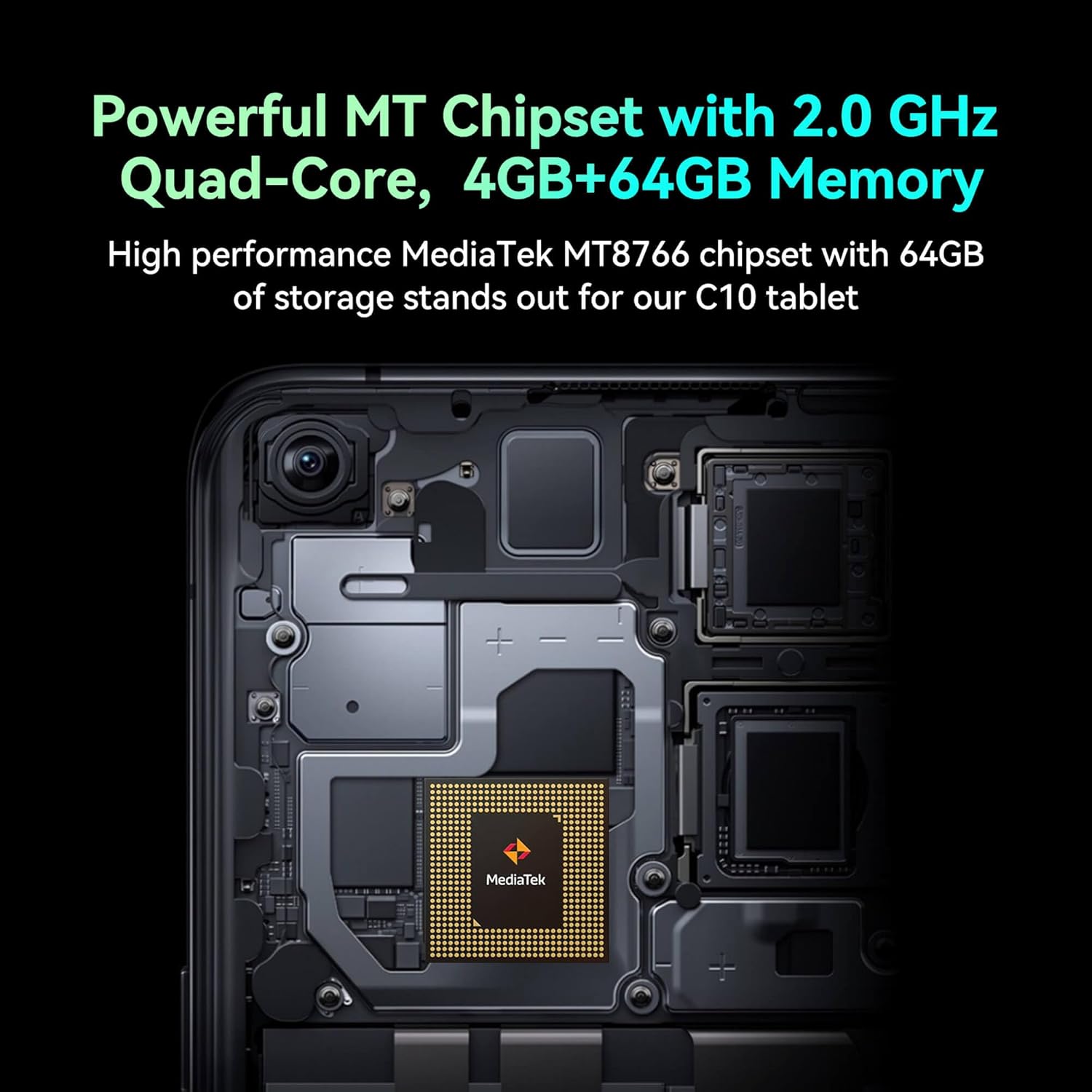
Image: Detail of the tablet's rear camera module, highlighting the 8-megapixel main camera with autofocus capabilities.
3.3 Processor and Memory
It runs on a 2.0 GHz quad-core MediaTek MT8766 chipset, paired with 4GB of RAM and 64GB of internal storage for smooth performance and ample space.

Image: An internal view of the tablet's motherboard, showcasing the MediaTek MT8766 quad-core chipset.
3.4 Battery
A 6000mAh battery provides extended usage time, ensuring the device stays powered throughout the day.
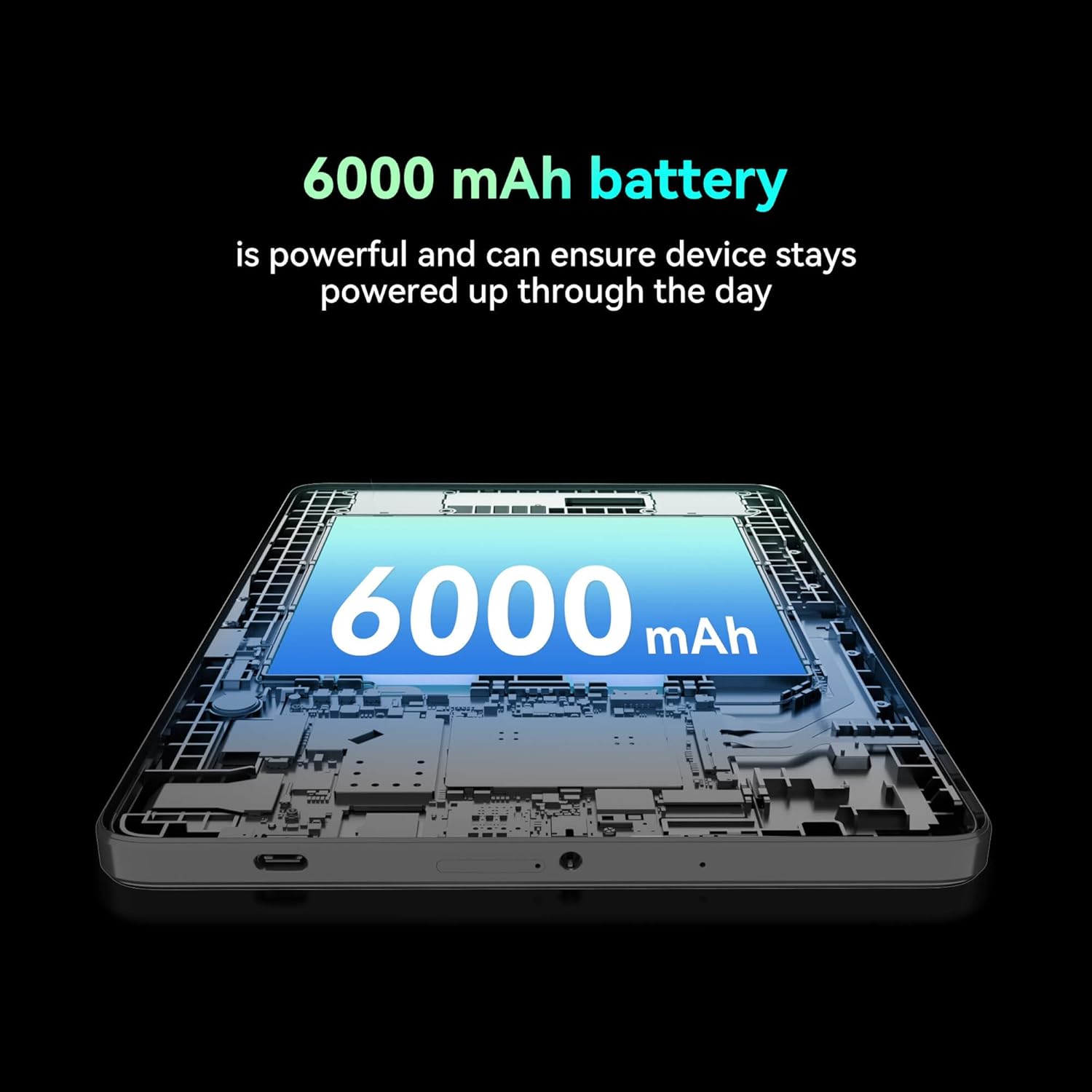
Image: A cutaway view of the tablet highlighting the large 6000 mAh battery component.
4. Setup
4.1 Initial Charging
Before first use, fully charge your tablet using the provided Type-C cable and 10W charger. The battery indicator on the screen will show charging status.
4.2 Powering On/Off
- To Power On: Press and hold the Power button until the screen lights up.
- To Power Off: Press and hold the Power button, then select 'Power off' from the options on the screen.
- To Restart: Press and hold the Power button, then select 'Restart' from the options on the screen.
4.3 SIM Card Installation
The FOXX C10 supports Nano SIM cards for cellular connectivity. Locate the SIM card tray on the side of the tablet. Use the provided SIM ejector tool to open the tray. Insert the Nano SIM card into the designated slot with the gold contacts facing down. Close the tray securely.
4.4 MicroSD Card Installation (Optional)
If your tablet supports expandable storage, locate the MicroSD card slot, often combined with the SIM tray. Insert a MicroSD card (up to 128GB, sold separately) into the slot with the gold contacts facing down. Close the tray securely.
5. Operating Instructions
5.1 Basic Navigation
Your tablet runs on Android 13. Use touch gestures for navigation:
- Tap: Select an item or open an app.
- Swipe: Scroll through screens or lists.
- Pinch: Zoom in or out on images and web pages.
- Long Press: Access contextual menus or move icons.
5.2 Connecting to Wi-Fi
- Go to Settings > Network & internet > Wi-Fi.
- Toggle Wi-Fi On.
- Select your desired Wi-Fi network from the list.
- Enter the password if prompted, then tap Connect.
5.3 Making Calls (4G LTE)
With a properly installed and activated Nano SIM card, your tablet can make and receive calls.
- Open the Phone app.
- Dial the desired number or select a contact.
- Tap the Call button.
5.4 Using the Camera
The tablet features dual 8MP cameras for photography and video recording.
- Open the Camera app.
- Tap the Shutter button to take a photo.
- Tap the Video icon to switch to video recording mode.
- Use the camera switch icon to toggle between front and rear cameras.
5.5 Bluetooth Pairing
- Go to Settings > Connected devices > Bluetooth.
- Toggle Bluetooth On.
- Ensure the device you want to pair with is in pairing mode.
- Select the device from the list and follow any on-screen prompts to complete pairing.
6. Maintenance
6.1 Battery Care
- Avoid extreme temperatures, which can degrade battery life.
- Do not leave the tablet charging for extended periods after it's fully charged.
- Use only the provided charger and cable.
6.2 Cleaning
Use a soft, lint-free cloth to clean the screen and body of the tablet. Avoid using harsh chemicals or abrasive materials. For stubborn smudges, slightly dampen the cloth with water or a screen cleaner designed for electronics.
6.3 Software Updates
Regularly check for and install software updates to ensure your tablet has the latest features, security patches, and performance improvements. Go to Settings > System > System update.
7. Troubleshooting
| Problem | Solution |
|---|---|
| Tablet does not turn on | Ensure the battery is charged. Connect the charger and wait a few minutes before attempting to power on again. |
| Cannot connect to Wi-Fi | Check if Wi-Fi is enabled in settings. Restart your router and the tablet. Verify the Wi-Fi password. |
| Apps are slow or crashing | Close unused apps. Clear app cache (Settings > Apps > [App Name] > Storage > Clear cache). Restart the tablet. Ensure sufficient storage space. |
| No cellular service | Ensure the Nano SIM card is correctly inserted and activated. Check your network settings and contact your service provider if necessary. |
| Screen is unresponsive | Restart the tablet. If the issue persists, perform a factory reset (data will be lost). |
8. Specifications
| Feature | Detail |
|---|---|
| Model Name | FOXX C10 |
| Operating System | Android 13 |
| Screen Size | 10.1 Inches |
| Max Screen Resolution | 800x1280 Pixels |
| Processor | 2 GHz Quad-Core MediaTek |
| RAM | 4 GB |
| Internal Storage | 64 GB |
| Flash Memory Size | 8 GB (likely referring to system partition or eMMC base) |
| Cameras | Dual 8MP (Front & Rear) |
| Battery Capacity | 6000 mAh |
| Connectivity | 4G LTE, Wi-Fi (802.11 b/g/n/ac), Bluetooth 5.0, USB-C, 3.5mm AUX |
| Item Weight | 1.26 pounds |
| Product Dimensions | 9.64 x 6.39 x 0.42 inches |
| Color | Black |
9. Warranty and Support
For warranty information and technical support, please refer to the documentation provided with your purchase or contact the retailer. Keep your proof of purchase for warranty claims.
