
Introduction
Thank you for choosing the SABLUTE MA31 Ergonomic Wireless Keyboard and Mouse Combo. This manual provides essential information for setting up, operating, and maintaining your new peripheral set. Designed for comfort and efficiency, this combo features a full-size wave-key keyboard with a cushioned palm rest and a 3-DPI adjustable ergonomic mouse, offering seamless 2.4G wireless connectivity for various devices.
What's in the Box
- 1 x Ergonomic Wireless Keyboard (MA31)
- 1 x Ergonomic Wireless Mouse (MS801)
- 1 x 2.4GHz USB Receiver (shared for both keyboard and mouse, stored in mouse battery compartment)
- 1 x USB-A to USB-C Adapter
- 1 x User Manual

Image: The contents of the product box, showing the ergonomic keyboard, ergonomic mouse, a small USB receiver, a USB-A to Type-C adapter, and the user manual.
Setup Instructions
- Install Batteries:
- Keyboard: Insert two (2) AA batteries (not included) into the battery compartment on the underside of the keyboard.
- Mouse: Insert one (1) AA battery (not included) into the battery compartment on the underside of the mouse. The 2.4GHz USB receiver is stored in this compartment.
- Retrieve USB Receiver: Carefully remove the 2.4GHz USB receiver from the mouse's battery compartment.
- Connect Receiver:
- Plug the USB receiver directly into an available USB-A port on your computer, laptop, tablet, or Mac.
- If your device only has USB-C ports, use the provided USB-A to USB-C adapter to connect the receiver.
- Power On:
- Keyboard: Turn on the keyboard using the ON/OFF switch located on the side.
- Mouse: Turn on the mouse using the ON/OFF switch located on the underside.
- Automatic Connection: The keyboard and mouse will automatically connect to your computer. No additional drivers are needed.

Image: A close-up of the USB-A receiver and the USB-A to Type-C adapter, illustrating how to connect the wireless peripherals to different types of ports on a computer.
Operating Instructions
Keyboard Features
- Ergonomic Design: The keyboard features a wave-shaped key layout and a cushioned faux lambskin palm rest for natural typing posture and reduced wrist strain.
- Adjustable Tilt Legs: Dual-angle tilt legs on the underside allow you to adjust the keyboard's elevation for comfortable typing while sitting or standing.
- Quiet Typing: The keys are designed for soft, quiet presses, minimizing noise during use.
- Shortcut Keys: 9 dedicated multimedia shortcut keys are located at the top of the keyboard for quick access to functions like:
- Emoji (FN+Q for Windows, FN+W for Mac)
- Calculator
- Print Screen
- Previous Song
- Play/Pause
- Next Song
- Volume Up
- Volume Down
- Mute
- Function Keys (F1-F12): These keys can be used in combination with the 'Fn' key for additional system-specific functions (e.g., screen brightness, search, window switch, sleep, lock screen). Refer to the included quick guide for a full layout.
- Compatibility Switch: Use FN+Q for Windows/ChromeOS and FN+W for macOS to optimize keyboard functions for your operating system.
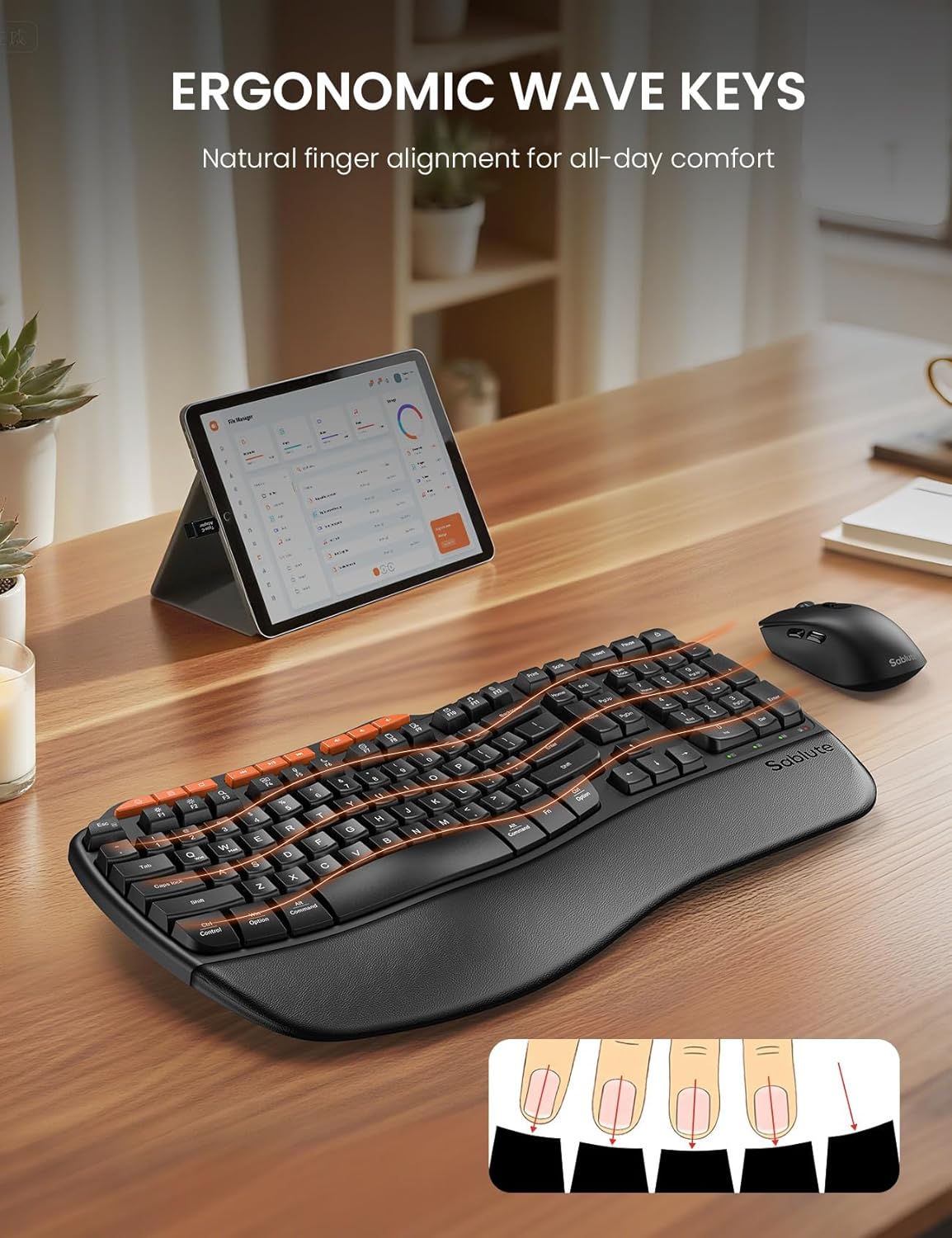
Image: The ergonomic keyboard with its distinctive wave-shaped keys and integrated wrist rest, designed for natural finger alignment and comfort.

Image: The underside of the keyboard with its dual-angle tilt legs extended, demonstrating how to adjust the keyboard for comfortable use in both sitting and standing postures.

Image: A detailed view of the nine orange-colored multimedia shortcut keys located at the top of the keyboard, highlighting their accessibility.
Mouse Features
- Ergonomic Sculpted Design: The mouse is shaped to fit comfortably in the right hand, promoting a natural hand position.
- Adjustable DPI: Cycle through 3 DPI settings (800/1200/1600) using the dedicated DPI switch button to adjust cursor sensitivity for different tasks.
- Side Buttons: Features forward and backward buttons on the side for enhanced navigation.
- Quiet Clicks: The mouse buttons and scroll wheel are designed for silent operation.
- Power Switch: An ON/OFF switch on the underside helps conserve battery life when not in use.

Image: The ergonomic mouse, showcasing its sculpted shape designed to provide a comfortable and natural grip for the right hand.
Wireless Connectivity
- 2.4GHz Wireless: Both the keyboard and mouse connect wirelessly via a single 2.4GHz USB receiver.
- Effective Range: Enjoy a stable connection up to 33 feet (10 meters) with minimal lag or drops.
- Universal Compatibility: Compatible with 99% of devices including PCs, laptops, tablets, and Macs. Supports Windows, macOS, Chrome OS, Android, and Linux operating systems.
- Note: This combo connects to one device at a time; multi-device switching is not supported.

Image: The wireless keyboard and mouse in a professional setting, illustrating the 33-foot stable 2.4GHz wireless connection range.
Maintenance
- Cleaning: Use a soft, damp cloth to clean the surfaces of the keyboard and mouse. Avoid harsh chemicals or abrasive materials. The faux lambskin palm rest is sweat-proof and easy to maintain.
- Battery Replacement: Replace batteries when performance degrades. The keyboard requires 2 AA batteries, and the mouse requires 1 AA battery.
- Storage: When not in use, turn off both the keyboard and mouse to conserve battery life. Store the USB receiver in the mouse's battery compartment to prevent loss.
Troubleshooting
Keyboard/Mouse Loses Connection with USB
- For Keyboard: Long-press the "ESC" + "=" keys for three seconds until the red light flashes. Then, immediately plug the USB receiver into your computer.
- For Mouse: Press and hold the left, middle (scroll wheel click), and right buttons of the mouse for 3-5 seconds. Then, plug the USB receiver into your computer.
- Check Batteries: Ensure fresh batteries are installed in both devices.
- Check USB Port: Try plugging the USB receiver into a different USB port on your device.
- Interference: Move the devices closer to the USB receiver and away from other wireless devices that might cause interference.
Specifications
| Feature | Detail |
|---|---|
| Brand | SABLUTE |
| Model Number | MA31 |
| Color | Black |
| Connectivity Technology | 2.4G USB Wireless |
| Effective Distance | 33 ft (10m) |
| Keyboard Layout | QWERTY, Full Size (104 keys) |
| Keyboard Special Features | Ergonomic Wave Keys, Cushioned Wrist Rest, Dual-Angle Tilt Legs, 9 Multimedia Shortcut Keys, FN Function Keys, Non-Fading Keycaps |
| Mouse DPI Settings | 800/1200/1600 (Adjustable) |
| Mouse Buttons | Left, Right, Scroll Wheel, Forward, Backward, DPI Switch |
| Power Source | Battery Powered (Keyboard: 2xAA, Mouse: 1xAA) |
| Compatible Devices | PCs, Laptops, Tablets, Mac, Gaming Consoles, Television |
| Compatible Operating Systems | Windows (10+), macOS, Chrome OS (134+), Linux, Android |
| Item Weight | 2.7 Pounds |

Image: A diagram illustrating the dimensions of the full-size ergonomic keyboard (44.2cm x 24.13cm) and the ergonomic mouse (12.45cm x 6.35cm x 4.32cm).
Warranty & Support
- Warranty: This product comes with a 1-year warranty.
- Returns: Enjoy a 30-day money-back guarantee.
- Replacement: A 1-year free replacement policy is offered for manufacturing defects.
- Customer Service: For any inquiries or support, please contact SABLUTE Inc.
- Email: sabluteservices@outlook.com
- Phone: 1-888-858-1618 (US)
- Operating Hours: Mon-Fri, 9am-6pm (Worktime), 1pm-2pm (Rest)
Product Videos
SABLUTE Ergonomic Wireless Keyboard and Mouse Combo Overview
Video: An official overview of the SABLUTE Ergonomic Wireless Keyboard and Mouse Combo, highlighting its key features and ergonomic design. This video is provided by a seller.
SABLUTE Wireless Keyboard with Cushioned Palm Rest
Video: A detailed look at the wireless keyboard, focusing on its cushioned palm rest and ergonomic benefits for comfortable typing. This video is provided by a seller.


