1. Introduction
This manual provides essential information for the setup, operation, maintenance, and troubleshooting of your new Samsung QN43QN90FAFXZA 43-inch Neo QLED 4K Smart TV and the accompanying Austere 5S-4KHD2-2.5M V-Series 2.5m Premium 4K HDR HDMI Braided Cable. Please read this manual thoroughly to ensure proper use and to maximize your viewing experience.
2. Safety Information
Always follow basic safety precautions when using electrical appliances to reduce the risk of fire, electric shock, and injury. Keep the TV away from water and moisture. Do not block ventilation openings. Use only specified attachments/accessories. Refer all servicing to qualified service personnel.
3. Setup
3.1 Unboxing and Component Identification
Carefully remove all components from the packaging. Ensure the following items are present:
- Samsung QN43QN90FAFXZA 43-inch Neo QLED 4K Smart TV
- Remote Control (BT SolarCell Remote)
- Power Cable
- TV Stand Components (if applicable)
- Austere 5S-4KHD2-2.5M V-Series 2.5m Premium 4K HDR HDMI Braided Cable
- Documentation (this manual, warranty card)
3.2 TV Placement
Place the TV on a stable, level surface or mount it on a wall using a VESA 200mm x 200mm compatible wall mount (sold separately). Ensure adequate ventilation around the TV.

Figure 3.2.1: Samsung QN43QN90FAFXZA 43-inch Neo QLED 4K Smart TV with Austere HDMI cable.

Figure 3.2.2: Front view of the Samsung QN43QN90FAFXZA 43-inch Neo QLED 4K Smart TV.

Figure 3.2.3: Side view of the Samsung QN43QN90FAFXZA 43-inch Neo QLED 4K Smart TV.
3.3 Connecting the Austere HDMI Cable
The Austere 5S-4KHD2-2.5M V-Series HDMI cable is designed for optimal 4K HDR performance. Connect one end of the HDMI cable to an HDMI port on your TV and the other end to your external device (e.g., Blu-ray player, gaming console, soundbar). This cable supports HDMI ARC technology for enhanced audio return.

Figure 3.3.1: Austere 5S-4KHD2-2.5M V-Series 2.5m Premium 4K HDR HDMI Braided Cable.

Figure 3.3.2: Austere HDMI cable connected to a media device, demonstrating 18Gbps bandwidth for 4K60.

Figure 3.3.3: Austere HDMI cable connected to a receiver, highlighting High Quality Audio with ARC Technology.
3.4 Initial Power-On and Setup Wizard
Connect the power cable to the TV and a wall outlet. Press the power button on the remote control. The TV will guide you through the initial setup process, including network connection (Wi-Fi 5), channel scanning, and smart feature configuration.
4. Operating Your TV
4.1 Remote Control Functions
Your BT SolarCell Remote allows for intuitive control of your TV. Use it to navigate menus, adjust volume, change channels, and access smart features. The remote can be charged via solar power or USB-C.
4.2 Smart Features (Tizen OS)
The TV runs on Samsung's Tizen Smart TV platform, providing access to various streaming services like Netflix, Prime Video, Disney+, Hulu, Apple TV, YouTube, HBO Max, Peacock, Sling, and more. Multiple Voice Assistant compatibility is also included.
4.3 Picture Quality Enhancements
Your Neo QLED TV features advanced technologies for superior picture quality:
- NQ4 AI Gen3 Processor: Utilizes AI to deliver incredible 4K picture and dynamic sound.
- 4K AI Upscaling Pro: Content is upscaled to impressive 4K, improving viewing experience regardless of original resolution.
- Glare Free: Minimizes reflections, allowing clear viewing even in bright rooms.
- Neo Quantum HDR: Provides expanded contrast and powerful brightness for nuanced details in 4K clarity.
- AI Motion Enhancer Pro: Enhances motion clarity for fast-paced scenes.
- Real Depth Enhancer Pro: Adds depth to images for a more immersive experience.
Video 4.3.1: Samsung QN90F Series TV Product Review. This video highlights key features and performance aspects of the QN90F series.

Figure 4.3.1: 4K AI Upscaling Pro in action, transforming content to a sharp, smooth 4K experience.
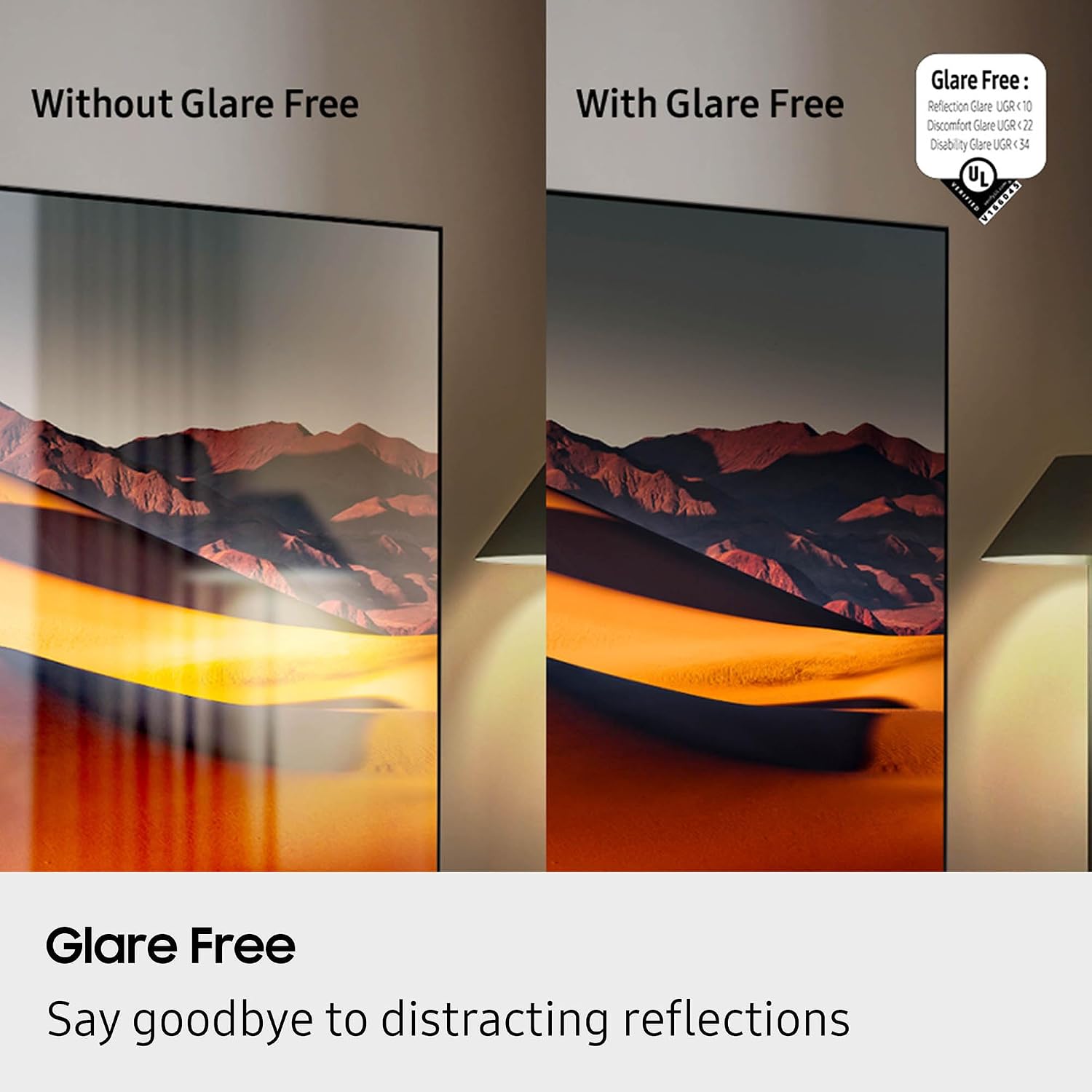
Figure 4.3.2: Glare Free technology reducing reflections for a clearer view.

Figure 4.3.3: The NQ4 AI Gen3 Processor, the core of the TV's intelligent performance.
4.4 Sound Quality Features
Experience immersive audio with:
- Dolby Atmos: Delivers multi-dimensional sound that moves around you.
- OTS Lite (Object Tracking Sound Lite): Sound follows the action on screen for a more dynamic audio experience.
- Q-Symphony Pro: Synchronizes TV speakers with compatible Samsung soundbars for a richer soundstage.
- Bluetooth Audio: Connect wireless headphones or speakers.
4.5 Gaming Features
The TV offers a 120Hz (up to 165Hz) refresh rate and Motion Xcelerator 165Hz for smooth, responsive gaming.
4.6 Art Store
Transform your TV into a personal art gallery with the Art Store feature, displaying a vast collection of artwork when the TV is not in active use.
5. Maintenance
5.1 Cleaning the TV Screen and Body
Gently wipe the screen with a soft, dry microfiber cloth. For stubborn smudges, lightly dampen the cloth with water or a screen-cleaning solution. Avoid harsh chemicals. Clean the TV body with a soft, dry cloth.
5.2 Software Updates
Ensure your TV's software is up-to-date for optimal performance and security. You can usually find the update option in the TV's settings menu under 'Support' or 'Software Update'.
5.3 Austere HDMI Cable Care
Handle the HDMI cable by its connectors, not the cable itself, to prevent damage. Avoid sharp bends or kinks. Store the cable neatly when not in use.
Video 5.3.1: Austere 5 Series HDMI Product Video. This video showcases the design and features of the Austere 5 Series HDMI cable.
6. Troubleshooting
6.1 No Power
- Check if the power cable is securely connected to the TV and the wall outlet.
- Ensure the wall outlet is functioning by plugging in another device.
- Try a different power outlet.
6.2 No Picture or Distorted Picture
- Verify that the correct input source is selected on the TV.
- Check the HDMI cable connection between the TV and the external device. Try re-seating the cable or using a different HDMI port.
- Ensure the external device is powered on and functioning correctly.
- If using an antenna, check the antenna connection and perform a channel scan.
6.3 No Sound or Distorted Sound
- Check the TV's volume level and ensure it is not muted.
- If using external audio devices (soundbar, receiver), ensure they are powered on and connected correctly via HDMI ARC or optical cable.
- Check audio settings on both the TV and the external audio device.
6.4 Remote Control Not Working
- Ensure there are no obstructions between the remote and the TV.
- Charge the BT SolarCell Remote using solar power or a USB-C cable.
- If the issue persists, try re-pairing the remote with the TV (refer to the TV's on-screen guide for specific instructions).
6.5 Network Connectivity Issues
- Check your Wi-Fi router and modem to ensure they are powered on and functioning.
- Restart your router and modem.
- Go to the TV's network settings and try reconnecting to your Wi-Fi network.
- If using a wired connection, ensure the Ethernet cable is securely connected.
7. Specifications
| Feature | Specification |
|---|---|
| Brand | Samsung |
| Model Name | QN43QN90FAFXZA |
| Screen Size | 43 Inches |
| Display Technology | Neo QLED |
| Resolution | 4K |
| Refresh Rate | 120 Hz (Up to 165Hz) |
| Processor | NQ4 AI Gen3 Processor |
| Special Features | AI Motion Enhancer Pro, Glare Free, Auto HDR Remastering Pro, Wide Viewing Angle, Ultimate UHD Dimming, Real Depth Enhancer Pro, Motion Xcelerator 165Hz, Film Mode, 4K AI Upscaling Pro, Color Booster Pro, Dolby Atmos, OTS Lite, Q-Symphony Pro, Bluetooth Audio, 360 Audio, Tizen Smart TV, Multiple Voice Assistant Compatible, Samsung Health, Eco Sensor, Auto Power Saving/Off, BT SolarCell Remote |
| Supported Internet Services | Netflix, Prime Video, Disney+, Hulu, Apple TV, YouTube, HBO Max, Peacock, Sling, and More |
| Product Dimensions | 8.7"D x 37.8"W x 24.4"H |
| Item Weight | 29.5 Pounds |
| Color | Titan Black |
| VESA Compatibility | 200mm x 200mm |
| HDMI Ports | 4 |
| USB-A Ports | 2 |
| Wi-Fi | Wi-Fi 5 |
| HDMI Cable Model | Austere 5S-4KHD2-2.5M |
| HDMI Cable Length | 2.5m |
| HDMI Cable Features | Premium 4K HDR, Braided, HDMI ARC Technology, Silver-plated conductors |
8. Warranty and Support
For warranty information regarding your Samsung TV, please refer to the warranty card included in your product packaging or visit the official Samsung support website. For support with your Austere HDMI cable, please refer to Austere's official documentation or website. Keep your purchase receipt for warranty claims.


