
Introduction
The Volkano X Ember Series Bluetooth Wireless Keyboard is designed for versatile connectivity and comfortable typing. It supports dual connectivity options: Bluetooth and 2.4GHz wireless via a nano USB receiver. This keyboard features a compact layout and is compatible with various operating systems including Windows, Mac, Linux, and Android. It includes a rechargeable 500mAh battery for extended use.
Product Overview
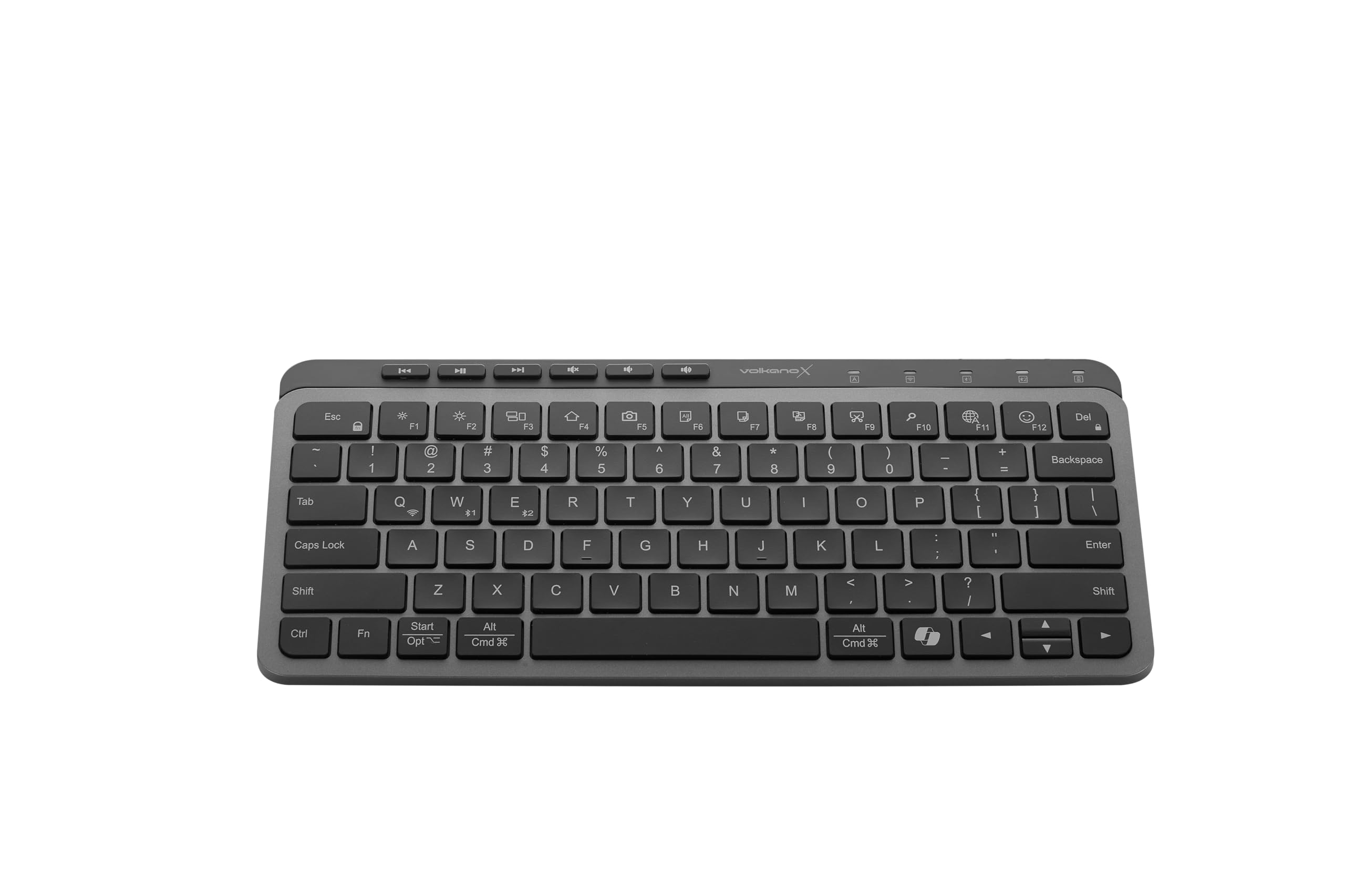

The Ember Series keyboard features quiet, soft-touch keys for a comfortable typing experience. It includes dedicated multimedia function keys for easy control of audio and video playback. The compact design makes it suitable for various environments and devices.
Setup
1. Charging the Keyboard
Before initial use, fully charge the keyboard. Connect the provided USB charging cable to the keyboard's charging port and to a USB power source (e.g., computer USB port, USB wall adapter). The charging indicator light will illuminate during charging and turn off when fully charged. A full charge provides up to 6 months of battery life, depending on usage.
2. Connecting via 2.4GHz USB Nano Receiver
- Locate the USB nano receiver, typically stored in a compartment on the keyboard.
- Insert the USB nano receiver into an available USB-A port on your computer or compatible device.
- Turn on the keyboard using the power switch. The keyboard should automatically connect to your device.
3. Connecting via Bluetooth
- Ensure the keyboard is charged and powered on.
- Activate Bluetooth on your device (laptop, tablet, smart TV, etc.).
- Put the keyboard into Bluetooth pairing mode. This usually involves pressing and holding a dedicated Bluetooth pairing button or a function key combination (refer to keyboard markings for specific instructions, often Fn + a Bluetooth icon). The Bluetooth indicator light will flash.
- On your device, search for available Bluetooth devices. Select "Volkano X Ember" or a similar name from the list.
- Follow any on-screen prompts to complete the pairing process. The indicator light will stop flashing once connected.
Operating the Keyboard
Basic Usage
The keyboard functions as a standard QWERTY keyboard. Simply type as you would with any other keyboard. The soft-touch keys provide a comfortable and quiet typing experience.
Multimedia Keys
The top row of keys includes dedicated multimedia functions. These keys allow you to control media playback (play/pause, skip tracks), adjust volume, and access other common functions directly from the keyboard. Some functions may require pressing the 'Fn' key simultaneously with the desired function key.
Switching Between Devices (if multiple Bluetooth profiles are supported)
If your keyboard supports multiple Bluetooth profiles, you can switch between paired devices using the designated function keys (e.g., Fn + F1, F2, F3). Refer to the keyboard's specific markings for device switching instructions.
Maintenance
Cleaning
- Ensure the keyboard is powered off before cleaning.
- Use a soft, lint-free cloth slightly dampened with water or a mild cleaning solution.
- Avoid using harsh chemicals, abrasive cleaners, or excessive moisture, as these can damage the keyboard.
- For dust and debris between keys, use compressed air.
Battery Care
- Avoid fully discharging the battery frequently to prolong its lifespan.
- Store the keyboard in a cool, dry place when not in use for extended periods.
- Recharge the battery periodically if stored for a long time to prevent deep discharge.
Troubleshooting
Keyboard Not Connecting
- Check Power: Ensure the keyboard is turned on and has sufficient battery charge.
- Re-pair Bluetooth: If using Bluetooth, unpair the keyboard from your device and re-initiate the pairing process.
- USB Receiver: If using 2.4GHz, ensure the USB nano receiver is securely plugged into a working USB port. Try a different USB port.
- Interference: Move the keyboard closer to your device and away from other wireless devices that might cause interference.
- Device Compatibility: Verify your device's operating system and hardware support the keyboard's connectivity options.
Keys Not Responding
- Battery Level: Recharge the keyboard's battery.
- Connection: Re-establish the connection (Bluetooth or 2.4GHz).
- Clean Keys: Check for any debris or obstructions under the non-responsive keys.
Specifications
| Model Name | Ember Series |
|---|---|
| Model Number | VKX-207-GT |
| Connectivity Technology | Bluetooth, 2.4GHz USB-A, USB-C (charging) |
| Compatible Devices | Laptop, PC, Smart TV, Tablet |
| Keyboard Layout | QWERTY |
| Number of Keys | 78 |
| Battery Capacity | 500mAh |
| Special Features | Lightweight, Rechargeable, Quiet keystrokes |
| Product Dimensions (L x W x H) | 28.8L x 13.7W x 2.2H centimetres |
| Item Weight | 550 Grams |
| Material | Plastic |
| Color | Graphite |
Warranty Information
This Volkano X product is covered by a 1-year limited warranty from the date of purchase. To extend your coverage, you may register your product to receive an additional 12-month extension, totaling 24 months of coverage. Please retain your proof of purchase for warranty claims.
Support
For any questions, technical assistance, or support regarding your Volkano X Ember Series keyboard, please contact us via the official Volkano Page. You can find more information and contact details at Volkano Store Page.