
Introduction
Welcome to the user manual for your new HP OMEN 16-ae0002TX Gaming Laptop. This document provides essential information to help you set up, operate, maintain, and troubleshoot your device. Designed for high-performance gaming and demanding tasks, this laptop features a 14th Gen Intel Core i7 processor, NVIDIA GeForce RTX 4060 graphics, 16GB DDR5 RAM, and a 1TB SSD, all presented on a vibrant 16.1-inch FHD 165Hz display.
1. Initial Setup
1.1 Unpacking Your Laptop
Carefully remove all components from the packaging. Ensure the following items are present:
- HP OMEN 16-ae0002TX Gaming Laptop
- Power Adapter
- Power Cord
- User Manual (this document)
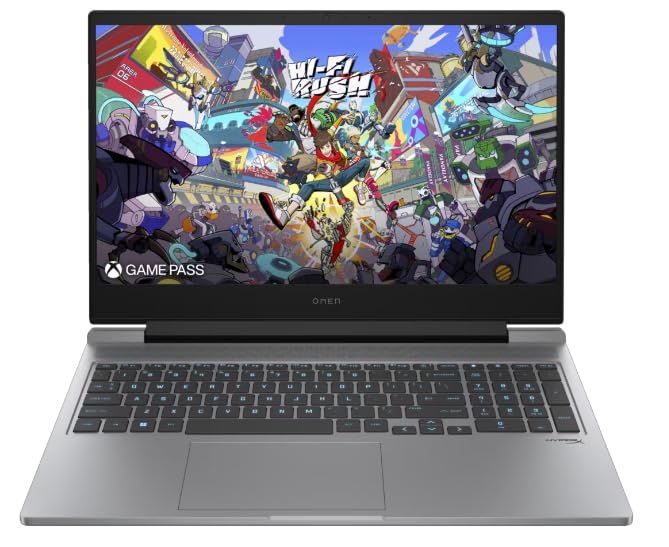
Figure 1: HP OMEN 16-ae0002TX Gaming Laptop overview.
1.2 Connecting the Power Adapter
- Connect the power cord to the power adapter.
- Plug the power adapter into a wall outlet.
- Connect the adapter's output plug to the power port on your laptop.
It is recommended to fully charge the laptop before initial use.
1.3 First Boot and Windows Setup
Press the power button located on the laptop chassis. The laptop will boot up, and you will be guided through the Windows 11 Home setup process. Follow the on-screen instructions to configure your operating system, network settings, and user account.
1.4 Connecting External Devices
Your HP OMEN laptop provides various ports for connecting external devices:
- USB Ports: For mice, keyboards, external storage, and other USB devices.
- HDMI Port: For connecting to external displays or TVs.
- Audio Jack: For headphones or external speakers.
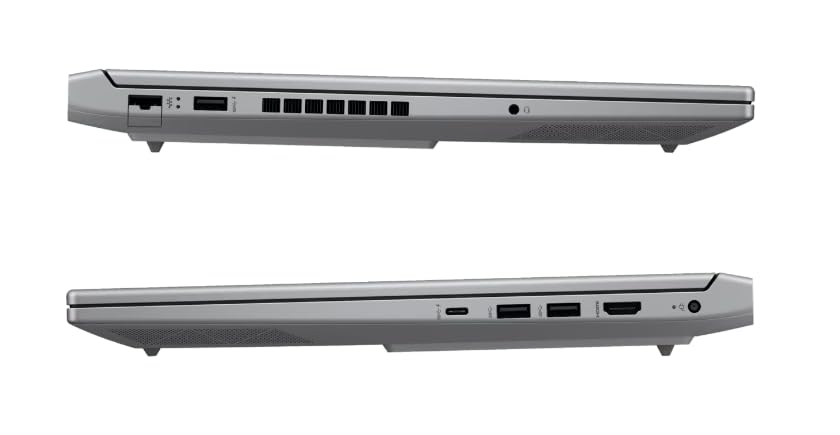
Figure 2: Side view illustrating available ports.
2. Operating Your Laptop
2.1 Power On/Off and Sleep Mode
- Power On: Press the power button.
- Shut Down: Click the Start button in Windows, then select Power > Shut down.
- Sleep Mode: Close the lid or select Power > Sleep from the Start menu.
2.2 Keyboard and Touchpad
The laptop features a 1-zone RGB backlit full-size keyboard with HyperX tactile feedback for an enhanced gaming and typing experience. The integrated touchpad supports multi-touch gestures for navigation.
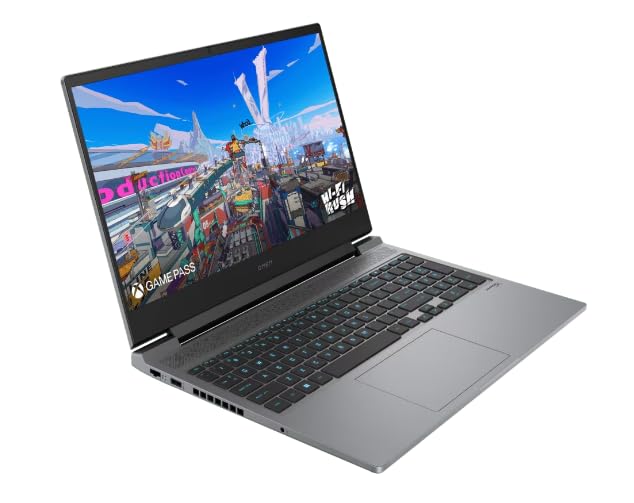
Figure 3: Keyboard and touchpad layout.
2.3 Display Features
The 16.1-inch FHD (1920 x 1080) IPS display offers a 165Hz refresh rate and 7ms response time, providing smooth and responsive visuals for gaming and multimedia. Adjust brightness and display settings through Windows display options.
2.4 Network and Wireless Connectivity
- Wi-Fi: Connect to wireless networks via the Windows network settings.
- Bluetooth: Pair Bluetooth-enabled devices such as headphones, mice, or game controllers.
2.5 HP True Vision 1080p FHD Camera
The integrated 1080p FHD webcam is suitable for video calls, online meetings, and streaming. Ensure proper lighting for optimal image quality.
3. Maintenance and Care
3.1 General Cleaning
- Screen: Use a soft, lint-free cloth lightly dampened with water or a screen cleaner. Avoid harsh chemicals.
- Keyboard and Chassis: Use a soft cloth. For dust, use compressed air.
- Ensure the laptop is powered off and unplugged before cleaning.
3.2 Battery Care
The laptop is equipped with a Lithium Ion battery. To maximize battery lifespan:
- Avoid extreme temperatures.
- Do not let the battery completely discharge frequently.
- If storing the laptop for an extended period, ensure the battery is charged to approximately 50%.
3.3 Software Updates
Regularly update your Windows operating system, drivers, and HP software to ensure optimal performance, security, and compatibility. These updates often include performance enhancements and bug fixes.
4. Troubleshooting Common Issues
This section addresses common issues you might encounter. For more complex problems, refer to the HP support website.
4.1 Power Issues
- Laptop not turning on: Ensure the power adapter is securely connected to both the laptop and a working power outlet. Check if the power adapter's indicator light is on.
- Battery not charging: Verify the power adapter connection. Try a different outlet.
4.2 Display Problems
- No image on screen: Ensure the laptop is powered on. Try connecting an external monitor to check if the issue is with the laptop's display.
- Flickering or distorted image: Update your graphics drivers. Adjust display refresh rate in Windows settings.
4.3 Connectivity Issues
- Wi-Fi not connecting: Check if Wi-Fi is enabled in Windows settings. Restart your router and laptop.
- Bluetooth device not pairing: Ensure the Bluetooth device is in pairing mode and within range. Check Bluetooth settings on your laptop.
5. Product Specifications
| Feature | Specification |
|---|---|
| Brand | HP |
| Model Name | HP laptopOMEN (ae0002tx) |
| Processor | 14th Gen Intel® Core™ i7-14650HX (up to 5.2 GHz) |
| RAM Memory | 16 GB DDR5 (Max 32 GB) |
| Storage | 1 TB SSD (Solid State Drive) |
| Graphics Card | NVIDIA GeForce RTX 4060 (8 GB GDDR6 Dedicated) |
| Display | 16.1-inch FHD (1920 x 1080) IPS, 165Hz, 7ms, 300 nits |
| Operating System | Windows 11 Home |
| Keyboard | 1-zone RGB Backlit, HyperX tactile feedback |
| Webcam | HP True Vision 1080p FHD |
| Connectivity | Wi-Fi, Bluetooth |
| Ports | USB (Total: 1), HDMI (Total: 1) |
| Dimensions (L x W x Thickness) | 30L x 25W x 6Th Centimeters |
| Item Weight | 1.9 Kilograms |
| Battery Type | Lithium Ion (2.6 Watt Hours) |
6. Warranty Information
Your HP OMEN 16-ae0002TX Gaming Laptop comes with an onsite warranty. Please retain your proof of purchase for warranty claims. For detailed terms and conditions, refer to the warranty card included with your product or visit the official HP support website.
7. Customer Support
For technical assistance, service, or further inquiries, please contact HP customer support:
- Manufacturer/Importer: HP India Sales Pvt. Ltd., 24 Salarpuria Arena, Hosur Main Road, Adugodi, Bangalore-560030
- Online Support: Visit the official HP Support Website for drivers, manuals, and troubleshooting guides.


