
AUHIFVAX D16 Dron
AUHIFVAX D16 Drone User Manual
Model: D16 Dron
1. Introduction
Welcome to the AUHIFVAX D16 Drone user manual. This guide provides essential information for the safe operation, setup, and maintenance of your D16 Dual HD Camera Foldable Remote Control Drone. The D16 drone features dual HD cameras, intelligent obstacle avoidance, and optical flow hover technology for stable and enjoyable flight experiences. Please read this manual thoroughly before operating your drone to ensure proper usage and to prevent damage or injury.

Image 1.1: The AUHIFVAX D16 Drone, highlighting its compact and advanced design.
2. Safety Guidelines
Operating a drone requires responsibility. Adhere to the following safety guidelines to ensure a safe and enjoyable experience:
- Flight Environment: Fly in open, unobstructed areas, away from people, animals, buildings, and power lines. Avoid flying near airports or restricted airspace.
- Weather Conditions: Do not fly in strong winds, rain, snow, or fog. Adverse weather can affect drone stability and control.
- Battery Safety: Use only the provided charging cable and battery. Do not overcharge or puncture batteries. Discontinue use if batteries show signs of swelling or damage.
- Pre-Flight Check: Before each flight, ensure propellers are securely attached, batteries are fully charged, and the drone and remote control are properly paired.
- Age Recommendation: This product is suitable for users aged 14 and above. Adult supervision is recommended for younger operators.
- Respect Privacy: Be mindful of others' privacy when using the camera features.
3. Package Contents
Verify that all items are present in your package:
- D16 Drone x 1
- Remote Control x 1
- Spare Propeller Blades x 4
- Charging Cable x 1
- User Manual (this document)

Image 3.1: Illustrated package contents for the D16 Drone.
4. Component Identification
4.1 Drone Components
Familiarize yourself with the main parts of your D16 Drone:
- Propellers: Four rotating blades for lift and propulsion.
- Motors: Drive the propellers.
- Dual HD Cameras: Front-facing and bottom-facing cameras for photo and video capture. The front camera has 180-degree electrical adjustment.
- Obstacle Avoidance Sensors: Detect obstacles to prevent collisions.
- Optical Flow Sensor: Located on the bottom, assists with stable hovering.
- Battery Compartment: Houses the drone's rechargeable battery.
- Power Button: To turn the drone on/off.
4.2 Remote Control Components
Understand the functions of the remote control:

Image 4.1: Remote Control Guide, detailing button functions.
- Throttle Joystick (Left): Controls altitude (up/down) and rotation (left/right).
- Direction Lever (Right): Controls forward/backward and left/right movement.
- Power Switch: Turns the remote control on/off.
- One-Click Start/Drop: Initiates automatic takeoff or landing.
- Speed Switching: Adjusts flight speed (e.g., low, medium, high).
- Obstacle Avoidance Switch: Toggles the obstacle avoidance feature.
- Lens Adjustment: Controls the vertical angle of the front camera.
- Stunt Roll: Activates 360-degree rolling stunts.
- Direction Fine-Tuning Buttons: Adjust drone drift (forward, backward, left, right).
- Mobile Phone Holder: Secures your smartphone for FPV (First Person View) and app control.
5. Setup
5.1 Charging the Drone Battery
- Remove the drone battery from its compartment.
- Connect the charging cable to the battery and a suitable USB power source (e.g., computer USB port, USB wall adapter).
- The indicator light on the charging cable will show the charging status. Refer to the battery's specific instructions for full charge indication.
- Once fully charged, disconnect the battery from the charger.
5.2 Installing the Drone Battery
- Ensure the drone is powered off.
- Carefully insert the charged battery into the battery compartment on the drone.
- Close the battery compartment cover securely.
5.3 Propeller Installation (if needed)
The D16 drone typically comes with propellers pre-installed. If replacement is necessary:
- Identify the correct propeller type (A or B) for each motor arm. Propellers are usually marked.
- Align the propeller with the motor shaft and press down firmly until it clicks into place. Ensure it is secure but not forced.
- Double-check that all propellers are correctly installed and free from damage before flight.
5.4 Remote Control Battery Installation
The remote control requires its own batteries (not included). Refer to the remote control's battery compartment for the correct battery type and polarity.
5.5 App Download and Connection
For advanced features and FPV, download the dedicated drone control app from your smartphone's app store. Search for "D16 Drone" or refer to the QR code in the quick start guide (if provided). Follow the in-app instructions to connect your phone to the drone's Wi-Fi network.
6. Operating Instructions
6.1 Power On and Pairing
- Place the drone on a flat, level surface.
- Press and hold the drone's power button until the indicator lights turn on.
- Turn on the remote control using its power switch.
- Push the left joystick (throttle) all the way up, then all the way down. The drone's lights will stop flashing and become solid, indicating successful pairing.
6.2 Takeoff and Landing
- One-Click Takeoff: Press the "One-Click Start/Drop" button on the remote. The drone will automatically ascend to a stable hovering height.
- Manual Takeoff: After pairing, push both joysticks down and outwards simultaneously to unlock the motors. Then, slowly push the left joystick (throttle) up to ascend.
- One-Click Landing: Press the "One-Click Start/Drop" button again. The drone will automatically descend and land.
- Manual Landing: Slowly pull the left joystick (throttle) down until the drone lands. Once landed, push both joysticks down and inwards to stop the motors.
6.3 Flight Controls
- Left Joystick (Throttle):
Up/Down: Increase/Decrease altitude.
Left/Right: Rotate drone left/right (yaw). - Right Joystick (Direction):
Up/Down: Fly forward/backward.
Left/Right: Fly left/right (sideways).
6.4 Camera Operation
The D16 drone is equipped with dual HD cameras. Use the remote control or the dedicated app to capture photos and videos.
- Photo/Video Capture: Specific buttons on the remote or controls within the app allow you to start/stop video recording and take photos.
- Lens Adjustment: Use the dedicated button on the remote to adjust the vertical angle of the front camera (180-degree electrical adjustment).
- Real-time Image Transmission: Connect your smartphone to the drone's Wi-Fi to view live footage from the camera.
6.5 Special Features

Image 6.1: Visual representation of advanced flight modes and safety features.
- Optical Flow Hover: The drone uses a bottom-mounted sensor to maintain a stable position, especially useful for indoor flight or when GPS is unavailable.
- Intelligent Obstacle Avoidance: Sensors detect nearby obstacles, allowing the drone to automatically adjust its flight path to prevent collisions. Activate/deactivate using the dedicated switch on the remote.
- Headless Mode: In this mode, the drone's orientation is relative to the pilot, regardless of which way the drone's front is facing. This simplifies control for beginners.
- Trajectory Flight: Draw a flight path on your smartphone screen within the app, and the drone will automatically follow it.
- 360° Rolling: Press the stunt roll button and move the right joystick in a direction to perform a 360-degree flip. Ensure sufficient altitude and clear surroundings before attempting.
- One-Click Emergency Stop: In case of unexpected situations, a dedicated button can immediately stop the drone's motors.
- Beauty Filters & MV Production: Available through the companion app, these features allow for enhanced photo/video editing and creation directly on your smartphone.
- Gesture Recognition: Certain hand gestures can trigger photo or video capture when using the app. Refer to the app's instructions for specific gestures.
7. Maintenance
Regular maintenance ensures the longevity and optimal performance of your D16 Drone.
- Cleaning: Use a soft, dry cloth to clean the drone's body and camera lenses. Avoid using harsh chemicals or solvents.
- Propeller Inspection: Regularly check propellers for cracks, bends, or damage. Replace any damaged propellers immediately using the spare blades provided.
- Battery Care: Store batteries in a cool, dry place. Do not leave batteries fully charged or fully discharged for extended periods. Charge them to about 50-60% for long-term storage.
- Storage: When not in use, store the drone and remote control in a safe, dry place, away from direct sunlight and extreme temperatures. The foldable design makes it easy to store.
8. Troubleshooting
If you encounter issues with your D16 Drone, refer to the following common problems and solutions:
| Problem | Possible Cause | Solution |
|---|---|---|
| Drone does not power on | Battery is not charged or incorrectly installed. | Charge the drone battery fully. Ensure the battery is correctly inserted and the power button is pressed firmly. |
| Remote control does not power on | Remote control batteries are low or incorrectly installed. | Replace remote control batteries. Check polarity. |
| Drone fails to pair with remote | Incorrect pairing procedure or interference. | Ensure drone and remote are powered on. Repeat the pairing sequence (throttle up then down). Move to an area with less interference. |
| Unstable flight or drifting | Drone not calibrated on a flat surface; propellers damaged; strong winds. | Ensure drone is placed on a flat surface before takeoff. Check and replace damaged propellers. Avoid flying in windy conditions. Use fine-tuning buttons to correct drift. |
| Camera not working or poor image quality | Camera lens is dirty; app not connected; insufficient lighting. | Clean the camera lens. Ensure the app is correctly connected to the drone's Wi-Fi. Fly in well-lit conditions. |
| Obstacle avoidance not functioning | Feature is disabled; sensors are dirty or blocked. | Ensure the obstacle avoidance switch is enabled on the remote. Clean the drone's sensors. |
9. Specifications
Technical details for the AUHIFVAX D16 Drone:
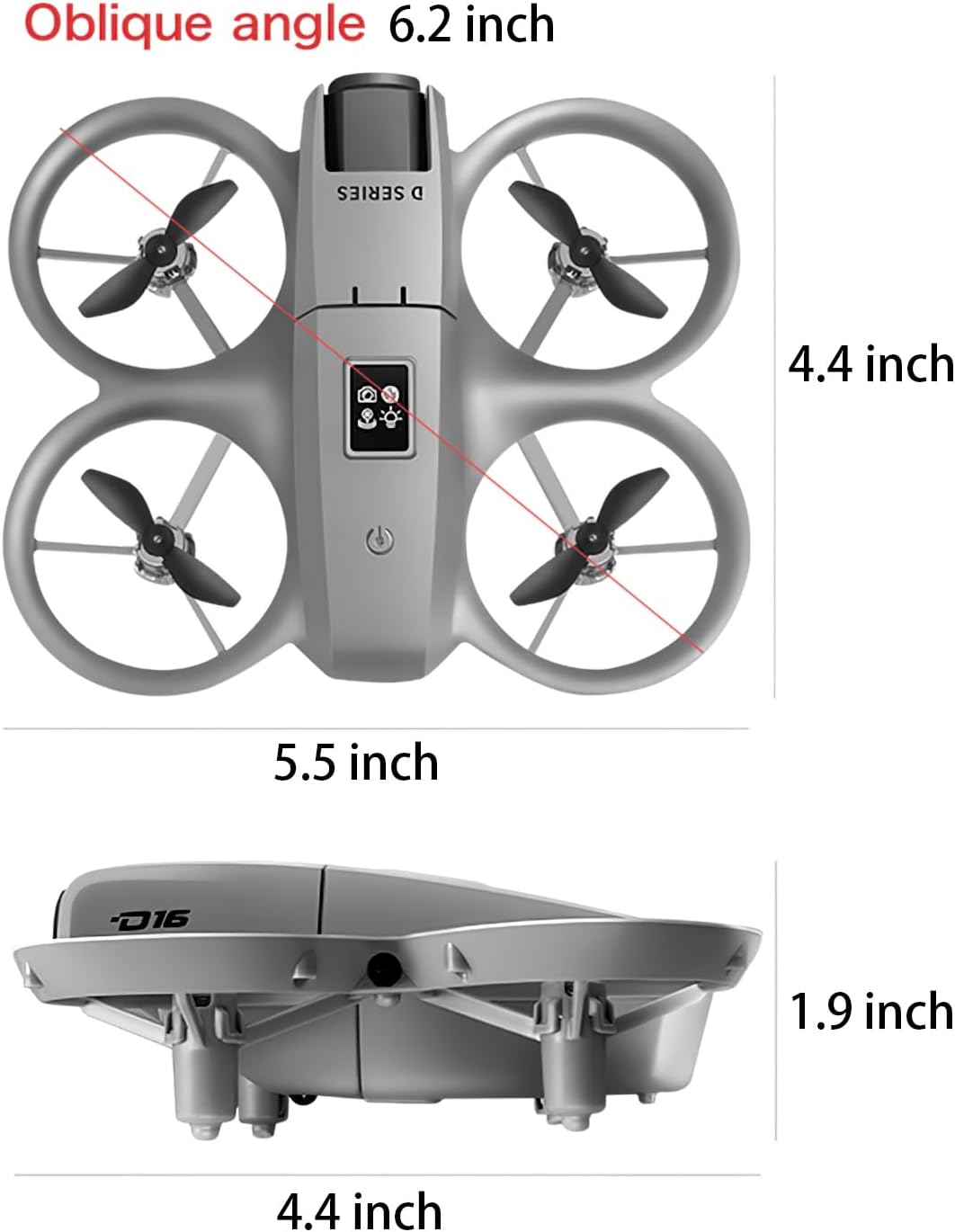
Image 9.1: D16 Drone dimensions.
| Feature | Detail |
|---|---|
| Model Name | D16 Dron |
| Brand | AUHIFVAX |
| Color | Gray |
| Material | Plastic |
| Product Dimensions | 5.5"L x 4.5"W x 1.9"H |
| Item Weight | 1 Pounds |
| Video Capture Resolution | HD (1080p mentioned in description) |
| Effective Still Resolution | 1080 MP |
| Special Features | Beauty filters, Intelligent obstacle avoidance, Optical flow hover, Trajectory flight, 180° Electronic Adjustable Lens |
| Connectivity Technology | APP Controller, Remote Control, Wi-Fi |
| Maximum Range | 120 Meters |
| Skill Level | Beginner To Intermediate |
| Rechargeable Battery Included | Yes (for drone) |
| Remote Control Included | Yes |
10. Warranty and Support
For warranty information and technical support, please refer to the product packaging or contact AUHIFVAX customer service directly. Keep your purchase receipt as proof of purchase for any warranty claims.
For further assistance, please visit the official AUHIFVAX website or contact their customer support channels.
Ask a question about this manual
Ask about setup, troubleshooting, compatibility, parts, safety, or missing instructions. Manuals+ will review the question and use this page’s manual context to help answer it.