
Nobsound M5.1PRO
Nobsound M5.1PRO 5.1 Channel Bluetooth Amplifier User Manual
Model: M5.1PRO
1. Introduction
The Nobsound M5.1PRO is a versatile 5.1 channel Bluetooth amplifier designed for home theater audio systems. It features professional DSP decoding, multiple input options including Bluetooth 5.1, Optical, Coaxial, and USB, and supports high-resolution audio formats up to DSD256. This amplifier delivers immersive surround sound and offers flexible output modes (2.0, 2.1, 5.1) to integrate with various speaker configurations. An intuitive OLED display and remote control provide convenient operation.

Figure 1: Nobsound M5.1PRO 5.1 Channel Bluetooth Amplifier with remote control.
2. Package Contents
Verify that all items listed below are included in your package:
- 1x M5.1PRO Amplifier
- 1x 24V/8A Power Supply
- 1x Optical Cable
- 1x Bluetooth Antenna
- 1x Remote Control
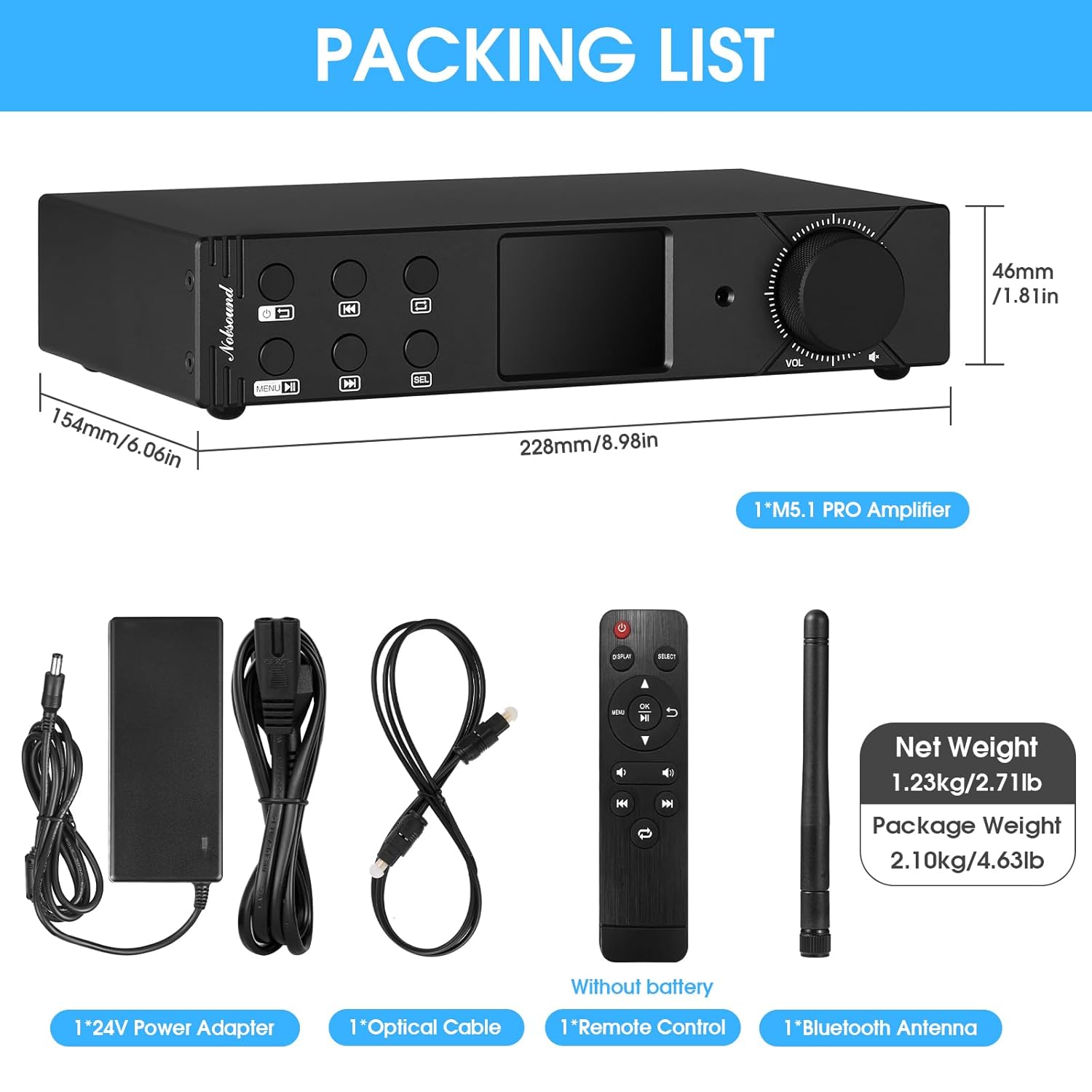
Figure 2: Contents included in the Nobsound M5.1PRO package.
3. Product Overview
3.1 Front Panel
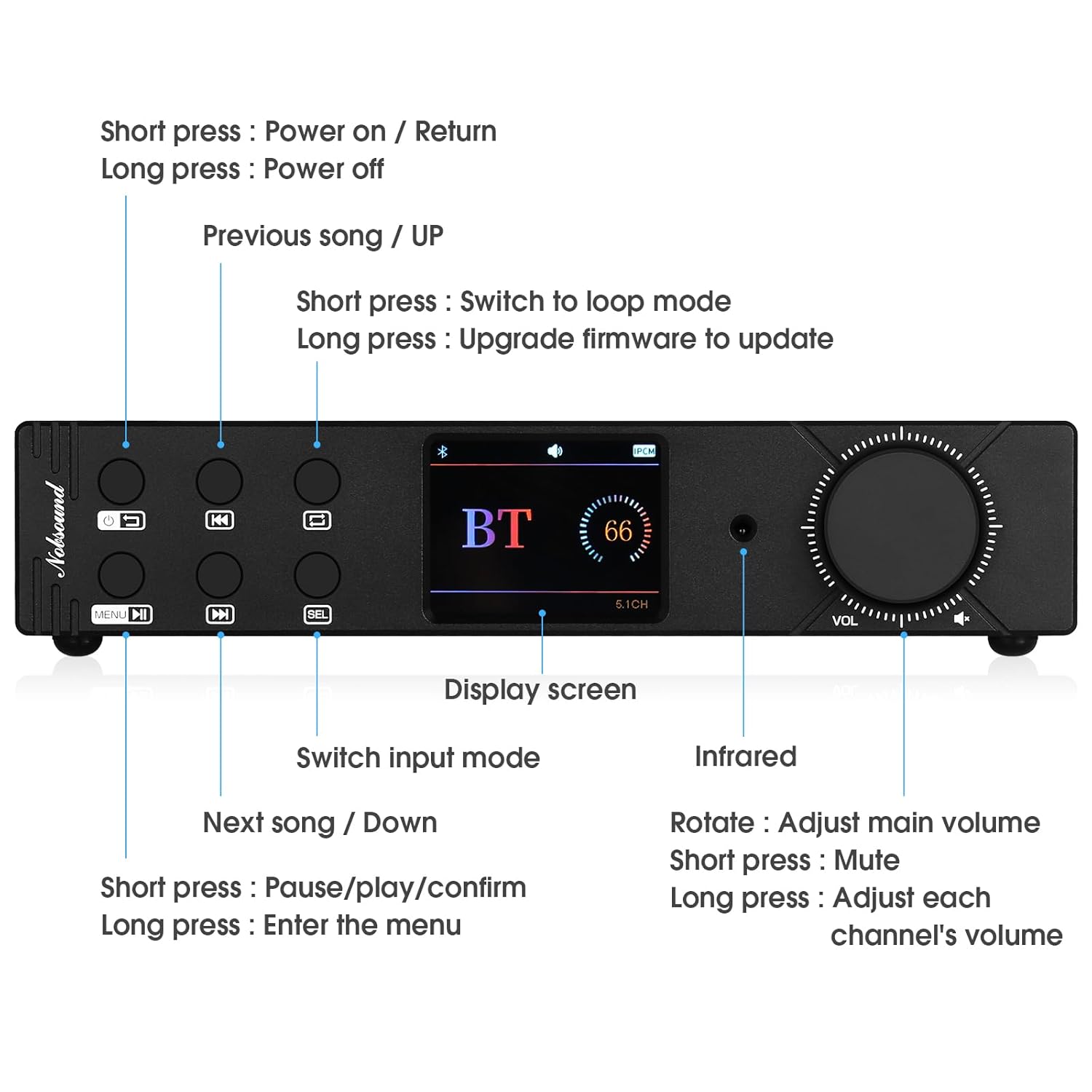
Figure 3: Front panel controls and display of the M5.1PRO amplifier.
- Power Button: Short press to power on/return. Long press to power off.
- Previous Song / Up: Short press for previous song. Long press to switch to loop mode.
- Display Screen: 2.4-inch OLED screen showing input mode, connection status, and track information.
- Input Mode Switch: Button to cycle through available input sources.
- Next Song / Down: Short press for next song. Long press for firmware update.
- Play/Pause / Confirm: Short press for play/pause/confirm. Long press to enter the menu.
- Infrared Receiver: For remote control signals.
- Volume Knob: Rotate to adjust main volume. Short press to mute. Long press to adjust individual channel volumes.
3.2 Rear Panel

Figure 4: Rear panel connections of the M5.1PRO amplifier.
- Speaker Outputs: Banana speaker jacks for Front (FL/FR), Surround (SL/SR), Center (CEN), and Subwoofer (SUB) channels. Supports 2.0, 2.1, and 5.1 channel configurations.
- RCA Output: Stereo RCA output for connecting to an external amplifier or active speakers.
- Power Inputs: Dual DC 15V-24V power inputs (Main Power and Sub Power).
- USB Input: For U-disk or hard disk playback.
- Coaxial Input: Digital audio input.
- Optical Input: Digital audio input.
- SD Card Slot: For SD card playback.
- Bluetooth Antenna Port: For connecting the included Bluetooth antenna.
4. Setup Instructions
4.1 Connecting Speakers
The M5.1PRO supports 2.0, 2.1, and 5.1 channel speaker configurations. Use banana plugs or bare wire to connect your passive speakers to the corresponding speaker terminals on the rear panel.
- For 2.0 Channel: Connect front left (FL) and front right (FR) speakers.
- For 2.1 Channel: Connect front left (FL), front right (FR) speakers, and a passive subwoofer to the SUB output.
- For 5.1 Channel: Connect front left (FL), front right (FR), surround left (SL), surround right (SR), center (CEN) speakers, and a passive subwoofer to the SUB output.
Ensure correct polarity (+ to + and - to -) for all speaker connections.
4.2 Connecting Audio Sources
- Bluetooth: Screw the Bluetooth antenna into its port on the rear panel.
- Optical/Coaxial: Connect your digital audio source (e.g., TV, Blu-ray player) to the Optical or Coaxial input using the appropriate cable.
- USB/SD Card: Insert a USB drive (U-disk or hard disk, FAT32/exFAT format, max 2TB) or an SD card (CLASS 10 or above, max 512G) into the respective ports.
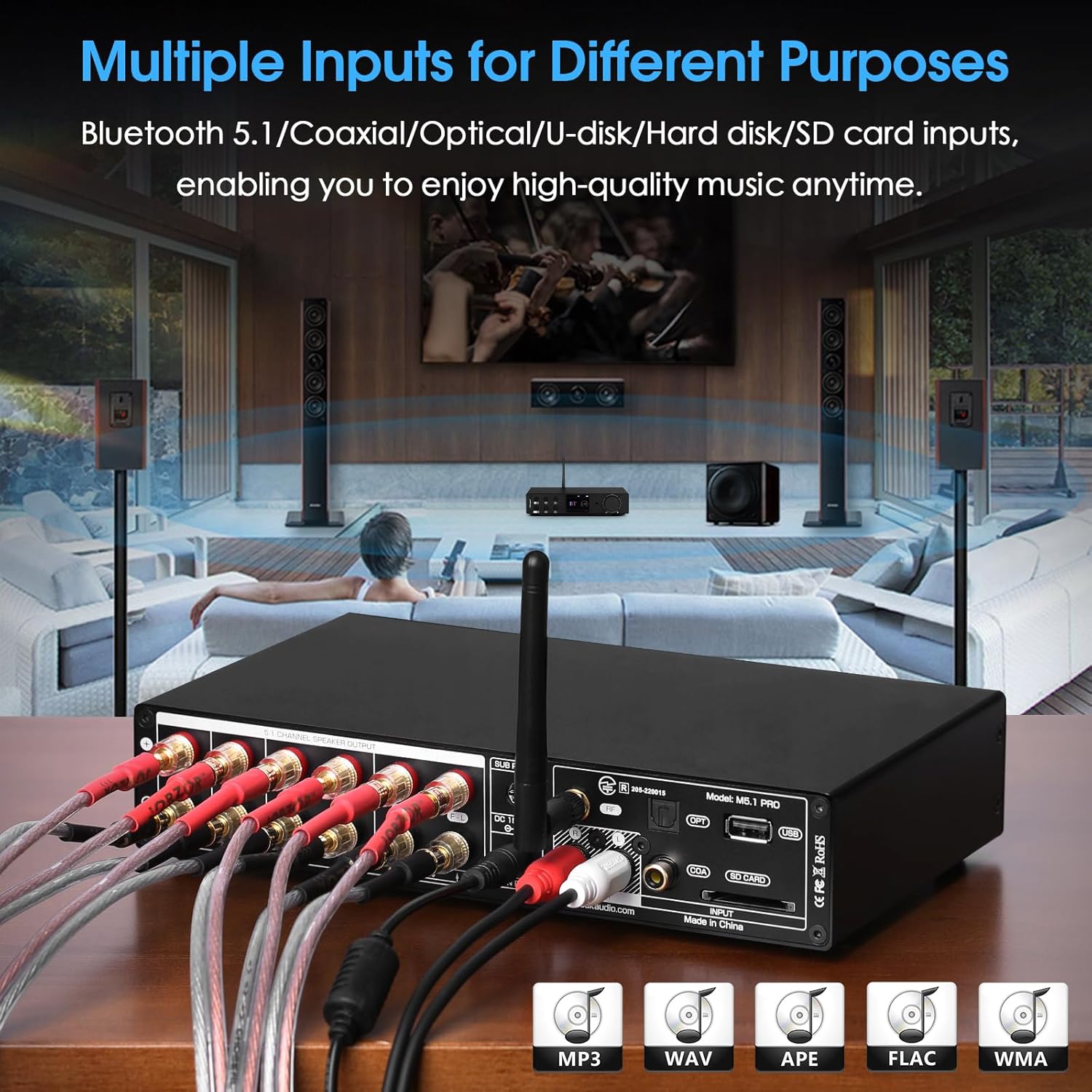
Figure 5: Example of multiple input connections to the M5.1PRO amplifier.
4.3 Power Connection
Connect the provided 24V/8A power adapter to one of the DC power inputs (Main Power or Sub Power) on the rear panel, then plug it into a wall outlet. The M5.1PRO features dual power inputs for stable power delivery.
5. Operating Instructions
5.1 Power On/Off
Short press the Power button on the front panel or the remote control to turn the amplifier on. Long press the Power button to turn it off.
5.2 Input Selection
Press the "Input Mode Switch" button on the front panel or the "INPUT" button on the remote control to cycle through the available input sources: Bluetooth, Coaxial, Optical, USB, SD Card.
5.3 Volume Control
Rotate the "Volume Knob" on the front panel or use the volume buttons on the remote control to adjust the main volume. Short press the volume knob to mute/unmute. Long press the volume knob to access individual channel volume adjustments.
5.4 Bluetooth Pairing
- Select Bluetooth as the input source. The OLED display will show "BT" and indicate pairing mode.
- On your Bluetooth device (e.g., smartphone, tablet), search for "Nobsound M5.1PRO" in the Bluetooth settings.
- Select the amplifier to pair. Once connected, the display will confirm the connection.
- To reset Bluetooth pairing, use the dedicated Bluetooth reset function (refer to front panel controls or remote).
5.5 USB/SD Card Playback
Insert a USB drive or SD card containing supported audio files. The amplifier will automatically switch to the USB or SD card input and begin playback. Use the "Previous Song / Up" and "Next Song / Down" buttons to navigate tracks, and the "Play/Pause / Confirm" button for playback control.
Supported music file formats and max sampling rate:
- WAV: 384kHz / 32Bit
- MP3: 48kHz / 16Bit
- FLAC: 192kHz / 24Bit
- ISO: DSD256
- APE: 48kHz / 16Bit
- DSF: DSD256
- DFF: DSD256
- DTS: Support
- CUE support: MP3 / WAV / APE / FLAC

Figure 6: The 2.4-inch OLED screen displays connection status and playback information.
6. Specifications
| Parameter | Value |
|---|---|
| Brand | Nobsound |
| Model | M5.1PRO |
| Audio Input | Bluetooth 5.1 / Coaxial / Optical / USB (U-disk / Hard disk) / SD-Card |
| Audio Output | Banana Speaker Jacks / Stereo RCA |
| Rated Output Power @ 4Ω | Front: 60W+60W, Surround: 60W+60W, Center: 60W, Bass: 60W |
| SNR | ≥98.5dB |
| THD | 0.04% |
| Rated Output Level of RCA | 2V |
| Max Sampling Rate (Optical/Coaxial) | PCM 192kHz / 32Bit |
| U-disk / Hard-disk Format | FAT32, exFAT |
| Max Capacity (Hard disk) | 2TB |
| Max Capacity (U-disk / SD-Card) | 512G |
| USB Port | USB 3.0 or below |
| SD Port | CLASS 10 or above |
| Dimensions (W*D*H) | 228*154*46mm / 8.98*6.06*1.81in |
| Net Weight | 1.23kg / 2.71lb |
| Package Weight | 2.10kg / 4.63lb |
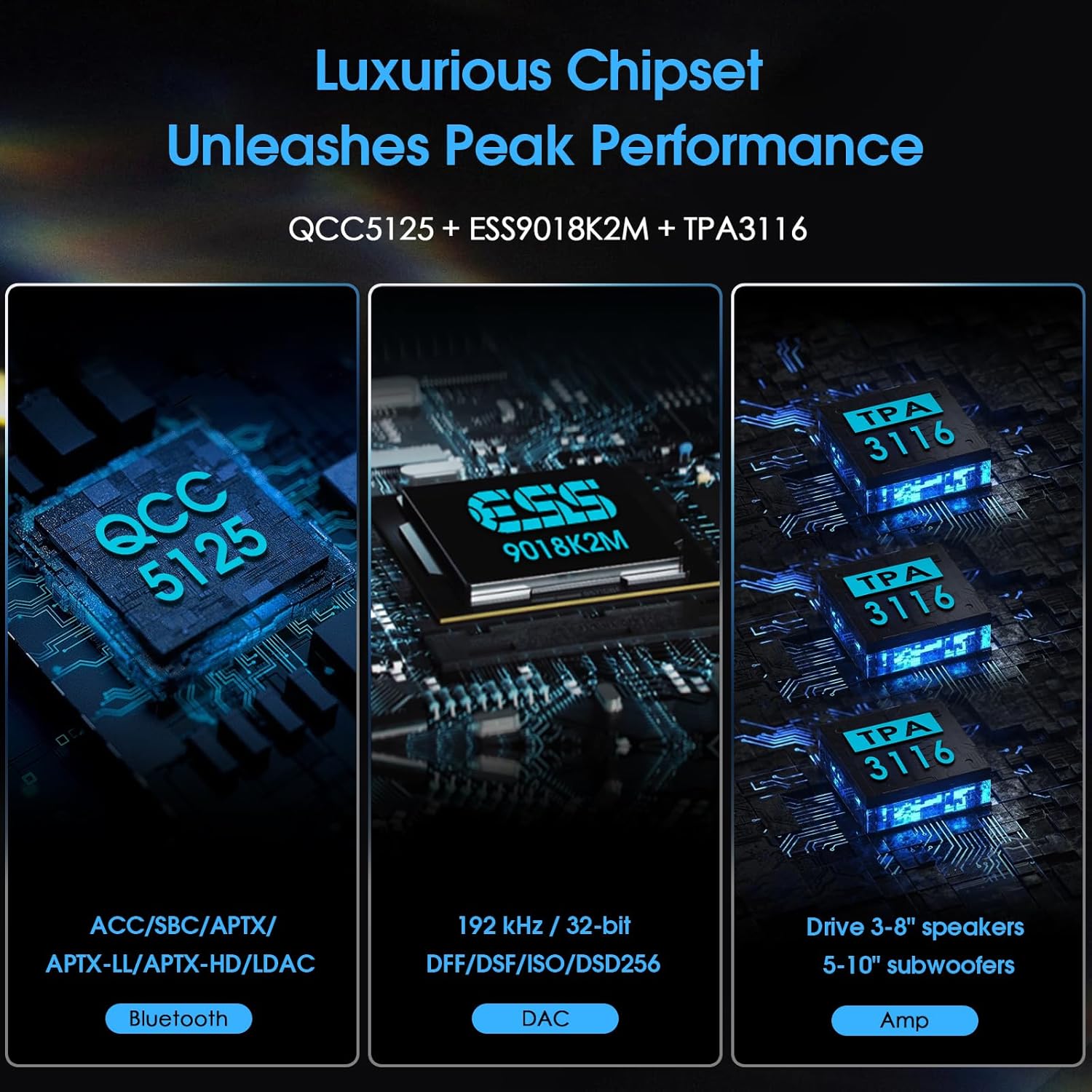
Figure 7: Diagram illustrating the internal chipsets (QCC5125, ESS9018K2M, TPA3116) for Bluetooth, DAC, and amplification.
7. Troubleshooting
- No Power:
- Ensure the power adapter is securely connected to both the amplifier and a working power outlet. Verify the power outlet is active.
- No Sound:
- Check that the correct input source is selected on the amplifier.
- Verify all speaker cables are securely connected to both the amplifier and speakers, with correct polarity.
- Ensure the volume is not muted and is turned up to an audible level.
- If using digital inputs (Optical/Coaxial), confirm the source device is outputting audio in a compatible format (PCM, DTS). Some TVs may require setting the digital audio output to "PCM" or "Stereo" instead of "Bitstream" or "Dolby Digital" for compatibility.
- If using Bluetooth, ensure the device is properly paired and connected.
- Bluetooth Connection Issues:
- Ensure the Bluetooth antenna is securely attached.
- Try resetting the Bluetooth connection on the amplifier and your source device.
- Move your Bluetooth device closer to the amplifier to rule out range issues.
- Ensure no other devices are actively connected to the amplifier via Bluetooth.
- USB/SD Card Not Playing:
- Check that the USB drive or SD card is inserted correctly.
- Verify the file system is FAT32 or exFAT.
- Ensure the audio files are in a supported format (WAV, MP3, FLAC, ISO, APE, DSF, DFF, DTS).
- The maximum capacity for hard disks is 2TB, and for U-disks/SD cards is 512G.
8. Safety Information
- Do not expose this device to rain or moisture.
- Do not disassemble the unit. Refer all servicing to qualified personnel.
- Ensure proper ventilation around the amplifier to prevent overheating.
- Use only the provided power adapter or a compatible replacement with the correct voltage and current ratings.
- Avoid placing the unit near heat sources or in direct sunlight.
- Keep out of reach of children.
9. Warranty and Support
For warranty information or technical support, please refer to the documentation provided with your purchase or contact Nobsound customer service directly. You can often find support contact details on the manufacturer's official website or the retailer's product page.
For additional resources, visit the Nobsound Store on Amazon.
Related documentsM5.1PRO


Ask a question about this manual
Ask about setup, troubleshooting, compatibility, parts, safety, or missing instructions. Manuals+ will review the question and use this page’s manual context to help answer it.