
Introduction
This manual provides essential information for setting up, operating, and maintaining your Acer Nitro XZ340CUR X0bmiiphx 34-inch Curved Gaming Monitor. Please read these instructions carefully to ensure proper use and to maximize your monitor's performance and lifespan. Keep this manual for future reference.
Package Contents
Verify that all items listed below are present in your package:
- Acer Nitro XZ340CUR X0bmiiphx Monitor Display
- Monitor Stand (Base and Neck)
- Power Cord
- DisplayPort Cable
- HDMI Cable
- User Manual (this document)
Monitor Assembly
Follow these steps to assemble the monitor stand and attach it to the display panel.
- Carefully remove the monitor components from the packaging.
- Attach the stand neck to the stand base, securing it with the provided screw(s).
- Align the assembled stand with the mounting holes on the back of the monitor panel.
- Gently push the stand into place until it clicks or is securely fastened. Ensure it is stable.
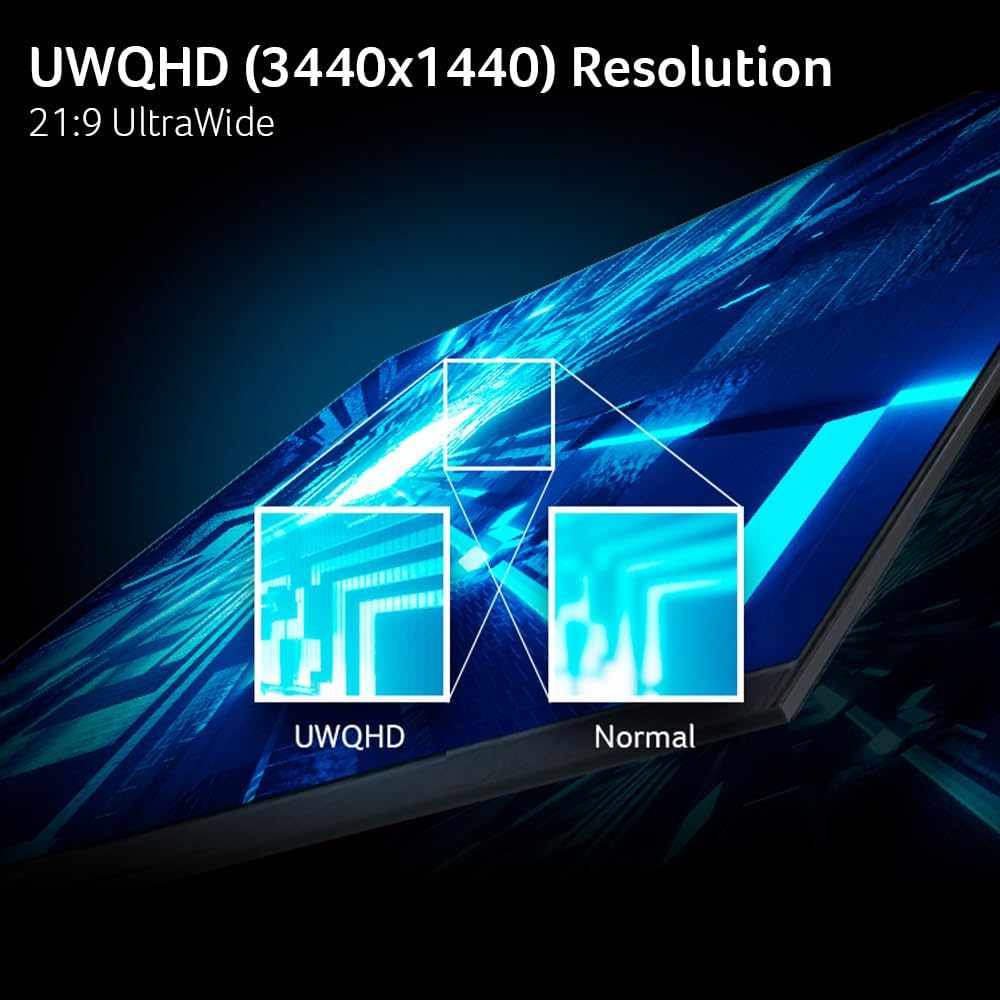
Image: Front view of the Acer Nitro XZ340CUR X0bmiiphx monitor with its stand fully assembled.
Connecting the Monitor
Before connecting, ensure your computer and monitor are powered off.
- Power Connection: Connect the power cord to the monitor's power input, then plug the other end into a grounded electrical outlet.
- Video Connection: Choose one of the following options:
- DisplayPort: Connect one end of the DisplayPort cable to the monitor's DisplayPort input and the other end to your computer's DisplayPort output.
- HDMI: Connect one end of an HDMI cable to one of the monitor's HDMI 2.1 inputs and the other end to your computer's HDMI output.
- Audio (Optional): If you wish to use external speakers or headphones, connect them to the monitor's audio output jack.

Image: Rear view of the monitor, illustrating the location of the various input ports for power and video connections.
Basic Operation
Power On/Off
Press the power button, usually located on the bottom or rear of the monitor, to turn the display on or off. The power indicator light will illuminate when the monitor is on.
On-Screen Display (OSD) Menu
The OSD menu allows you to adjust various monitor settings. Use the control buttons (joystick or individual buttons) typically found on the back or bottom right of the monitor to navigate the menu.
- Press a control button to activate the OSD menu.
- Use the navigation controls to move through menu options.
- Press the select button to enter a sub-menu or confirm a setting.
- Use the exit button to close the OSD menu.
Adjusting the ErgoStand
The flexible ErgoStand allows for ergonomic adjustments to enhance your viewing comfort.
- Tilt: Gently tilt the monitor panel forward or backward (-5 to 20 degrees) to find your preferred viewing angle.
- Height Adjustment: Carefully raise or lower the monitor panel to adjust its vertical position.

Image: Diagram showing the tilt and height adjustment capabilities of the monitor's ErgoStand.
Key Features
UWQHD (3440 x 1440) Resolution
Experience sharp, detailed visuals with the Ultra-Wide QHD resolution. This higher pixel density provides a clearer picture and more screen real estate for immersive viewing and multitasking.

Image: Visual comparison highlighting the enhanced detail and clarity of UWQHD (3440x1440) resolution compared to a standard resolution.
1500R Curved Display
The 1500R curvature of the screen provides an immersive viewing experience, wrapping the display around your field of vision. This design helps reduce eye strain by keeping all parts of the screen at a more uniform distance from your eyes.

Image: Graphic demonstrating the 1500R curvature of the monitor and its effect on user immersion.
AMD FreeSync Premium Technology
AMD FreeSync Premium synchronizes the monitor's refresh rate with your graphics card's frame rate, eliminating screen tearing and stuttering for a smoother gaming experience.

Image: Visual representation showing the difference in screen fluidity with AMD FreeSync Premium enabled versus disabled.
200Hz Refresh Rate
A high 200Hz refresh rate ensures ultra-smooth motion and reduced input lag, providing a significant advantage in fast-paced games and a more fluid visual experience for all content.

Image: Dynamic illustration depicting the smooth frame transitions achieved with a 200Hz refresh rate.
1ms Visual Response Boost (VRB)
The 1ms VRB response time minimizes motion blur and ghosting, ensuring that fast-moving images are rendered clearly and sharply, which is crucial for competitive gaming.

Image: Side-by-side comparison illustrating the reduction of blur and ghosting with 1ms VRB technology.
HDR10 Support
With HDR10 support, the monitor delivers enhanced contrast and a wider color gamut, resulting in more vibrant and realistic images with greater detail in both bright and dark scenes.

Image: Visual comparison demonstrating the expanded contrast and color range provided by HDR10 support.
Maintenance and Care
Proper care ensures the longevity and optimal performance of your monitor.
- Cleaning the Screen: Gently wipe the screen with a soft, lint-free cloth. For stubborn marks, lightly dampen the cloth with water or a specialized screen cleaner. Avoid using harsh chemicals or abrasive materials.
- Cleaning the Casing: Use a soft, dry cloth to clean the monitor casing.
- Ventilation: Ensure the monitor's ventilation openings are not blocked to prevent overheating.
- Power Off: Always turn off the monitor when not in use for extended periods.
Troubleshooting
If you encounter issues with your monitor, refer to the following common solutions:
| Problem | Possible Solution |
|---|---|
| No image on screen | Ensure the power cable is securely connected and the monitor is powered on. Check that the video cable (DisplayPort or HDMI) is firmly connected to both the monitor and the computer. Select the correct input source via the OSD menu. |
| Image is blurry or distorted | Check the display resolution settings on your computer to ensure they match the monitor's native resolution (3440 x 1440). Adjust focus or phase settings in the OSD menu if available. |
| Screen flickering or intermittent display | Ensure video cables are securely connected and not damaged. Try a different video cable or port. Update your graphics card drivers. If using AMD FreeSync Premium, try disabling it temporarily to see if the issue persists. |
| No sound from speakers/headphones | Check the volume settings on both the monitor and your computer. Ensure the audio output is correctly selected in your computer's sound settings. If using external speakers, verify their power and connections. |
| Monitor not detected by computer | Restart your computer. Ensure the video cable is properly connected. Try connecting the monitor to a different computer or using a different video cable to isolate the problem. |
Technical Specifications
| Feature | Specification |
|---|---|
| Model Number | XZ340CUR X0bmiiphx |
| Screen Size | 34 Inches |
| Resolution | 3440 x 1440 (UWQHD) |
| Aspect Ratio | 21:9 |
| Curvature | 1500R |
| Refresh Rate | 200Hz |
| Response Time | 1ms (VRB) |
| Sync Technology | AMD FreeSync Premium |
| Color Support | sRGB 99%, HDR10 |
| Video Inputs | 1 x DisplayPort 1.4, 2 x HDMI 2.1 |
| Dimensions (LxWxH) | 10.37 x 31.75 x 17.5 inches |
| Item Weight | 15.21 pounds |
| Color | Black |
Warranty and Support
Your Acer Nitro XZ340CUR X0bmiiphx monitor is covered by a limited warranty. For specific warranty terms and conditions, please refer to the warranty card included with your product or visit the official Acer support website. For technical assistance, driver downloads, or further support, please visit the Acer support portal or contact Acer customer service.
Online Support: www.acer.com/support


