
VicoSafe CG9
VicoHome CG9 Outdoor Wireless Security Camera User Manual
Model: CG9 | Brand: VicoSafe
Introduction
Thank you for choosing the VicoHome CG9 Outdoor Wireless Security Camera. This manual provides detailed instructions on how to set up, operate, and maintain your camera to ensure optimal performance and security for your home or property. The VicoHome CG9 is designed for outdoor use, offering 2K HD video, two-way audio, color night vision, and a long-lasting battery for reliable surveillance.
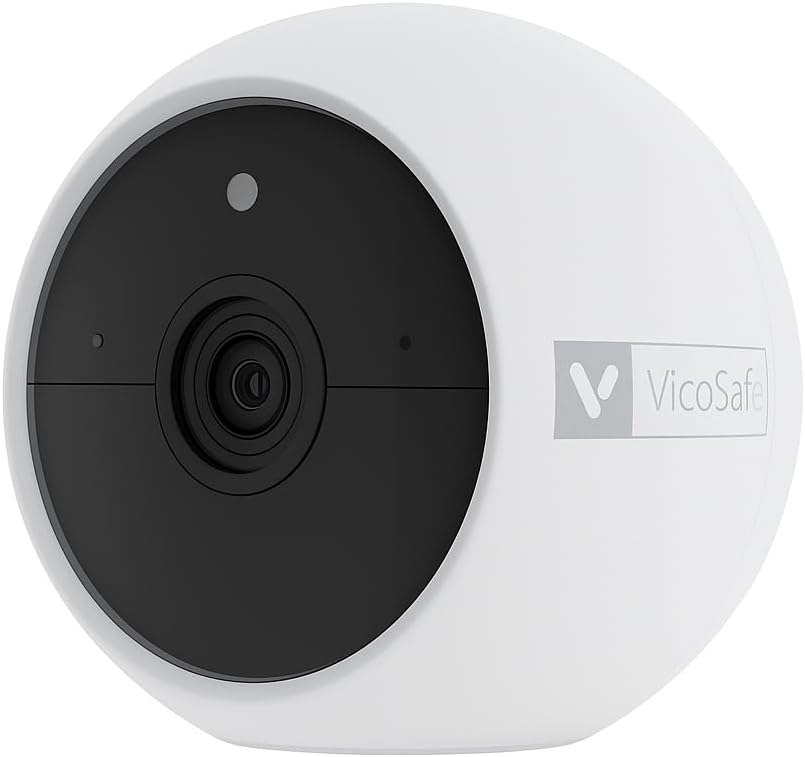
A front view of the VicoHome CG9 outdoor wireless security camera, showcasing its compact design and lens.
What's in the Box
Please check the package contents to ensure all items are present:
- 1 × VicoHome CG9 Outdoor Wireless Security Camera
- 1 × Mounting Kit & Screws
- 1 × Charging Cable
- 1 × Quick Start Guide (This manual serves as a comprehensive guide)
Specifications
| Feature | Description |
|---|---|
| Model Name | CG9 Outdoor Wireless Camera |
| Video Capture Resolution | 2K (2304×1296p) |
| Field of View | 127° Wide-Angle |
| Power Source | Battery Powered (5200mAh or 6700mAh removable battery) |
| Connectivity | 2.4GHz Wi-Fi |
| Night Vision | IR + Color LED Mode (up to ~23ft) |
| Audio | 2-Way Audio |
| Motion Detection | PIR (People, Vehicles, Packages) |
| Weather Resistance | IP65 Rated |
| Compatible Devices | Smartphone (VicoHome App), Amazon Alexa, Google Assistant |
| Mounting Type | Wall Mount (Magnetic) |
| Product Dimensions | 3.35 x 3.35 x 2.8 inches |
| Item Weight | 1.3 pounds |
An illustration showcasing the VicoHome CG9 camera's IP65 weatherproof rating, indicating its resistance to rain, sun, and snow, suitable for outdoor use in various climates.
Setup
Follow these steps to set up your VicoHome CG9 camera:
- Charge the Camera: Before initial use, fully charge the camera's battery using the provided charging cable. A full charge ensures optimal performance and battery life.
- Download the VicoHome App: Search for "VicoHome" in your smartphone's app store (iOS or Android) and download the official application.
- Create an Account: Open the VicoHome app and follow the on-screen instructions to create a new user account or log in if you already have one.
- Add Device: In the app, tap the "+" icon to add a new device. Select your camera model (CG9) and follow the pairing instructions. Ensure your phone is connected to a 2.4GHz Wi-Fi network.
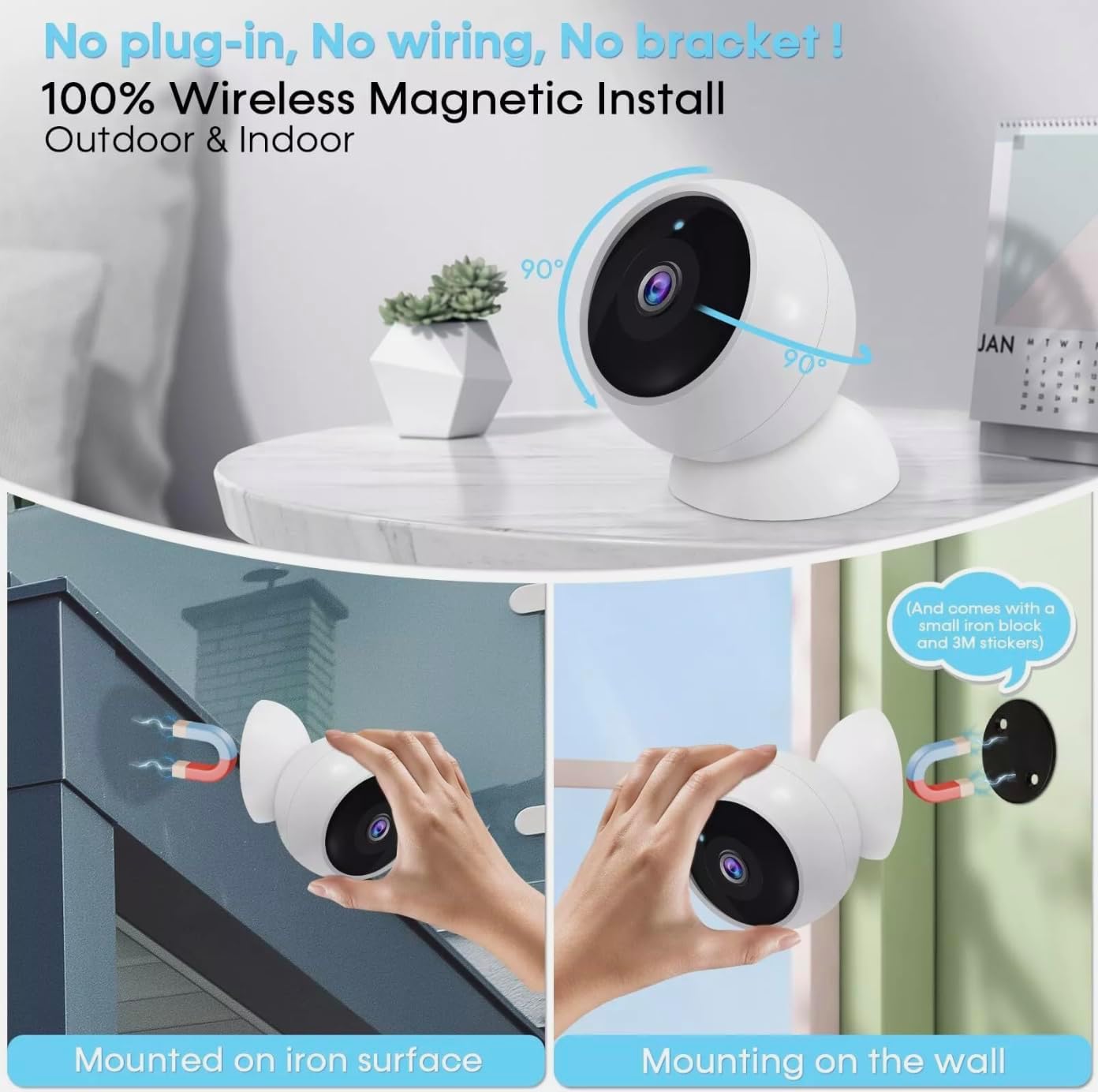
- Mount the Camera: Choose a suitable outdoor location for your camera. The CG9 features a magnetic base for easy installation. Use the included mounting kit and screws to secure the camera to a wall or other surface. Ensure the camera has a clear view of the area you wish to monitor.

This image demonstrates the versatile magnetic installation options for the VicoHome CG9 camera, showing it mounted on both an iron surface and a wall using the included small iron block and 3M stickers, highlighting its 100% wireless setup.
Operating the Camera
The VicoHome CG9 camera offers a range of features accessible through the VicoHome app:
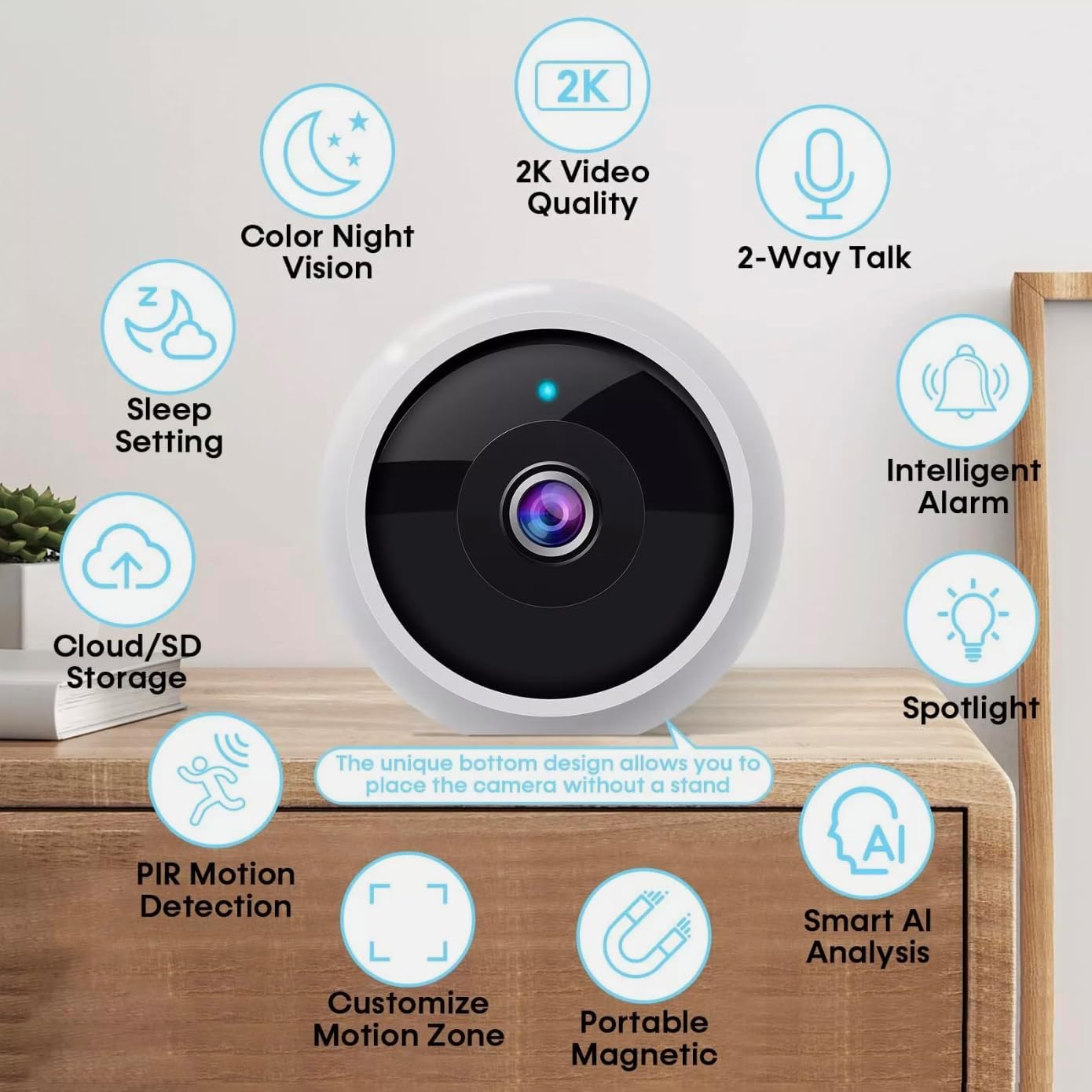
An infographic highlighting key features of the VicoHome CG9 camera, such as 2K video quality, two-way audio, color night vision, sleep setting, cloud/SD storage, PIR motion detection, customizable motion zones, portable magnetic mounting, intelligent alarm, spotlight, and smart AI analysis.
Live View
Open the VicoHome app and select your camera from the device list to access the live video feed. You can view real-time footage in 2K HD resolution.

This image shows the VicoHome CG9 camera alongside a smartphone displaying its live video feed, illustrating real-time monitoring capabilities and the camera's compact design.
Two-Way Audio
Tap the microphone icon in the live view interface to enable two-way communication. You can speak through the camera to visitors or deter unwanted activity, and hear responses through your phone's speaker.

An illustration demonstrating the two-way audio feature, showing a user communicating with a delivery person via the VicoHome app on a smartphone, with multiple users viewing simultaneously.
Motion Detection & Alerts
The camera features smart PIR (Passive Infrared) motion detection, capable of distinguishing between people, vehicles, and packages. When motion is detected, you will receive instant notifications on your smartphone. You can customize detection zones and sensitivity settings within the app to minimize false alarms.
Night Vision
The CG9 offers dual night vision modes: infrared (IR) for discrete black-and-white viewing and a bright LED color mode for vivid nighttime footage. The camera automatically switches to night vision in low-light conditions, providing clear visibility up to approximately 23 feet.
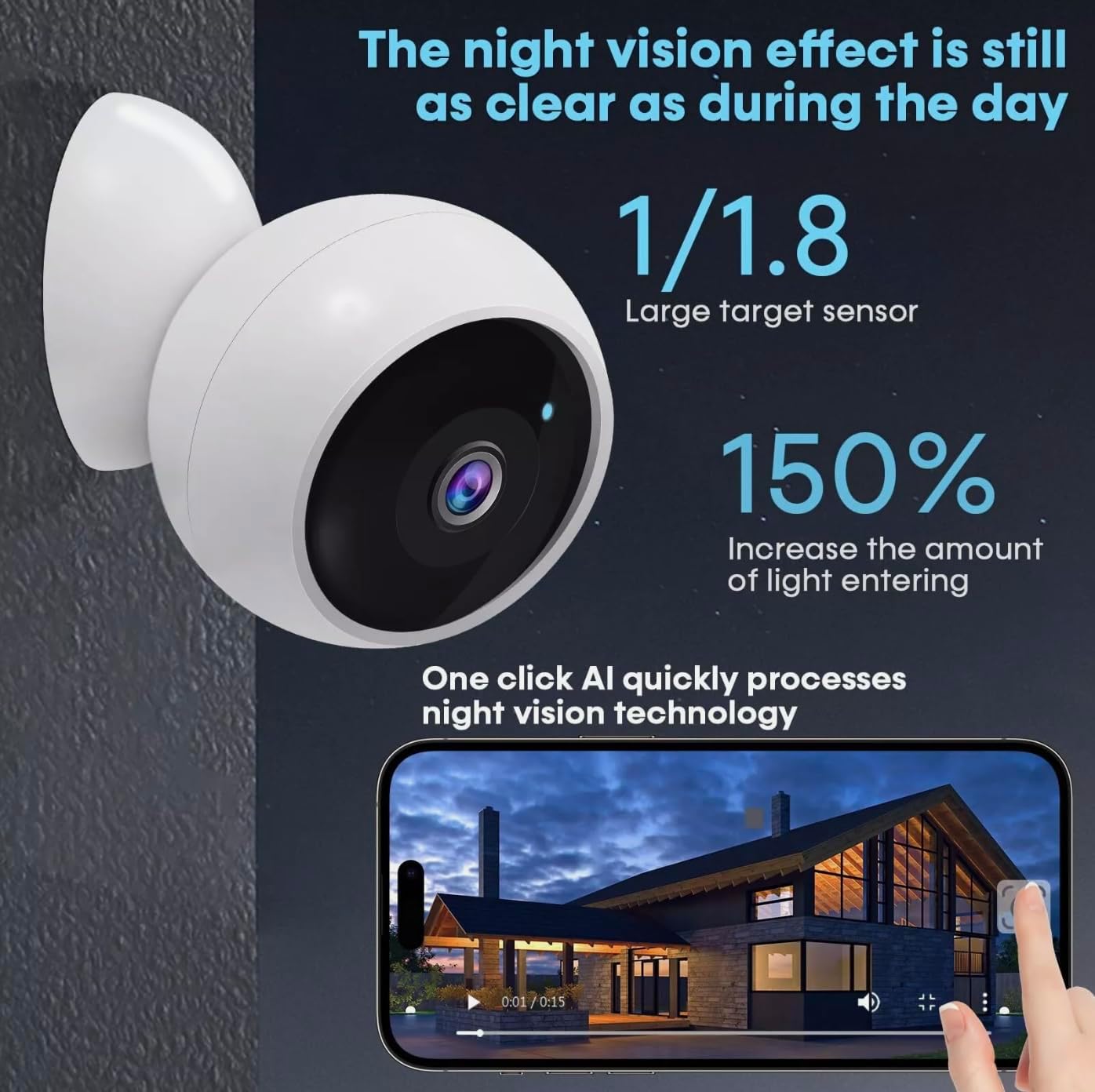
An image illustrating the camera's advanced night vision, emphasizing its clarity in low-light conditions, with a large target sensor and increased light entry for enhanced nighttime footage.
Recording & Storage
The camera supports both cloud storage (subscription required) and local storage via an SD card (not included). Recorded events triggered by motion detection are stored for review. You can access and manage recordings through the VicoHome app.
Smart Home Integration
The VicoHome CG9 camera is compatible with Amazon Alexa and Google Assistant, allowing for voice control and integration into your smart home ecosystem.
Maintenance
- Battery Charging: The camera's battery life can last for months on a single charge. When the battery level is low, you will receive a notification via the VicoHome app. Recharge the camera using the provided USB charging cable.
- Cleaning: Periodically clean the camera lens and body with a soft, dry cloth to remove dust and smudges. Do not use harsh chemicals or abrasive materials.
- Firmware Updates: Ensure your camera's firmware is always up to date through the VicoHome app. Firmware updates often include performance improvements and new features.
Troubleshooting
- Camera Offline:
- Check your Wi-Fi connection and ensure the camera is within range of your router.
- Verify the camera's battery level.
- Restart the camera by pressing and holding the power button, then turning it back on.
- Cannot Pair Camera:
- Ensure your smartphone is connected to a 2.4GHz Wi-Fi network (5GHz is not supported).
- Reset the camera to factory settings (refer to the Quick Start Guide for specific instructions).
- Ensure the Wi-Fi password entered in the app is correct.
- Poor Video Quality:
- Check your Wi-Fi signal strength at the camera's location. A weak signal can affect video quality.
- Clean the camera lens to remove any dirt or smudges.
- False Motion Alerts:
- Adjust the motion detection sensitivity settings in the VicoHome app.
- Define specific motion detection zones to exclude areas with frequent irrelevant movement (e.g., busy roads).
Warranty and Support
Your VicoHome CG9 camera comes with a standard manufacturer's warranty. Please refer to the warranty card included in your package or visit the official VicoSafe website for detailed warranty terms and conditions.
For technical support, troubleshooting assistance, or any product-related inquiries, please contact VicoSafe customer service through the following channels:
- VicoHome App: Access the 'Help' or 'Support' section within the app.
- VicoSafe Official Website: Visit www.vicosafecam.com for FAQs, support resources, and contact information.
Ask a question about this manual
Ask about setup, troubleshooting, compatibility, parts, safety, or missing instructions. Manuals+ will review the question and use this page’s manual context to help answer it.