1. Introduction
This manual provides detailed instructions for the installation, setup, operation, and maintenance of your Hiseeu WK-6HS03-AT Wireless Security Camera System. Please read this manual thoroughly before using the product to ensure proper functionality and safety.
Safety Information
- Ensure all power connections are secure and meet the specified voltage requirements.
- Do not expose the cameras or NVR to extreme temperatures, humidity, or corrosive environments.
- Avoid placing the NVR in direct sunlight or near heat sources.
- For outdoor installations, ensure all cable connections are properly waterproofed.
- Keep the system away from children and pets.
2. Package Contents
Verify that all items listed below are included in your package:
- Dual-lens Camera x 6
- 16CH NVR x 1
- 12V 2A Power Supply for NVR x 1
- 12V 1A Power Supply for Camera x 6
- Mouse x 1
- HDMI Cable x 1
- Ethernet Cable x 1
- Instruction Manual x 1
- Mounting Screw Bag x 6
- Waterproof Cap x 6
- Warning Sticker x 2

Image: All components included in the Hiseeu WK-6HS03-AT system package.
3. Product Overview
The Hiseeu WK-6HS03-AT is a comprehensive wireless security camera system designed for outdoor use. It features dual-lens cameras, 5G & 2.4G WiFi Pro connectivity, auto-tracking, color night vision, and a 1TB HDD for local storage without subscription fees.
Camera Features
- Dual Lens: Each camera includes one fixed lens and one PTZ (Pan-Tilt-Zoom) lens for comprehensive coverage.
- Auto Tracking: The PTZ camera automatically tracks and follows moving individuals.
- Color Night Vision: Built-in LED lights provide enhanced color night vision and light alarms.
- IP67 Weatherproof: Designed for outdoor installation, resistant to rain, snow, and harsh weather.
- Two-Way Audio: Communicate directly through the camera.
- Dual-Band WiFi: Supports both 2.4GHz and 5GHz WiFi for stable connectivity.

Image: Overview of the Hiseeu WK-6HS03-AT Wireless Security Camera System, showing six cameras and the NVR unit.

Image: Illustration of the dual-lens functionality providing a wider 360-degree view without blind spots.

Image: Depiction of the camera's auto-tracking technology following a moving subject.
4. Setup
4.1 Initial System Connection
- Power the Cameras: Connect each camera to a DC12V 1A power supply. The cameras require continuous power to operate.
- Power the NVR: Connect the NVR to a DC12V 2A power supply.
- Connect to Monitor: Connect your TV monitor to the NVR using either a VGA or HDMI cable.
- Connect Mouse: Plug the included USB mouse into one of the NVR's USB ports for navigation.
- Network Connection (Optional for initial setup, required for remote access): Connect the NVR to your router using the Ethernet cable for internet access.
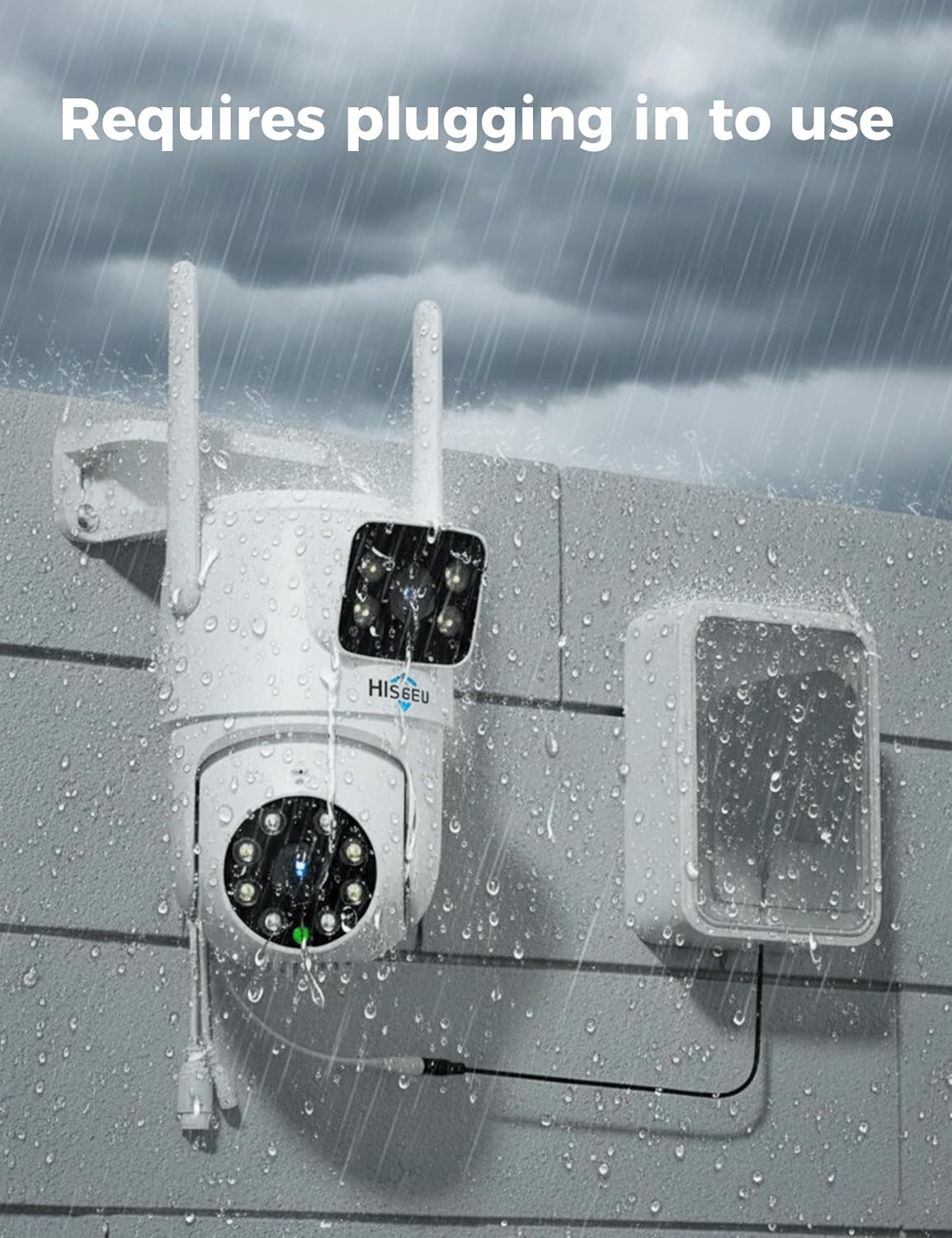
Image: A Hiseeu camera connected to a power source, illustrating that it requires plugging in to function.

Image: Close-up of a Hiseeu camera's power input, emphasizing the need for a continuous power source.
4.2 NVR Setup Wizard
Upon first power-on, the NVR will guide you through a setup wizard on the connected monitor:
- Language Selection: Choose your preferred language.
- Date and Time: Set the correct date, time, and time zone.
- Password Setup: Create a strong password for your NVR.
- Storage Management: Ensure the 1TB HDD is recognized and formatted correctly.
- Camera Pairing: The cameras are auto-paired during factory setup. They should appear on the monitor automatically once powered.
4.3 Mobile App Setup (EseeCloud)
To access your camera system remotely, download and configure the EseeCloud app:
- Download App: Search for "EseeCloud" on your smartphone's app store (App Store for iOS, Google Play for Android) and install it.
- Register Account: Open the app and register a new user account.
- Add Device: In the app, select "Add Device" or scan the QR code displayed on the NVR monitor (Right-click mouse > System Setup > Account/App > QR code). Do not scan the QR code on the cameras themselves.
- Connect: Follow the on-screen prompts to connect your NVR to the app.
Video: Step-by-step guide on how to set up the Hiseeu WK-6HS03-AT system and connect it to a phone via the EseeCloud app.

Image: Illustration of remote viewing capabilities, showing multiple users accessing camera feeds from different locations via a smartphone app.
5. Operation
5.1 Live View and Playback
- Monitor: View live feeds from all connected cameras simultaneously on your monitor.
- Mobile App: Access live view and playback through the EseeCloud app. You can view up to 6 cameras (12 video feeds) simultaneously on your phone.
- Playback: Use the NVR interface or app to review recorded footage stored on the 1TB HDD. Note that you can only view playback footage from four cameras (8CH) at a time.

Image: The NVR unit connected to a monitor, displaying multiple camera feeds simultaneously, highlighting the 1TB HDD storage.
5.2 PTZ Control and Auto Tracking
- Manual Control: Use the NVR mouse or the EseeCloud app to manually pan, tilt, and zoom the PTZ camera.
- Auto Tracking: Enable the auto-tracking feature in the app or NVR settings. The PTZ camera will automatically follow detected motion.
- Preset Positions: Define key locations for the camera to monitor.

Image: A Hiseeu camera detecting and tracking a person, with an EseeCloud app notification indicating device-object movement.
5.3 Night Vision Modes
The system offers multiple night vision options:
- Infrared Night Vision: Provides clear black and white footage in low-light conditions using infrared LEDs.
- Full-Color Night Vision: Utilizes built-in LED fill lights to capture full-color video even in complete darkness.
- Smart Night Vision: By default, it operates in infrared night vision (black and white). When motion is detected, the LED fill light automatically turns on, and the video becomes color.
5.4 Two-Way Audio
Use the EseeCloud app to engage in two-way communication through the camera's built-in microphone and speaker. This feature is useful for speaking with visitors or deterring intruders.

Image: A person speaking through the camera to a child, demonstrating the clear two-way audio communication feature.
6. Maintenance
- Regular Cleaning: Periodically clean the camera lenses with a soft, dry cloth to ensure clear image quality.
- Firmware Updates: Check the EseeCloud app or Hiseeu website for firmware updates to ensure optimal performance and security.
- Storage Management: The 1TB HDD provides ample storage. The system will automatically overwrite the oldest footage when the disk is full. Regularly back up important recordings if needed.
- Power Supply Check: Ensure all power adapters and cables are in good condition and securely connected.
7. Troubleshooting
- No Image on Monitor:
- Check HDMI/VGA cable connection.
- Ensure NVR and monitor are powered on.
- Verify monitor input source is correctly selected. - Cameras Not Showing Up:
- Ensure cameras are powered on.
- Verify cameras are within NVR's WiFi range.
- If issues persist, try resetting the camera (using the reset button under the cover) and re-pairing if necessary (refer to the quick guide). - No Remote Access via App:
- Ensure NVR is connected to the internet (Ethernet cable or WiFi settings configured).
- Check your router's internet connection.
- Verify correct Cloud ID and password in the EseeCloud app. - Poor WiFi Signal:
- Position NVR antennas vertically for optimal signal.
- Ensure cameras are within the 100ft coverage range.
- Minimize obstructions between cameras and NVR. - False Motion Alarms:
- Adjust motion detection sensitivity in the NVR or app settings.
- Set activity zones to monitor only desired areas.
8. Specifications
| Feature | Specification |
|---|---|
| Model Name | WK-6HS03-AT |
| Indoor/Outdoor Usage | Outdoor |
| Video Capture Resolution | 4MP |
| Connectivity Protocol | Wi-Fi |
| Wireless Communication Technology | Bluetooth, Wi-Fi (2.4G & 5G) |
| Power Source | Corded Electric (DC12V 1A for cameras, DC12V 2A for NVR) |
| Night Vision Range | 65 Feet |
| Special Features | 2-Way Audio, HD Resolution, Motion Sensor, Night Vision, PTZ Technology, Dual Lens, Auto Tracking |
| Storage | 1TB HDD (included) |
| Number of Channels | 16 (NVR supports up to 16 cameras) |
| Compatible Devices | Smartphone, Television |
| Controller Type | EseeCloud App |
| Mounting Type | Wall Mount |
9. Warranty and Support
Hiseeu provides lifetime support for its products. For any technical assistance, warranty claims, or product inquiries, please refer to the contact information provided in the quick guide or on the official Hiseeu website.
- Email: johnny@hiseeu.com (For Amazon US&CA)
- Email: jason@hiseeu.com (For Amazon UK&EU)
- Email: Support@hiseeu.com (For AliExpress)
- WhatsApp: +8613392818423
- APP 7/24 online support available through EseeCloud.

Image: Hiseeu customer support information, highlighting email, phone, and online chat options for lifetime support.


