
1. Introduction
This manual provides comprehensive instructions for the installation, operation, and maintenance of your OBDPEAK K80 Wireless Carplay & Android Auto system. This device integrates an 11.3-inch HD IPS touch screen with a 5K front dash camera and a 1080P rear camera, offering advanced connectivity and recording capabilities for your vehicle. Please read this manual thoroughly before using the product to ensure proper function and safety.
2. Product Overview
Key Features:
- 11.3-inch HD IPS Touch Screen: Provides a clear and responsive interface for all functions.
- Wireless Carplay & Android Auto: Seamless smartphone integration for navigation, music, and communication.
- Dual Camera System: Features a 5K (4096x2304P) front camera and a 1080P rear camera for comprehensive recording.
- Loop Recording: Automatically overwrites the oldest unlocked footage when the memory card is full.
- GPS Navigation: Supports online map applications and real-time GPS data.
- Multiple Audio Output Options: Bluetooth, FM Transmitter, and AUX cable for connecting to your car's audio system.
- Mirror Link Functionality: Supports Apple Airplay and Android Mirror for screen mirroring.
- Voice Control: Integrated Siri and Google Assistant support for hands-free operation.
- Automatic Brightness Adjustment: Adapts screen brightness to ambient light conditions.
Package Contents:

Image: The complete package contents for the OBDPEAK K80 system, showing the main 11.3-inch screen, front camera, rear camera, various cables, GPS antenna, 64GB TF card, and user manual.
- 11.3-inch Screen with Integrated Front Camera
- Rear Camera with 6-meter Cable
- 3.5M AUX Cable
- 64G TF Card
- GPS Antenna
- Car Charger (Type-C)
- Short Bracket (13.8cm)
- User Manual
3. Setup
Installation Steps:
- Mount the Main Unit: Secure the 11.3-inch screen onto your dashboard using the provided bracket. Ensure it does not obstruct your view or interfere with vehicle controls. The ultra-low base design allows for a discreet installation.
- Connect Power: Plug the Type-C car charger into the main unit and then into your vehicle's cigarette lighter socket.
- Install Rear Camera: Mount the rear camera at the back of your vehicle, typically above the license plate or near the rear window. Route the 6-meter cable to the main unit and connect it to the designated port. Ensure the camera is positioned for a clear view.
- Install GPS Antenna: Attach the GPS antenna to the main unit and place it in a location with a clear view of the sky, such as on the dashboard near the windshield, to ensure optimal signal reception.
- Insert TF Card: Insert the provided 64GB TF card into the designated slot on the main unit. This card is essential for dash cam recording.
- Audio Connection (Optional): If desired, connect the 3.5M AUX cable from the main unit to your car's AUX input for direct audio transmission. Alternatively, you can use Bluetooth or the FM transmitter function (see Operating Instructions).
Note: No need to disassemble the car console. This system is designed to coexist with your car's original radio.
4. Operating Instructions
4.1 Power On/Off
- The device will automatically power on when your vehicle starts and power off when the ignition is turned off.
- To manually power on/off, press and hold the power button located on the side of the unit.
4.2 Wireless Carplay & Android Auto

Image: The K80 screen displaying both Wireless Carplay and Wireless Android Auto interfaces, showing common app icons like Phone, Music, Maps, and Messages.
- Enable Bluetooth & Wi-Fi: On your smartphone, ensure Bluetooth and Wi-Fi are enabled.
- Pair Device: On the K80 screen, navigate to the Carplay or Android Auto icon. Follow the on-screen prompts to pair your phone via Bluetooth. Once paired, the system will automatically establish a Wi-Fi connection for wireless Carplay/Android Auto.
- Access Functions: Once connected, you can access navigation, music, calls, and messages directly from the K80 touch screen.
4.3 Dash Cam Operation (Front 5K & Rear 1080P)
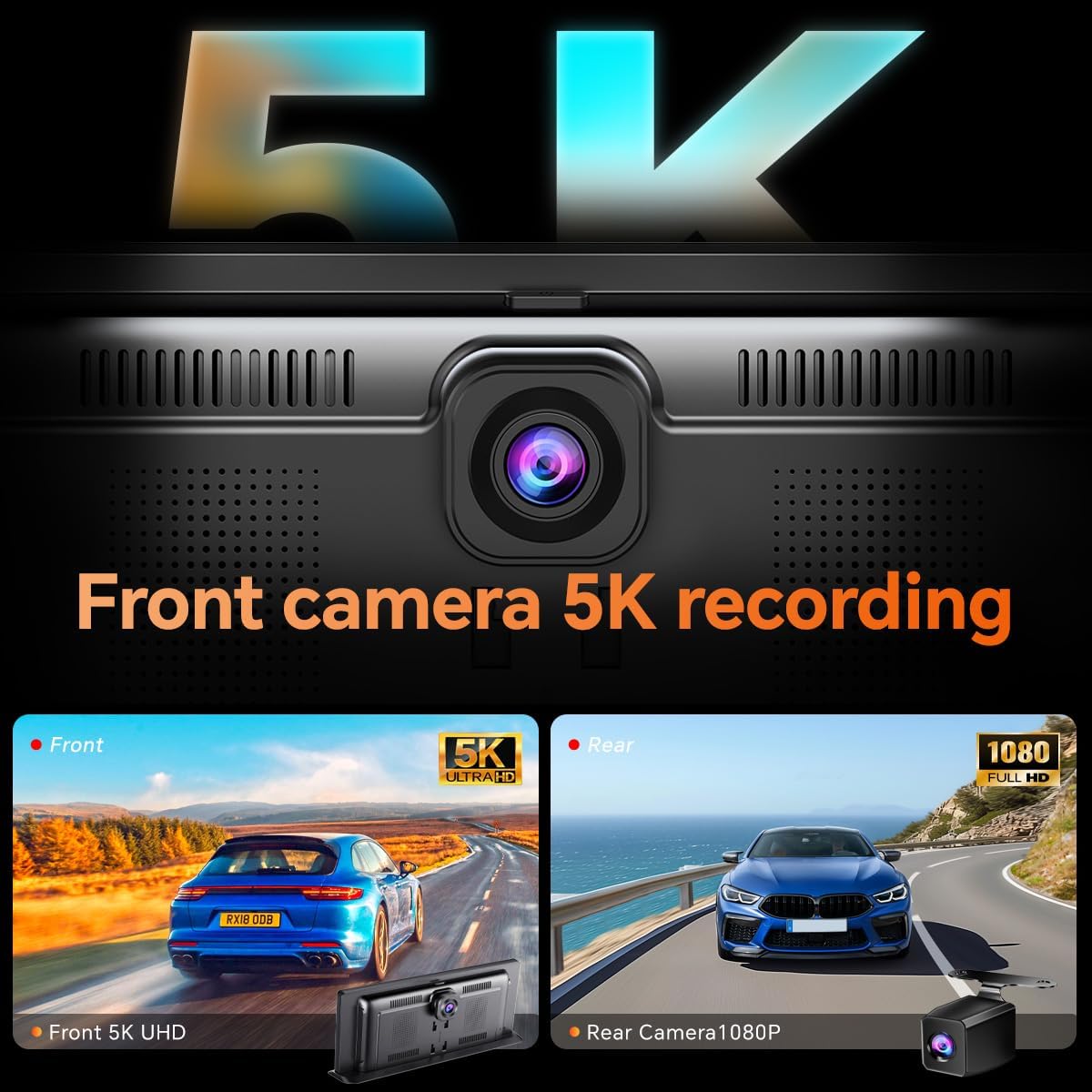
Image: A split view showing the high-resolution 5K recording from the front camera and the 1080P recording from the rear camera, capturing road scenes.
- Automatic Recording: The dash cam automatically begins recording when the device powers on.
- Loop Recording: Footage is saved to the TF card. When the card is full, the oldest unlocked files are overwritten.
- Emergency Recording: In case of a sudden impact or collision, the G-sensor will trigger emergency recording, locking the current footage to prevent it from being overwritten.
- Viewing Footage: You can view recorded videos directly on the K80 screen or by connecting the TF card to a computer.
- In-App Video Download: Connect your smartphone to the device via Wi-Fi to preview, playback, download, and share video footage using the dedicated mobile application.
4.4 GPS Navigation

Image: The K80 screen displaying a GPS navigation map with a highlighted route, estimated time, and distance, along with icons for calls, music, and Siri control.
- When connected to Carplay or Android Auto, use your preferred navigation apps (e.g., Google Maps, Waze) directly on the K80 screen.
- The external GPS antenna ensures precise real-time location and navigation.
4.5 Audio Output
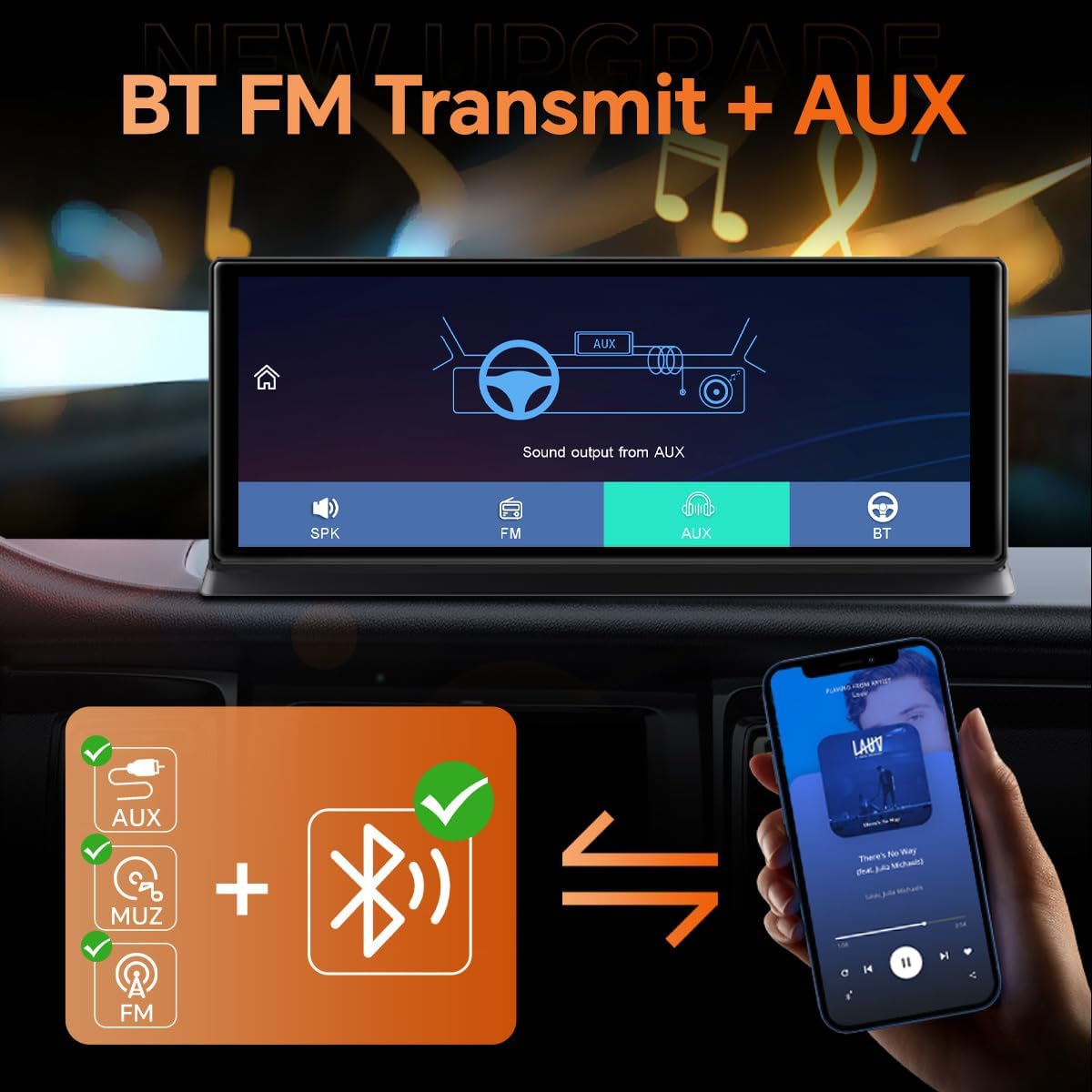
Image: The K80 screen showing options for audio output: internal speaker (SPK), FM transmission, AUX cable, and Bluetooth. A diagram illustrates the AUX connection to the car's audio system.
- AUX Cable: Connect the provided 3.5mm AUX cable from the K80 to your car's AUX input for high-fidelity audio.
- FM Transmitter: Select an unused FM frequency on the K80 and tune your car radio to the same frequency to transmit audio wirelessly.
- Bluetooth: Connect your phone to the K80 via Bluetooth for audio playback. The K80 can then output audio to your car's system via AUX or FM.
- Internal Speaker: The K80 has a built-in speaker for basic audio output.
4.6 Reversing Camera Display

Image: The K80 screen displaying a full-screen view from the rear camera, showing parking guidelines overlaid on a parking lot scene, indicating the system's reversing assistance feature.
- When the vehicle is shifted into reverse, the system will automatically display the rear camera feed in full screen on the K80.
- Dynamic parking guidelines may appear to assist with parking maneuvers.
4.7 Display Settings

Image: The K80 screen demonstrating the 'Customize Time Brightness' feature, showing different screen brightness levels for daytime (9:00), custom time (18:30), and nighttime (22:00) settings.
- Automatic Brightness: The screen can automatically adjust its brightness based on ambient light conditions.
- Custom Time Brightness: You can set specific brightness levels for different times of the day (e.g., brighter during the day, dimmer at night).
5. Maintenance
- Cleaning the Screen: Use a soft, lint-free cloth to gently wipe the touch screen. Avoid abrasive cleaners or solvents.
- TF Card Management: Regularly format the TF card (at least once a month) to ensure optimal recording performance and prevent data corruption. Back up any important footage before formatting.
- Firmware Updates: Check the manufacturer's website periodically for firmware updates to improve performance and add new features. Follow the provided instructions carefully for any update process.
- Cable Connections: Ensure all cables are securely connected and free from damage.
6. Troubleshooting
| Problem | Possible Cause | Solution |
|---|---|---|
| Device does not power on. | No power supply; loose connection. | Check if the car charger is properly plugged into the cigarette lighter and the device. Ensure the vehicle's ignition is on. |
| Wireless Carplay/Android Auto fails to connect. | Bluetooth/Wi-Fi issues; incorrect pairing. | Ensure Bluetooth and Wi-Fi are enabled on your phone. Forget the device in your phone's Bluetooth settings and re-pair. Restart both the K80 and your phone. |
| Dash cam not recording. | TF card full or corrupted; card not inserted. | Ensure the TF card is properly inserted. Format the TF card (back up data first). Check if loop recording is enabled in settings. |
| Poor GPS signal. | GPS antenna obstructed or disconnected. | Ensure the GPS antenna is securely connected and placed in a location with a clear view of the sky. |
| No audio output to car speakers. | Incorrect audio output mode; loose AUX cable; wrong FM frequency. | Verify the selected audio output mode (AUX, FM, Bluetooth) on the K80. Check AUX cable connection. Ensure car radio is tuned to the correct FM frequency. |
| Screen turns off/on intermittently. | Power supply instability; software glitch. | Check power connections for stability. Try restarting the device. If the issue persists, contact customer support. |
7. Specifications

Image: A diagram illustrating the physical dimensions of the K80 main unit, showing a length of 26.5cm and a height of 10.4cm.
| Feature | Detail |
|---|---|
| Model Number | K80 |
| Screen Size | 11.3 Inches |
| Display Type | HD IPS Touch Screen |
| Front Camera Resolution | 5K (4096 x 2304P) |
| Rear Camera Resolution | 1080P |
| Connectivity | Wi-Fi, Bluetooth |
| Special Features | Wireless Carplay, Android Auto, GPS Navigation, Loop Recording, Mirror Link, Voice Control |
| Storage | Supports TF Card (64GB included) |
| Product Dimensions | 10.39 x 0.95 x 4.17 inches (26.5 x 2.4 x 10.6 cm) |
| Item Weight | 2.97 pounds (1.35 kg) |
| Installation Type | Surface Mount |
8. Warranty and Support
For warranty information and technical support, please refer to the warranty card included in your product packaging or visit the official OBDPEAK website. If you encounter any issues not covered in this manual, please contact OBDPEAK customer service for assistance.

